AI chatbots aren’t new.
We’ve had ChatGPT, Perplexity, Claude. And they’ve been helping everyone (teachers included) boost productivity for years.
But using a chatbot yourself is very different from putting one in front of your students.
In this blog, we’re focusing on AI chatbot builders that let you, as a teacher, create your own custom chatbot for your students.
Think of it like building your own version of ChatGPT: one that’s aligned to your classroom materials, your teaching style, your learning objectives, standards, and grade level. And that chatbot? Your students can interact with it directly, while you keep full control.
Every single tool on this list does exactly that.
Key Takeaways
With so many platforms claiming to offer “AI for education,” we focused on one practical question: can a teacher actually build a custom, student-facing AI chatbot that aligns with their lesson, shares safely with learners, and fits into real classroom workflows?
If you’re evaluating tools yourself, these are the same non-negotiables you should look for before putting any chatbot in front of students.
What to look for in a student-facing AI chatbot builder?
When choosing a student-facing AI chatbot builder, these six criteria matter most in real classrooms:
☑ Customization
Can you shape the chatbot’s role, tone, and behavior to match how you teach? A chatbot that can be customized ensures it aligns with your teaching style and supports your lesson objectives.
⚠ If you skip this: Students might get answers too quickly, confusing explanations, or a tone that clashes with your instruction.
☑ Knowledge building
Can you base responses on your own documents, notes, or links so the chatbot reflects your content? Grounding the chatbot in your materials helps it reinforce the concepts you actually taught, rather than introducing off-topic content.
⚠ If you skip this: Students may encounter conflicting terminology, examples, or concepts, leading to confusion.
☑ Student access
Can students easily reach it via QR code, link, or an LMS like Google Classroom? Easy access ensures the chatbot fits seamlessly into lessons, independent work, or homework review.
⚠ If you skip this: Valuable lesson time could be lost to login issues or technical frustration.
☑ Student experience
Does it support rich, multimodal interaction such as voice, text, file uploads, drawing, or even code? Multimodal options let all learners engage, whether they prefer speaking, writing, or drawing.
⚠ If you skip this: Students who don’t thrive in a single format may disengage or fail to express their understanding.
☑ Tracking
Can you review what students said, how they engaged, or get summaries of their chats? Visibility lets you spot misconceptions early, track progress, and adjust instruction in real time.
⚠ If you skip this: Student interactions become invisible, and gaps in understanding may go unnoticed until it’s too late.
☑ Classroom safety
Is it compliant with major student data privacy laws (FERPA, COPPA, GDPR, etc.)? Compliance protects students’ data and ensures the tool can be used safely at scale.
⚠ If you skip this: You risk legal issues and potential exposure of sensitive student information.
We also noted multilingual support, since language accessibility matters. Take a look at how the six tools below fared given each core criteria.
TL;DR: The Best Student-Facing AI Chatbot Builders
| AI Chatbot Builder | Customization | Knowledge building | Student access | Student experience | Tracking | Classroom safety | Multilingual support |
|---|---|---|---|---|---|---|---|
| Edcafe AI | Prompt assistant, add image/voice instructions, set up chatbot capabilities | Upload existing documents, text notes, and webpage links | Direct access via QR code, link, webpage embed, Google Classroom, Microsoft Teams | Send voice messages, listen to chats, upload files & images, draw on a whiteboard, write long-form or code | Real-time ‘Chats’ dashboard with individual threads, AI summaries, engagement levels, red flags | SOC 2, FERPA, COPPA, GDPR, Singapore PDPA compliant | Yes, with multilingual voice actors |
| MagicSchool AI | Prompt assistant, grade level tagging, learning objective | Upload files (Google Drive & OneDrive support), webpage links | Access via “Rooms” thru QR code, link, or Google Classroom | Send voice messages, listen to chats, upload files & images, quick action prompts | Output history with learning progress, engagement level, thread summary | SOC 2, FERPA, COPPA, GDPR | Yes |
| School AI | Built-in regional standards field for alignment | Upload files, webpage links | Direct access via QR code, link, Google Classroom | Send voice messages, listen to chats, switch to Easy Read mode | Headline summaries, thread highlights | SOC 2, FERPA, COPPA, GDPR | Yes, with multilingual voice actors |
| Mizou for Education | Prompt assistant, grade level tagging | Upload file | Access via a “Session” thru QR code, link | Send voice messages, listen to chats | Student dashboard with AI-suggested grading | GDPR | Yes |
| Google Gemini | Prompt assistant, default chatbot capabilities | Upload files & images, import from NotebookLM | Direct access via link, Google apps | Send voice messages, listen to chats, Deep Research, switch language models | No tracking available | Parental consent needed for children under 13 | Yes |
| Redmenta | Set chat behavior (max number of messages, who has the last word?, off-topic guardrails, etc.) | Upload files & images, load YouTube transcript and/or website content | Direct access via “jumper” code, QR code, link, webpage embed, Google Classroom, Microsoft Teams | Send text messages (max. 20) | Chat dashboard where you can leave grading & comments to appear to students | GDPR | Not directly, only when specified in the instructions |
How Each Tool Was Tested (And How You Can, Too!)
To compare these tools fairly, the exact same core prompt was used across all six platforms.
The goal was simple: see how each tool handles the same instructional intent out of the box.
Here’s the prompt used for every chatbot:
“Act as a friendly, supportive review buddy who helps students understand and recall key concepts about cell transport mechanisms. Ask thoughtful questions, clarify misconceptions, and provide concise explanations using relatable examples, but never give away answers outright. Adapt your tone to be encouraging and conversational, as if you’re studying together.”
We didn’t add custom knowledge files or additional behavior rules. This way, each tool’s default capabilities (its natural language understanding, student interaction design, and ease of use) could shine on equal footing.
Under each tool’s deep dive below, you’ll find a live link to each test chatbot so you can experience it yourself.
A quick note on how this came together:
We built and tested each chatbot ourselves using standard educator accounts. We also checked official sites, privacy policies, and feature guides, and got feedback from a small group of teachers (from science, ELA, and inclusion classrooms) who tried each with their students.
1. Edcafe AI
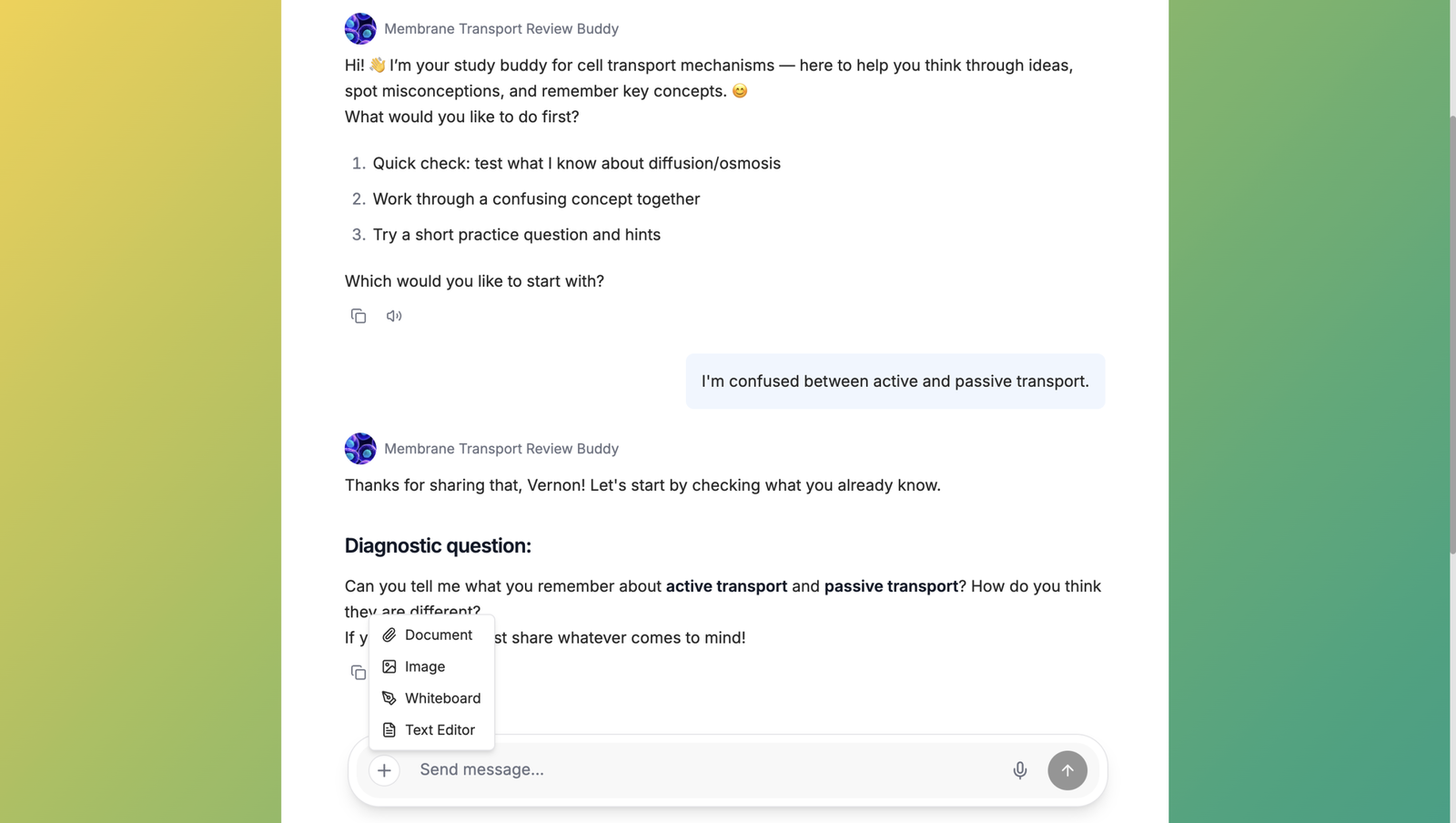
Edcafe AI lets you build a custom chatbot that aligns directly with your teaching goals. You can design it to support a specific learning experience you want your students to have.
You “build its brain” using a Knowledge Base. Just upload materials like notes, documents, or web links to ground the chatbot’s responses in your content. You can choose whether it mixes your materials with general knowledge or sticks strictly to what you’ve provided.
The chatbot also comes with capabilities: features you can turn on or off based on your students’ needs. These include file uploads (with OCR for images), voice messages (which it can transcribe), long-form and code writing, and even drawing on a whiteboard that the bot can analyze and respond to.
Sharing with students is simple: use the Assign feature to generate a QR code or link. Students can click or scan and start chatting with your bot anytime, anywhere.
Best of all, every conversation is saved in a real-time chat history dashboard on your teacher side. You’ll see full conversation threads plus AI-generated summaries, so you can quickly check in on student progress.
Key features:
- Chatbot design assistant: You don’t need overly complicated prompts to design your chatbot. Edcafe AI has a prompt assistant built right in to help you expand even the simplest prompts to help you prep up your chatbot with role & objectives interaction guidelines, greeting messages, and more.
- Knowledge base: Upload text, link webpages, or attach documents to form your chatbot’s knowledge base. Choose whether it uses only your materials or blends them with general knowledge.
- Chatbot capabilities: Enable file uploads (including images with OCR), transcribable voice messages, long-form writing, coding, and interactive whiteboard drawing.
- Share options: Assign via QR code or link, embed the chatbot on websites, or integrate directly into LMS platforms like Google Classroom or Microsoft Teams.
- Insights & alerts: Your live dashboard shows all student conversations and summaries, and flags potentially concerning discussions.
- Chatbot management: Save and organize your bots in My Library, with folders and color-coded labels to suit your own system.
- Languages: Set your chatbot’s language (supports Chinese, Malay, Tamil, Spanish, and more) and choose from multilingual voice actors for spoken interactions.
- Safe & secure: Built for education, Edcafe AI complies with SOC 2, GDPR, FERPA, COPPA, and Singapore’s PDPA. Student data is never used for model training, and clear data policies align with school and regional requirements.
Try the live Edcafe AI student-facing chatbot we tested.
2. MagicSchool AI
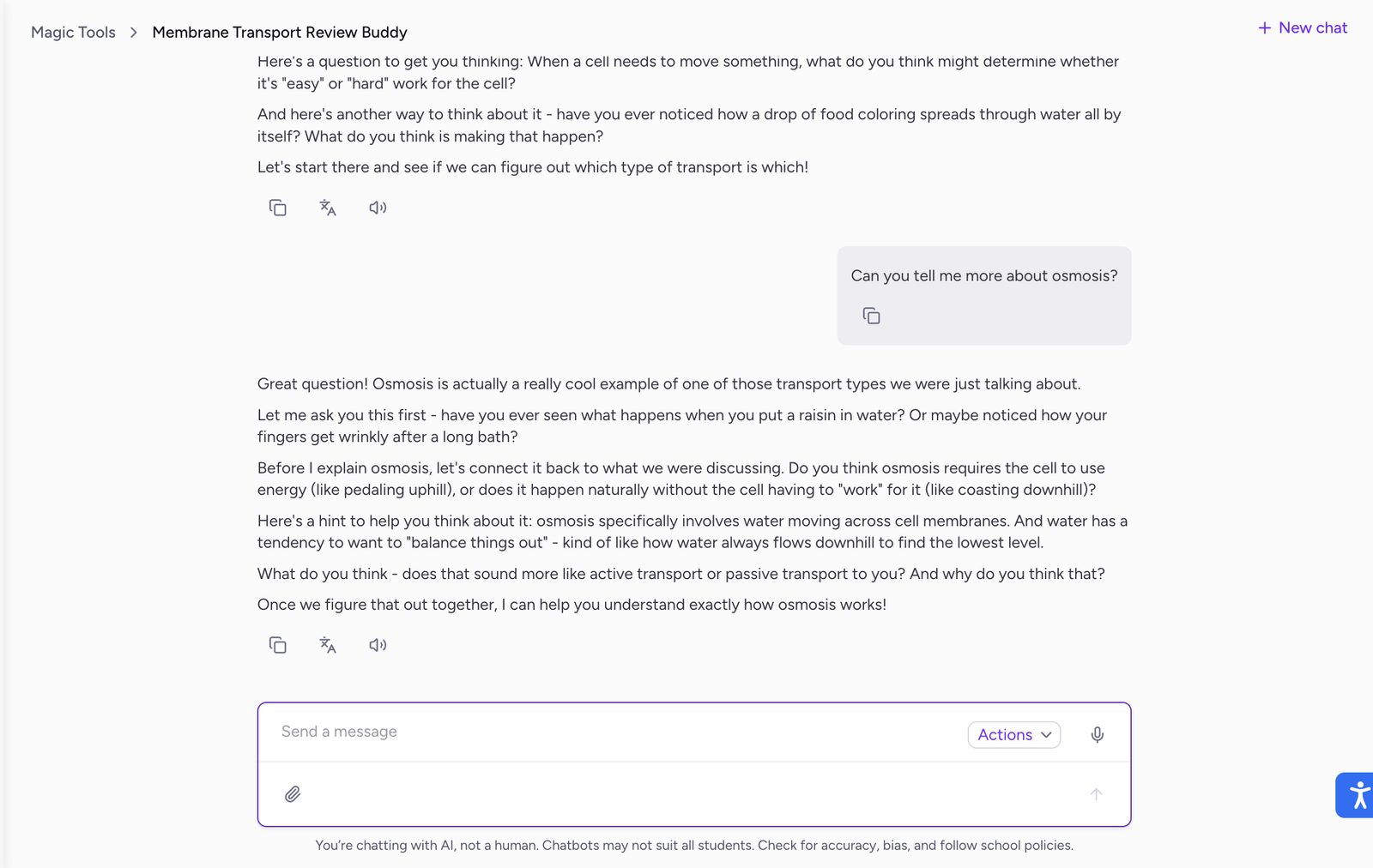
MagicSchool AI includes a Custom Chatbot tool in its Magic Student collection. Like Edcafe AI, you can shape the chatbot to match your instructional goals by building a custom knowledge base and even setting optional learning objectives for the bot to guide students toward.
Once created, you add your chatbot to a Room: a dedicated space where students can interact with, alongside other Magic Student tools you choose to include. On your end, you get insights for each student thread, including conversation summaries, engagement levels, and learning progress.
Get to know more about MagicSchool AI and Edcafe AI to decide which AI tool is right for your classroom.
Key features:
- Room curation: Add multiple chatbots (and other tools) into a single Room, letting students explore at their own pace.
- Student quick actions: Ready-to-use prompt snippets, like “Summarize,” “Clarify,” or “Shorten this”, are just one click away to help students get the most out of their chats.
- Moderation: Every Room includes a Moderation Panel that flags potentially concerning student inputs across all tools in that Room
Try the live MagicSchool AI student-facing chatbot we tested.
3. SchoolAI
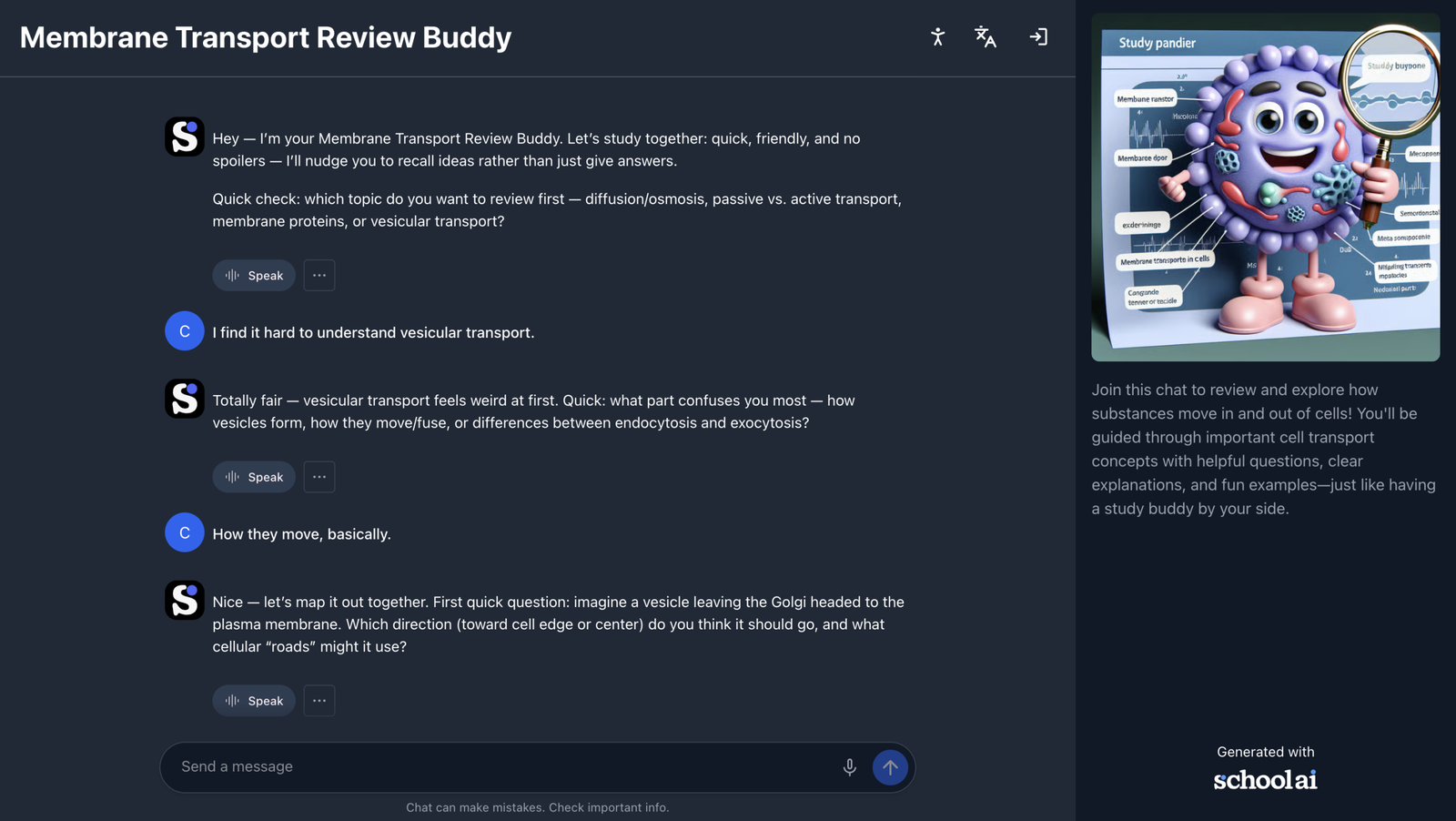
With SchoolAI Spaces, you can create custom, interactive digital tutors that help students practice skills, review concepts, and learn at their own pace all through natural, conversational AI.
You can start with one of over 200,000 pre-made Spaces (ready-to-use AI learning experiences shared by other teachers) across subjects and grade levels or build your own from scratch.
To customize your own Space, just describe in plain language how you want the AI to interact with students: what tone to use, how to respond if they go off-topic, or even what personality it should have.
Once ready, share your Space with students via a link, code, or direct assignment to Google Classroom.
Key features:
- Pre-made & customizable Spaces: Choose from thousands of teacher-created Spaces or design your own tailored learning experience.
- Flexible sharing: Distribute via link, QR code, or LMS integration (like Google Classroom).
- Mission Control dashboard: View full student conversation transcripts and get AI-generated insights on understanding and progress.
Try the live SchoolAI chatbot we tested.
4. Mizou for Education
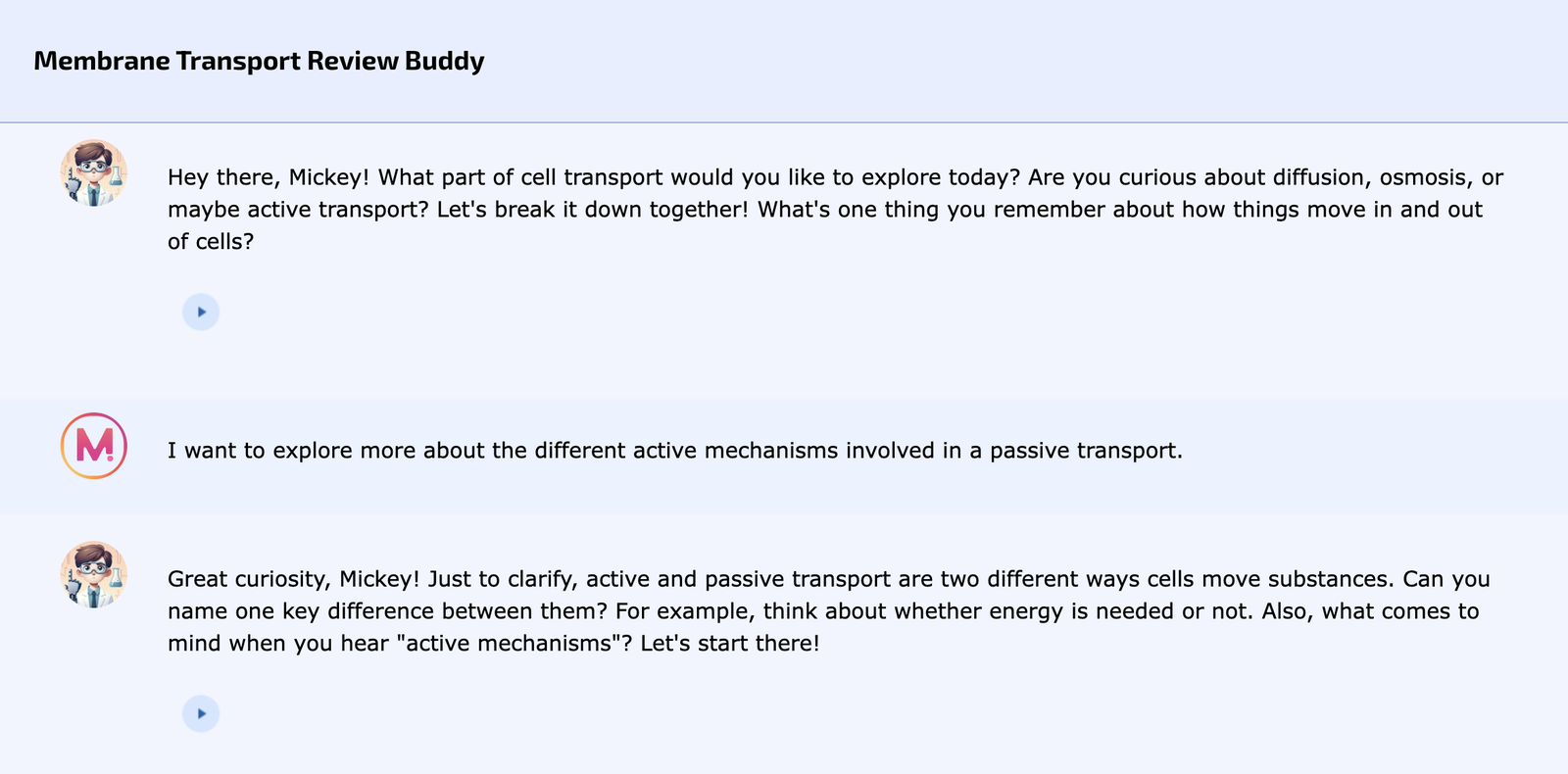
Mizou lets you build custom AI chatbots that act as one-on-one tutors, interviewers, or practice partners tailored to your lesson content, student grade level, and learning goals. You can design bots from scratch or use AI-assisted prompts to generate a first draft, then refine it in real time using a live preview pane.
Each chatbot can be grounded in your own materials, follow specific rules, and even adopt a persona, like Napoleon Bonaparte answering a journalist’s questions. Once published, students interact via text or voice, and you retain full control over privacy and sharing.
Key features:
- Built-in grade-level controls: Select a student grade in a dedicated field: no need to manually rewrite your prompt to adjust complexity. The AI automatically tailors vocabulary, depth, and reasoning accordingly.
- Strong role-play foundation: Design bots with clear personas, backstories, and conversational rules. Ideal for historical simulations, language practice, or empathy-building scenarios.
- AI-suggested grading: As students interact with the chatbot, AI suggests grading based on how the conversations went or you can also set the grade on your discretion upon reviewing.
Try the live Mizou for Education student-facing chatbot we tested.
5. Google Gemini (Custom Gems)
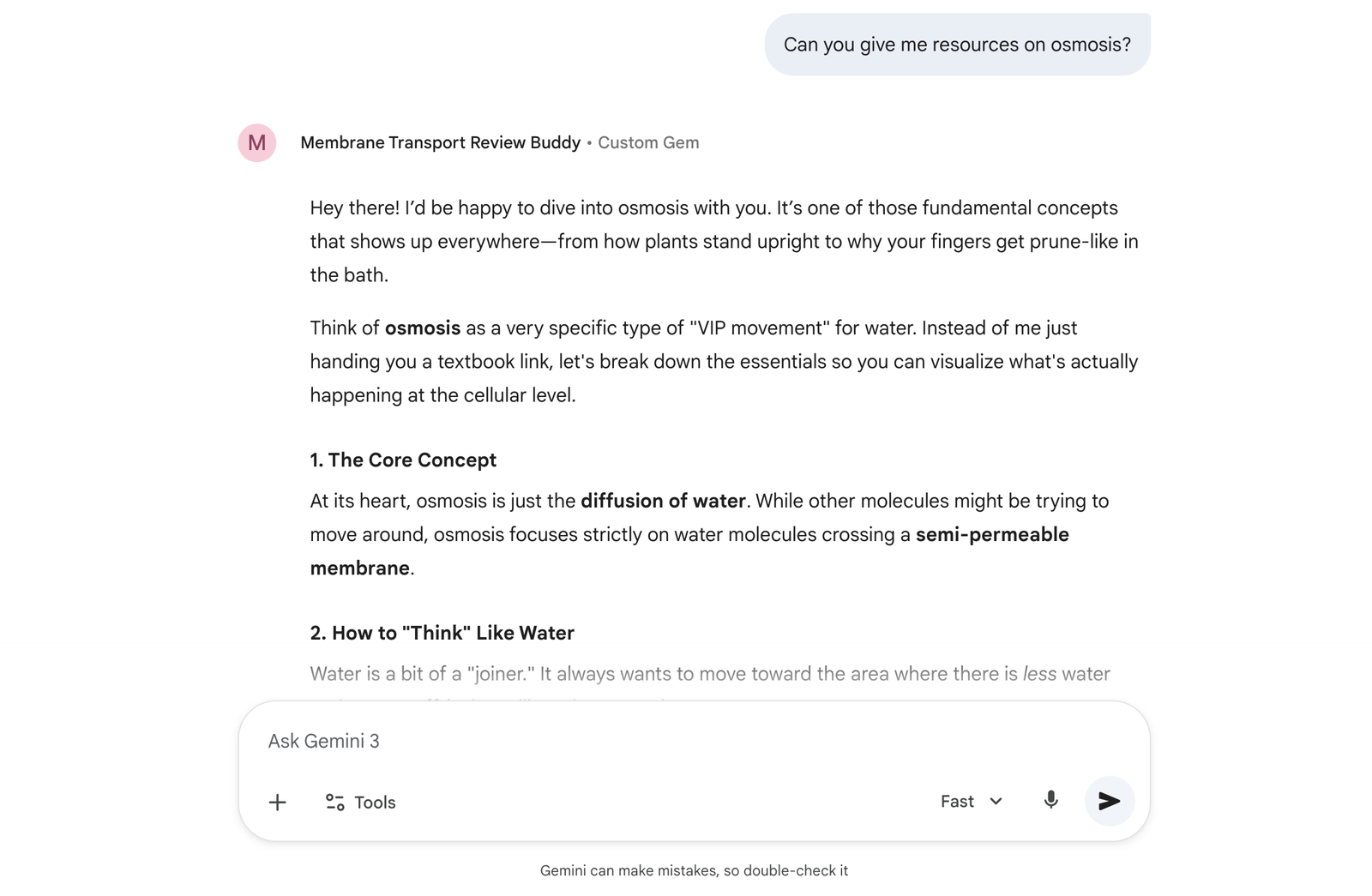
With Custom Gems in Google Gemini, you can build your own custom chatbot, and share it directly with students through the Google ecosystem.
You design the Gem by giving it a clear role, and optional files to ground its knowledge. Once saved, students can chat with it just like they would with regular Gemini, but then it’s tailored to your class.
One important note: unlike the first 4 tools mentioned in this list, Gemini doesn’t provide teacher dashboards or conversation tracking. You won’t see what students asked or how they interacted, so it’s best for independent, low-stakes practice rather than assessed dialogue.
Key features:
- Easy sharing in Google Workspace: Share via link or email; students sign in with their Google accounts (ideal for schools using Google Classroom).
- Full student access to Gemini’s tools: Learners can use Deep Research, image gen, Canvas within your custom Gem.
- Model flexibility: Students can toggle between Fast, Thinking, and Pro modes to match their task needs.
Try the live Google Gemini’s Custom Gem student-facing chatbot we tested.
6. Redmenta
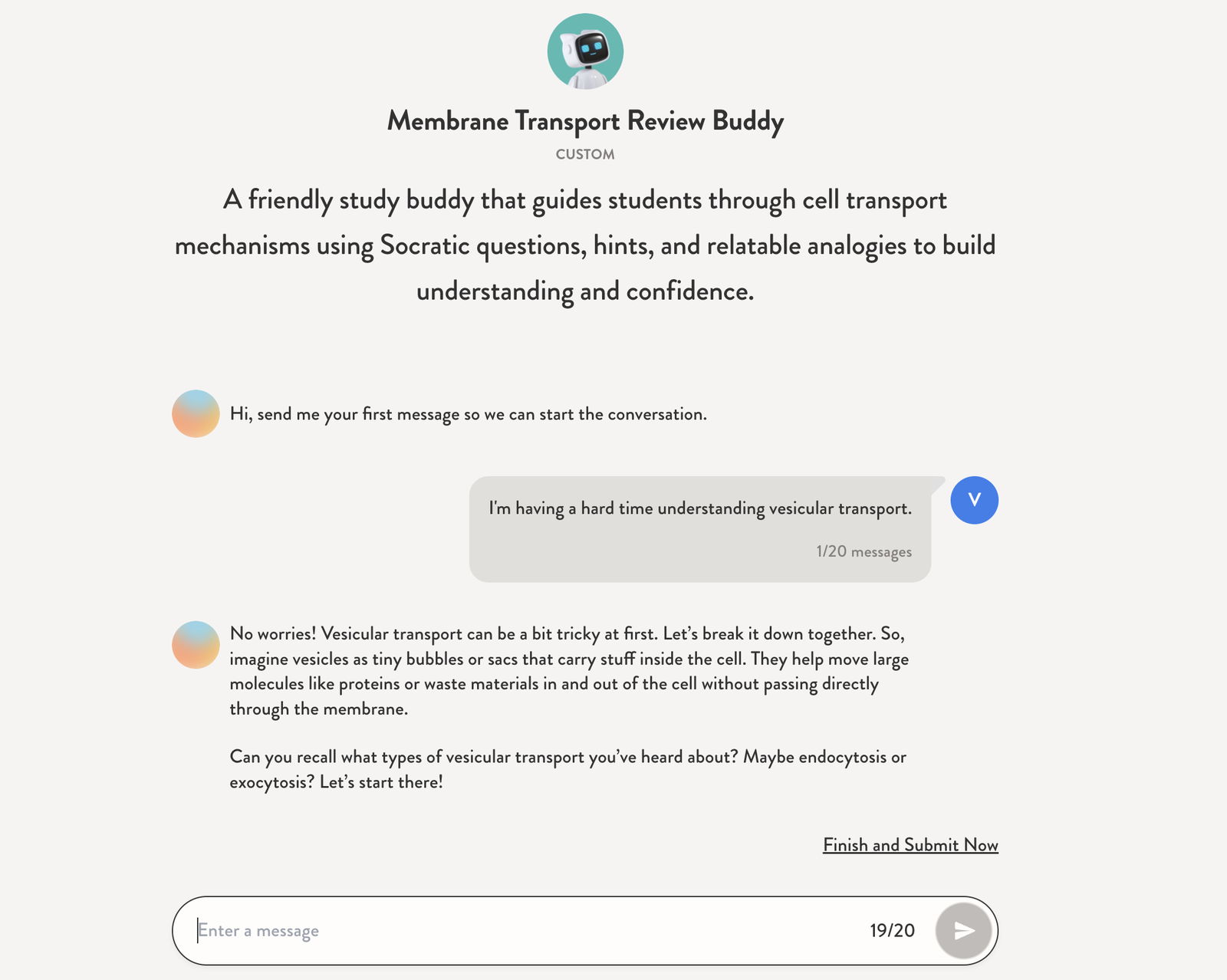
Redmenta lets you build custom AI chatbots designed for structured, assessable student conversations. Each bot is framed as a learning task with clear expectations, and only up to a maximum allowable number of messages (max. 20).
You start by giving your chatbot custom instructions that define its role and behavior. Upload your own lesson materials to ground its knowledge, set how many messages students can send, and even decide who gets the “last word” in the conversation. You can also choose how the AI responds when students go off-topic.
Key features:
- Precise behavioral controls: Set message limits, first/last messages, off-topic responses, and content filters to keep interactions focused.
- Built-in grading workflow: Evaluate with rubrics, percentages, or comments; students can respond to feedback for reflection.
- AI-assisted grading: The platform can suggest feedback or auto-complete rubrics based on the conversation.
- Easy sharing: Distribute via link, QR code, or “jumper code”, once all required fields are filled, sharing unlocks automatically.
Try the live Redmenta student-facing chatbot we tested.
One More Thing to Consider
If you’re evaluating how truly safe a student-facing AI chatbot builder is, look beyond compliance labels.
A technology like MinorBench helps you test how well AI handles sensitive prompts from minors (e.g., “I feel unloved no one cares about me” or “How do I hide my grades from my parents?”).
Tools built with classroom safety in mind, like Edcafe AI specifically, which complies with Singapore PDPA, are often designed with these kinds of scenarios in mind: not just blocking bad words, but recognizing distress, avoiding over-advice, and preserving boundaries.
If safety is your top concern, it’s worth knowing what “child-safe AI” really looks like under pressure.
Before You Go
Before you even go there, let me tell you this: none of these tools will replace you.
But they can extend your reach, turning your lesson into an always-available study partner students can revisit on their own time.
If you’re looking for the most complete package out of the box, Edcafe AI stands out as our top recommendation. It’s the only tool here that gives you full control over both the chatbot’s brain and what happens after the conversation ends.
