Managing classes can be a handful.
The good thing is when you bring your classes to PowerPoint with ClassPoint, class management becomes way easier. And most can attest to this.
A lot are curious, though, about how you can make the most out of a ClassPoint private class, one of the two types of classes you can create in ClassPoint.
And in a recent webinar attended by eager educators, we’ve delved into this, showing exactly how a private class in ClassPoint lets you set up once and gamify learning all throughout.
In this blog, let’s cover the same but in a step-by-step way, so you can create your own private class in ClassPoint, add students, award persistent points, and track progress without resetting your setup every lesson.
Key Takeaways
- One setup, whole semester – Create your ClassPoint private class once with a custom code and reuse it all term.
- Exclusive access – Only pre-registered students can join using their exact registered name.
- Points carry over – Stars and badges accumulate across sessions, fueling long-term motivation.
- Manage anywhere – Set up and edit your private class in ClassPoint via the web app (app.classpoint.io).
- Real-time gamification – Award or deduct stars during class; display live leaderboards to spark healthy competition.
- Persistent data – All reports, star history, and participant progress stay neatly organized under your private class in ClassPoint.
- Groups – Cluster students into teams that collect stars collectively for semester-long challenges.
- Reset when needed – Clear star totals at term’s end or delete the class.
Public Class vs. Private Class in ClassPoint: Know the Difference
Before setting up your private class in ClassPoint, understand how it differs from a public class:
| Feature | Public Class | Private Class in ClassPoint |
|---|---|---|
| Class Code | Random, changes every session | Unique alphanumeric code you set once |
| Access | Anyone can join with the code | Only pre-registered students can join by default, unless guests are allowed |
| Points System | Stars reset each session | Points and badges accumulate across all sessions |
| Best For | One-off workshops or guest sessions | Semester-long courses with the same students |
A ClassPoint private class is ideal for teachers running recurring classes with the same group. You set it up once, and it works until you want it to.
Step 1: Create Your Private Class via Web App
You can create a private class in ClassPoint directly from the web app.
- Go to app.classpoint.io and log in with your ClassPoint account
- Click Classes in the left menu
- Select Create New Class
- Fill in:
- Class Name (e.g., “Grade 7 Science”)
- Class Code (4-8 alphanumeric characters, e.g.,
SCI7A23) - Optional: Upload a custom class avatar
- Click Save
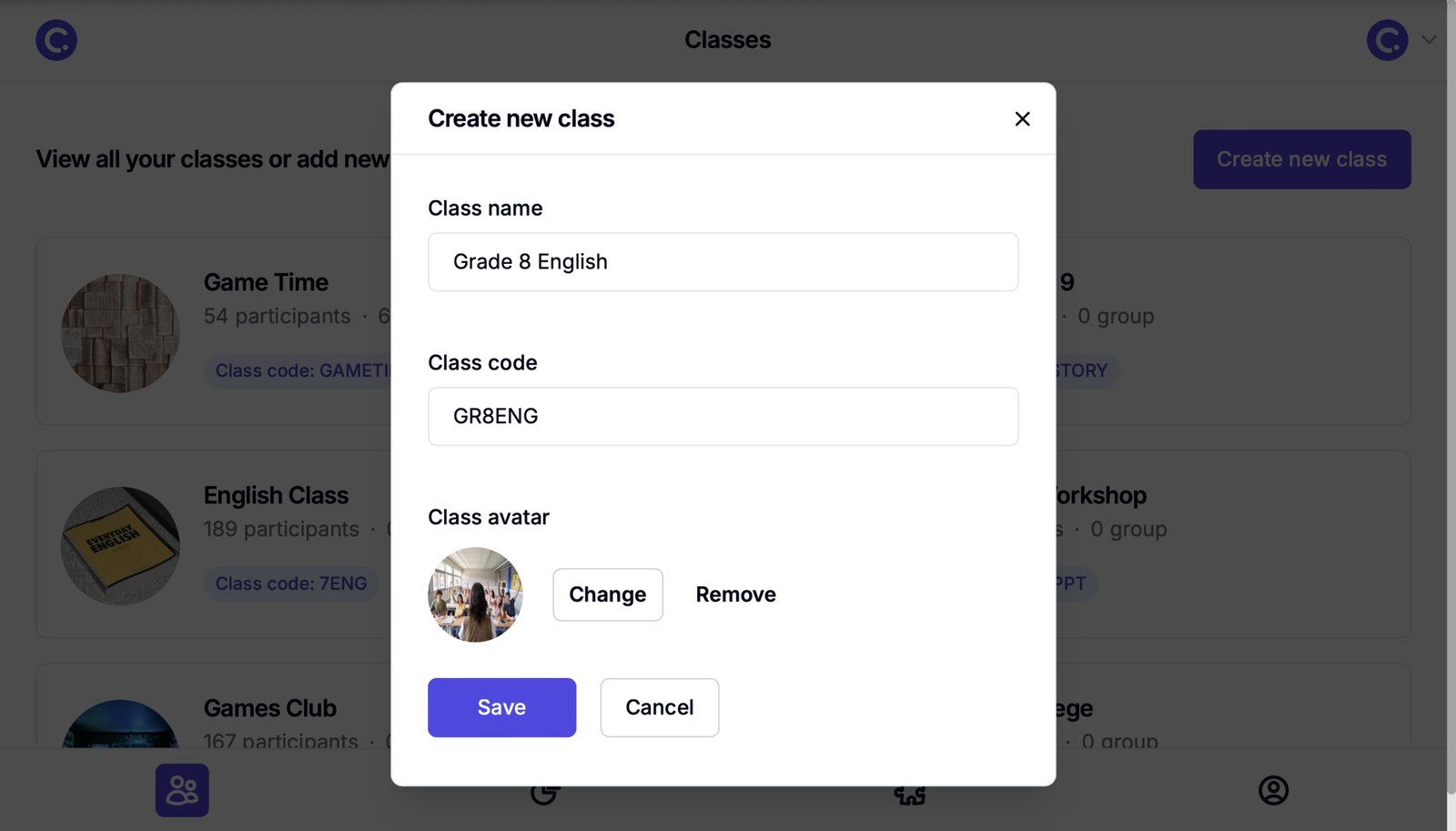
Pro Tip: Choose a class code that's easy for students to type.
Step 2: Add Your Students to the Private Class
Once your private class in ClassPoint is created, populate it with student names:
- Inside the ClassPoint Private Class you just created, click Add Participants
- Enter names (one per line) or simply paste a list from another source like Excel/Google Sheets
- Click Next, review the list, then Confirm
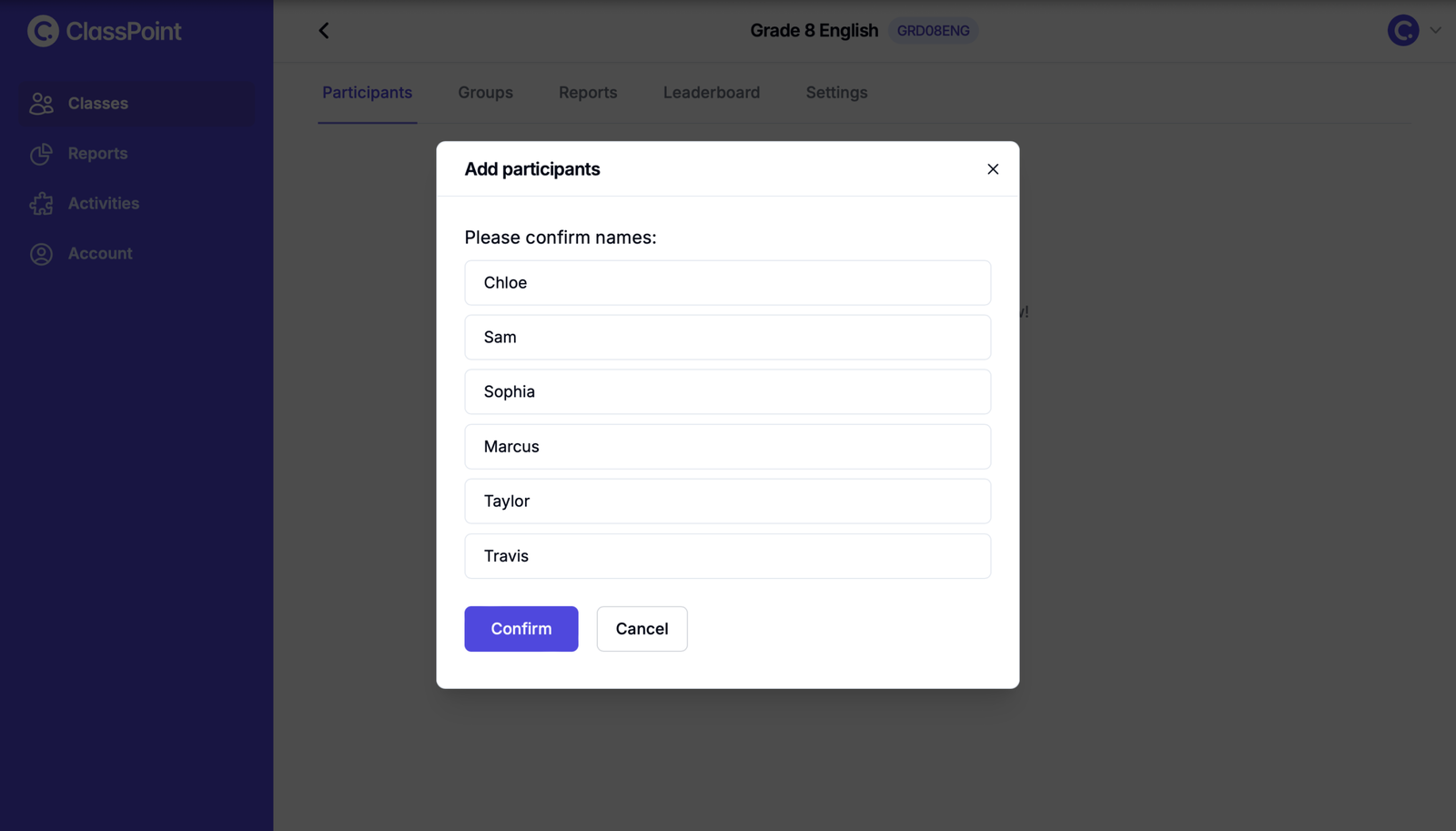
Important: Students must join class sessions using the exact name you registered. For long names, abbreviate strategically to make login faster while maintaining uniqueness.
Step 3: Launch Your Private Class from PowerPoint
Now bring your private class in ClassPoint into your lesson:
- Open your PowerPoint lesson file and enter Slide Show mode
- Click the class code shown in the top-right corner of your slide
- Select Change Class
- Find your private class (e.g.,
SCI7A23) and click Start New Class
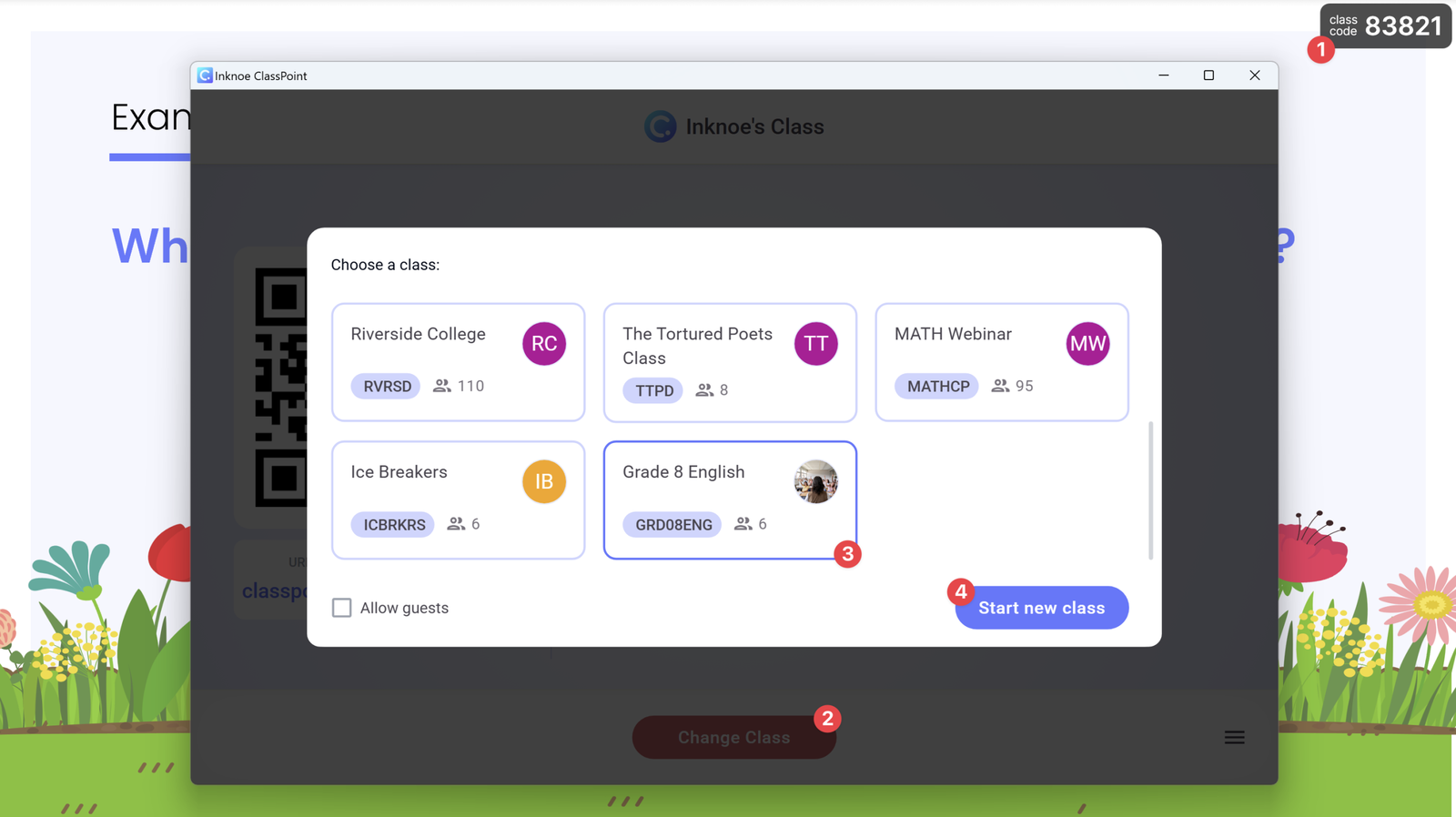
Your class is now live. Students can join by:
- Scanning the QR code available, or
- Visiting classpoint.app, entering your class code, and typing their pre-registered name (exact match only!)
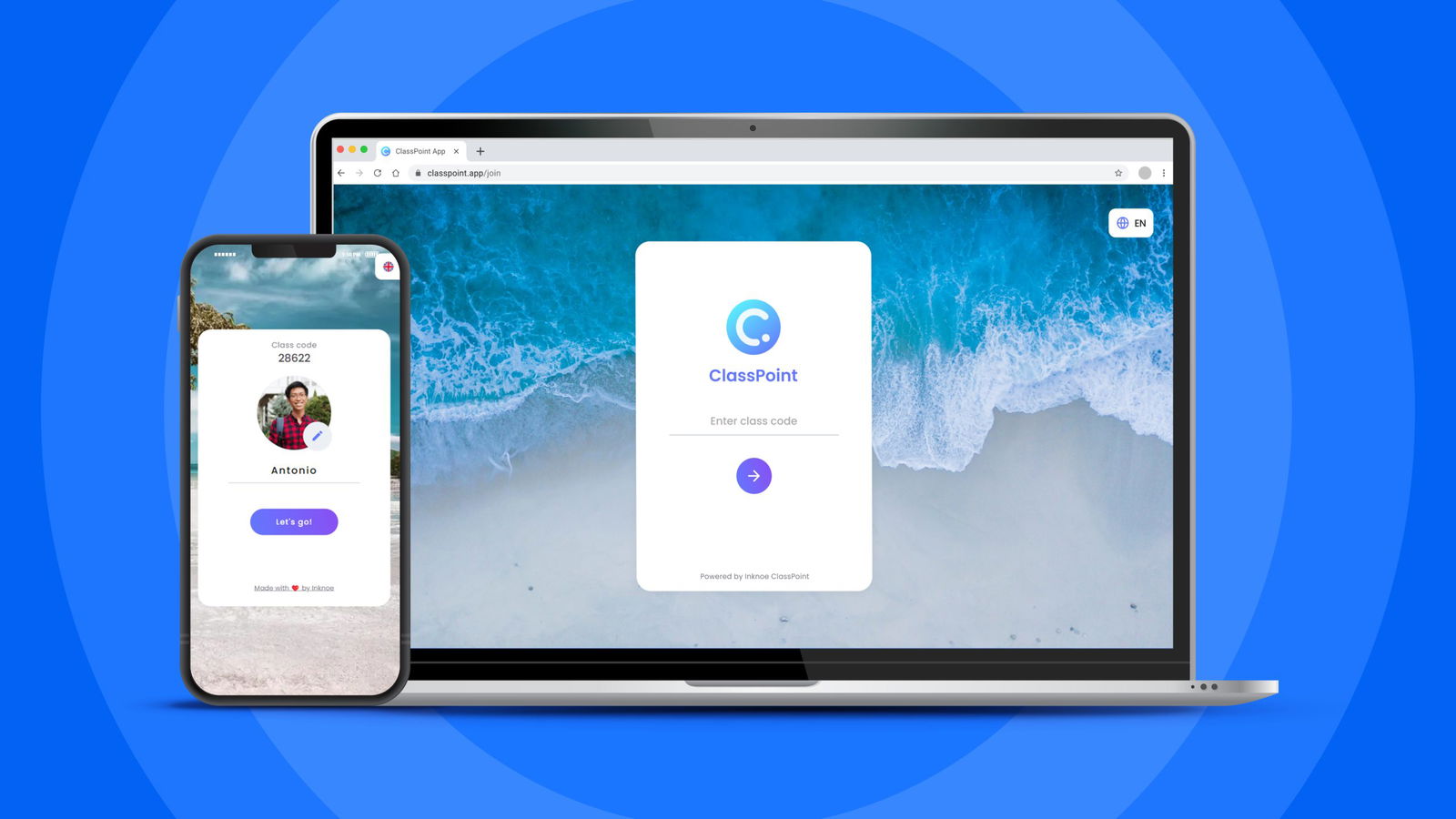
Bonus: Devices remember student names after first login, so no re-typing required in future sessions!
Step 4: Gamify Learning with Persistent Points & Badges
This is where private classes in ClassPoint truly shine: gamification that builds over time.
Award and Deduct Stars in Real Time
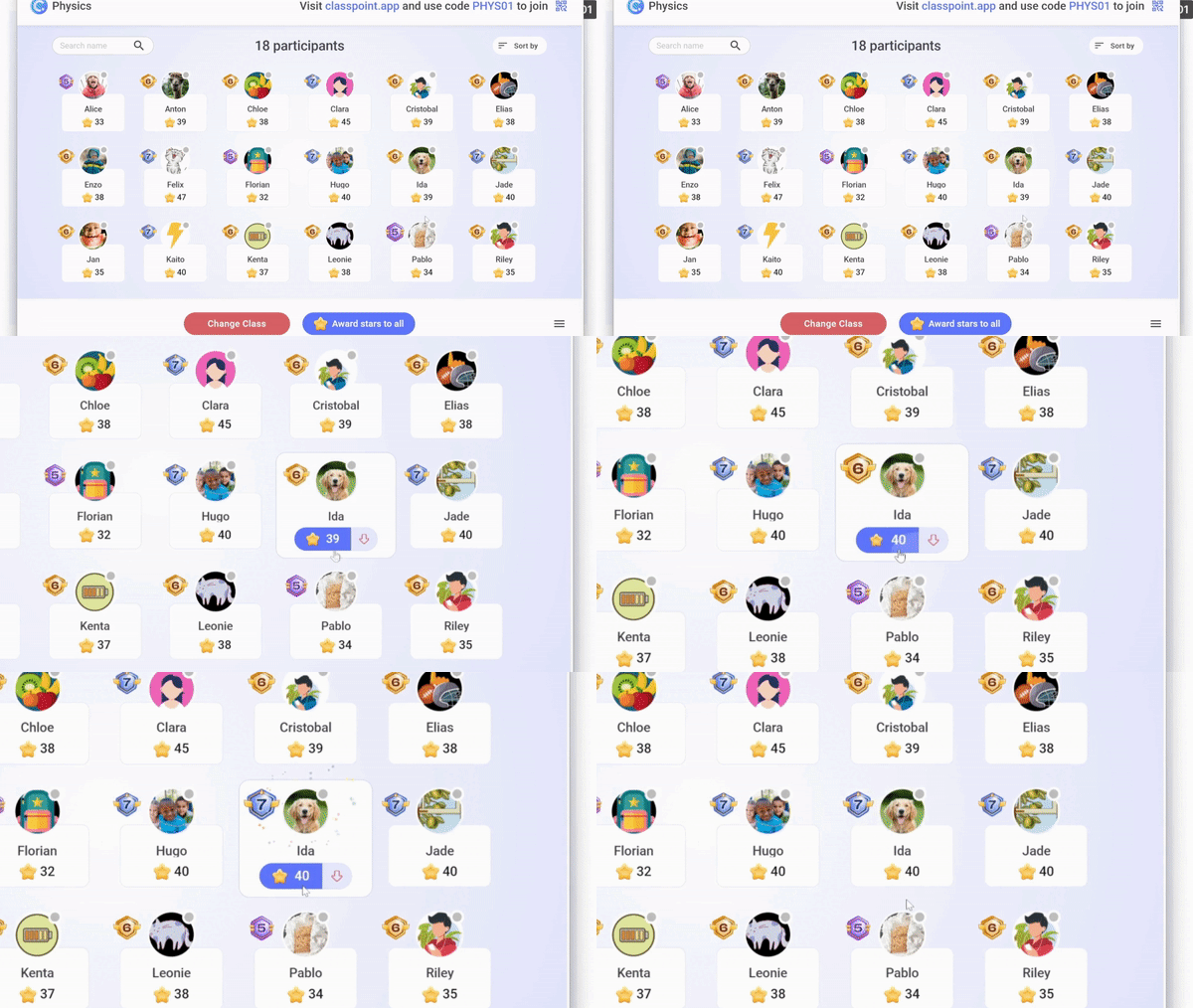
- Click the class code during your lesson → select a student → +Star or –Star
- Use stars to reward participation, correct answers, or just simple contributions
- Deduct stars for off-task behavior (optional but effective)
Watch Badges and Levels Unfold
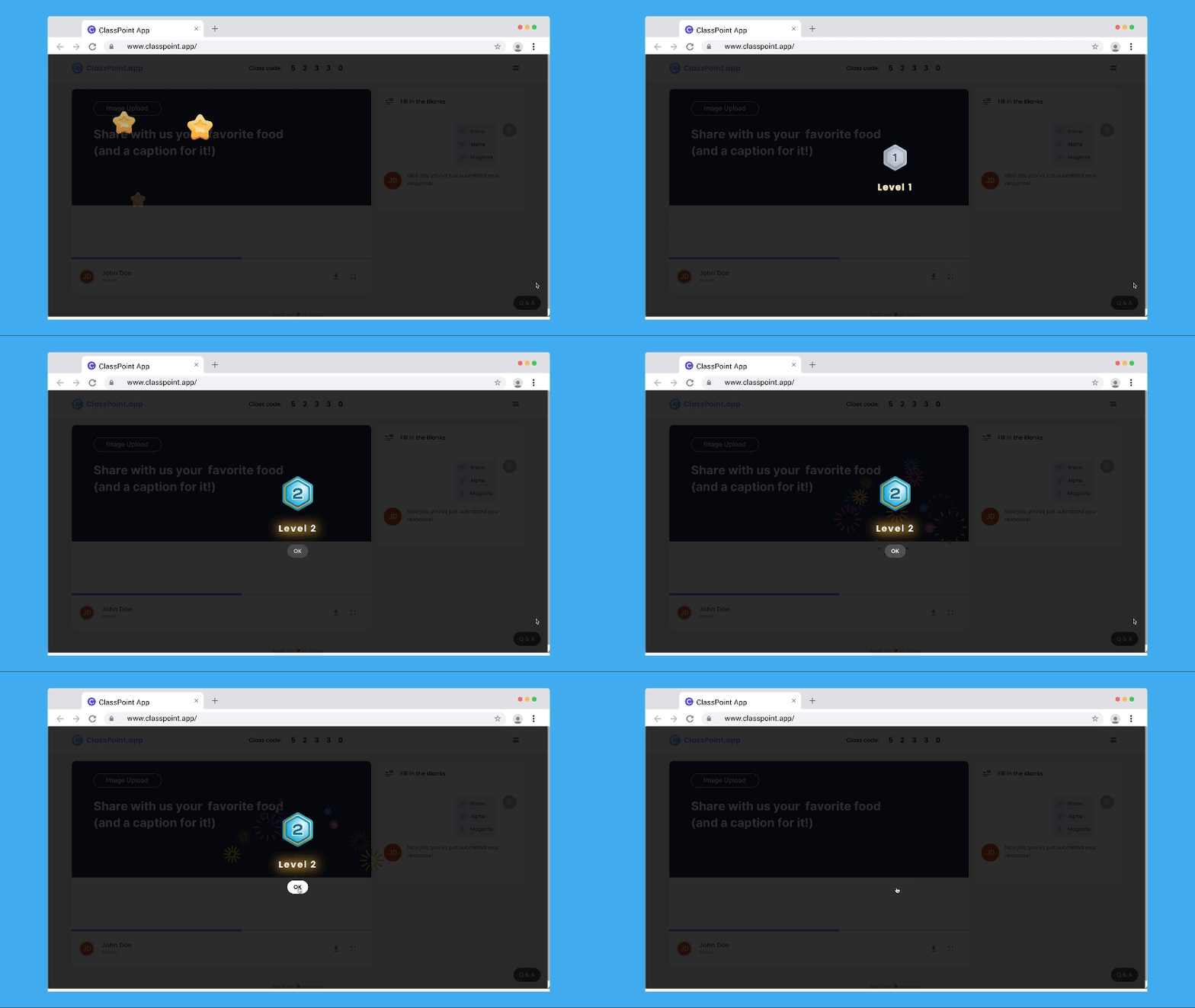
As students collect stars in your private class in ClassPoint, they automatically:
- Level up with visual badges
- See progress grow session after session
- Stay motivated by long-term achievement
Display the Leaderboard
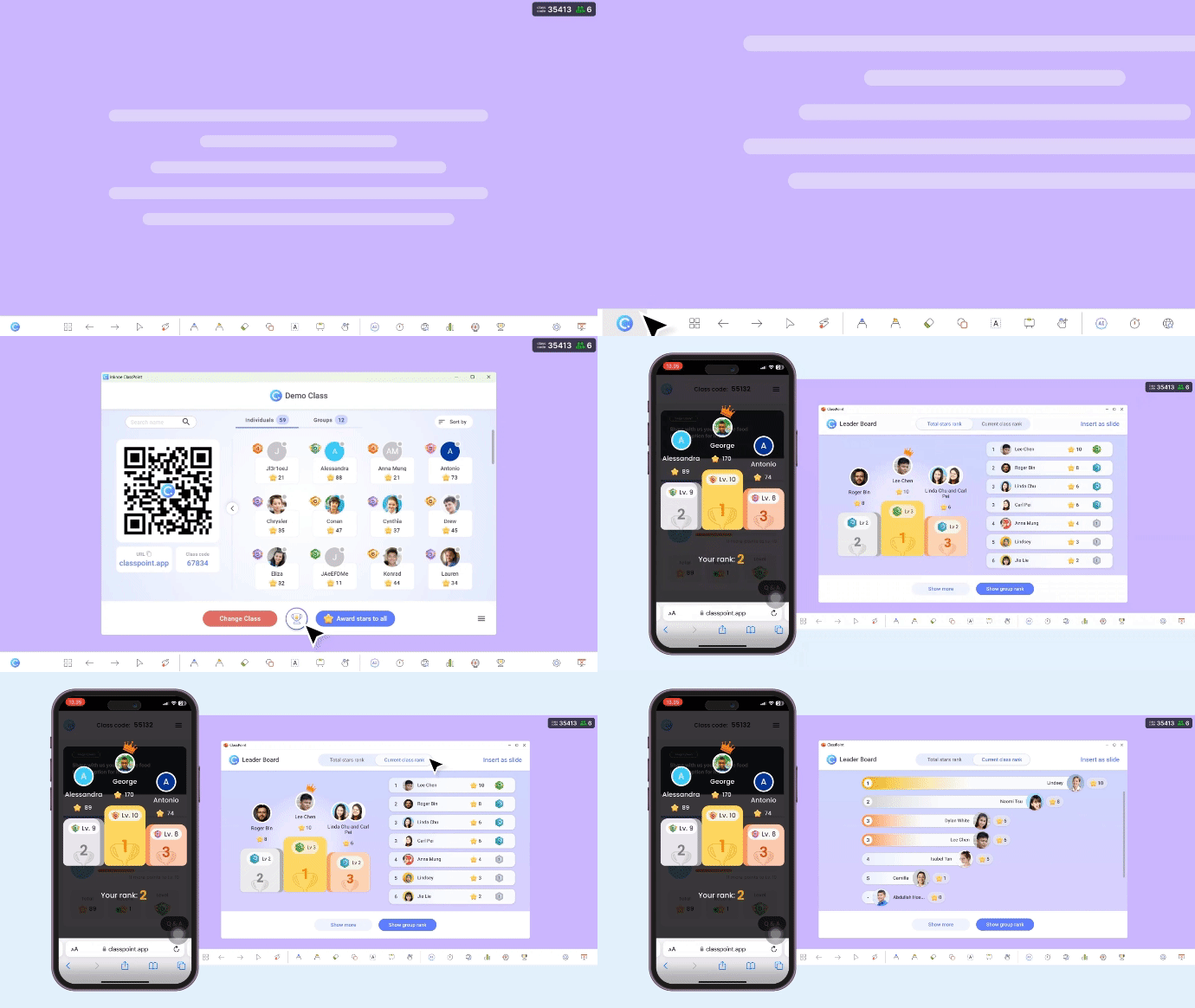
Spark healthy competition by showing live rankings:
- Click the Leaderboard icon in your toolbar during class
- Toggle between Current Session rank and Total Stars rank (accumulated across all sessions)
Why it works: Because points persist in a ClassPoint private class, students care about their standing both currently and overall, so it’s good motivation to see where they stand either way!
Step 5: Review Progress with Class Reports
After class ends, you can measure student engagement without having to reopen PowerPoint:
- Just go to app.classpoint.io → Reports
- Find your session and click to open the full report
- View:
- Slide-by-slide student responses
- Total stars awarded per student
- Activity summary and AI-generated insights
- Downloadable CSV of participant progress
You can also access reports directly from your class page under the Reports tab.
Group Students for Team-Based Gamification
With ClassPoint Premium, enhance collaboration by grouping students within your ClassPoint private class:
- Open your class on the web app → click Groups
- Click Add Group, name it (e.g., “Team Alpha”), choose a color
- Assign students to the group → Save
Groups collect stars collectively. This is ideal for semester-long team challenges, group projects, or balanced teams (pairing confident and shy students). Edit groups anytime by clicking the ⋮ menu next to any participant.
Learn more about ClassPoint Premium.
Reset or Reuse Your ClassPoint Private Class Each Term
At the term’s end (or however you’d like to stretch your private class lifecyle), you have two options:
- Reset Stars: Keep the same class and students, but restart point totals (Settings → Reset Stars)
- Delete Class: Remove the class entirely to declutter your dashboard
Either way, your private class in ClassPoint gives you full control over continuity or fresh starts.
Why a Private Class in ClassPoint Transforms Your Classroom
Unlike public classes that reset every session, a ClassPoint private class creates a living ecosystem of engagement:
✅ Points and badges accumulate, motivating long-term participation
✅ No re-registration: students join instantly with remembered names
✅ All data (reports, stars, groups) stays organized under one class
✅ Works across devices: manage everything from web app or PowerPoint
Set up your private class in ClassPoint once this term, and let gamification do the heavy lifting all semester long.
Ready to put this into practice? See How to Build a Classroom Economy That Lasts with ClassPoint for a complete, low-maintenance system built on the same persistent stars.
FAQs
What’s the difference between a public class and a private class in ClassPoint?
A public class generates a random code each session: anyone can join, and points reset after class. A ClassPoint private class uses your custom 4–8 character code (e.g., SCI7A23), accepts only pre-registered students, and (most importantly) stars and badges accumulate across all sessions.
What if my students have long names?
ClassPoint supports up to 25 characters per name. For longer names, abbreviate strategically so students can type it quickly while keeping it unique.
Do students need accounts to join a private class?
No accounts needed. Students join by entering the class code and their exact pre-registered name. The system remembers their identity + device, so points accumulate session after session even without logins.
Does capitalization or spacing matter when students join?
Capitalization doesn’t matter, but spacing does. If you register “Josephine Yen”, students must type “Josephine Yen” (with space), not “JosephineYen” or just “Josephine”.
Can I use non-English names (e.g., Chinese characters) in my private class?
Yes. ClassPoint supports multi-language names. Just ensure students enter the exact same characters when joining. Otherwise, it triggers a name mismatch.
Why does PowerPoint keep showing a public class code instead of my private class?
ClassPoint remembers your last-used class. If you haven’t used your private class in ClassPoint recently, it may default to public. Always check the class code before inviting students, and manually switch via the top-right class code → Change Class.
