
Interactive presentations aren’t just nicer slides. They change the entire energy of a lesson.
Instead of students quietly staring at the board, you’re creating a learning space where they respond, contribute, question, and stay alert because they’re part of what’s happening, not just watching it.
And if you’ve ever caught students zoning out halfway through your lecture, interactive presentations are one of the simplest ways to turn things around. They help you check understanding in real time, keep the pace lively, and give every student a voice.
In this guide, you’ll learn what interactive presentations are, why they matter, and how to build one in minutes using Edcafe AI and ClassPoint. You’ll also get ready-to-use ideas that you can plug into any lesson.
What Are Interactive Presentations?

Interactive presentations are lessons where students actively participate instead of receiving information passively.
Why does this matter? Because students learn better when they have something to do. When they respond, discuss, and reflect, they process the lesson more deeply and stay focused longer.
Benefits of interactive presentations include:
- Higher student engagement and fewer zoning-out moments
- Real-time data to check understanding
- Stronger collaboration and communication
- Faster feedback cycles to guide instruction
- Better retention and comprehension through active learning
How to Use Interactive Presentations in Your Classroom
Here are some practical strategies to get you started:
📱 Use digital tools
Integrate quizzes, polls, and annotation features directly into your PowerPoint slides for seamless interaction. For example, during a science lesson, have students answer a live quiz to check their understanding of concepts.
💭 Offer low-tech techniques
Incorporate think-pair-share activities or have students use whiteboards to write answers during lessons. You might pause after a key point in a history lecture and ask pairs to discuss and then share their insights.
📕 Incorporate interactive storytelling
Invite students to contribute to a shared story or problem-solving scenario in real time, which works great for language arts and social studies.
How to Create Interactive Presentations with Edcafe AI and ClassPoint
In this blog, I will teach you how to create interactive presentations with just two tools: Edcafe AI and ClassPoint.
1st Tool: Generate Your Slide Deck with Edcafe AI
Instead of spending hours designing slides, Edcafe AI can create your entire lesson deck in under a minute. Here’s how it works:
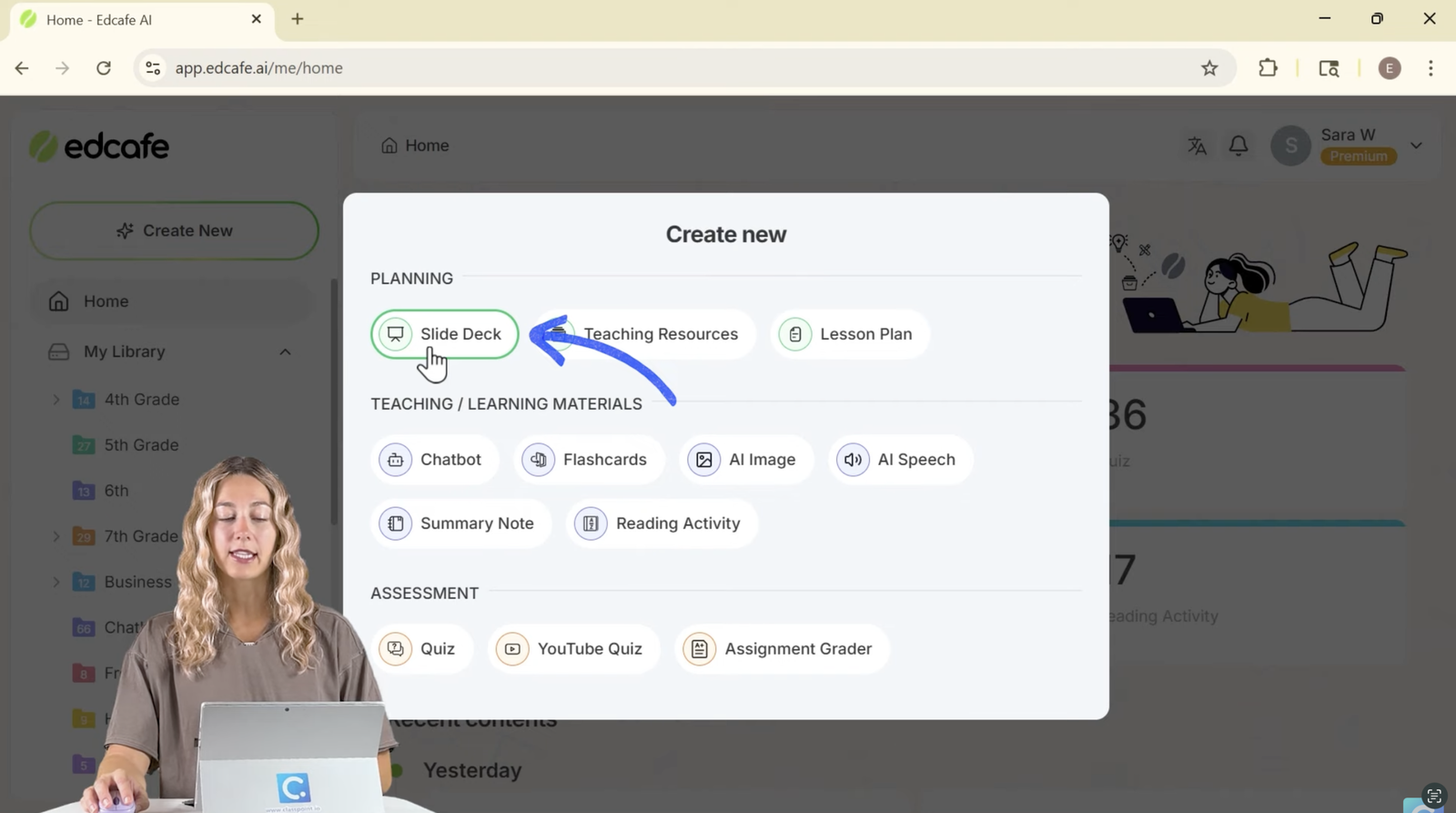
Step 1. Open Edcafe AI, click Create New, then select Slide Deck.
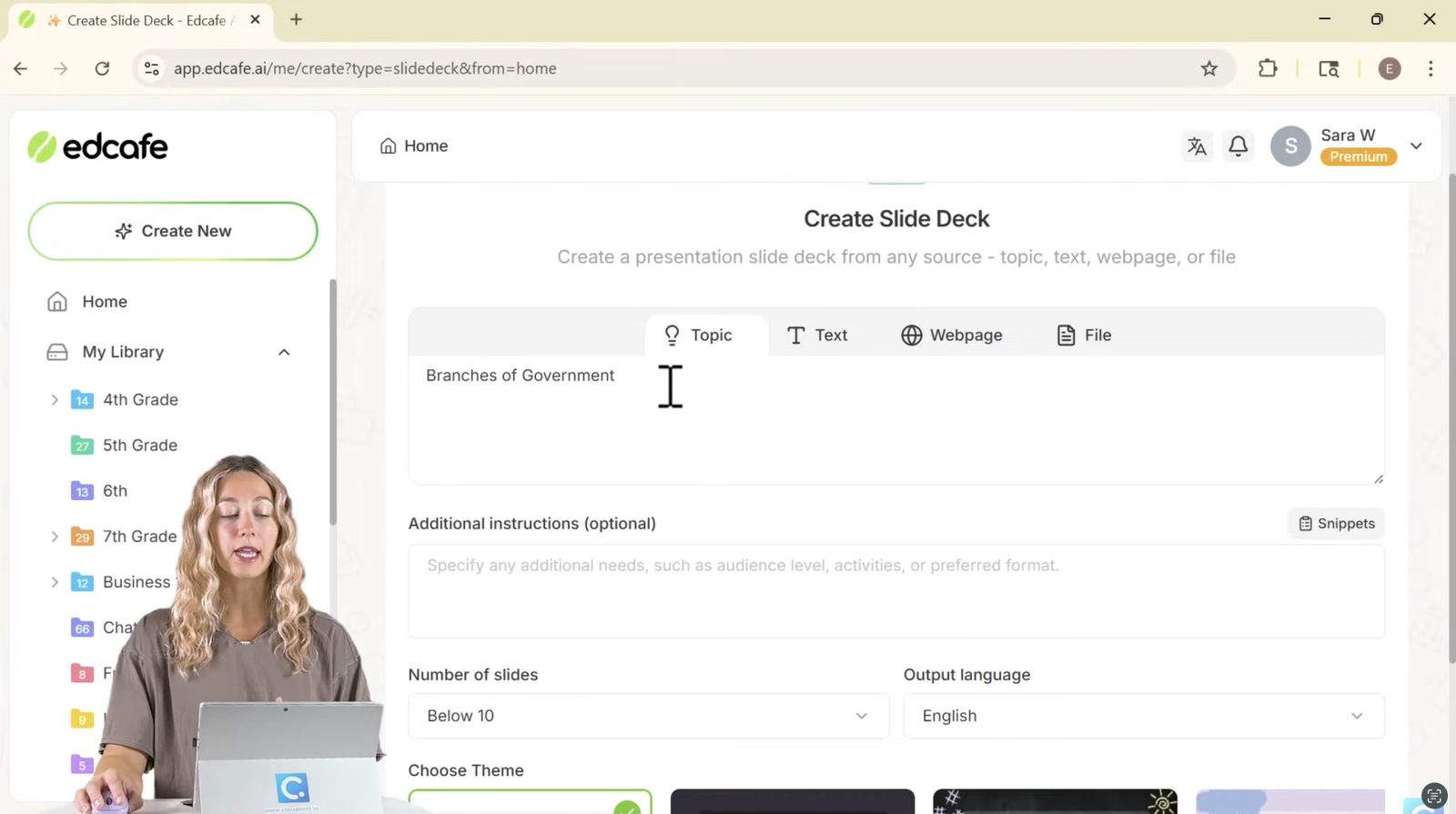
Step 2. Type the topic you want to make a presentation of (e.g. Branches of Government).
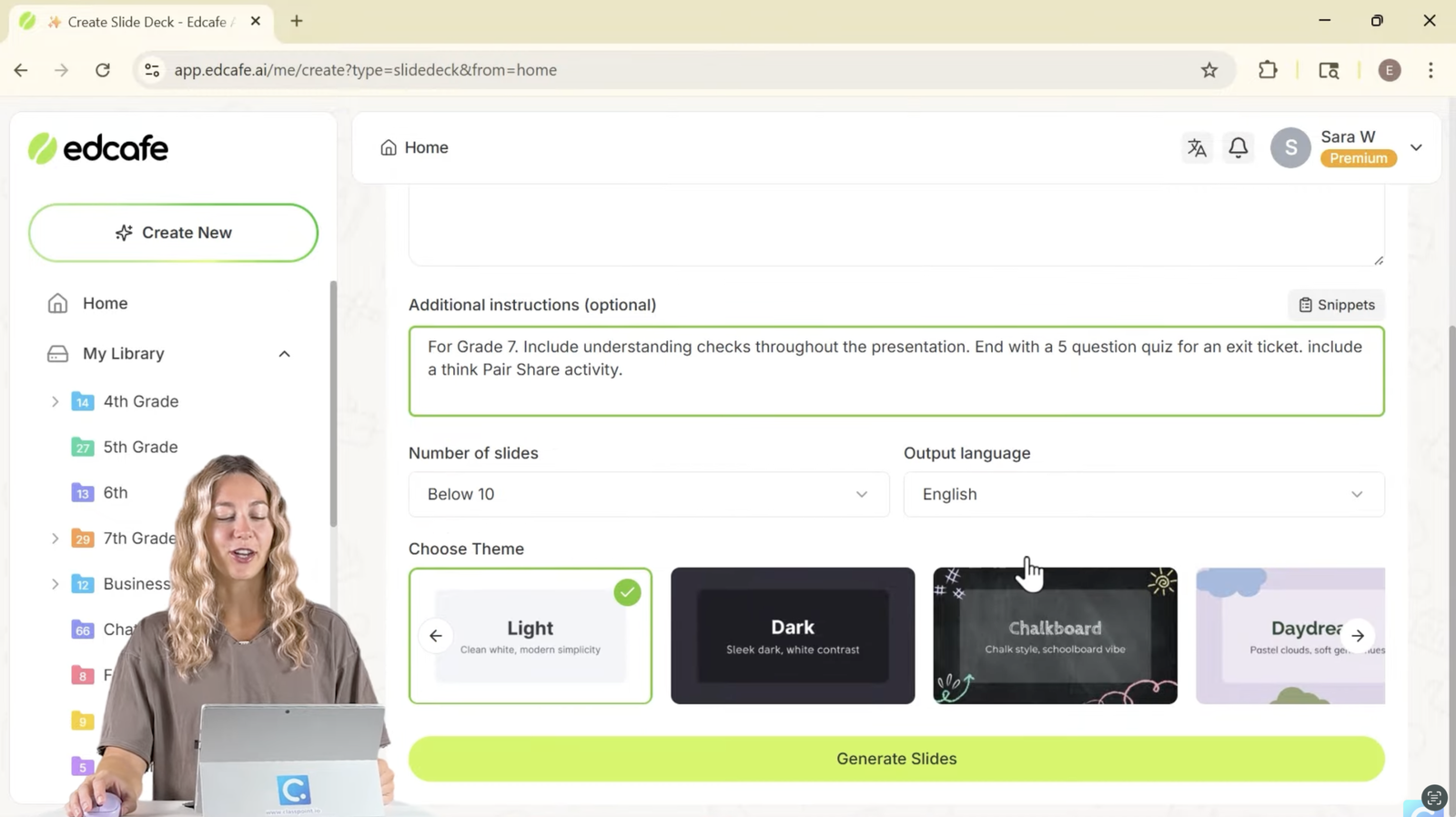
Step 3. Add extra instructions like grade level, activity ideas, and comprehension checks.
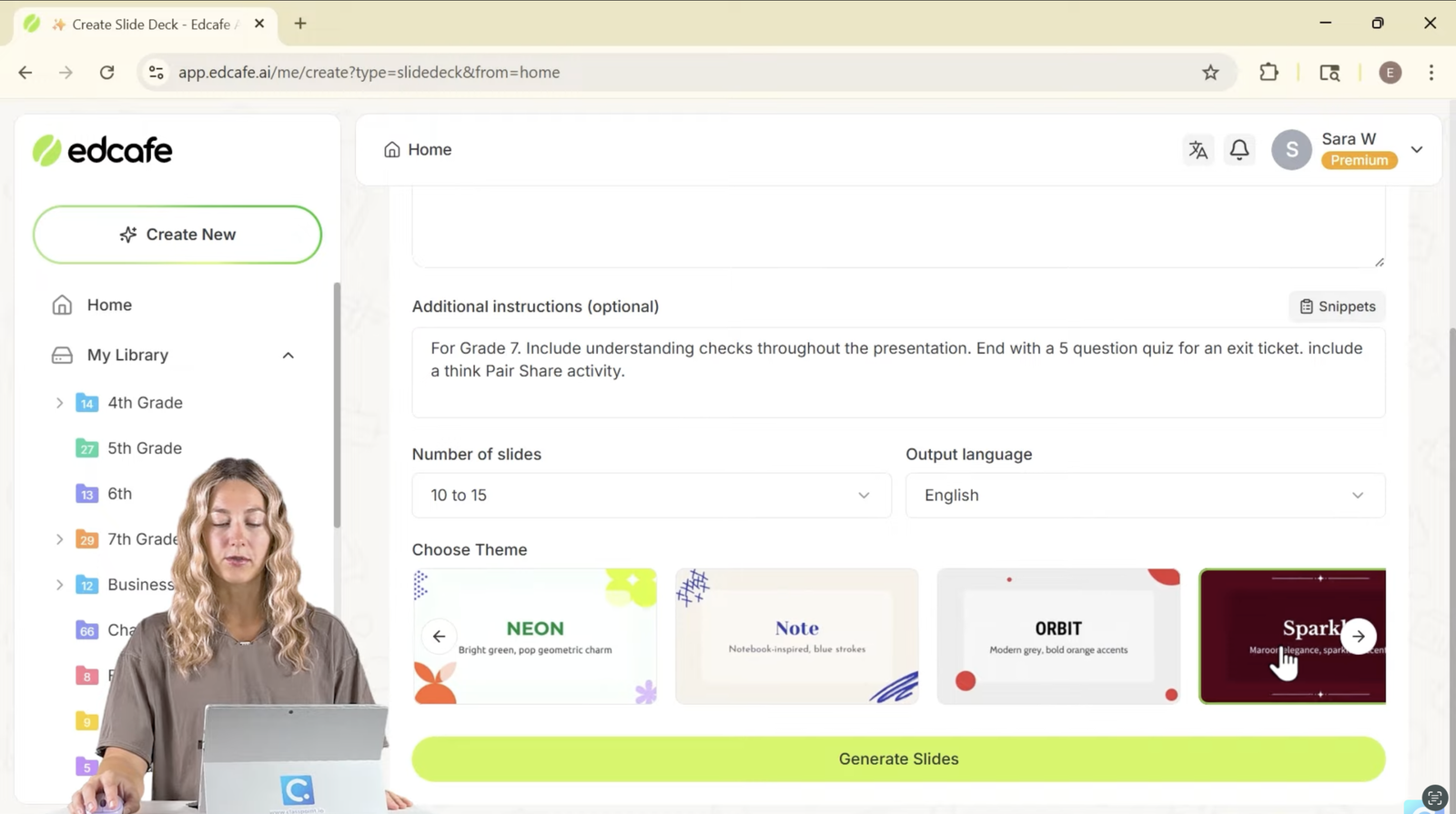
Step 4. Choose your slide count, theme, and language.
Step 5. Generate the deck.
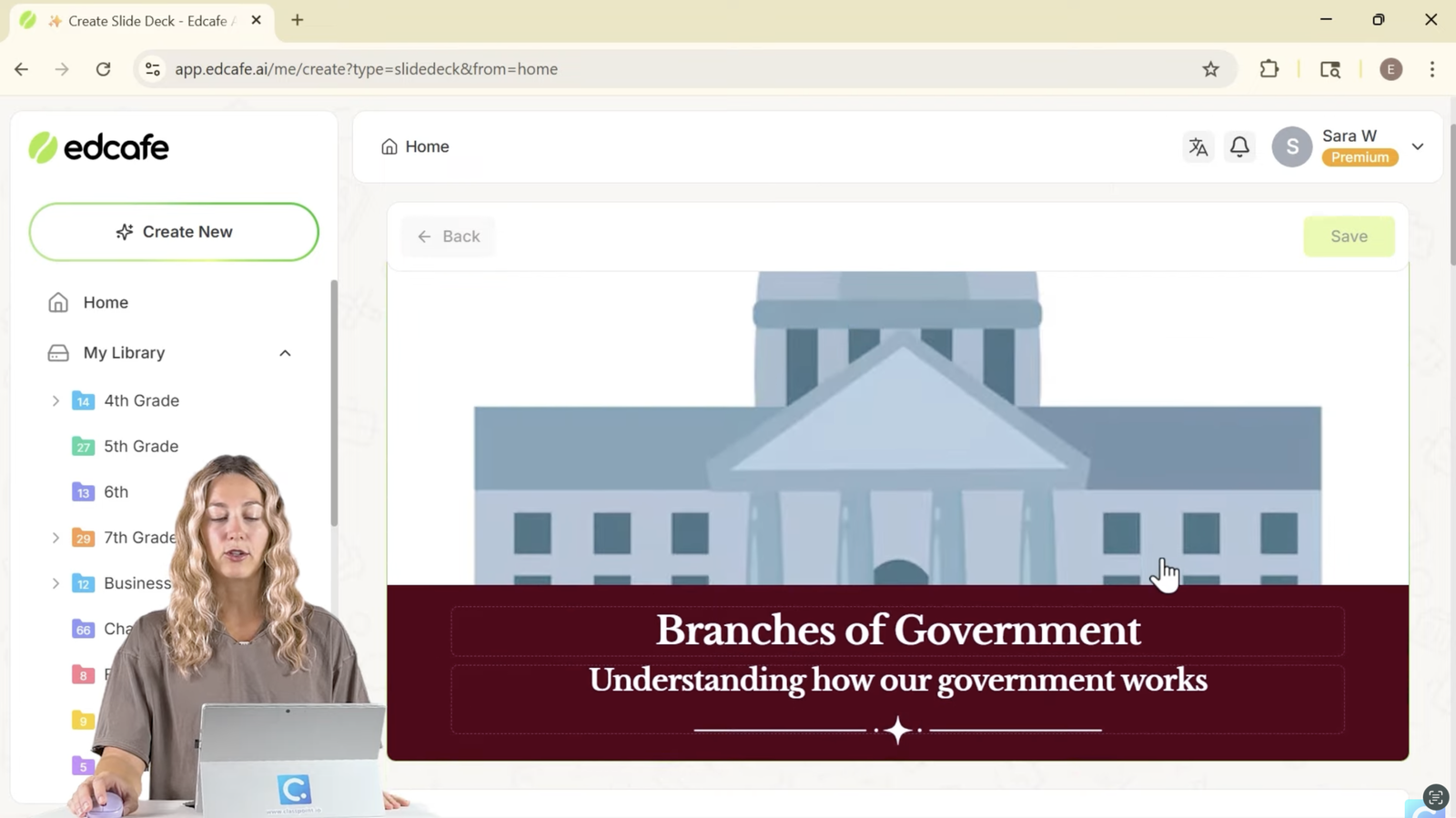
And voila, you already have your presentation!
Edcafe AI automatically includes interactive-ready moments like think-pair-share prompts and exit ticket questions. You can regenerate or adjust any slide instantly by editing anything you want such as images, text, or layout.
After you’re done with creating your presentation, you can save and export it as PowerPoint or Google Slides.
2nd Tool: Add Live Interactivity in PowerPoint with ClassPoint
Here’s where the magic of interactive presentations begin. After exporting your deck, open it in PowerPoint and add ClassPoint:
Step 1. Install ClassPoint for free at classpoint.io.
Step 2. Open your deck in PowerPoint.
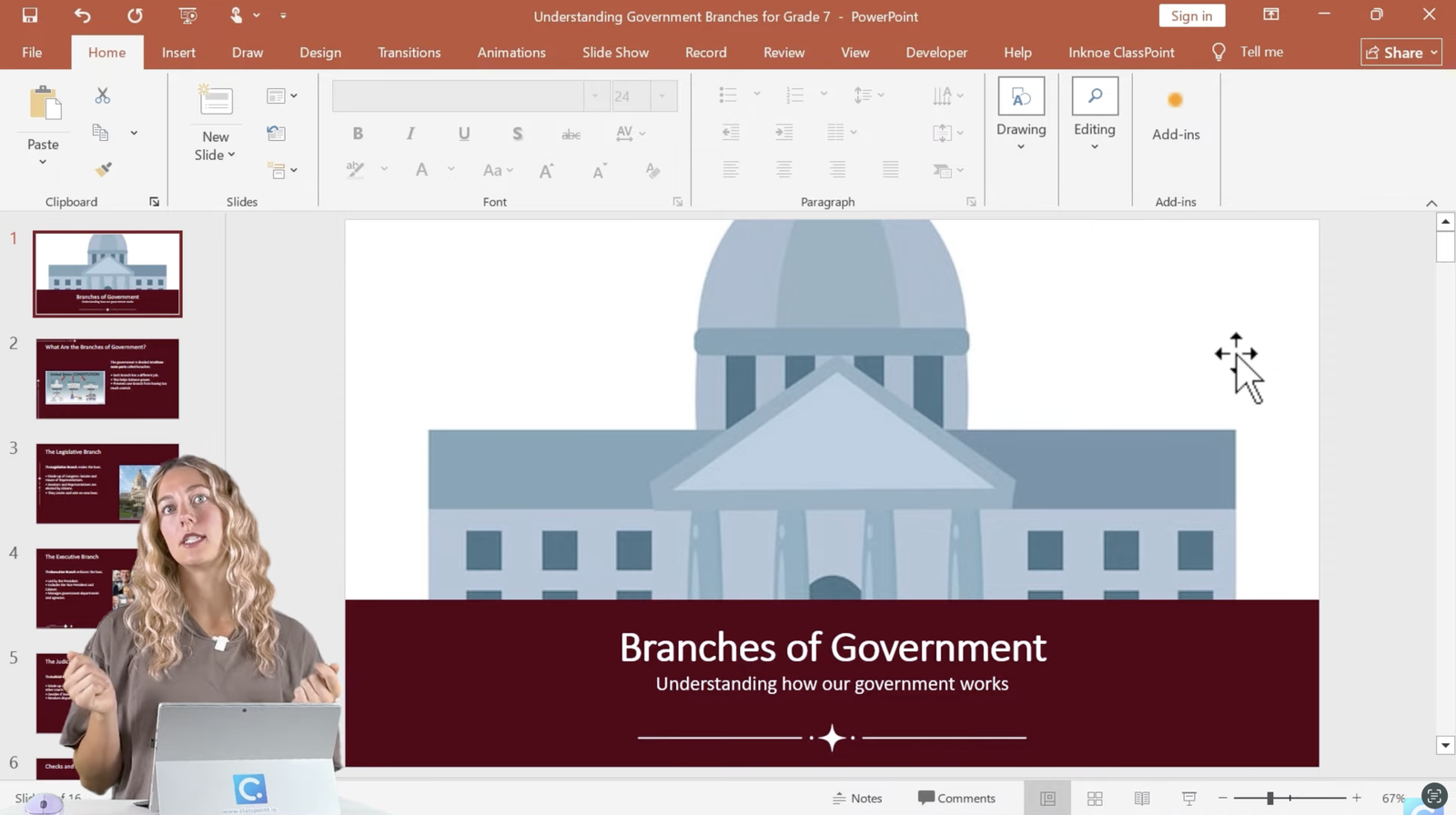
Step 3. Choose the slides where you want interaction. Insert question buttons like Short Answer, Multiple Choice, Word Cloud, or Slide Drawing.
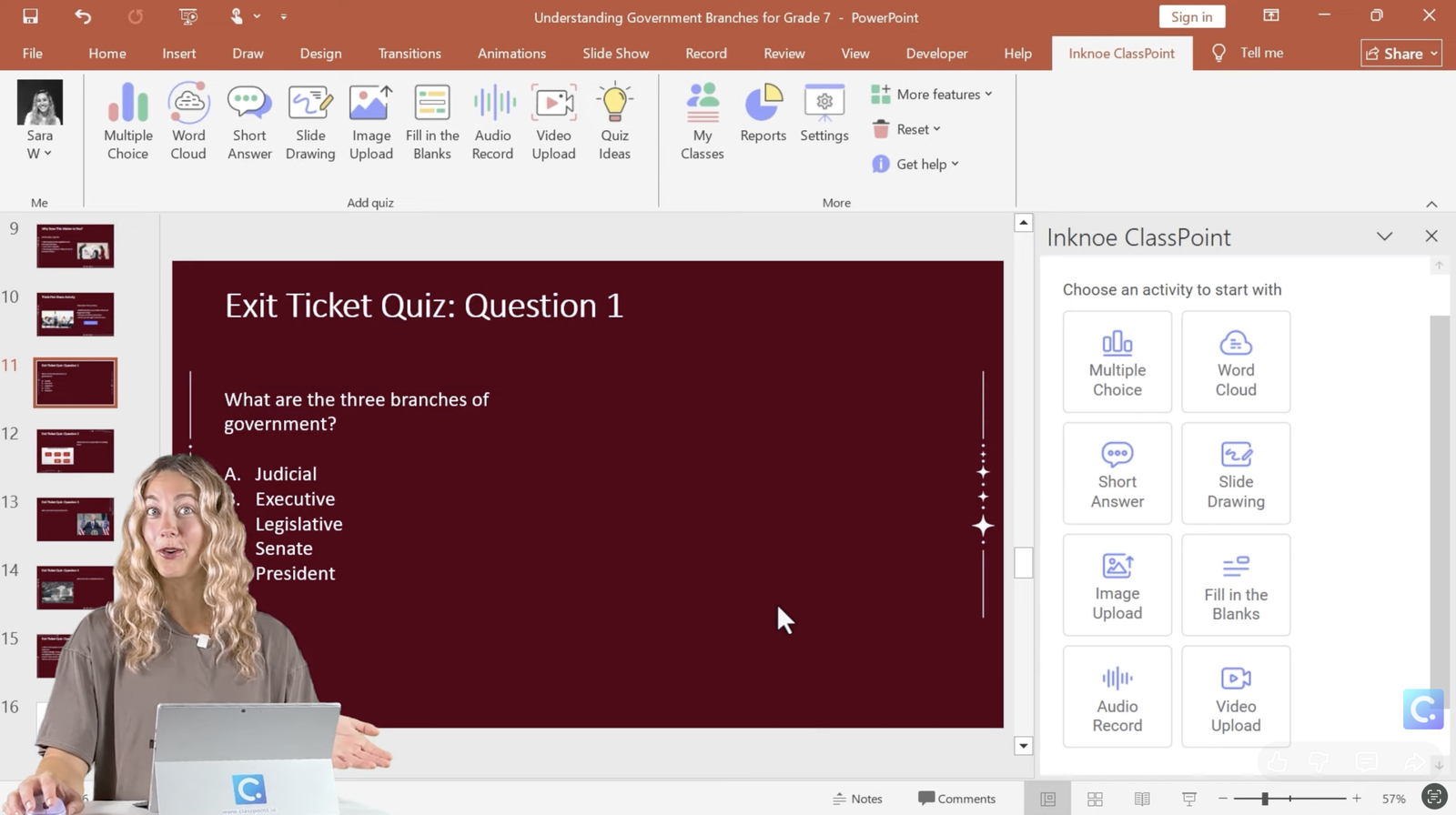
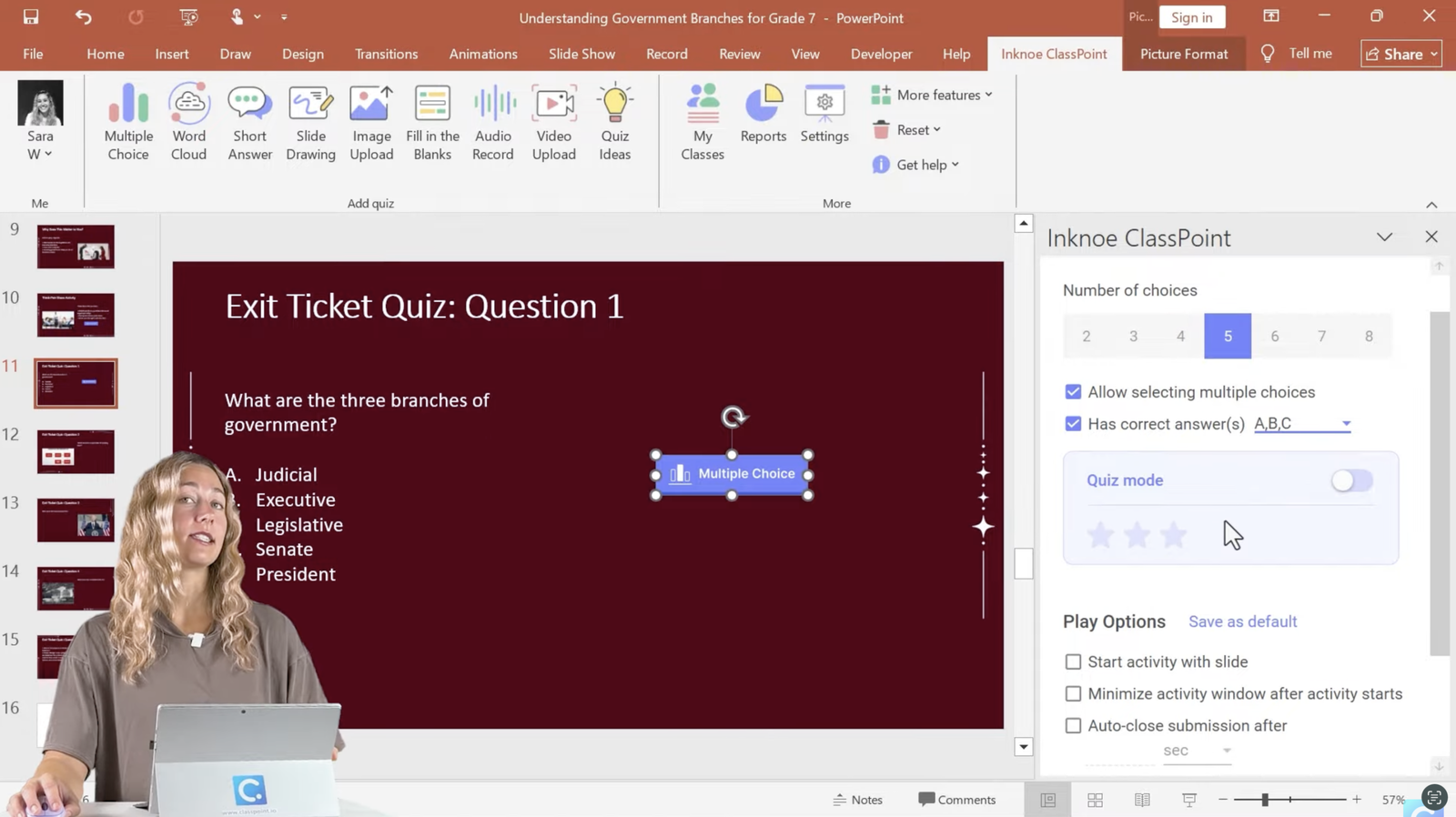
Step 4. Adjust settings like hiding names or allowing multiple submissions.
Step 5. Enter slideshow mode.
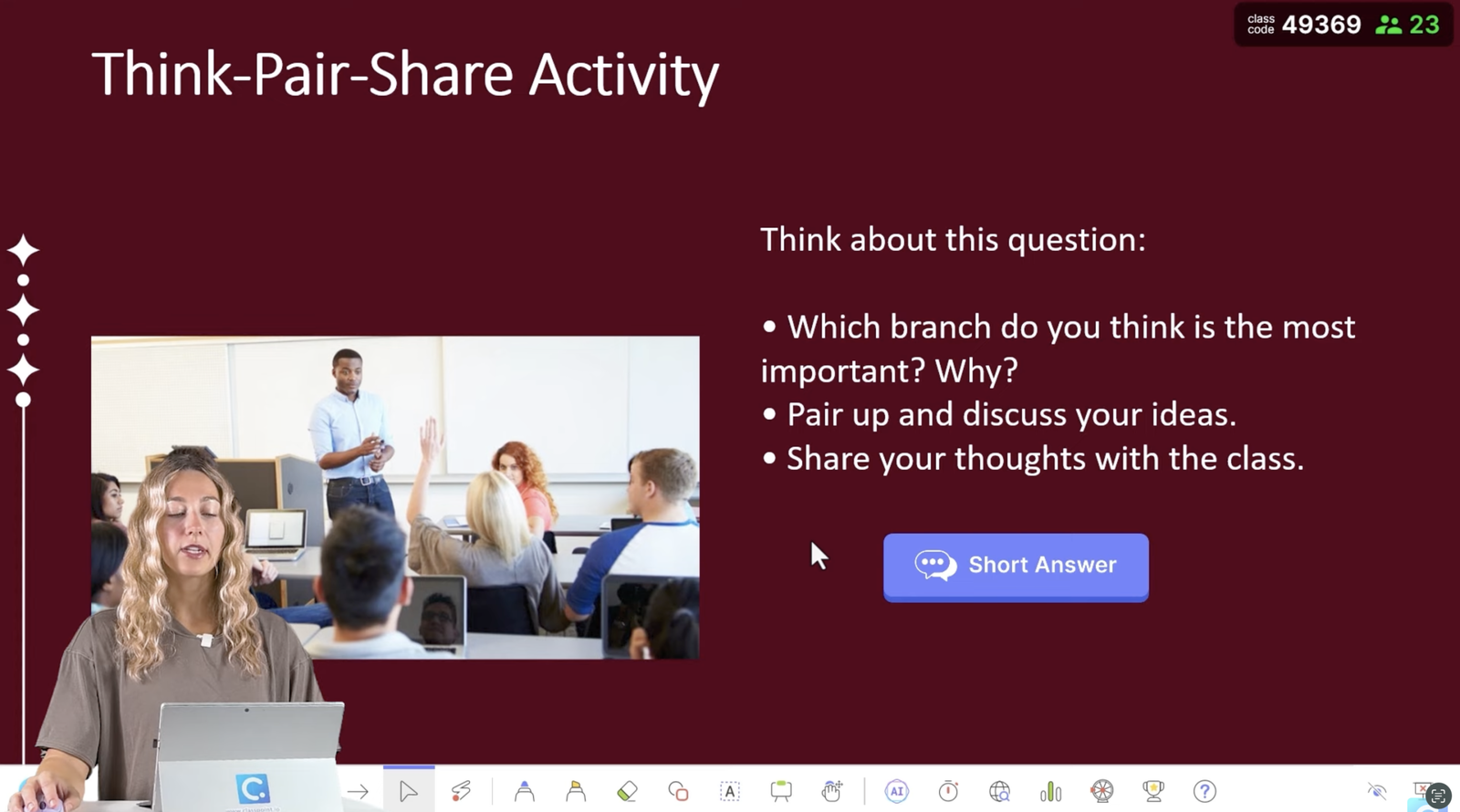
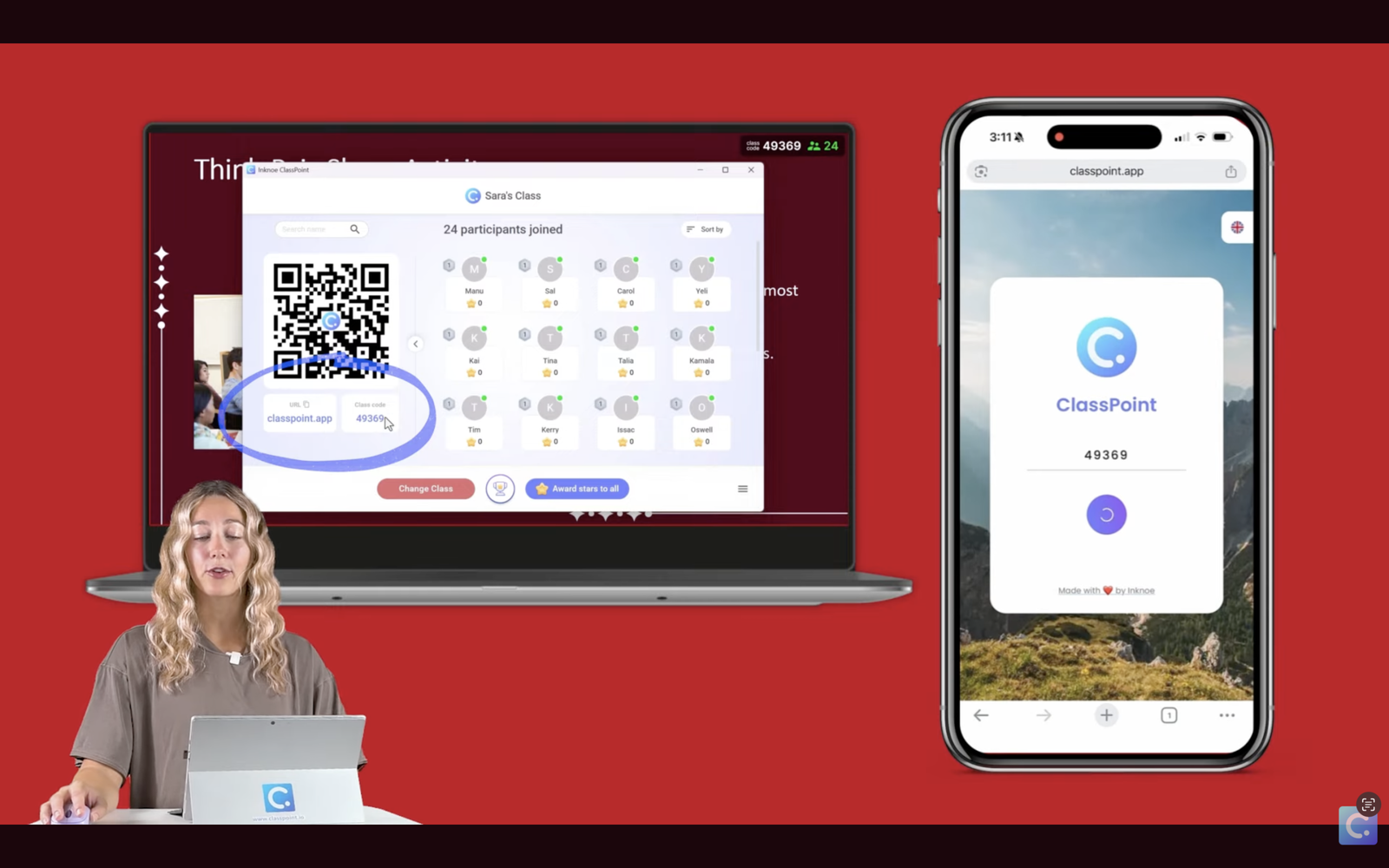
Step 6. Students join through classpoint.app with a class code.
Step 7. Collect live responses instantly.
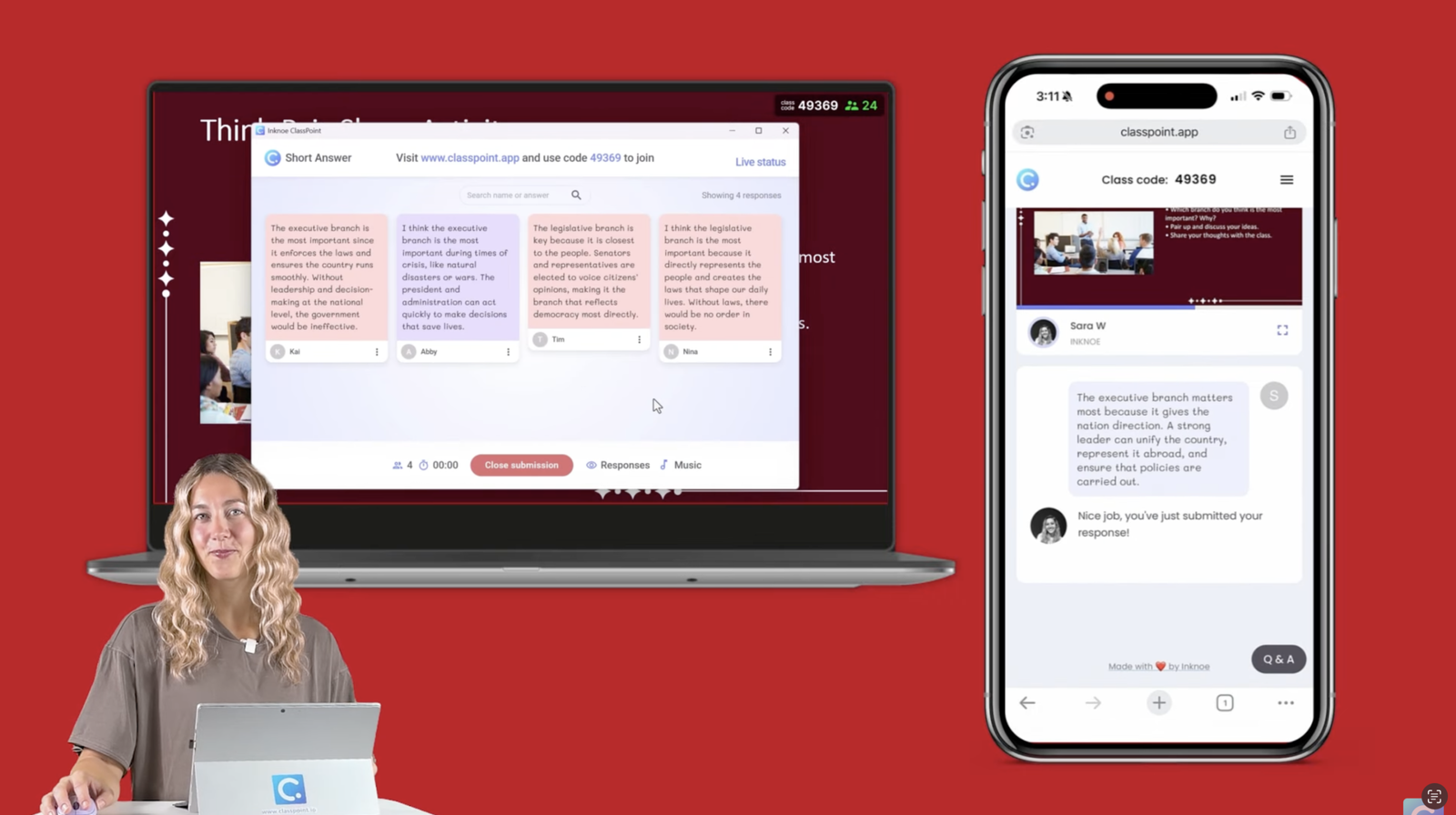
This is where your interactive presentation becomes truly dynamic. You track understanding live, not after class.
To know more about this tutorial, check out this video.
Interactive Presentation Ideas You Can Use Right Away
Interactive presentations work best when you mix short activities that ask students to think, respond, and create. These ideas are simple, flexible, and easy to plug into any lesson.
Whether you teach science, math, language arts, or social studies, these strategies help students stay engaged and give you quick insights into their understanding:
1. Live Polling to Kick Off the Lesson
Start your interactive presentation with a quick poll to check prior knowledge or gather opinions. A simple question like “Which strategy did you use?” or “What do you already know about this topic?” helps you see where students stand before teaching. It warms up the room and sets the expectation that your lesson is participatory from the start.
2. Think-Pair-Share With a Class Submission

Give students a moment to think, discuss with a partner, and then submit a short written response. This turns a familiar strategy into a class-wide activity inside your interactive presentation. Students get time to process their ideas, and you get a snapshot of how well the class understands the concept before moving on.
3. Image Mark-Up for Visual Understanding
Add an image to your slide and let students draw, circle, or label directly on it. This works well for diagrams, maps, processes, and vocabulary. In science, they can label cell parts. In math, they can mark where they see symmetry. In social studies, they can highlight key features on a map. Visual interaction helps students make stronger connections.
4. Quick Concept Checks Throughout the Lesson

Instead of saving all your questions for the end, place small checkpoints throughout your interactive presentation. A one-question quiz after each key idea helps you verify understanding in real time. If students are confused, you can shift your instruction immediately instead of catching the problem a day later.
5. Exit Ticket Quiz to Wrap Up Learning
Close your interactive presentation with a short exit ticket. Five focused questions can help you identify who grasped the lesson and who needs more support. It also helps students reflect on what they learned, which strengthens long-term retention.
To learn more about interactive presentations, you can check our Expert Guide on How to Make an Interactive PowerPoint Presentation.
Teacher-Friendly Tips for Better Interactive Presentations

Interactive presentations work best when the structure feels smooth and intentional. These tips help you keep students focused, maintain momentum
‼️ Keep activities short and purposeful. Students lose interest if a task drags on, so think in bite-sized moments that move the lesson forward. A quick poll, a two-minute reflection, or a short answer check-in is often enough to gather insight without slowing your pacing.
📊 Mix different interaction types to keep energy high. When students move from a poll to a drawing task to a concept check, the lesson stays lively. Changing the way students participate every few
🖥️ Prepare your tech once so future lessons run smoothly. Technology should support your lesson, not interrupt it. Once you set up your tools and build a simple routine for students to join, your future lessons become easier. A smooth start makes every interactive presentation feel more professional and more enjoyable for the students.
🎭 Use anonymous submissions to encourage quiet voices. Quiet and shy students often have strong ideas but hesitate to speak up. Anonymous submissions give them a safe space to contribute without fear. You can surface thinking from the entire class, not just the confident few.
😵💫 Do not overload your slides with too many activities. Too many activities can overwhelm students and make the lesson feel fragmented. A small number of well-placed interactions usually does the job far better than trying to use every tool in one session.
FAQs
What makes an interactive presentation different from a traditional slideshow?
An interactive presentation invites students to participate rather than just view the slides. Instead of a one-way lecture, students respond to polls, annotate images, submit short answers, collaborate on prompts, and engage directly with the content.
Can interactive presentations work in classrooms without 1:1 devices?
Yes. Interactive presentations do not always require a device for every student. You can use pair devices, small groups, whiteboards, or verbal participation. Tools like ClassPoint can also support shared devices while still collecting meaningful responses.
How do interactive presentations help with classroom management?
Interactive presentations reduce off-task behavior because students have something active to do. Real-time participation keeps them focused, and immediate feedback helps you adjust instruction before confusion builds.
Can I personalize learning using interactive presentations?
Absolutely. You can tailor questions, vary difficulty levels, offer multiple response formats, and use student input to guide pacing. Using Edcafe AI to generate leveled questions and ClassPoint to collect live responses allows you to adapt in the moment.
Are interactive presentations suitable for younger grades?
Yes. Younger students respond especially well to drawing tools, image labeling, quick polls, and simple open-response prompts. Interactive presentations in early grades encourage communication, confidence, and basic critical thinking.
What subjects benefit most from interactive presentations?
All subjects can benefit. In math, you might use problem solving and polls. In science, image annotations and predictions. In English, think-pair-share and open responses. In social studies, debates and scenario-based questions. Interactive presentations adapt easily to any curriculum.
Do interactive presentations require a lot of preparation time?
Not anymore. With Edcafe AI generating the main slide deck and ClassPoint adding the interactive elements, teachers can create a complete interactive presentation in minutes instead of hours.
Can I reuse interactive presentations for multiple classes?
Yes. Once your interactive presentation is built, you can reuse it for different classes or levels. ClassPoint even lets you review student responses from each session so you can refine the lesson for the next group.
