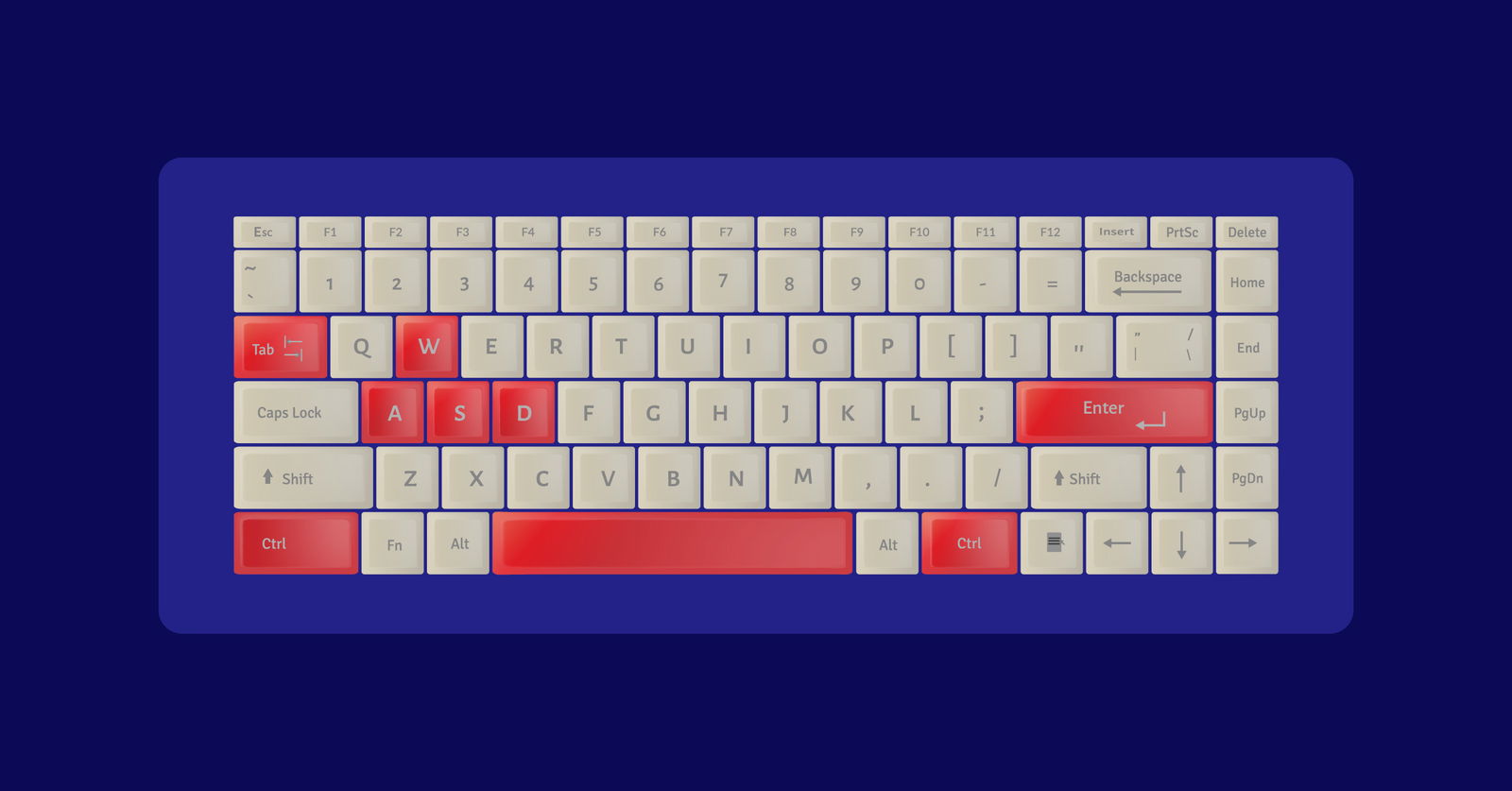
Love to find little ways to save yourself time? Well, try these PowerPoint shortcuts! There is always so much work to be done, so might as well utilize some savvy time savers. In the grand scheme of things, the little old Ctrl + P to paste really can save a chunk of time.
Here is a list of the best PowerPoint shortcuts when creating, editing, and presenting your presentation. These will help you move through your presentation more efficiently by not having to take your hands off the keyboard or navigating through a multitude of menus and settings.
Unless your only job is to make PowerPoints, you may not want or need, to spend your time trying to memorize every single one of these shortcuts (which will lead to making your editing process longer, not shorter!) But scroll through the list and find which ones might work for you, and try them out to save you time!
PowerPoint Shortcuts for Editing Your Presentation
Ctrl + M – Add a new slide
PowerPoint Shortcuts for Shapes & Slides
Ctrl + D – Duplicate your slide or any items on your slide
Ctrl + Drag – Hold down the Ctrl button and click to drag the selected item to move it to the correct location
Ctrl + Shift + Drag – Duplicate an item and keep it aligned with the original as you move it to the correct location
Ctrl+Shift+C (or + V) – Copies (or pastes) the formatting of a shape
Ctrl+G – Groups the selected shapes together
Ctrl+Shift+G – Ungroup selected shapes
Ctrl + Shift + ] – Brings a selected object forward
Ctrl + Shift + [ – Brings selected object backwards
Ctrl + A – Select all items on the current slide. This can be used to move, delete, or copy all items on a slide
PowerPoint Classic Shortcuts
Ctrl + C, V, X – Copy, Paste, Cut
Ctrl + Z, Y – Undo & Redo
Ctrl + B, U, or I – Bold, Underline, Italicize
F7 – Check for spelling
Ctrl + S – Save Presentation
PowerPoint Shortcuts for Presenting Your Presentation
F5 – Enter Presentation
Shift F5 – Enter your Presentation from the current slide
W or B – Pause Presentation with a blank white or black screen
Ctrl + E – Eraser
Esc – Exit Presentation
Ctrl + P – Activate Pen
You can annotate on the blank white and black screen (W or B) but none of the annotations will save. To save your annotations on a blank page, you can use the ClassPoint add-in to insert a customized WB background and begin annotating.
I hope some of these have inspired you to try it out and see if it helps expedite your PowerPoint creating, editing, and presenting process! These little efficient time savers can add up! If you are looking for more PowerPoint productivity read these 10 tips. Let us know in the comments your favorite PowerPoint shortcut or any that we missed!
