
The same three students answer every question. The rest of the class waits it out, hoping you don’t call on them. You’ve tried cold-calling, you’ve tried popsicle sticks, but neither feels fair, and neither holds attention.
A spinning wheel of names in PowerPoint solves both problems in one move. The randomness is visible, so it feels fair. The animation is unexpected, so the room actually watches. And once it lands, you’ve got a name and a moment of attention you didn’t have to earn twice.
You can build a wheel manually with PowerPoint animations, use a standalone site like Wheel of Names, or add one directly to PowerPoint with a free add-in like ClassPoint. The first two mean either hours of setup or jumping out of your deck mid-lesson. ClassPoint adds the wheel right inside PowerPoint, with class lists you save once and reuse.
Here’s how to set it up in three steps, then ways to actually use it: for review games, fair selection, quiz rounds, and classroom routines.
New to interactive presentations? Check out our complete guide to creating interactive PowerPoint presentations that keep your audience engaged from start to finish.
How to add a Spinning Wheel of Names to PowerPoint
Step 1: Download a Spinning Wheel PowerPoint add-in (free!)
First, download ClassPoint and install the add-in. Once installed, it shows up as a new tab in your PowerPoint ribbon. No separate app or browser tab needed to flip to mid-lesson.
ClassPoint is free to use, with a Pro upgrade for higher limits.
Step 2: Make a Wheel of Names
To add your student names or any list of items to the spinning wheel in PowerPoint, you can create a saved class in edit mode. Inside the PowerPoint ribbon, find the ClassPoint tab, then click on the “Class list” icon.
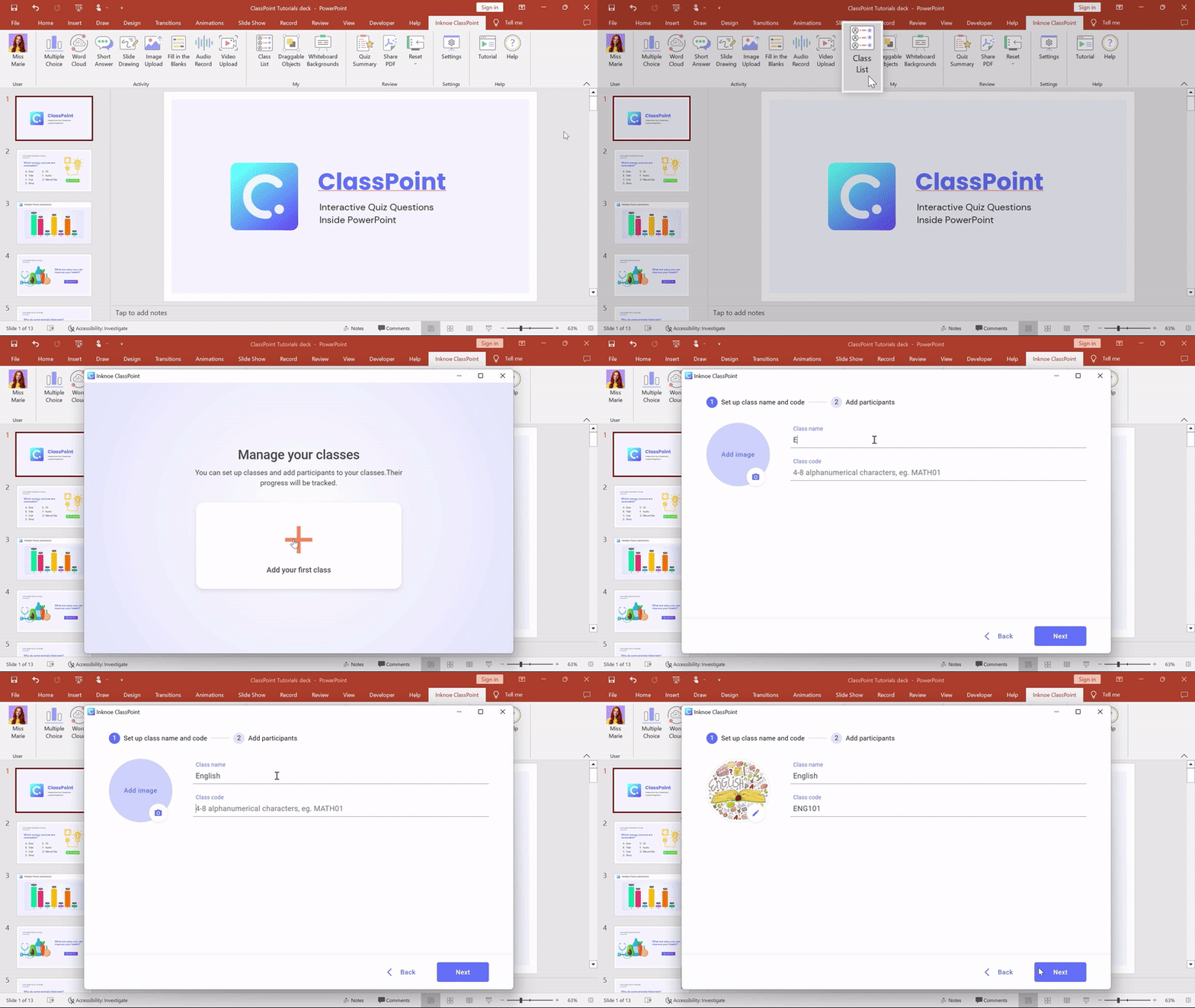
Create a class, give it a name and type a class code so they can join the interactive questions if you’d like to use them! Click Next, and you can begin adding your names.
Add up to 25 names in the free version of ClassPoint or upgrade to the Pro version to add more. Once all the names are added, you are ready to spin the wheel!
Managing multiple groups? Use ClassPoint's private class feature to keep different groups organized and switch between them instantly during presentations.
Step 3: Spin the wheel
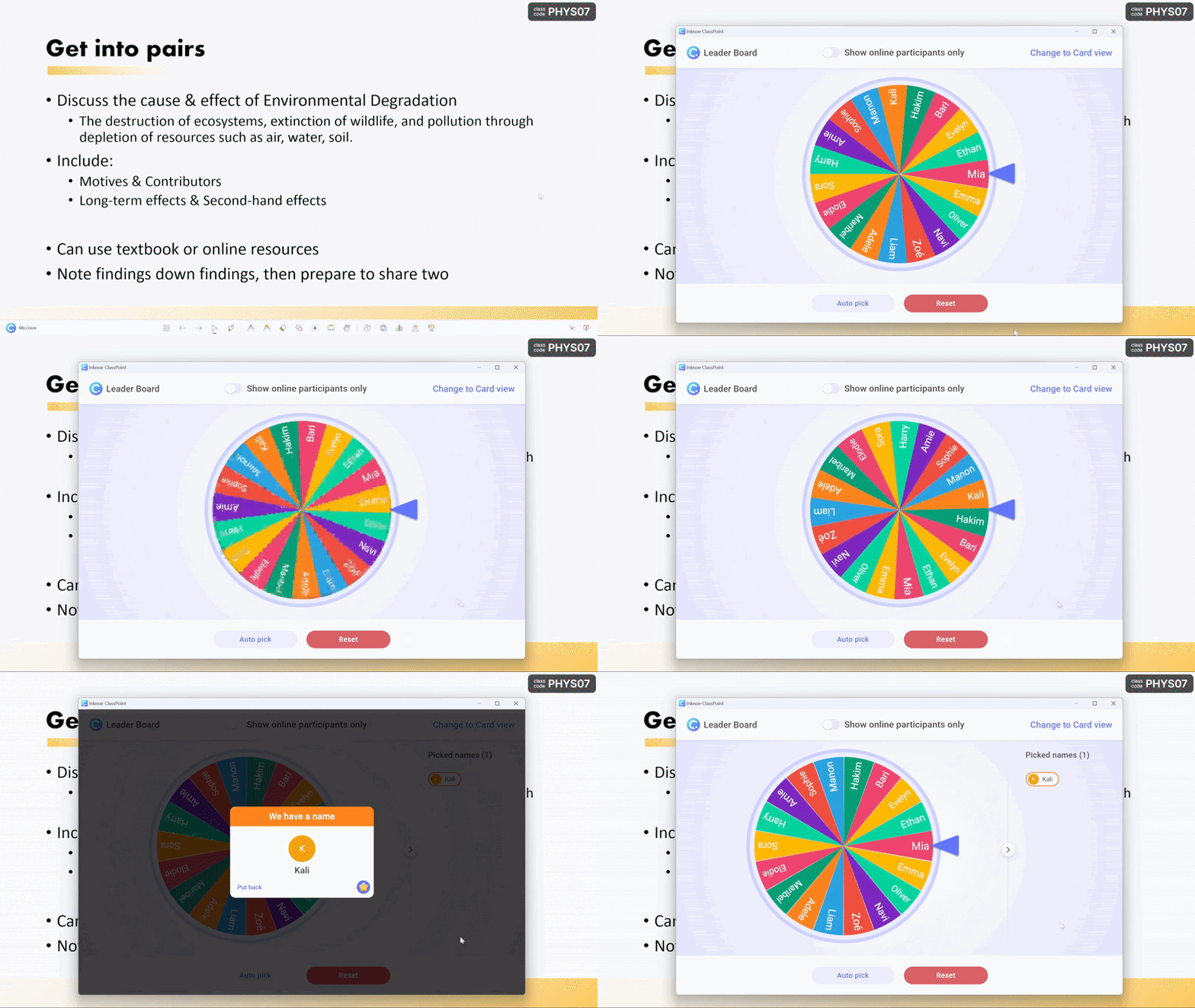
To find the wheel, enter presentation mode. Click on the class code that now appears in the top right corner of your presentation. Then, select Change Class and choose the class you just made.
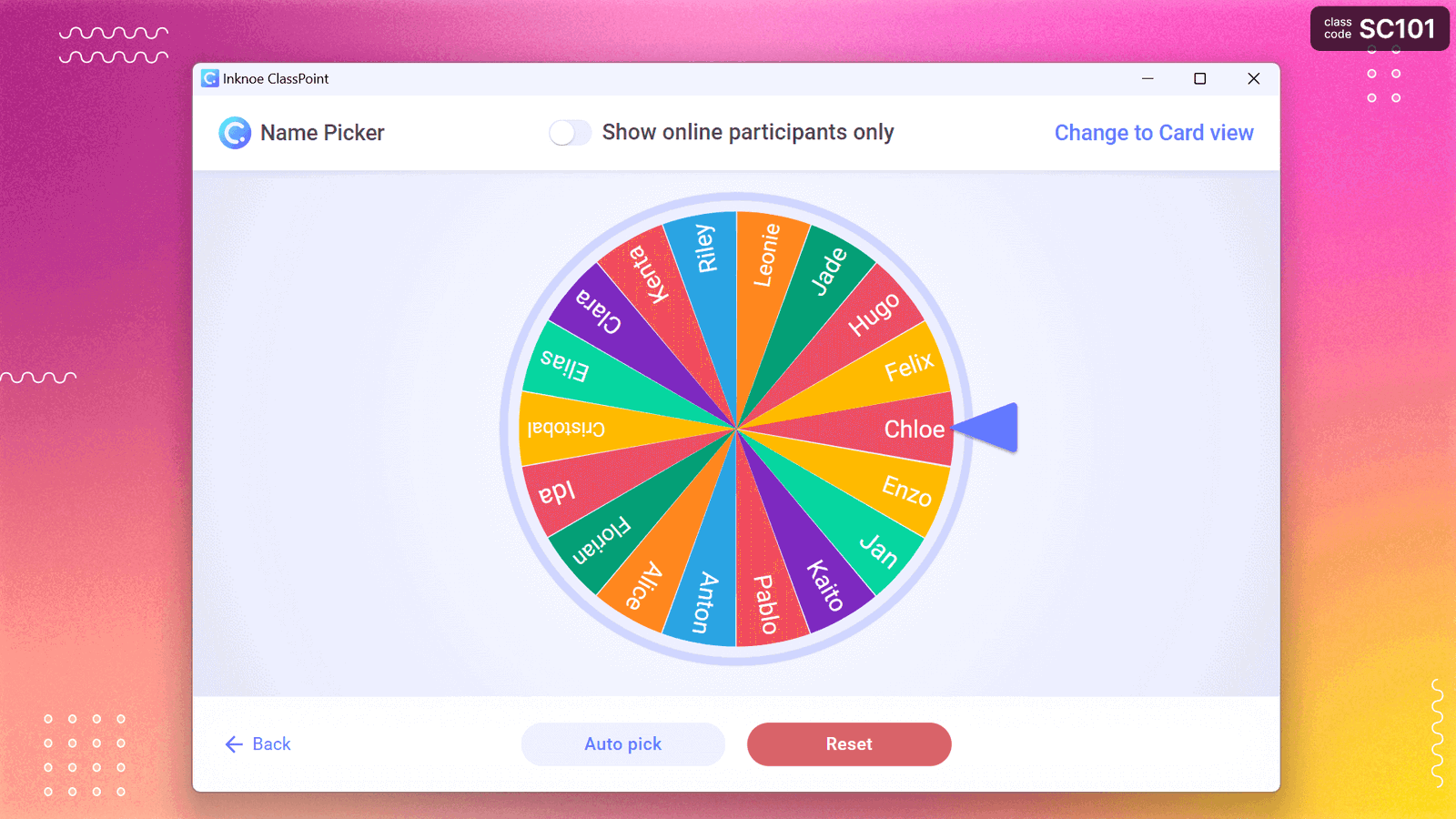
Look for the Name Picker icon on the ClassPoint toolbar at the bottom of the screen. Click it, and the wheel pops up with all your names pre-loaded. Spin.
When it lands on a name, you have options:
- Put the name back so they can be picked again later
- Pull the name out so the same student isn’t picked twice
- Award stars if you’re using ClassPoint’s gamification
That’s it! It’s really easy, and once you set up your class list, you’re ready to spin the wheel in PowerPoint anytime, from any slide, and any PowerPoint file. No need for following hyperlinks & breaking your presentation, or going back to the one slide with a spinning wheel.
💡 Tip! If you’d like to select names quickly or multiple at once, you can switch to card view for a quick flipping of cards or auto-select multiple names at once.
Use Spinning Wheels for Educational & Learning Activities
Now that the wheel is in your deck, here’s how to actually use it. The strategies below work with any spinning wheel tool, not just ClassPoint, so pick the ones that fit your teaching style.
Create a game-like presentation experience:
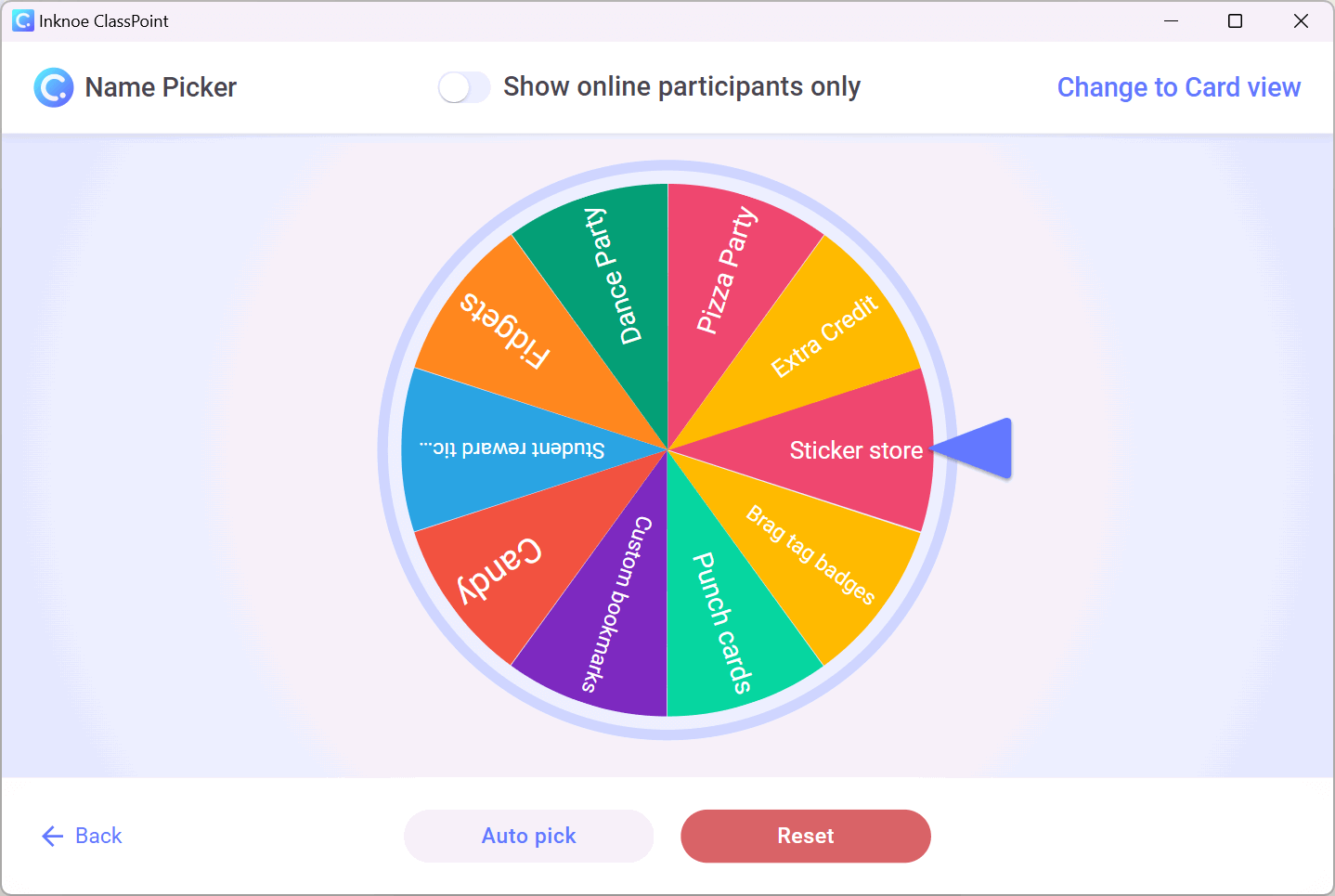
A spinning wheel makes a great prize wheel, and a prize wheel makes lessons feel less like work. Fill the slots with small rewards your students would actually want, like a homework pass, picking the next song, or choosing tomorrow’s warm-up. When students hit a milestone or finish a tricky task, let them spin and reveal what they’ve earned.
The game element in your lessons isn’t just for fun. It gives quieter students a reason to take part and gives your high-flyers something to push toward.
For a Review and Recap Tool:
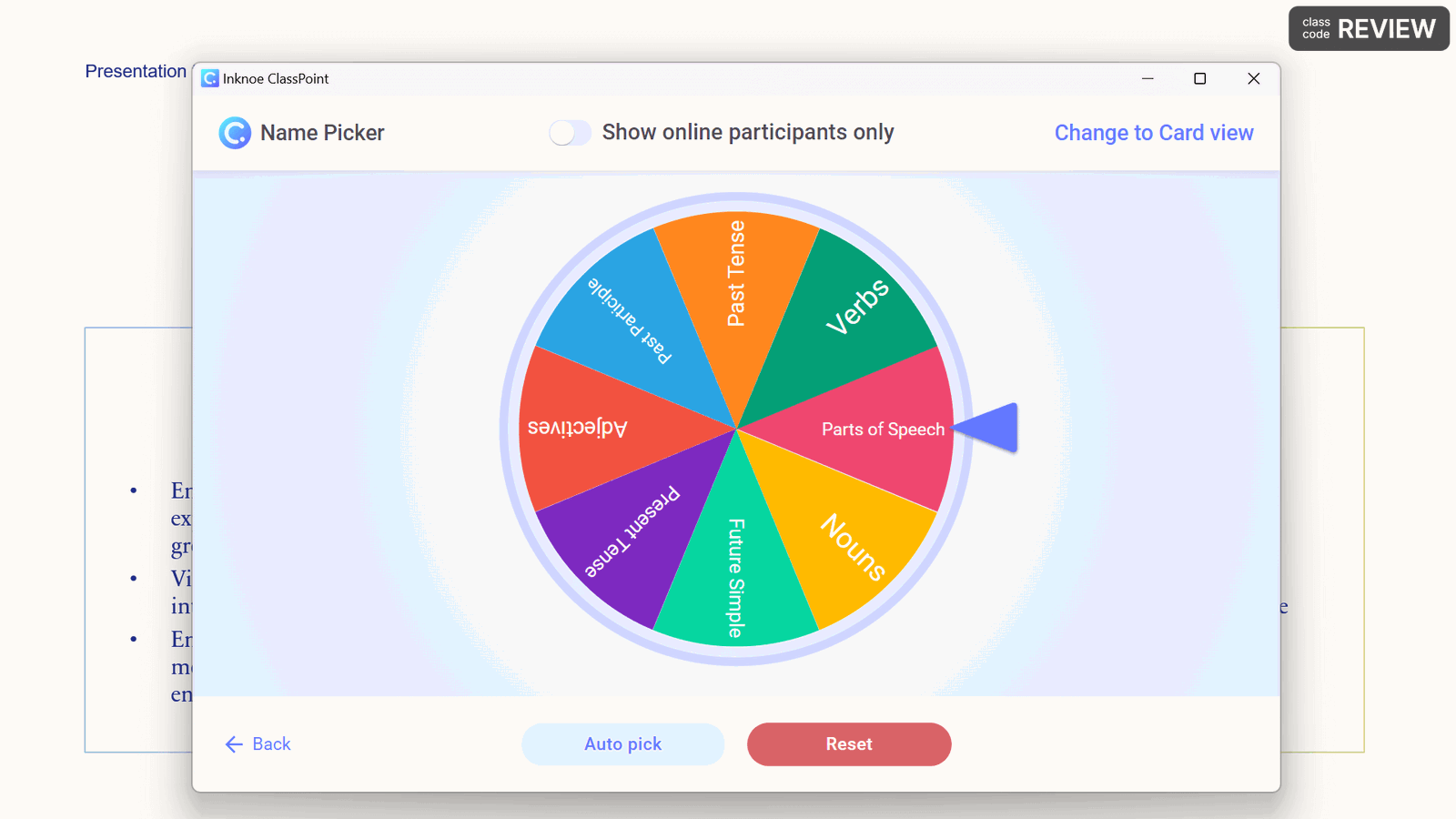
Load the wheel with topics or concepts you’ve covered in the lesson, then spin to pick which one to revisit next. Because students don’t know which topic is coming, they end up mentally rehearsing all of them while they wait.
This fits naturally with building thinking classrooms, where students do the cognitive work rather than passively receive it. The random selection nudges them into active recall, which is one of the most reliable ways to make a topic actually stick.
Pair with Interactive Quizzes:
A spinning wheel adds a layer of unpredictability to any quiz, which is what turns a routine check-in into a moment students actually pay attention to. Customise the wheel with question topics, types, or difficulty levels, and let students spin to decide what’s next.
Here are a few ways to set up your wheel for quiz rounds:
| Quiz Setup | What Goes on the Wheel | How It Works |
|---|---|---|
| Topic-based | Math, Science, History, English | Spin to choose which subject area for the next question |
| Difficulty levels | Easy, Medium, Hard, Challenge | Let students pick their risk level by spinning |
| Question types | Multiple choice, Short answer, Fill in blank, True/false | Mix up your question formats randomly |
| Point values | 10 points, 25 points, 50 points, 100 points | Higher risk means higher reward if they get it right |
ClassPoint has 8 different quiz question types you can pair with the wheel to run a full quiz round inside your deck. Or keep it lower-tech and ask the questions out loud, using the wheel just for variety.
Use Spinning Wheels for Engagement & Participation
Tired of seeing the same hands shoot up while others stay silent? Here are ways to get more voices heard and create moments where everyone in the room stays tuned in.
Run Audience Polls and Surveys:
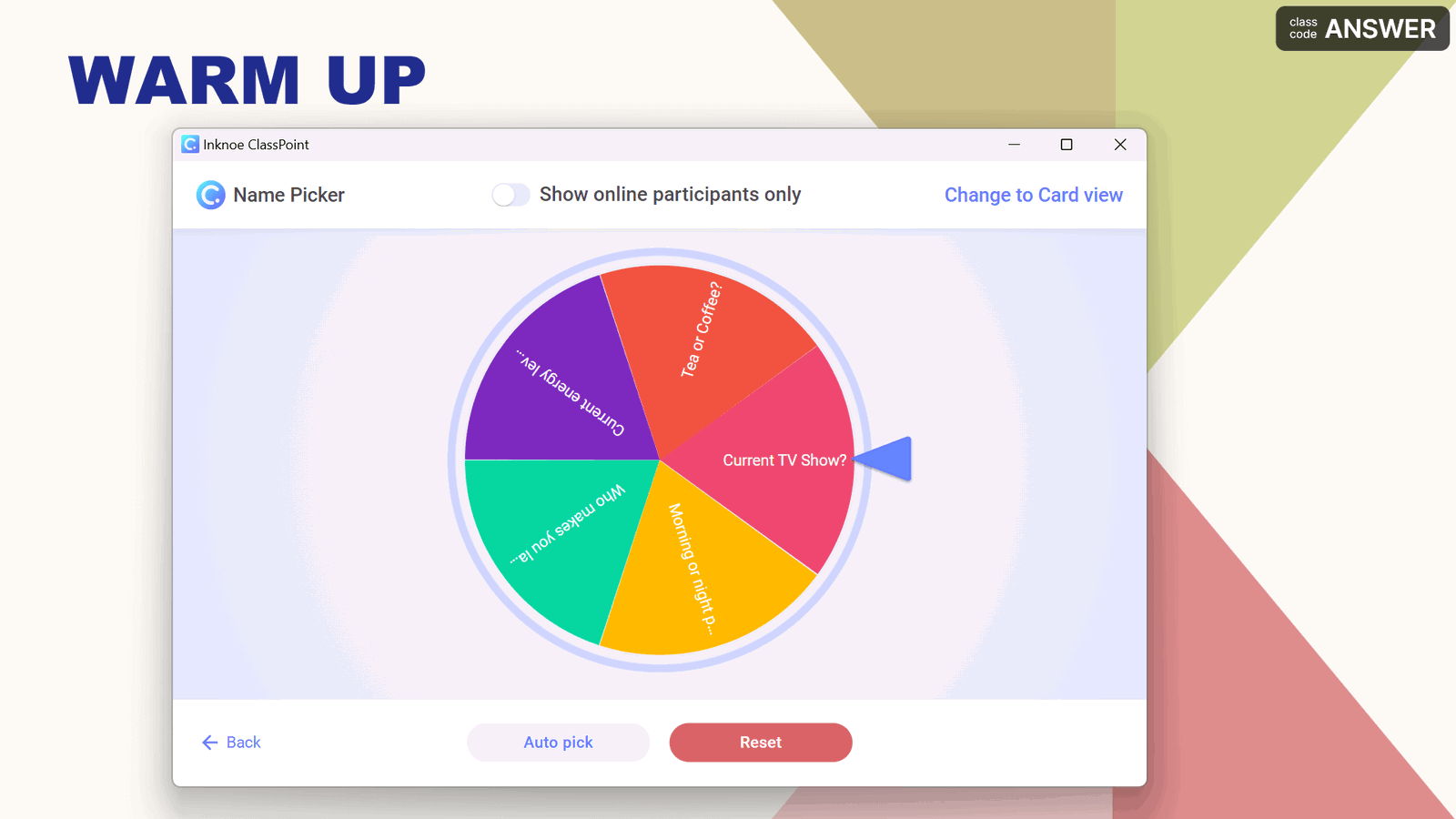
Try using a spinning wheel to run live polls during your lesson. Load the wheel with poll questions or discussion prompts, spin to pick one, and have the class respond. The random element takes pressure off any one student, because no one’s being singled out, the wheel made the call.
Pair it with ClassPoint’s Quick Poll to collect answers right inside your slide, or run it as a show-of-hands if you want it lower-tech.
Mix and Match Your Lesson Flow:
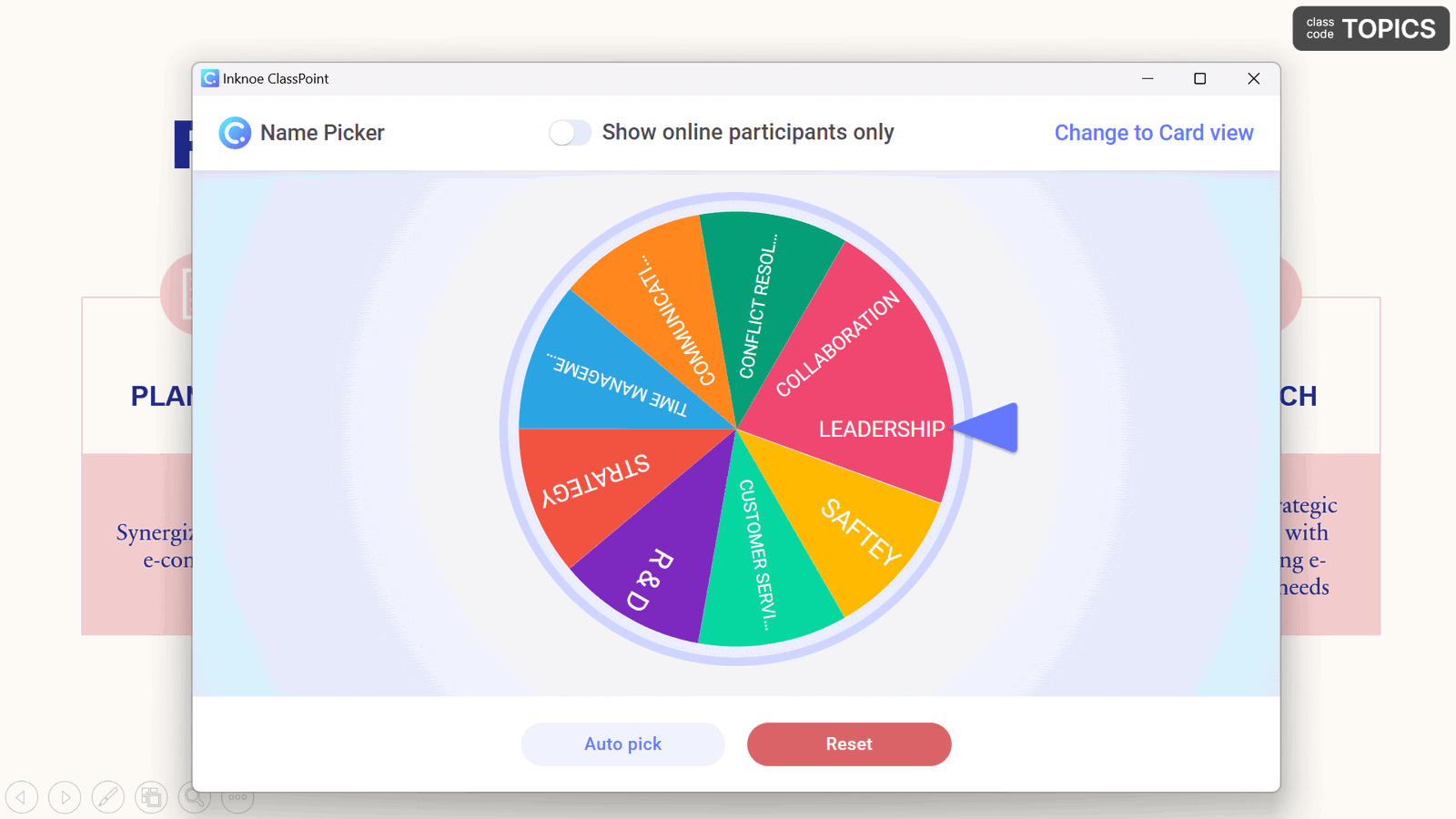
Put your lesson sections on the wheel and spin to pick the order. Students can’t autopilot through a predictable sequence, so attention stays higher and the class feels less rehearsed.
This works especially well on review days, where the order doesn’t really matter but the engagement absolutely does. The variety keeps discussion livelier too, because students stay mentally engaged rather than waiting for the lesson to end.
Use random selection to call on students
Assigned readings or prep work before class? Use the spinning wheel of names to call on students during the lesson. Knowing the wheel could land on them at any moment gives students a real reason to actually come prepared.
It’s a small bit of pressure, but the kind that keeps everyone sharp rather than zoning out. And because the wheel picks fairly, no one can claim they were singled out.
Use Spinning Wheel of names for Classroom Management
A spinning wheel isn’t just for lessons. It also handles the daily logistics of running a classroom in a way that feels fair to every student.
Assign tasks:
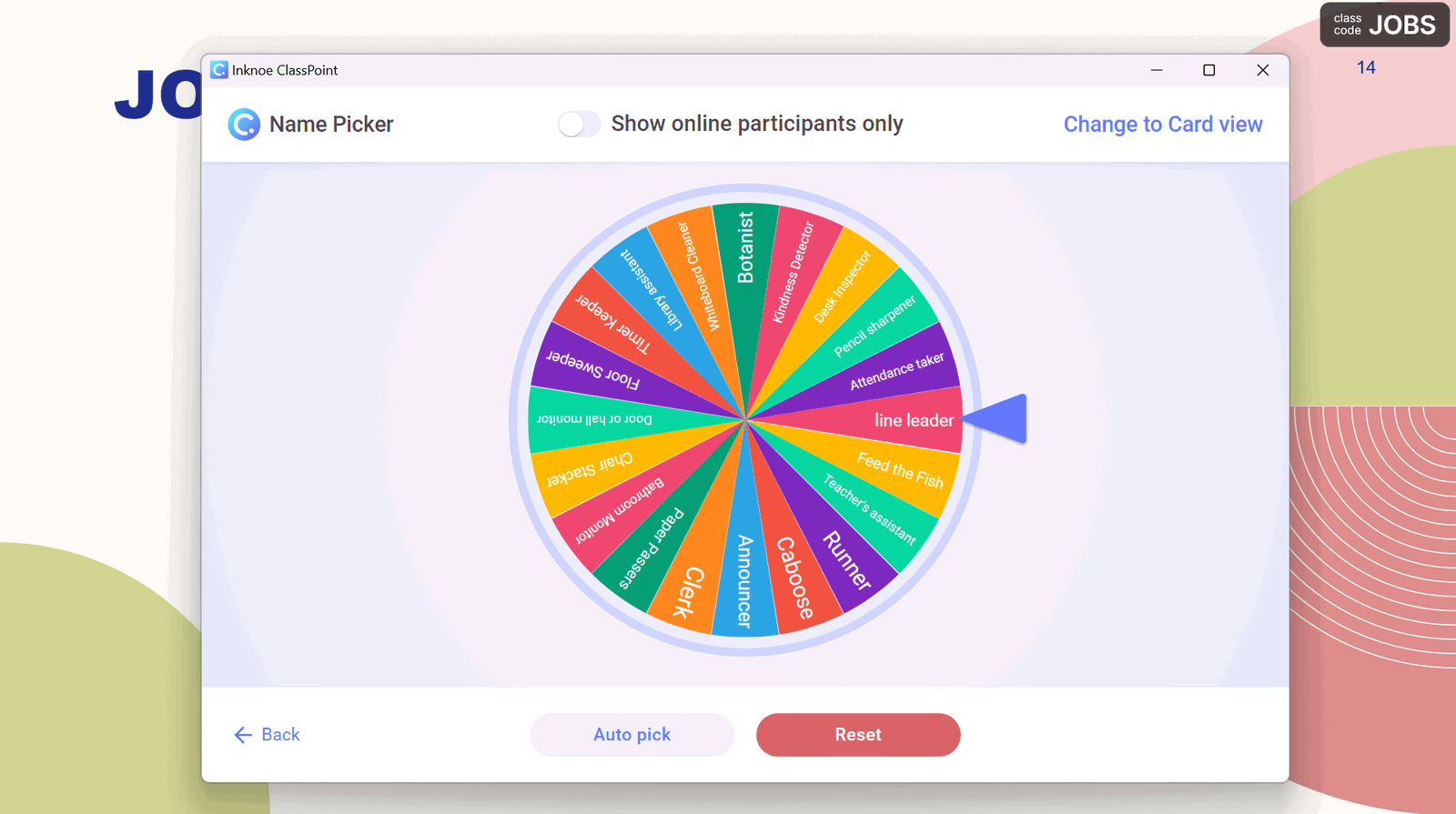
Class monitor, materials manager, recycling duty, board cleaner. There’s always something to assign, and someone who’d rather not be the one doing it. Use the wheel to pick, and the role is settled in front of the whole class in a few seconds. No negotiating, no eye-rolling, no “but I did it last time.”
A visible, random pick also helps build the sense that everyone gets a turn, which matters more than the task itself.
Pick Group Leaders or Partners fairly:
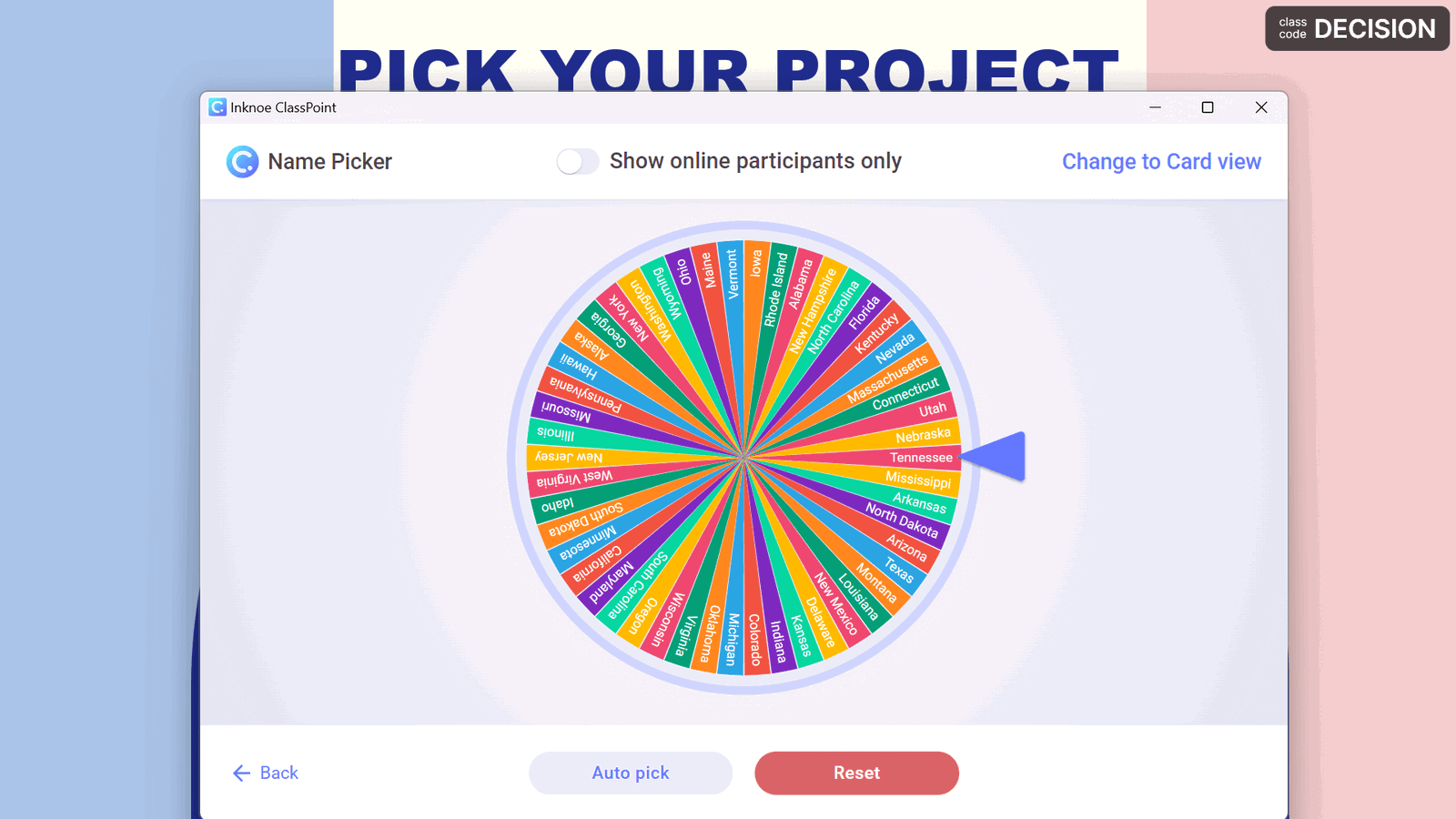
When you need to assign group leaders or pair students up, the wheel removes the awkward social dynamics of self-selection. Students see the choice happening in real time, which builds trust in the process.
It also surfaces leaders who’d never volunteer. Some of the best group work happens when the wheel picks a student who would have spent the lesson at the back of the room otherwise.
Variety Keeps Them Engaged: Alternate between different interactive tools throughout your presentation. Word clouds in PowerPoint offer another way to collect student input and break up the routine.
Try It Out and Make It Yours
Pick one method from this list that fits your next lesson. Maybe it’s the prize wheel or the random review topics. Start small and see how your students respond.
Whether you’re running quiz games, picking discussion topics, or just trying to get different voices heard, the spinning wheel adapts to what you need. You can always layer in more uses as you get comfortable with it.
ClassPoint’s spinning wheel is free to download if you want to give it a spin.
