
As an ESL teacher, you’re juggling lesson planning, managing different proficiency levels, and keeping students motivated. That Sunday evening scramble to prep for Monday? We get it.
The solution: Interactive ESL activities that get students talking and participating, without adding hours to your prep time.
These interactive PowerPoint templates are specifically designed for ESL classrooms. In this post, we’ll walk you through ready-to-use templates you can download and customize in minutes plus practical tips on how to adapt them for your students, whether they’re beginners or advanced learners.
Why Interactive ESL Activities Matter
Engagement & Learning Benefits
Interactive ESL activities create what language learners need most: real opportunities to use English. When students participate in role-plays, they’re practicing authentic communication. When they work together to solve a problem entirely in English, they’re building both language skills and confidence through real use.
Take a simple vocabulary lesson: instead of students passively copying words into notebooks, they’re actively applying and selecting words they actually comprehend while having fun collaborating with fellow students and getting immediate feedback. That active involvement makes language stick. Plus, these activities naturally boost student participation in ways traditional worksheets can’t.
Addressing Teaching Challenges
Creating interactive activities from scratch is time-consuming but customizable templates solve this.
Whether you’re teaching beginners learning basic greetings or advanced learners preparing for presentations, these templates adapt to various proficiency levels. Adjusting vocabulary difficulty is as simple as changing a few words, and the built-in flexibility makes it easy to add scaffolding for struggling students.
This approach makes differentiated instruction practical instead of overwhelming. Instead of creating three different activities for mixed-level classrooms, you customize one template with variations.
Pro Tip: Want to create different difficulty levels in seconds? We'll show you an AI shortcut later in this post.
4 Core Activities for Comprehension and Grammar
These ESL activities come with interactive ClassPoint quiz buttons already built in. ClassPoint is a free PowerPoint add-in that takes less than 5 minutes to install. With this tool you can unlock features like live quizzes, quick polls, and gamification, turning your presentations into engaging learning experiences.
If you haven’t installed ClassPoint yet, download it for free here:
Download Your First ESL Template
Download the template first, open it in PowerPoint, and follow along as we walk you through each activity.
ESL Template 1: Comprehension & Grammar
Interactive PowerPoint template with 4 ESL activities: Multiple Choice Quiz, Fill-in-the-Blanks, Slide Drawing, and Short Answer. Includes British workplace scenario ready to customize.
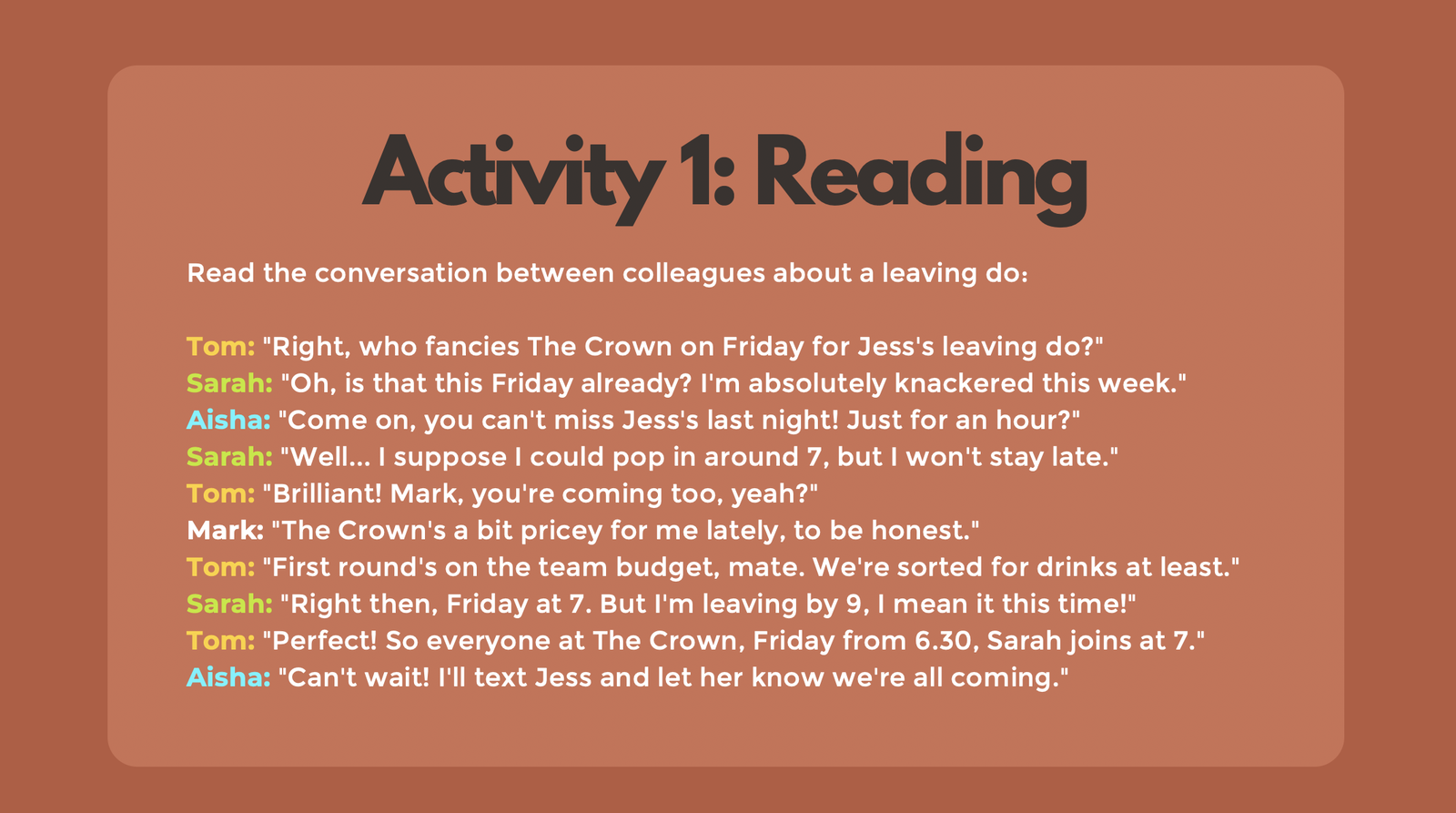
Activity #1: Reading Comprehension with Multiple Choice Quiz
What’s in the template: A conversation between British colleagues planning a leaving party (Slide 9), followed by two comprehension questions (Slides 10-11).
How the Multiple Choice quiz button works: When you reach Slide 10 in presentation mode, students see the question and answer choices on screen. They join your session on their devices (phones, tablets, or laptops) using your unique class code where they can start submitting responses.
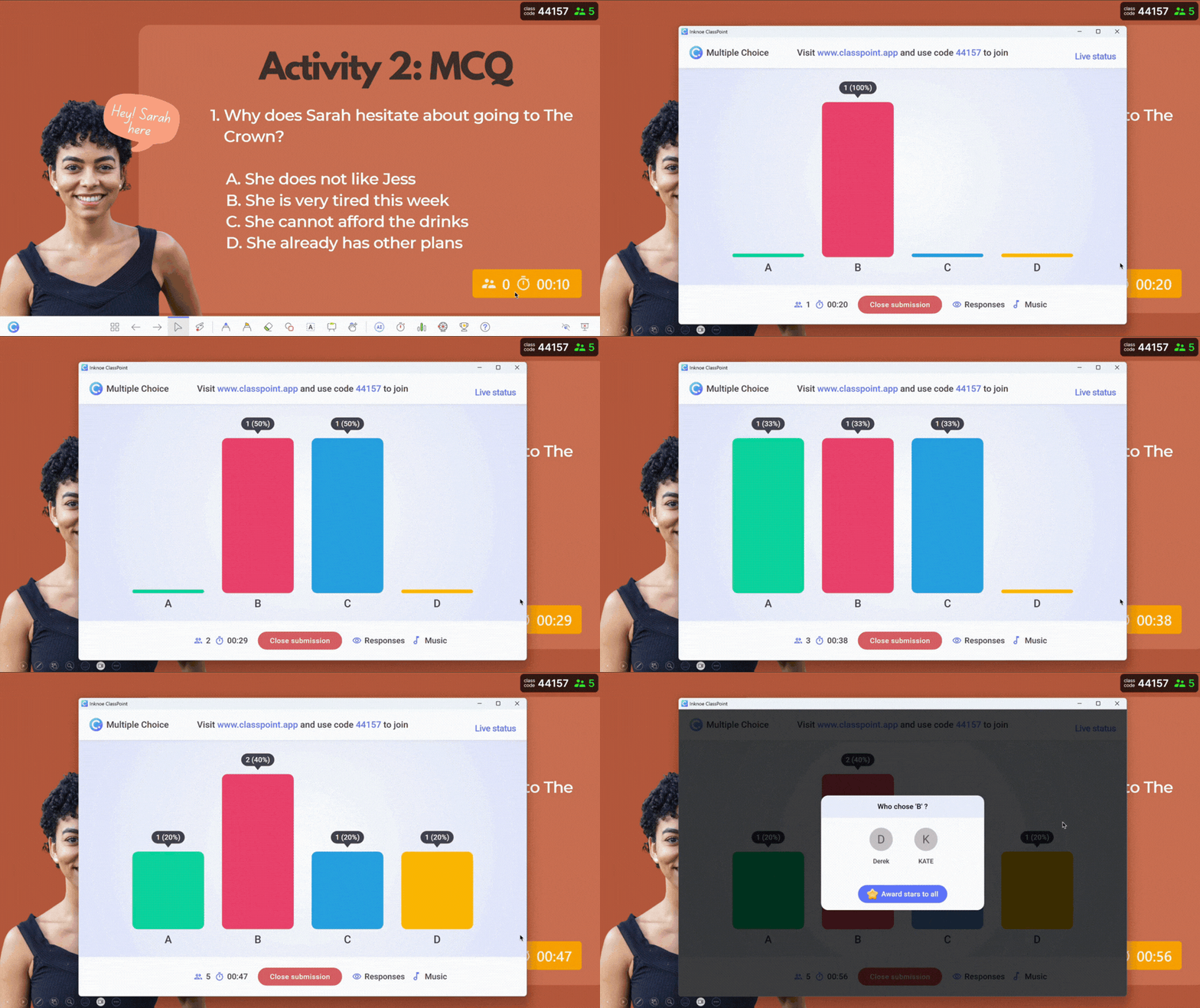
Here’s what makes it interactive:
- Responses appear instantly on your screen as students submit them
- You see exactly who answered what, so you know which students need support
- Display a results chart to show the class breakdown, great for discussing the question in depth
- Award stars to correct answers if you want to add a gamification element
No more asking “raise your hand if you chose A”, every student participates, and you get real data on comprehension gaps.
Take language teacher Marília Silva in Portugal: 77% of her students saw improved test results and 85% retained vocabulary better with her using ClassPoint. Her favorite part? "Everybody answers" even the quiet students who typically hold back.
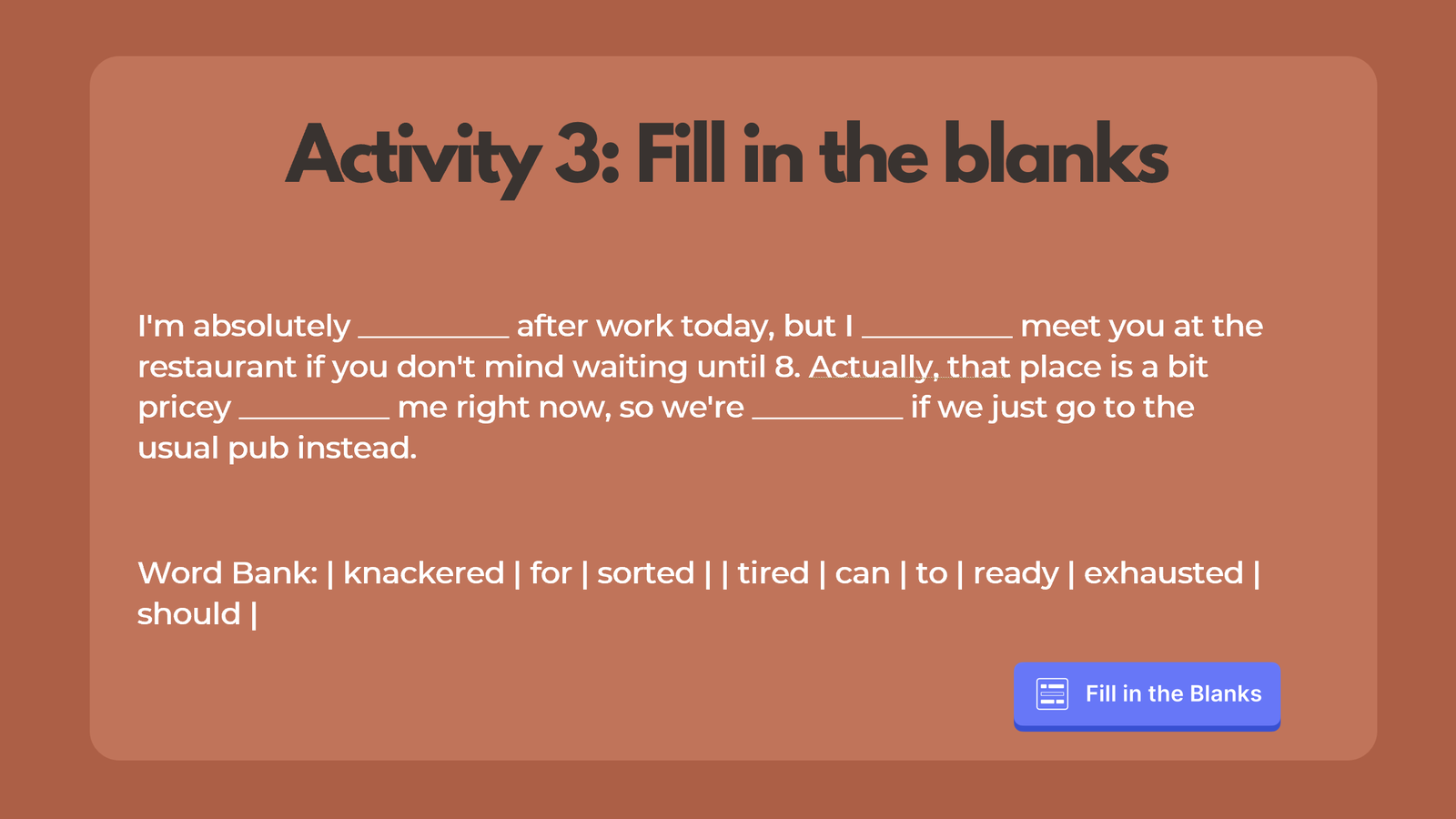
Activity #2: Grammar & Vocabulary with Fill-in-the-Blanks
What’s in the template: Sentences with missing words and a word bank (Slide 12). Students complete sentences using British colloquial expressions like “knackered” and “sorted.”
How the Fill-in-the-Blanks quiz button works: Instead of students shouting out answers or writing on paper you can’t see, they type directly into text boxes on their devices.
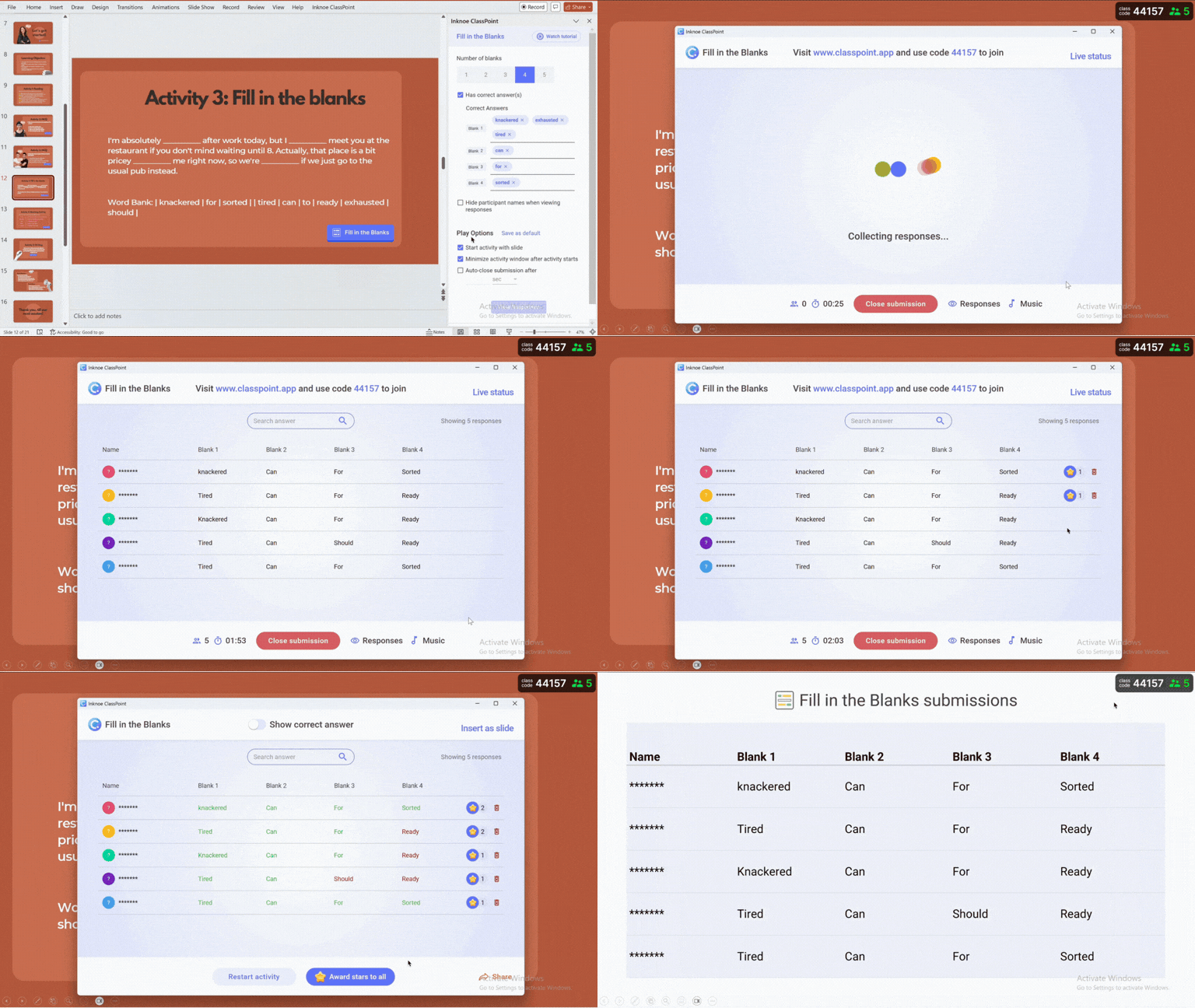
Here’s what happens:
- Set correct answers and add acceptable variations directly in the quiz button, especially useful for vocabulary and grammar where multiple correct forms exist.
- You can display anonymous responses to the whole class for discussion, for example, “Let’s look at these three different answers. Which one sounds most natural?”
- Spot patterns instantly: if 12 students wrote “tired” instead of “knackered,” you know which word needs more practice
This is especially powerful for grammar practice because you can see everyone’s thinking process, not just the student who raises their hand first.
Activity #3: Vocabulary Practice with Slide Drawing (Matching Activity)
What’s in the template: British slang terms (fancy, knackered, mate, sorted, leaving do) to match with their definitions (Slide 13).
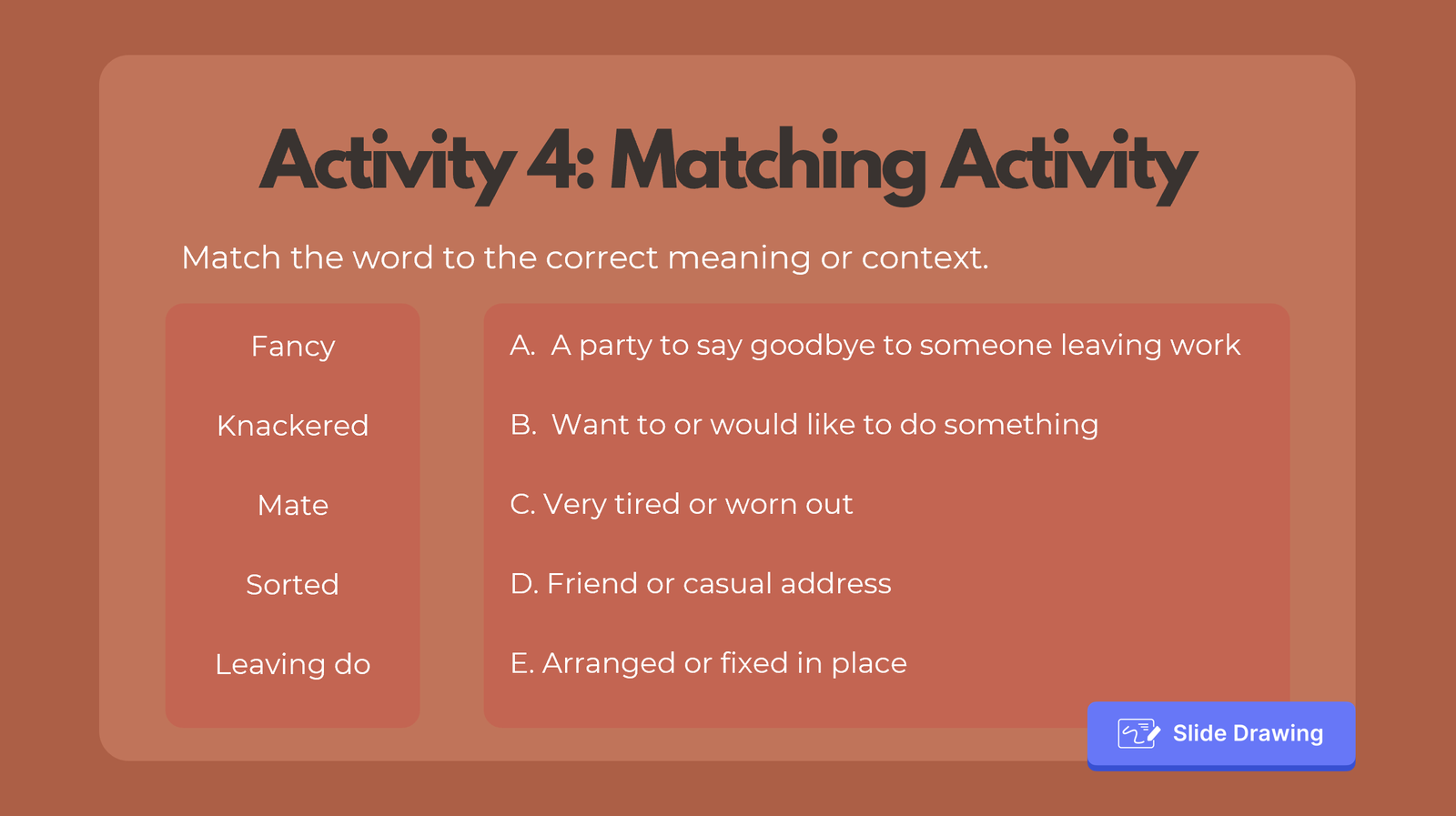
How the Slide Drawing quiz button works: Students use their device screens as a drawing canvas to connect words to meanings.
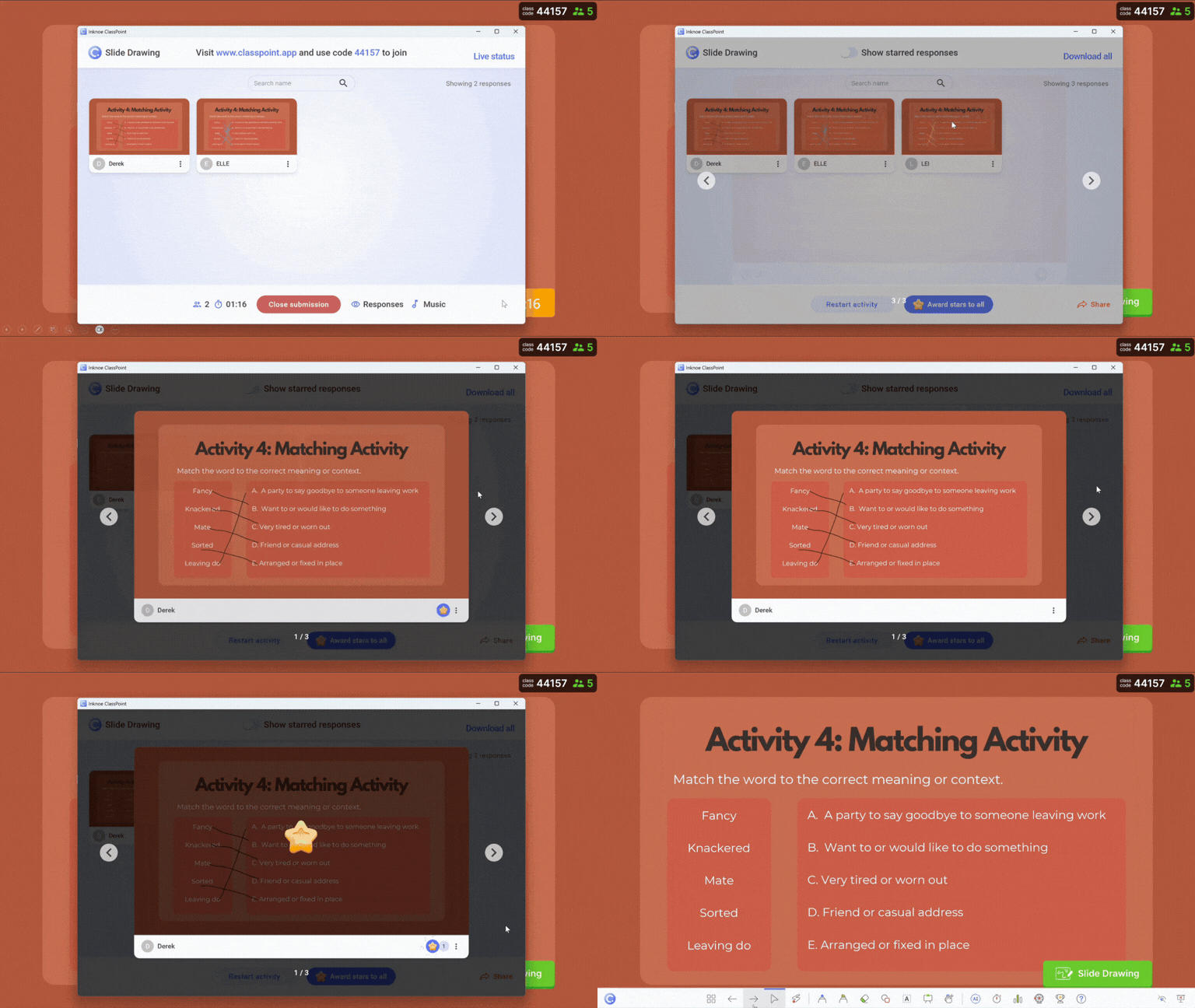
This is where it gets visual and interactive:
- Students draw lines, circle items, or annotate directly on the slide image from their devices
- They can use different types of pens, highlighters, and colors, or add text boxes with emojis to express their answers
- Every student gets to draw on their own canvas which is your PowerPoint slide, no waiting for turns
- You can display student drawings when submissions close with the option to insert them as slides.
This works brilliantly for any matching activity, and it’s particularly engaging because students can see each other’s work. When you display three different students’ answers, it sparks natural discussion about vocabulary meaning.
Activity #4: Writing Practice with Short Answer
What’s in the template: A reflection prompt asking students to describe handling social pressure when tired, using vocabulary from the lesson (Slide 14).
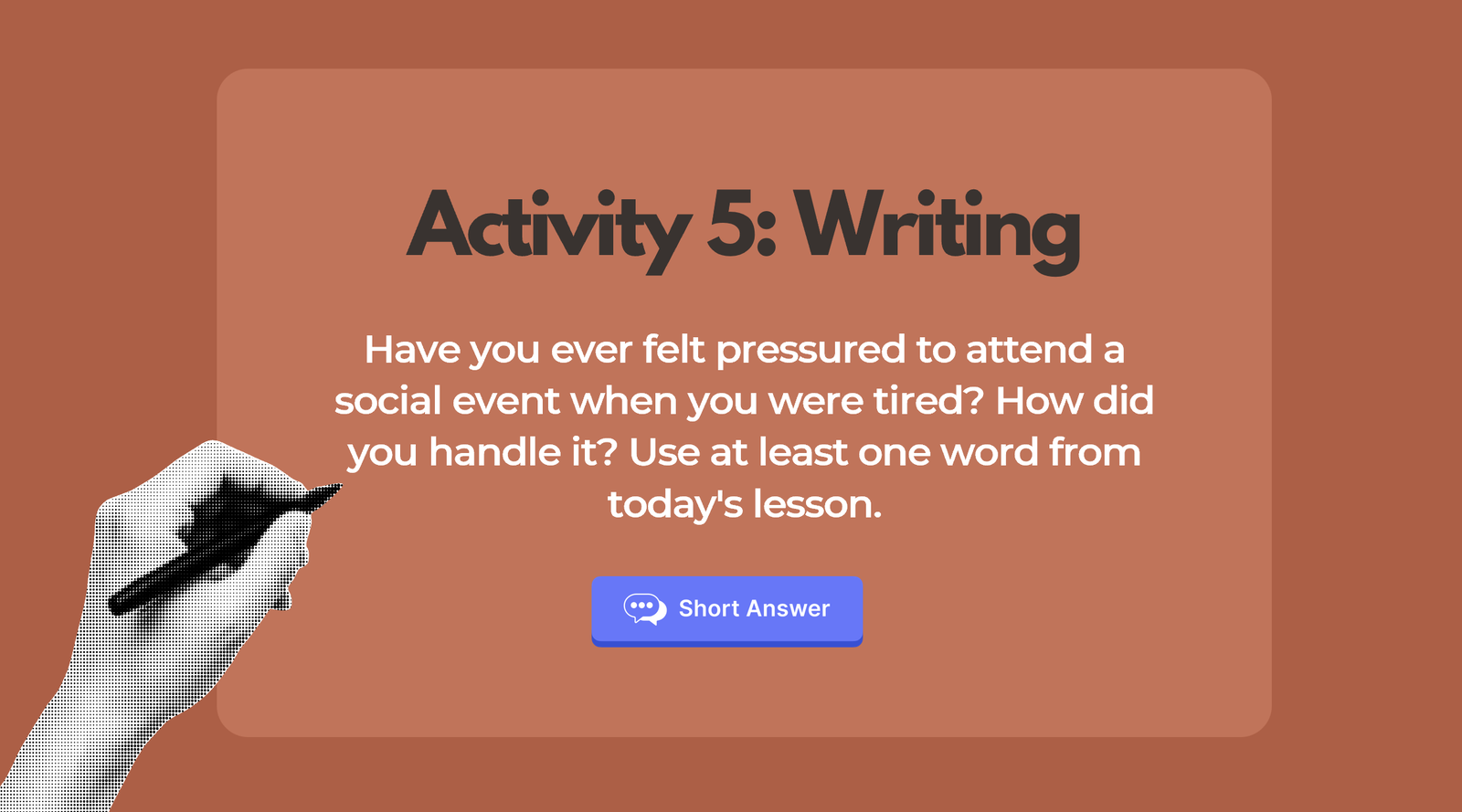
How the Short Answer quiz button works: Students write paragraph responses on their devices that you can review and share.
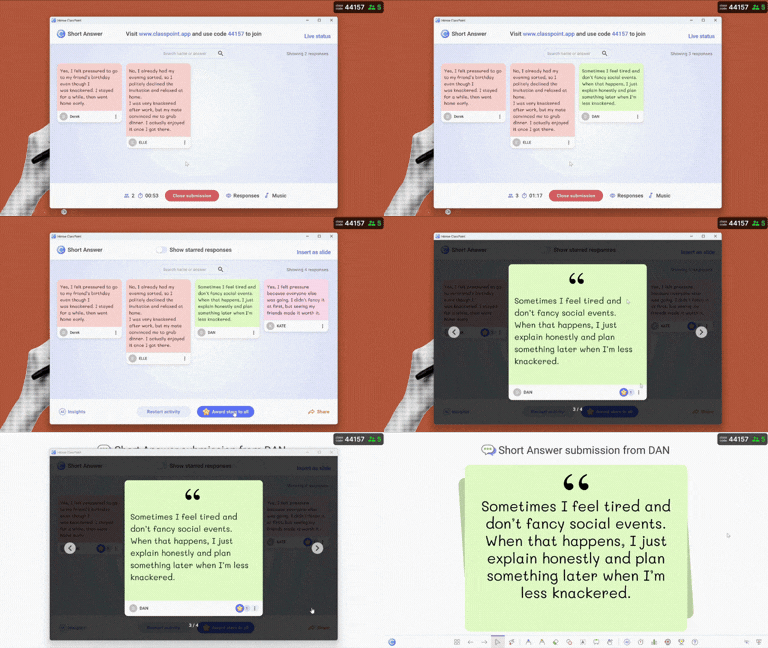
Here’s the classroom flow:
- Students type their responses from one sentence to multiple paragraphs
- Students can play with different formatting styles (bold, italic, underline) to express emphasis
- Submissions appear on your screen as students finish, so you can read while others are still writing
- Highlight strong answers by giving them stars and displaying selected responses to the class: “Here’s how one classmate used ‘knackered’ in context”
- You can also insert all student responses as a separate slide to review
This beats collecting paper or asking students to read aloud because shy students participate fully, you can quickly identify who needs writing support, and students learn from seeing peer examples without the pressure of public speaking.
For a writing-focused lesson that uses this same Short Answer setup, see these paraphrasing activities designed as a scaffolded progression for building comprehension.
How to Customize These ESL Activities for Different Proficiency Levels
The templates look great with solid content and clear activities. Now comes the practical part: adapting them for your actual classroom where proficiency levels rarely match perfectly.
Instead of rebuilding activities from scratch for each level, here’s a faster two-step approach:
Step 1: Adjust slide content to match your students
- For business professionals: Replace the “leaving party” scenario with workplace situations like client meetings or project discussions
- For A1 beginners: Simplify vocabulary and use shorter sentences with familiar daily life contexts
- For teenagers: Swap in age-appropriate scenarios like planning weekend hangouts or school events
- For different cultures: Change cultural references (British pub to local café, “leaving do” to farewell gathering)
Step 2: Let ClassPoint AI generate the questions automatically
Once your slide content fits your students, use ClassPoint’s AI Quiz Generator to create appropriately challenging questions aligned with different cognitive levels without leaving PowerPoint.
Here’s how it works:
- Select any slide with vocabulary, reading passages, or grammar examples
- Choose your question type: multiple choice, short answer, or fill-in-the-blank
- Pick the Bloom’s Taxonomy level: Remember, Understand, Apply, Analyze, Evaluate, or Create
- Click generate: questions appear in seconds, already formatted as interactive quiz slides
Aligns with Bloom’s Taxonomy levels: Target specific cognitive demands from basic recall to higher-order thinking.
Inserts as interactive slides instantly: No copying, pasting, or reformatting. Quiz questions become clickable ClassPoint slides that students answer on their devices during your lesson.
3 Visual Activities for Vocabulary and Concepts
These ESL activities are designed for teaching vocabulary and concepts where images do the heavy lifting. Perfect for introducing new topics, building word banks, or helping visual learners make connections. ClassPoint quiz buttons are already set up on slides 11, 13, and 14.
Download Your Second ESL Template
ESL Template 2: Visual Vocabulary Activities
Engage visual learners with 3 interactive ESL activities: polls, drag-and-drop sorting, and word clouds. Perfect for teaching vocabulary to beginners.
Activity #1: Live Poll for Prior Knowledge Check
What’s in the template: A quick Yes/No/Unsure poll asking “Do you know the difference between fruits and vegetables?” before teaching the concept (Slide 11).
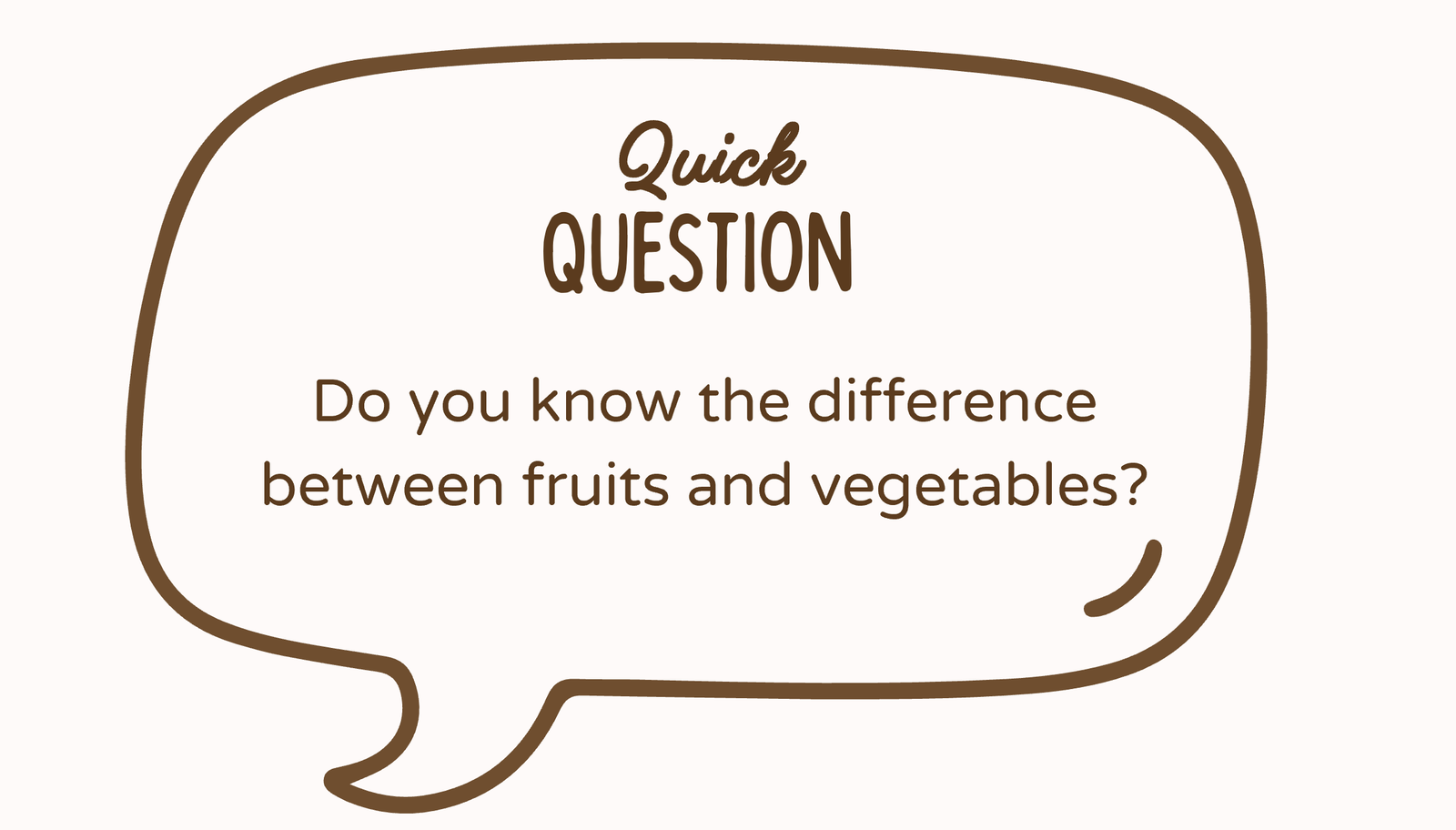
How the Live Poll works: Before you explain anything, students vote on their devices. This is different from a quiz because there’s no right or wrong answer yet.
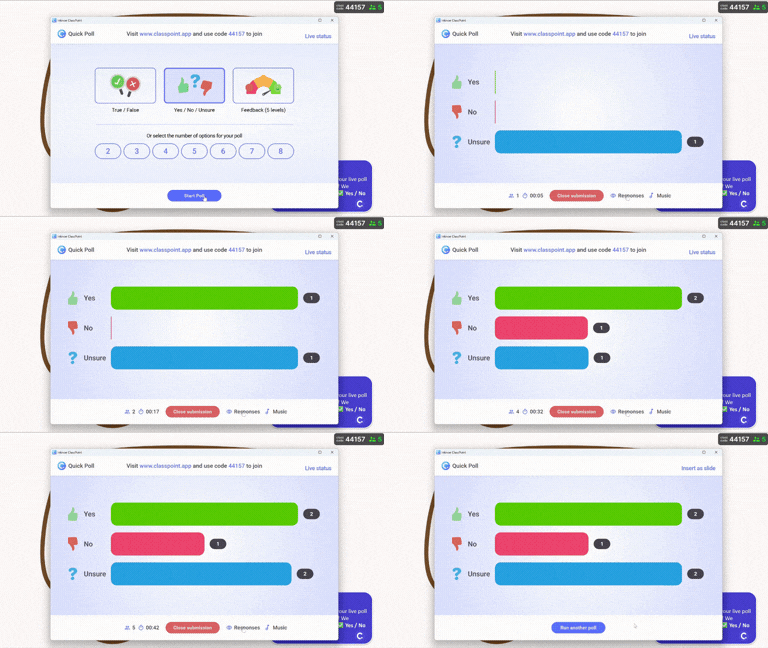
Here’s what happens:
- Students tap Yes, No, or Unsure on their devices
- Results appear instantly as a bar chart showing class distribution
- You see exactly what percentage already knows the concept vs. who’s guessing
- Use this data to adjust how much time you spend on basics vs. deeper concepts
This works brilliantly at the start of any vocabulary lesson. Ask “Do you know what ___ means?” or “Can you identify ___?” before teaching. It activates prior knowledge and shows you where to focus.
Customization tips:
- Use before teaching any new vocabulary set (weather, emotions, occupations)
- Change to opinion polls: “Do you prefer tea or coffee?” then teach related vocabulary
Activity #2: Drag and Drop for Visual Sorting
What’s in the template: Students drag characteristics or images to sort them into two categories: Fruits vs. Vegetables (Slide 12).
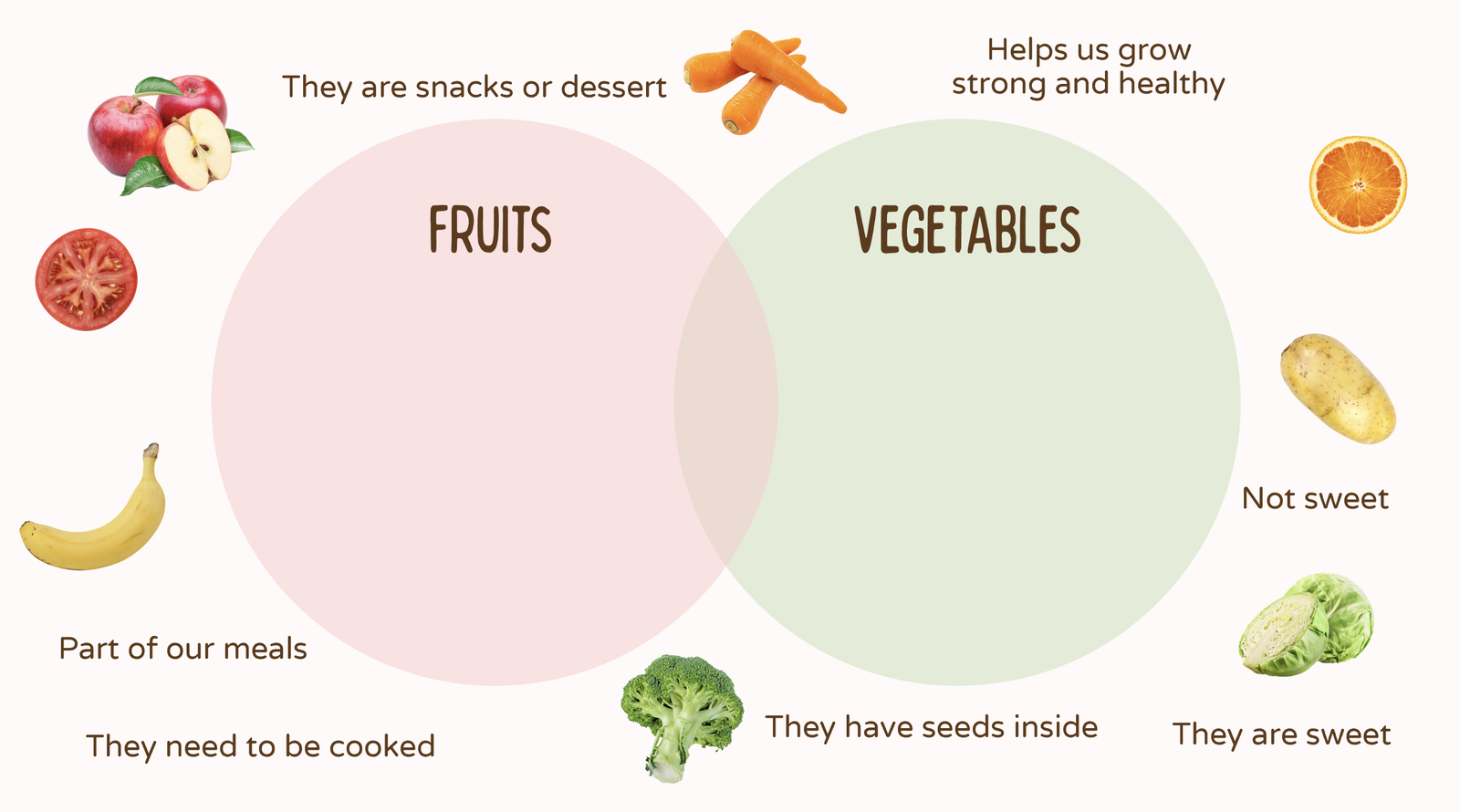
How Draggable Objects works: This is an interactive drag-and-drop activity that happens on your PowerPoint screen where you do the dragging while students follow along live on the projected display.
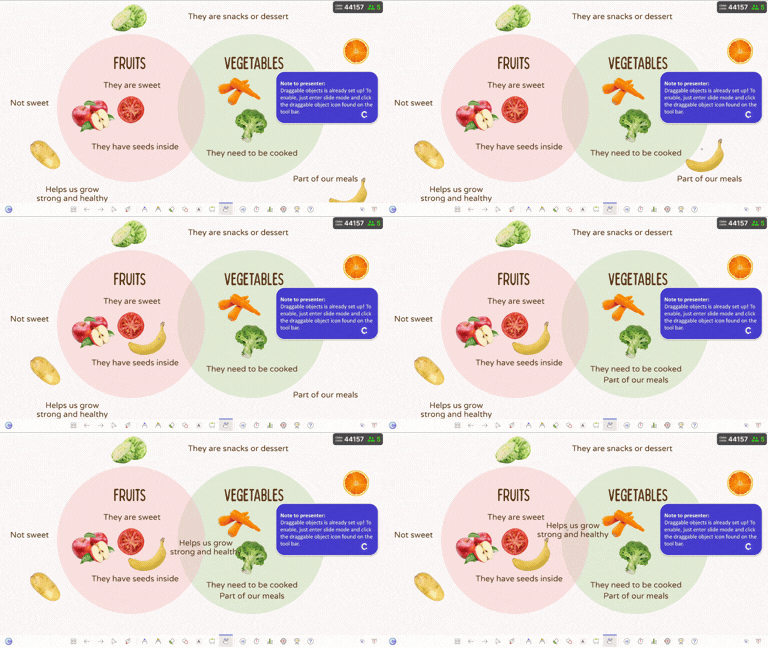
Here’s the classroom experience:
- You enter slide show mode and click the draggable objects icon on the toolbar
- Drag items into the correct category boxes on your screen while students watch in real-time
- Move objects around at your own pace, students see every movement live for added visual impact
- Optionally, you can call on students to drag and drop objects right from your Powerpoint screen
This is perfect for any vocabulary that involves categorization, sorting, or grouping. The physical act of dragging makes it more engaging than multiple choice, especially for kinesthetic learners and young students.
Customization tips:
- Replace with images for any sorting activity: animals (wild/domestic), weather (hot/cold), clothing (formal/casual)
- Use for grammar sorting: regular/irregular verbs, countable/uncountable nouns
A study of EFL learners found that when teachers used ClassPoint over a semester, students' confidence in managing their own learning increased by 50%, they felt more capable of tackling language tasks independently.
Activity #3: Word Cloud for Collaborative Vocabulary Building
What’s in the template: Students type their favorite fruit and vegetable (Slide 14). Everyone’s answers appear together as a word cloud where popular responses show up bigger.
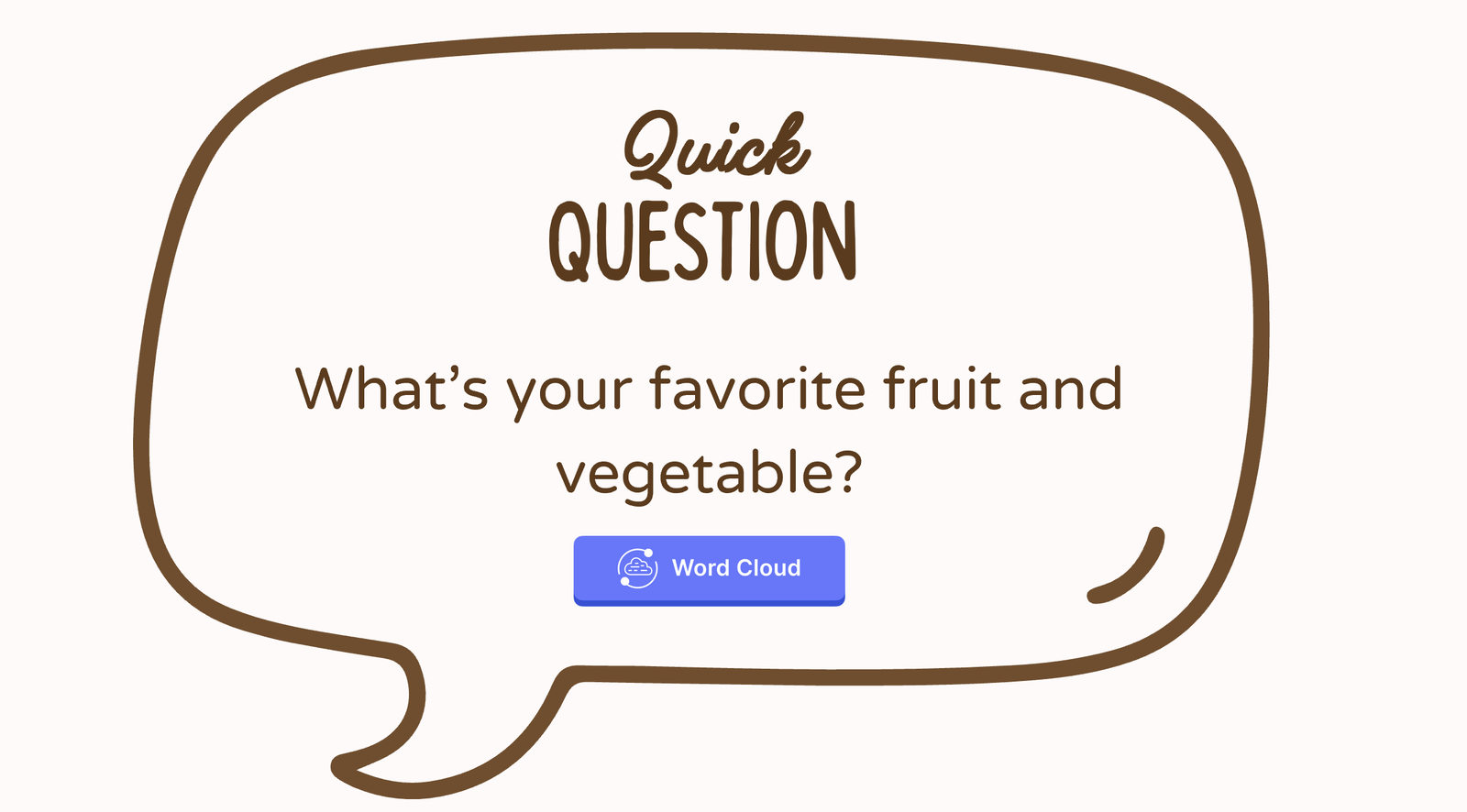
How Word Cloud works: This creates a collective class visualization. It’s collaborative, not individual testing.
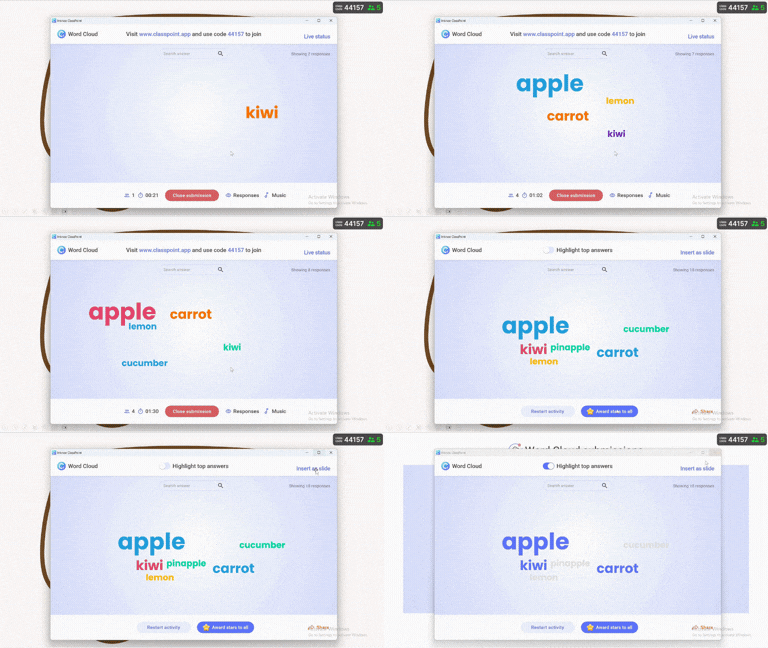
Here’s what it looks like in class:
- Students type their answers on their devices (one word or short phrase)
- All responses appear on screen simultaneously as a word cloud
- Words that multiple students submit appear larger
- You instantly see the class’s collective vocabulary and which words are most familiar
This works beautifully for brainstorming vocabulary, activating what students already know, or seeing which words stick after teaching. Unlike short answer where you review responses individually, word clouds show patterns and create a shared visual reference.
Customization tips:
- Use for any open vocabulary prompt: “Name a job,” “Type a summer activity,” “What color do you see?”
- Perfect for review: “Type one word you learned today”
- Great for personalization: “Your hometown,” “Your hobby,” “Describe your mood in one word”
What Actually Changes in Your Classroom
The real question isn’t “how fast can I prep?” It’s “are my students actually learning English?”
interactive PowerPoint ESL activities create something traditional worksheets can’t: every student using English actively, not passively watching a few students participate.
What’s more, this engagement doesn’t stop when class ends. The same research found that EFL students began actively reviewing their materials at home on their own, a behavior instructors rarely see with traditional homework. The immediate feedback and engaging format made the difference.
Ultimately, when you apply interactive ESL activities, here’s what shifts:
- Quiet students who never raise their hands submit answers and participate
- You see exactly who understands “present perfect” vs. who’s still confused, not just who’s confident enough to speak up
- Students retain vocabulary because they’re applying it, sorting it, discussing it, not copying definitions
- Your advanced learners stay challenged while beginners get the support they need, all in the same lesson
The language classroom you want, where every student speaks, participates, and makes progress becomes possible without rebuilding your entire teaching approach.
Download your free interactive PowerPoint templates and see the difference when students actively use English instead of just listening to it.
