For many teachers, it is important to make full use of their PDF learning materials. It has always been easy to print and pass out to students to read or fill out as an activity or worksheet; but did you know that you can use that same material right in your PowerPoint presentation? Bonus for points for making your PDF into an Interactive PowerPoint!
You can use the same material to engage with your students by converting paper to a digital format with a PDF to PowerPoint conversion, saving you time, resources, and a headache. This will allow you to add your PDF slides to another presentation, or the ability to just present that PDF solo. Plus, to use them as activities or worksheets for a class, you can make this file more interactive with ClassPoint.
If you have a PDF file, and you would like to convert it into an interactive PowerPoint, there are a few different web tools that make it easier than ever! Find out all the details in the video or read below.
Convert a PDF to PowerPoint File
If you are an Adobe user, you can use the products to do the conversion, but if you are not, there are many other free tools on the web you can use instead.
Here is a short list of some of the websites you can use to help with the PDF to PowerPoint conversion:
Using iLovePDF as an Example
To demonstrate, we used iLovePDF in the video above to turn this Cause and Effect PDF into a PowerPoint file. iLovePDF offers many different tools, but we will use the PDF to PowerPoint option.
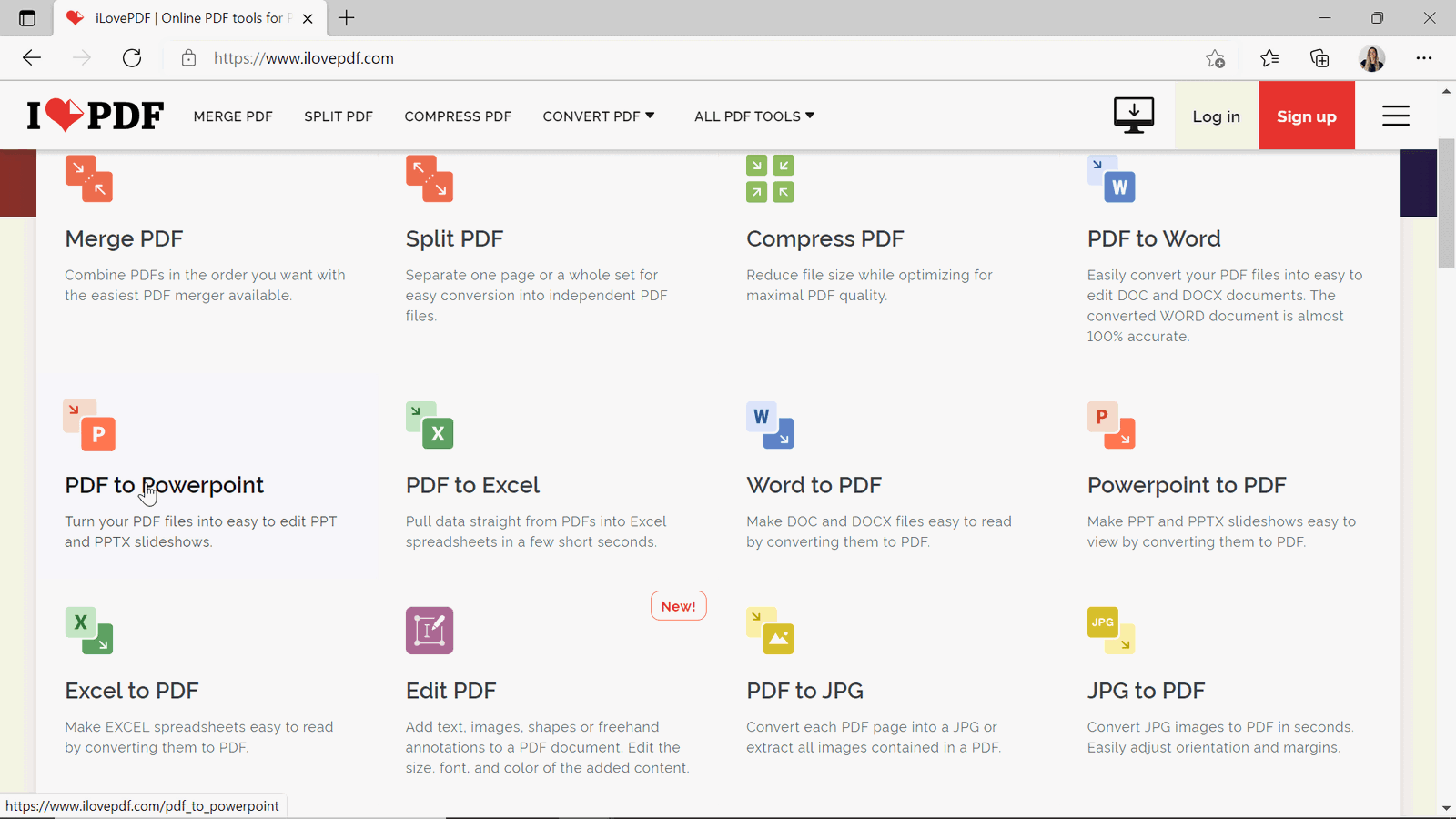
From there, you only need to upload your PDF, then click Convert PDF. Once the conversion is done, go ahead and Download PowerPoint. It is that easy!
Now, you have a fully functional and editable PowerPoint version of your PDF. The next step is to make this interactive!
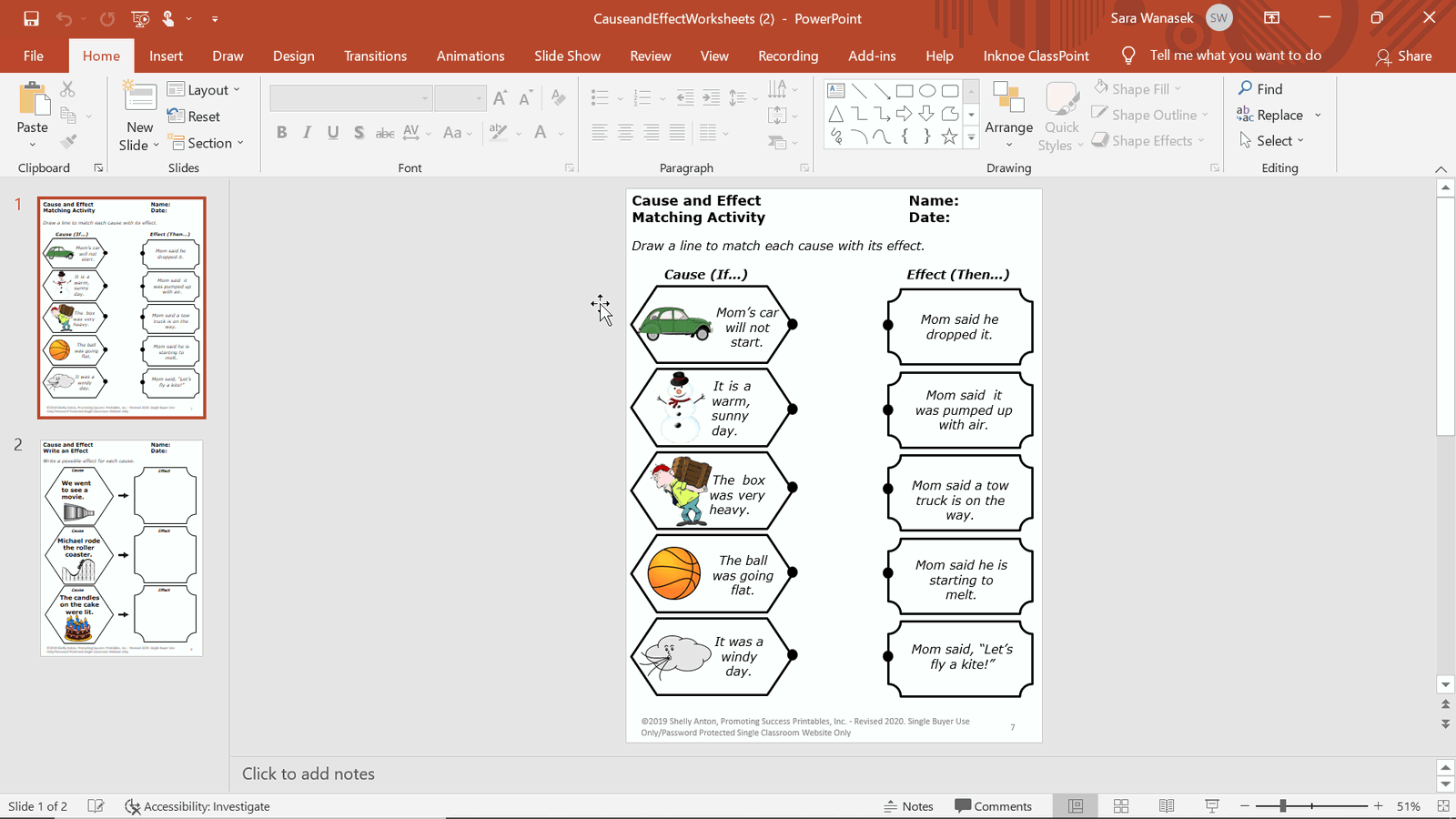
Make your PDF into an Interactive PowerPoint
To add interactivity to our newly converted PowerPoint, we will be using the interactive teaching PowerPoint tool, ClassPoint. ClassPoint has 8 different question activities that can be used to receive live responses from your students – all done right through PowerPoint.
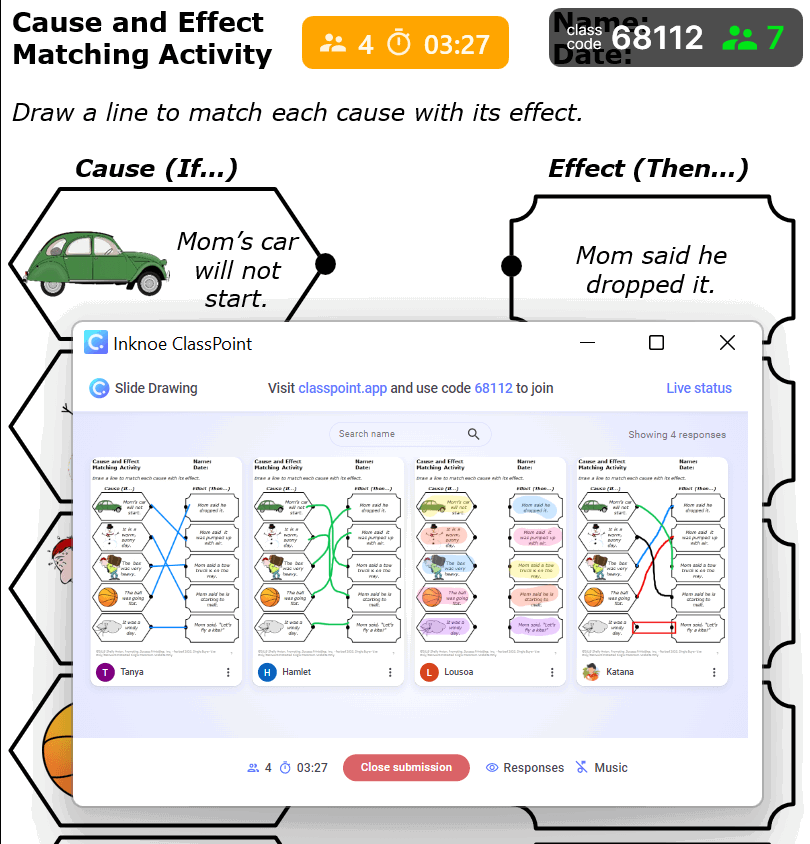
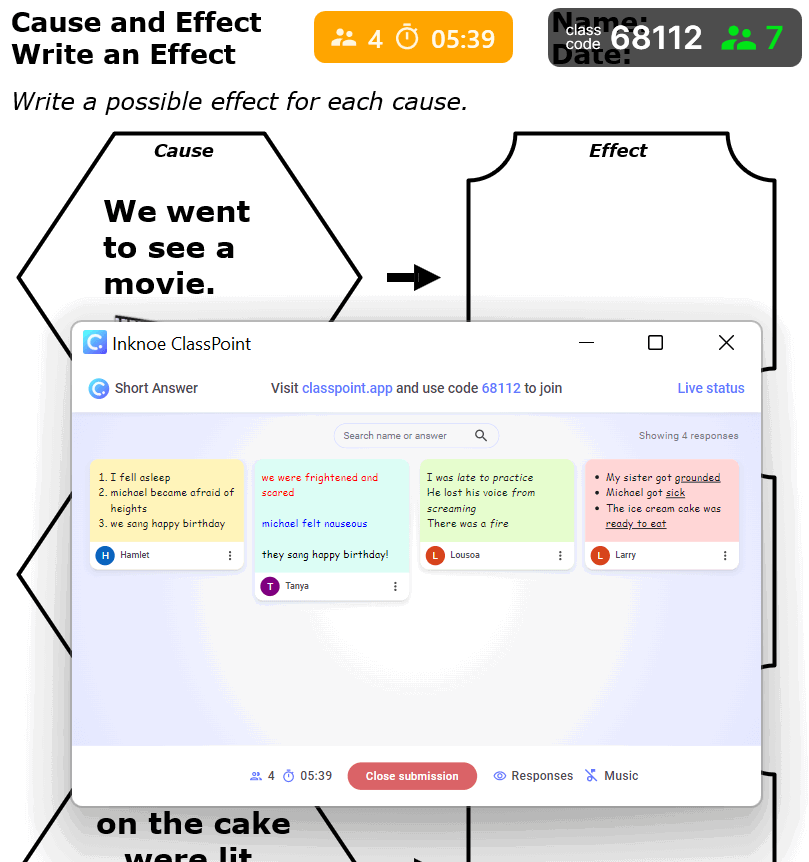
With this PDF, we will be using the Slide Drawing and Short Answer question types to engage our students. The first slide, with the slide drawing question, will allow students to draw lines to connect the correct cause to the correct effect. This is a quick way to ensure they are ALL understanding the relationship between cause and effect.
In the second slide, the short answer question, students must submit examples of effects that have occurred because of the cause listed. There is no right answer here, so it is an excellent way to gather a lot of ideas and use this to begin a discussion in class.
With only those few steps, you can make the most out of all your teaching content, especially if you are teaching online. To learn more about ClassPoint & its other question types, get started here!
