
In an age where everything is instant, what you can do after the fact is key.
In building presentations, instant is no longer news. Countless presentation makers and free resource libraries are out there turning slide creation into just another 5-second task we tick off our list.
But is the mere act of slide-making really enough?
Making interactive presentations is the gold star. A popular resource like Slidesgo can be your perfect first step toward that. And the step that comes after? ClassPoint.
In this blog, we’ll appsmash these two together in digestible steps you can fold into your presentation prep like second nature.
Key takeaways
- Slidesgo = beautiful slide designs. ClassPoint = live interaction. Together = engaging presentations.
- Grab a Slidesgo template (or generate one with AI) and layer ClassPoint on top.
- Interaction works on your existing slides.
- Run quizzes, award stars, name picks, and live annotations during your slide show. Participants respond from their devices.
- We’ve included a free downloadable deck with ClassPoint already set up.
What is Slidesgo?
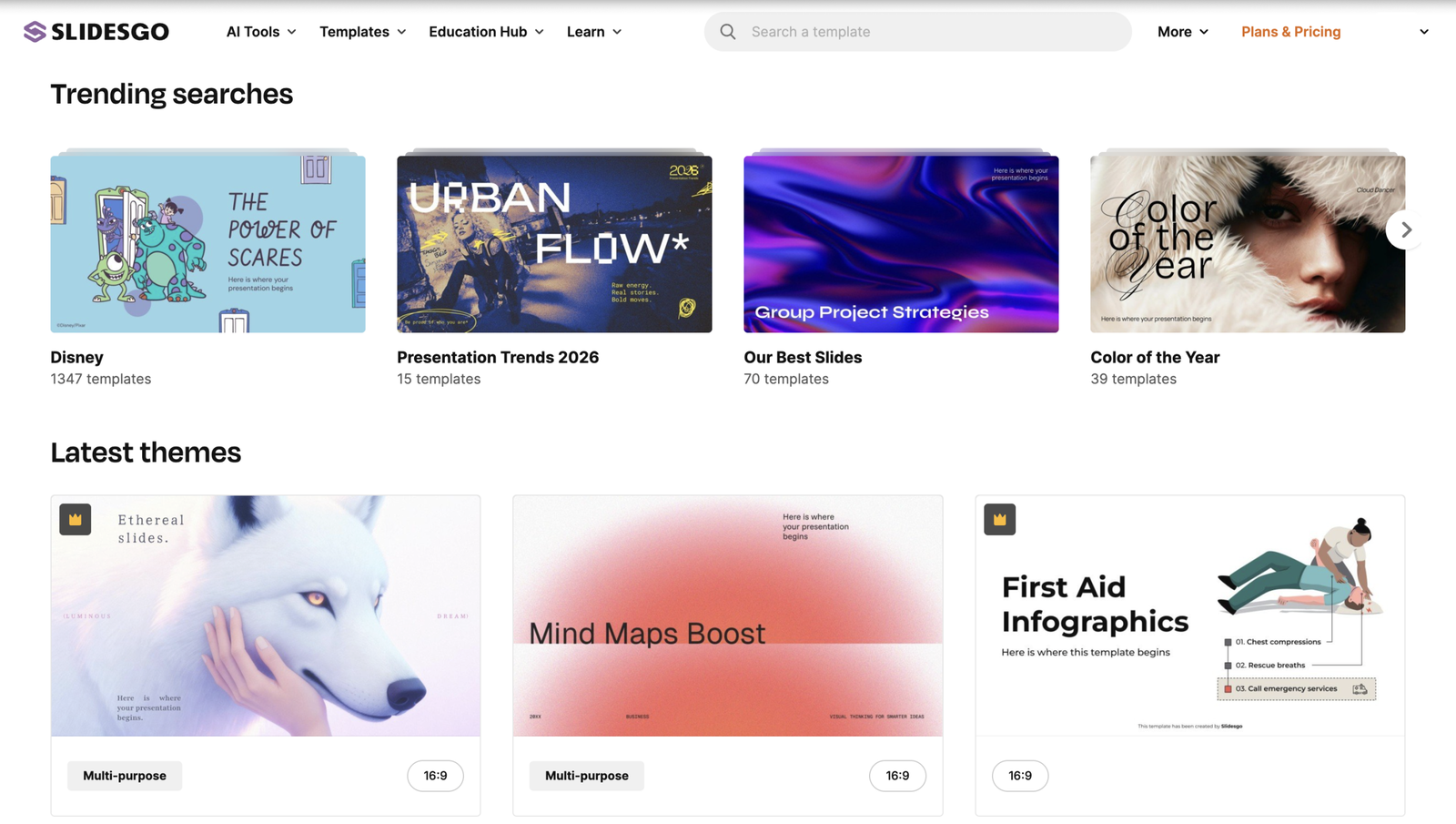
Slidesgo is a web-based resource presenters use to build better-looking slides faster. Its templates download directly to popular formats such as Google Slides, Canva, or Microsoft PowerPoint, so you can use them on whichever platform you prefer.
It solves the “blank slide problem” by giving you design-ready decks so you spend less time formatting and designing.
What You Can Do with Slidesgo
Slidesgo speeds up slide creation in two ways:
✅ Ready-made templates: Grab polished decks (like “Science Lab” or “Career Day”) and swap in your content.
✅ AI Presentation Generator: Type your topic or describe how you want the presentation to flow → pick a theme → Slidesgo builds a full slide outline. Tweak the slide order, adjust text tone, or rewrite content before downloading.
What You Can’t Do with Slidesgo
❌ Add live interactivity: Slidesgo gives you polished slides, but there are no built-in interactive features you can add to use them for audience engagement beyond the slides themselves.
That gap, great design without built-in engagement, is exactly why Slidesgo and ClassPoint make a powerful app smash.
In the following sections, let’s look at how to do it step by step.
Step 1: Choose or Create the Right Slidesgo Template
Pick a template that leaves room for interaction later.
Browsing ready-made Slidesgo templates?
- Look for clean layouts with breathing space (avoid slides packed edge-to-edge with graphics)
- Favor templates with clear visual hierarchy: title + content zones make it easier to layer quizzes or annotations later
Using the Slidesgo AI generator?
- Be specific: “Create a slide deck on climate change. Include one key idea per slide.”
- Review the outline before generating: trim extra slides, keep ones with a single focus (these become your interactive slides)
- After generation, tweak slide content or order while still in Slidesgo (easier to edit then than after download!)
Before you leave Slidesgo:
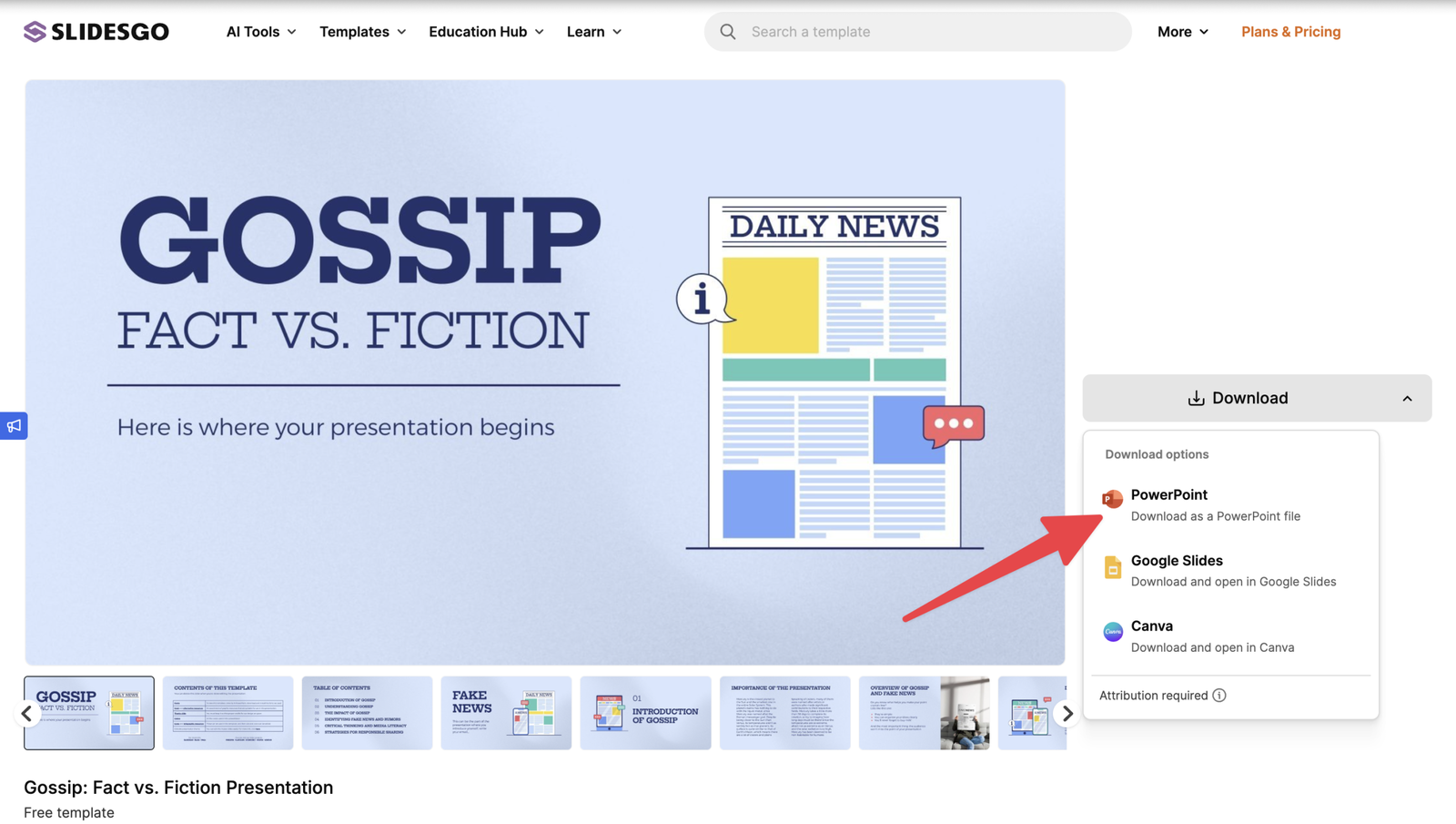
Download your deck as a PowerPoint (.pptx) file. You’ll need this format for the next step.
Step 2: Open the Template in PowerPoint
Now that you’ve downloaded your Slidesgo deck, open it the right way:
- Locate the downloaded
.pptxfile on your computer - Double-click to open it in PowerPoint desktop app
- Let the fonts and graphics fully load. Slidesgo templates often use custom fonts that may prompt a “Replace fonts” dialog. Click Keep Source Formatting to preserve the original design.
📝 Quick check:
- Slides look as expected? ✔️
- Text is readable and layouts are intact? ✔️
You’re ready for the next step.
Step 3: Identify “Interaction Moments”
Scan your Slidesgo deck and spot where your audience should do something. These become your interaction moments.
Look for natural pause points:
- After introducing a key concept → check for understanding
- Before revealing an answer → ask audience to predict first
- When showing an image/diagram → ask audience to label or annotate
- At the end of a section → quick recall or reflection
Need more? Add simple slides:
- Question slide – Clean layout with just the question (e.g., “What is the capital of France?”)
- Poll prompt – Short statement or question for quick voting (e.g., “Do you agree? Yes / No / Unsure”)
- Call for participation – Simple prompt like “Who wants to share?” or “Let’s hear from someone new”
Rule of thumb: 3–5 interaction moments in a 10-slide deck is enough. Place them where attention typically dips or after key concepts, not on every slide.
Step 4: Add Interactive Questions to Existing Slides
If you haven’t already, install ClassPoint first. It adds a dedicated tab to your PowerPoint ribbon with all the interactive question types ready to use.
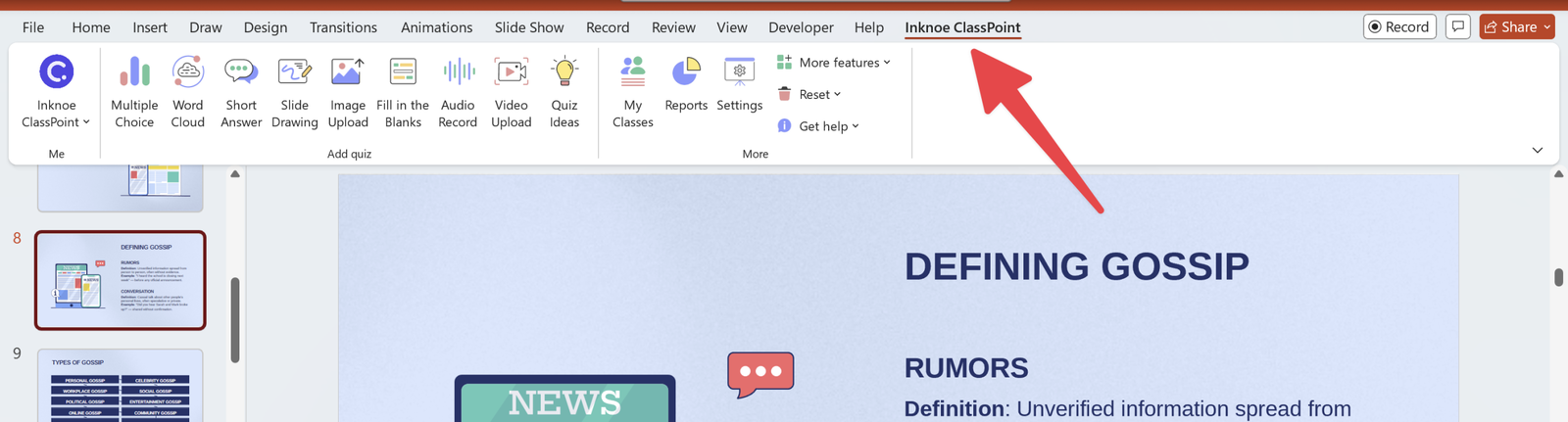
Now, turn your slides into interactive activities:
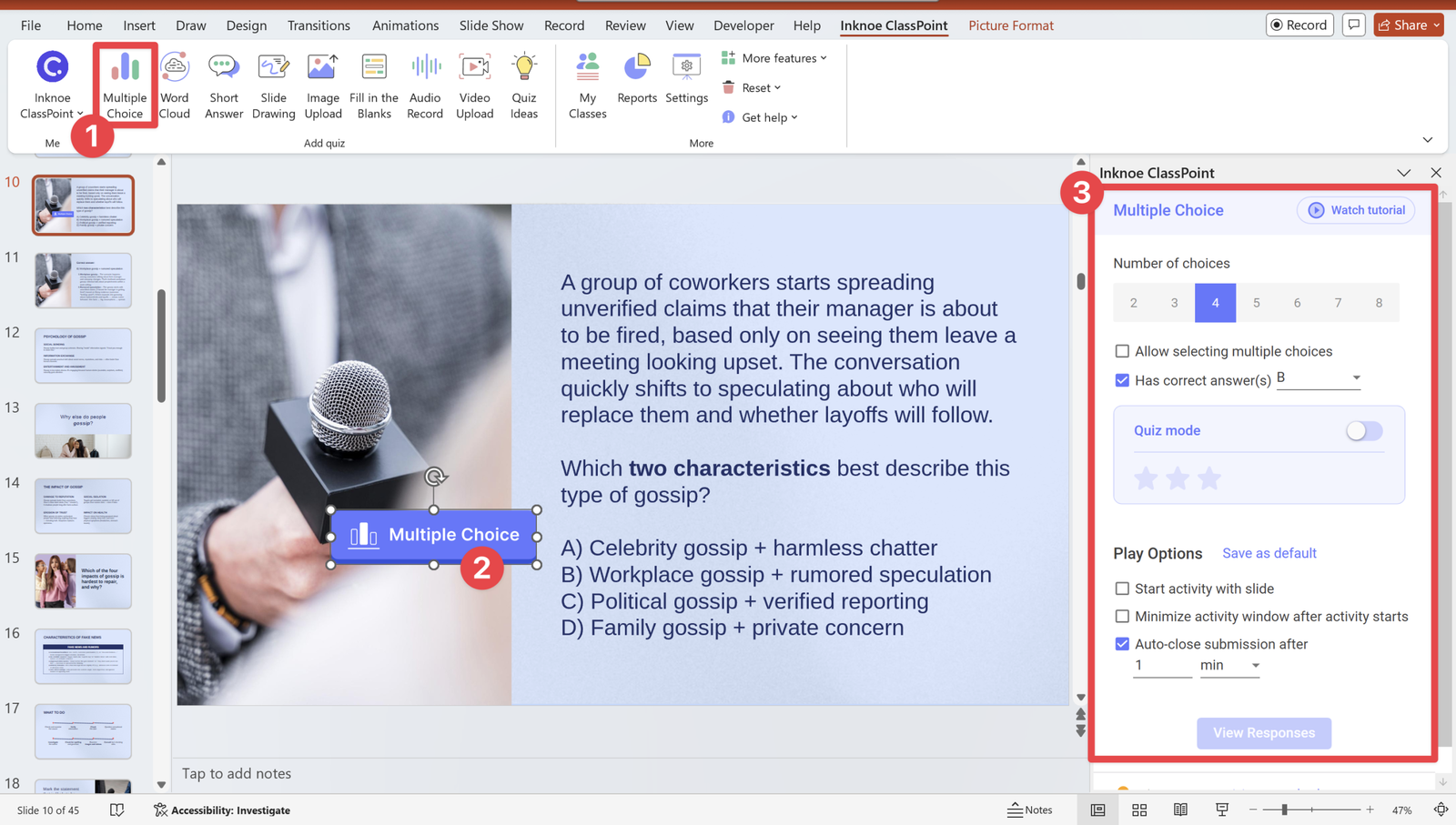
- Open the ClassPoint tab from your PowerPoint ribbon
- Click a question type (Multiple Choice, Short Answer, Word Cloud, etc.) → a small ClassPoint button appears on your current slide
- Move the button anywhere on the slide (anywhere to keep your Slidesgo design clean)
- Set up question settings (appears on the right). Depending on the question type, you may:
- Set correct answers (for graded questions)
- Toggle “Anonymous responses” on/off
- Limit submissions (e.g., 1 answer per student)
An even faster way to make interactive question slides with ClassPoint is by generating quizzes using its built-in AI Quiz Generator.
Step 5: Run the Questions Live
Your Slidesgo deck is ready. ClassPoint buttons are placed. Now, launch the interaction.
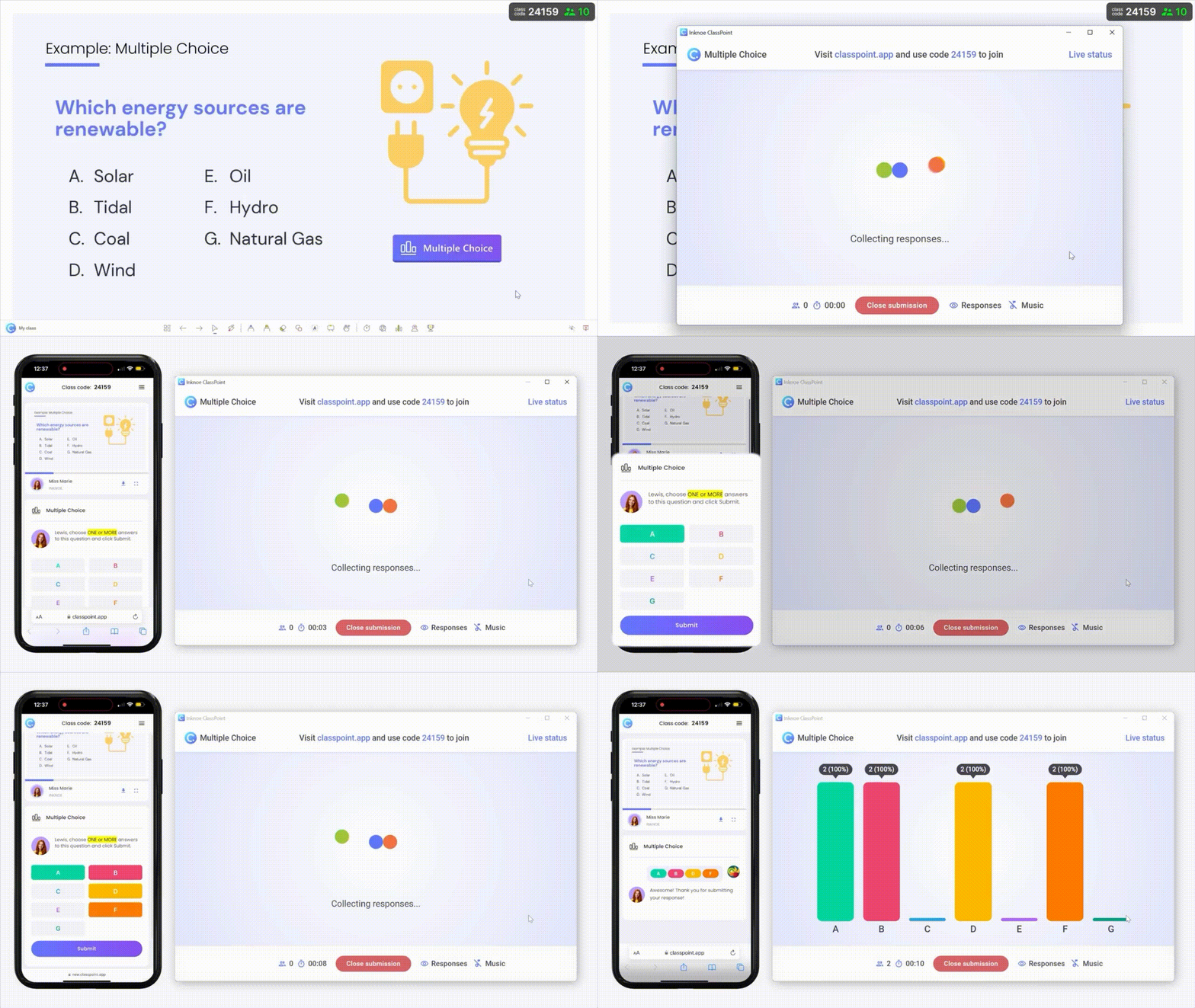
How do participants join?
- Enter slide show mode
- A 7-digit class code appears on the top-right portion of screen (e.g.,
ABCD123) - Invite participants to go to classpoint.app on their phone/browser and enter the code
- Click the ClassPoint button on your first interactive slide
- Your slides get sent to their devices with the question for them to work on
Managing responses in real time
- Watch answers appear live on your slide: responses flow directly into your PowerPoint presentation as students submit
- Check live participation status in real time to see who has and hasn’t responded yet
- Control the pace with a countdown timer you can pause, extend, or close altogether
- Showcase answers after closing submissions: reveal who answered what, highlight popular responses, view and/or play multimedia submissions, insert specific submissions as separate slides
Did you know: for teachers, ClassPoint is a go-to student engagement booster. One recent research showed that classes using ClassPoint saw engagement jump by about 29 percent, a clear lift compared to classes that didn’t use the tool.
Step 6: Use Gamification and Live Interaction
Your Slidesgo template is now interactive. Level it up with ClassPoint’s live engagement tools you can conveniently use while in slide show.
How you can gamify your Slidesgo templates
- Award stars: Tap a participant’s name from your class list, or after an interactive activity is closed, and give instant stars for participation. These stars accumulate and help them rank up to different levels with level-specific badges that appear right on their devices!
- Showcase the leaderboard: Display a live ranking of top responders anytime during your slide show to spark friendly competition.
How you can make Slidesgo templates dynamic
- Live annotations: Use pens, highlighters, shapes, text boxes to annotate directly over your Slidesgo slides during delivery (great for circling key details or solving problems live)
- Name picker: Randomly select a student via spinning a wheel of names, picking an emoji card, or bulk-selecting using the auto-pick feature
- Timer: Launch a countdown overlay on any slide for timed challenges, which you can switch to a stopwatch
- Drag & drop: Turn slide elements into draggable objects that you can use to visually sort, match, or label your Slidesgo visuals
Grab a Ready-to-Go Interactive Slidesgo Deck
We built a Slidesgo template with ClassPoint questions already embedded in them. And yes, it’s on the house.
What’s inside:
- A Slidesgo presentation on Fact vs Fiction
- 5 pre-setup question slides with embedded ClassPoint questions
- Guide slides with step-by-step instructions
Interactive Slidesgo PowerPoint Presentation
Run an interactive PowerPoint presentation from a Slidesgo template with this free downloadable!
Note: Requires ClassPoint installed. Free account works!
