You already spend enough time building slides. The last thing you need is another tool that adds more prep before you can get students involved. And when the lesson’s over, you want to know who actually followed along, not just hope it landed.
Slido and ClassPoint both add interactivity to presentations — polls, quizzes, real-time responses. They just do it differently.
This Slido vs ClassPoint comparison breaks down how each tool handles setup, student responses, Q&A, gamification, AI, progress tracking, and pricing so you can pick the one that fits how you teach.
What Each Tool Does
Before comparing features, it helps to understand what each tool actually is and where it lives.
What is Slido?
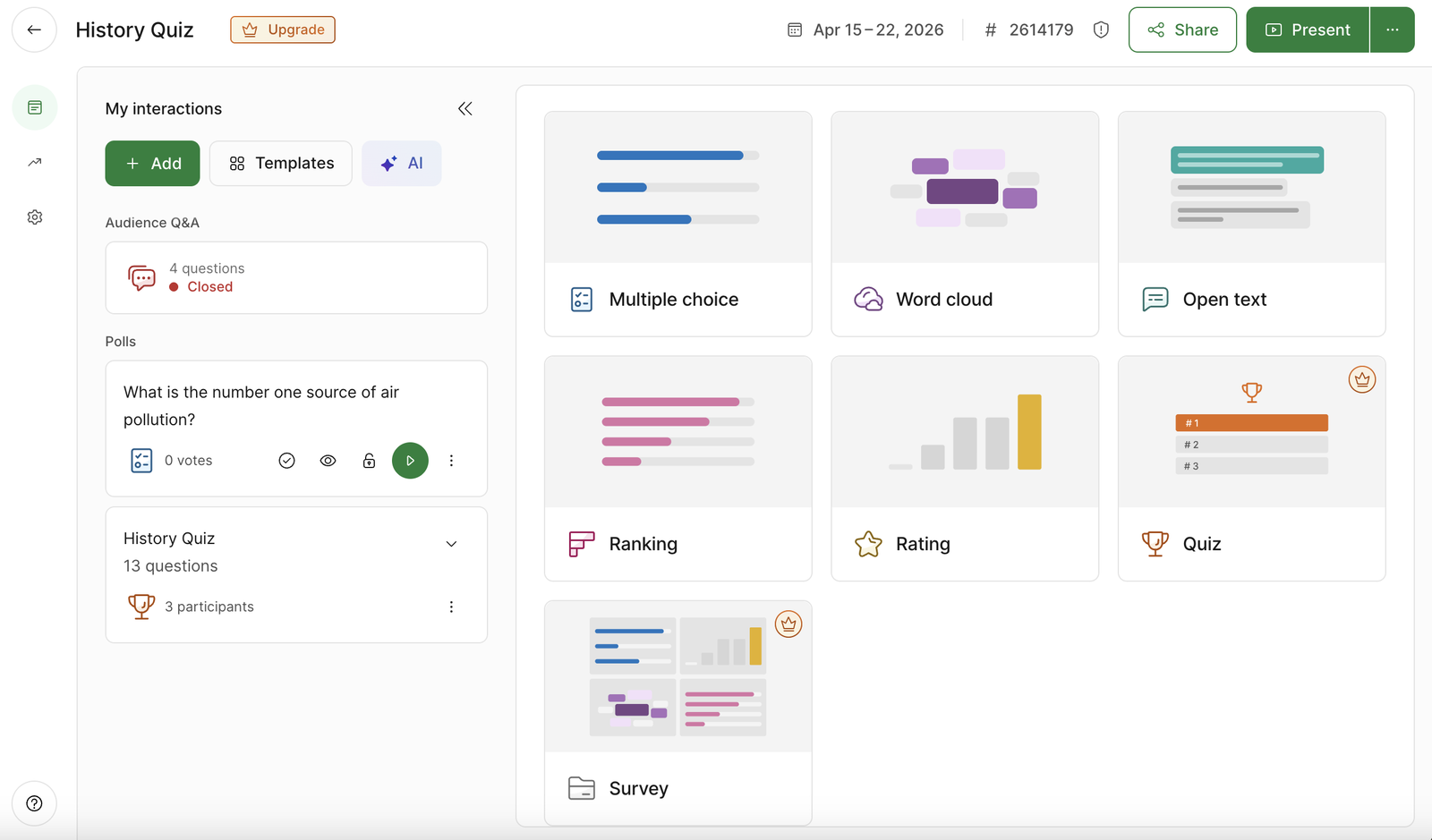
Slido is a browser-based tool for running live polls, Q&A, and quizzes with your class. You create an event in your browser, share a code, and students join from any device. It also integrates with PowerPoint, Google Slides, Teams, Webex, and Zoom — though each integration requires its own setup.
What is ClassPoint?
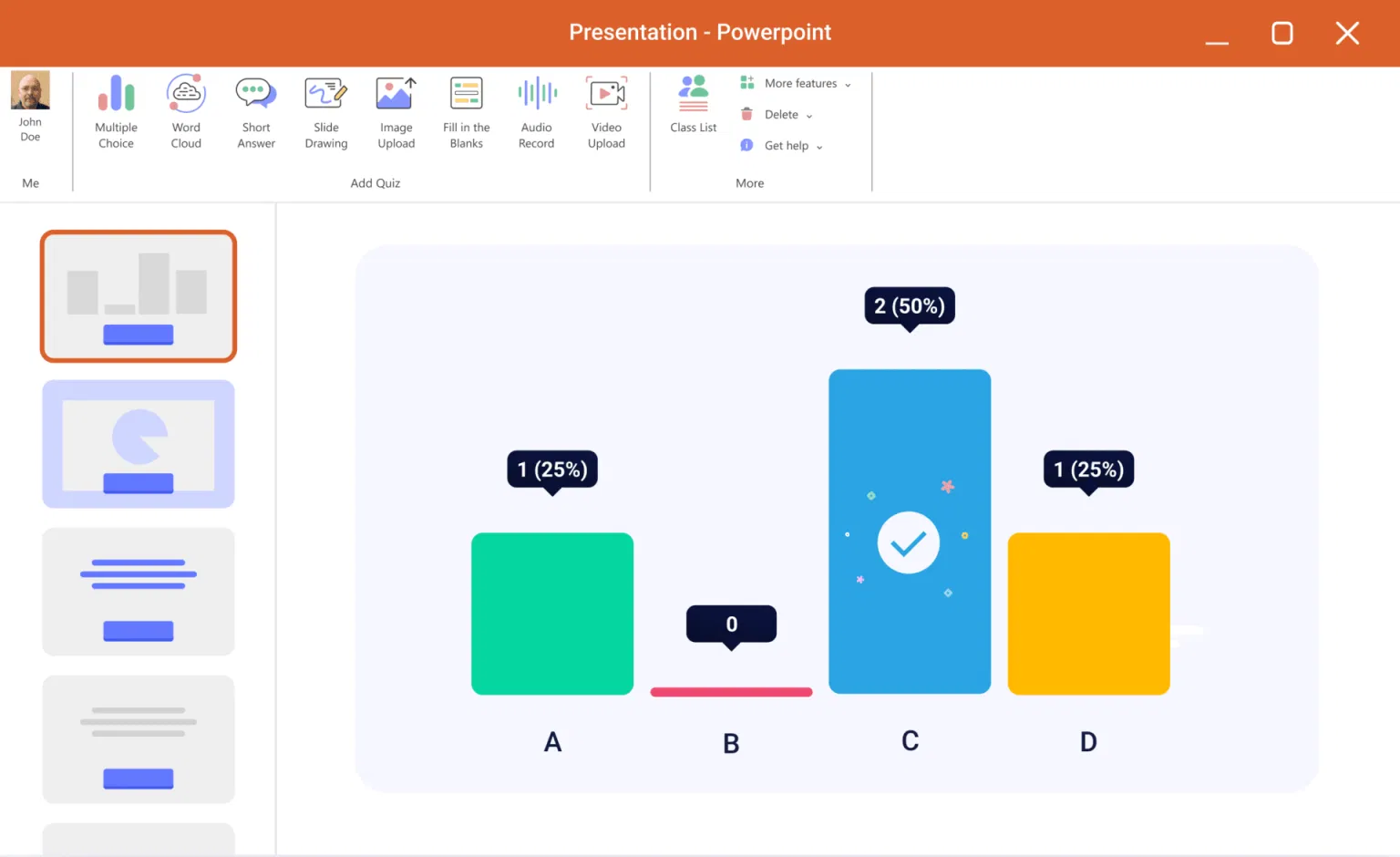
ClassPoint is a PowerPoint add-in that turns your slides into interactive lessons. You build your questions directly onto the slides you’re already teaching from, and students respond from their devices without either of you leaving the presentation.
Both get students participating in real time. Which one fits better depends on how you teach and where your lessons live — and that’s what the rest of this comparison is for.
TL;DR — Slido vs ClassPoint at a Glance
| Category | Slido | ClassPoint |
|---|---|---|
| Platform | Browser-based; works with PowerPoint, Google Slides, Teams, Webex, Zoom | PowerPoint add-in — no app switching |
| Response Types and Activities | 5 poll types, quizzes, Q&A, surveys | 8+ question types including drawing, image, video, audio |
| Live Q&A and Anonymous Participation | Dedicated: anonymous, upvoting, moderation, analytics | Available; anonymous mode across all activities |
| Gamification and Motivation | Timed quiz leaderboard per session | Stars, levels, customizable badges, leaderboard across sessions |
| AI Features for Lesson Prep | Poll/quiz generation from prompts or slides; writing assistant | Quiz generation from slides + Bloom’s; AI Insights; AI session recap |
| Live presentation tools | Control panel, typing indicator, keyboard shortcuts | Annotation, name picker, timer, drag & drop |
| Tracking Student Progress | Session analytics with export | Saved classes with cross-session reports |
Teaching Workflow and Setup
Where a tool lives changes how you use it mid-lesson — and whether it adds friction or stays out of the way.
Slido runs in the browser. You log in, create an event, build your polls or Q&A, and share a join code with your class.
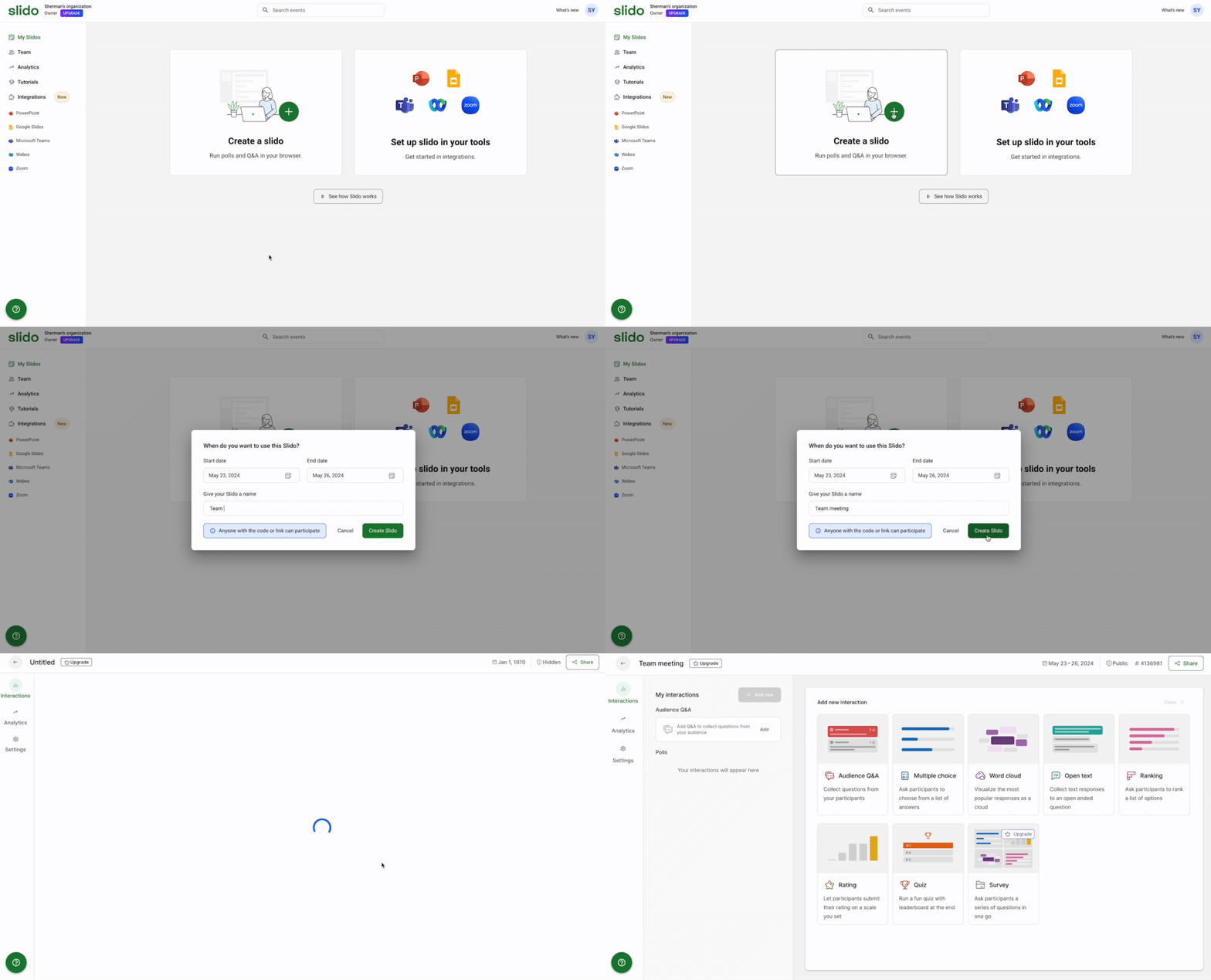
If you’re presenting from PowerPoint or Google Slides, Slido offers integrations for both, but they require separate setup, and the experience varies by platform. During a lesson, that can mean toggling between your slides and the Slido admin panel to launch activities and view responses.
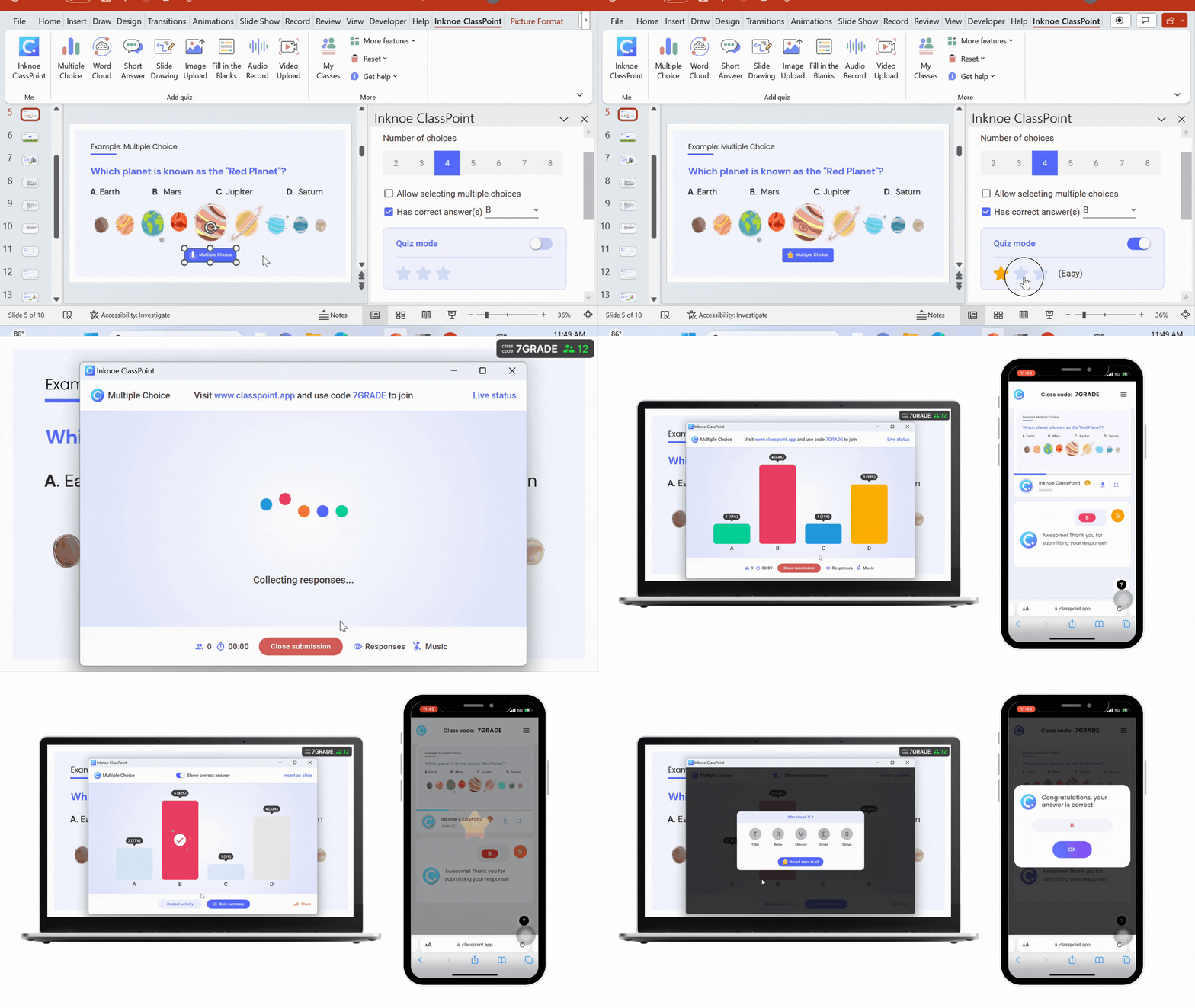
ClassPoint removes that layer entirely. It lives inside PowerPoint, you add question buttons directly to your slides, and when you present, the interactive toolbar appears at the bottom of your screen. Students join, respond, and you see results without leaving slideshow mode.
That said, ClassPoint is built exclusively for PowerPoint, so if your lessons live in Google Slides or another platform, you’d need Slido or a similar browser-based tool to get the same interactivity.
So in the Slido or ClassPoint decision, it comes down to where your lessons already live. Teachers who present from PowerPoint daily get one fewer tab to manage with ClassPoint. Teachers who switch between presentation tools or want something platform-agnostic get more flexibility with Slido.
Student Response Types and Activities
Both tools let students answer from their devices. The difference is in what counts as an “answer” — and it’s one of the biggest factors in the ClassPoint vs Slido decision.
What can students do in Slido?
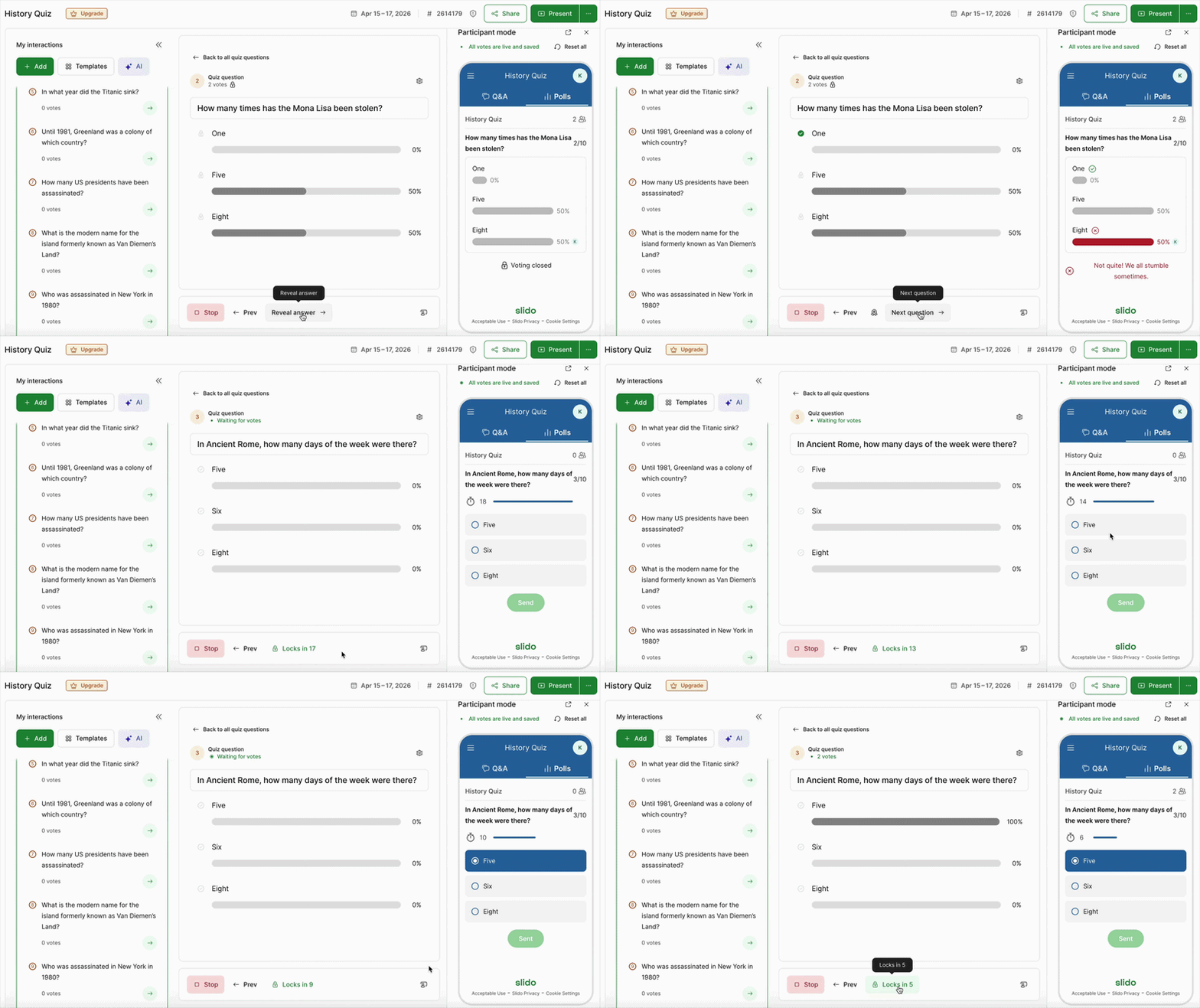
Slido focuses on text-based responses. Students can vote in multiple choice polls, contribute to word clouds, rank options, rate on a scale, or type open-ended answers.
For quizzes, it’s timed multiple choice with a leaderboard. These cover a lot of ground, especially for quick comprehension checks, opinion polls, and exit tickets.
What can students do in ClassPoint?
ClassPoint covers that same ground with live multiple choice (and other intinteractive quiz questions), word cloud, and polls, then goes further.
Students can draw directly on a slide, upload an image or video from their device, or submit an audio recording. That means a student can sketch a diagram, photograph their lab work, or record a spoken explanation, not just type an answer.

Where you notice the difference is in the subject. A history poll or a quick vocab check works fine in either tool. But if you’re teaching science, art, math, or a language class where showing work matters, ClassPoint’s multimodal responses give students more ways to demonstrate understanding.
For a broader look at what's available, see this roundup of interactive presentation tools for classrooms.
Q&A and Anonymous Participation
Slido has a dedicated Q&A feature. Students can submit questions anonymously (or with their name), upvote each other’s questions, and the most popular ones rise to the top. As the host, you can moderate incoming questions before they go live, which helps in larger classes where you want to filter before displaying. After the session, Slido also gives you analytics on the Q&A so you can review what students asked and which questions got the most attention.
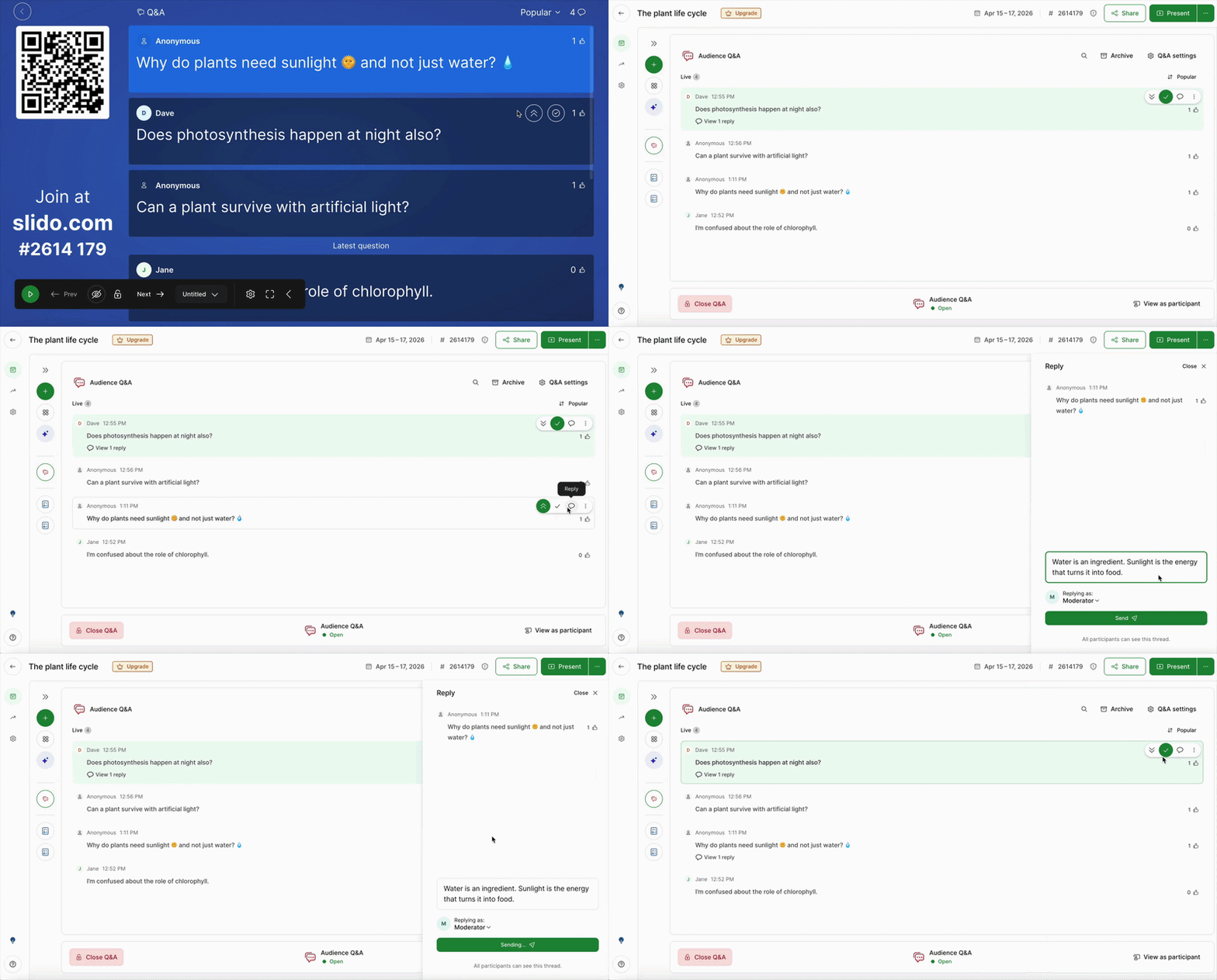
ClassPoint also offers a Live Q&A feature with upvoting and the ability to mark questions as answered or dismiss them. It doesn’t have pre-moderation (questions appear as soon as students submit them), but it does let you save all questions as slides for future reference. Both tools support anonymous participation across their activities, so students who hesitate to respond with their name visible have options in either one.
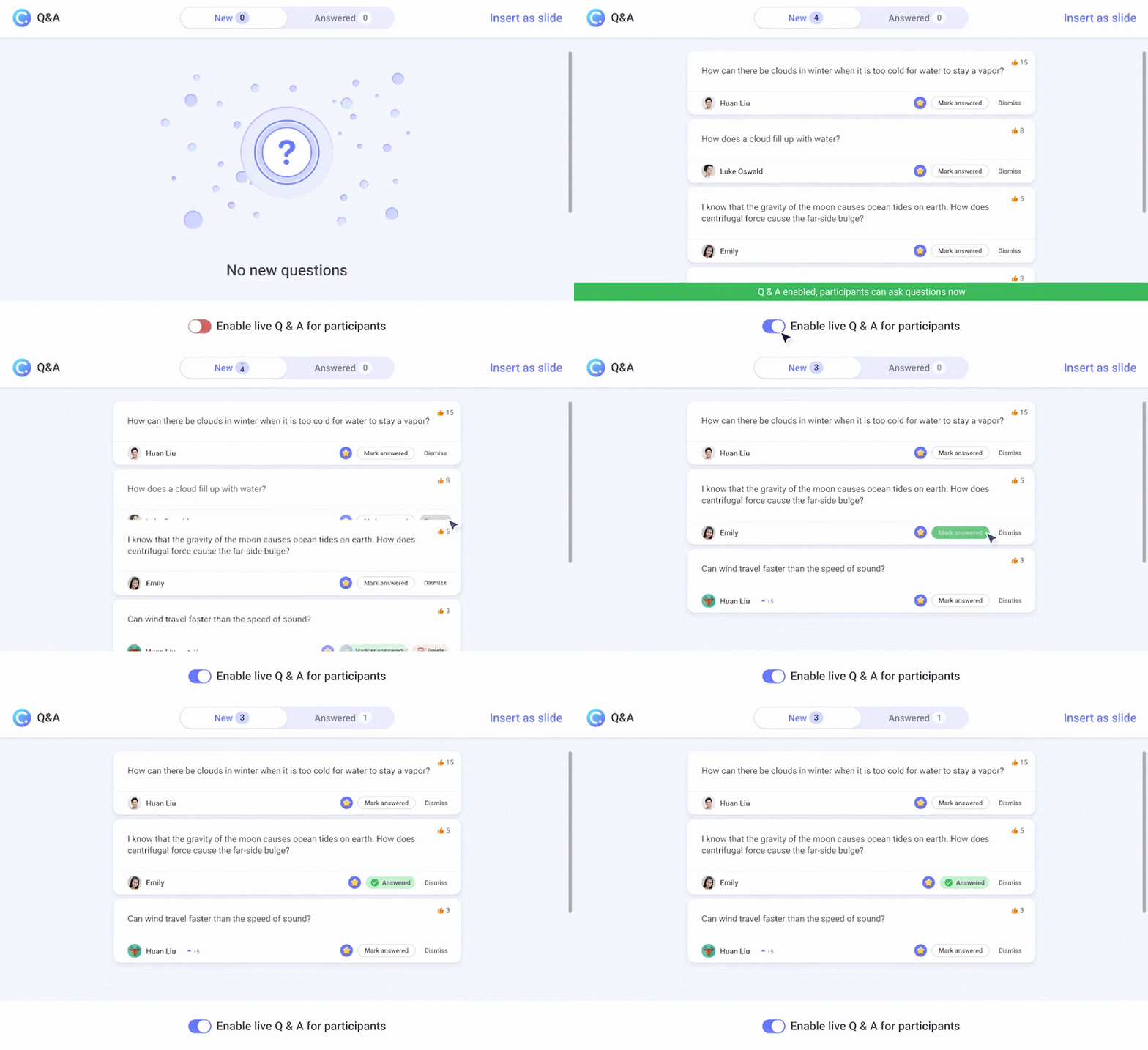
If live Q&A is a regular part of how you teach, Slido gives you more to work with here.
Gamification and Motivation
Both tools use competition to drive participation, but they approach it differently.
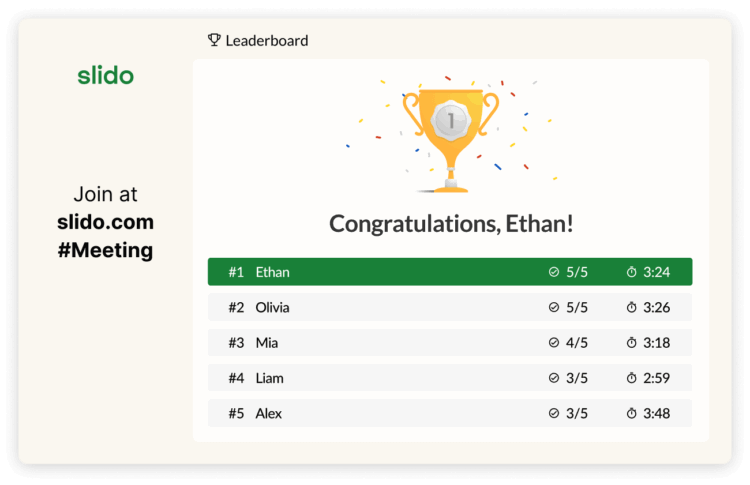
Slido gamifies through quizzes:
- Timed questions — students answer within a time limit, adding pressure and energy
- Leaderboard — ranks students by accuracy and speed after each quiz
- Quiz wrap-up — students see their position, correct answers, and hardest questions
Once the session ends, the leaderboard resets. There’s no carryover between classes or sessions.
ClassPoint builds gamification into the broader teaching flow:
- Stars — award points for correct answers, participation, or anything else worth recognizing
- Levels & Badges — students progress and unlock customizable badges as they collect stars
- Cumulative leaderboard — tracks student performance across sessions, not just one quiz
- Quiz mode — Set different difficulty levels for different questions, with some deserving more stars

The difference depends on how you use motivation. If you’re weighing Slido vs ClassPoint for teachers who run classes daily, this is where it starts to matter. Slido’s leaderboard is great for a burst of energy during a review or a Friday quiz. ClassPoint’s system rewards consistency and tracks effort across weeks. If you want ideas for putting this into practice, here are some easy gamification examples for the classroom.
AI Features for Lesson Prep
Both tools use AI to cut down on prep time, but they focus on different parts of the workflow.
Does Slido have AI features?
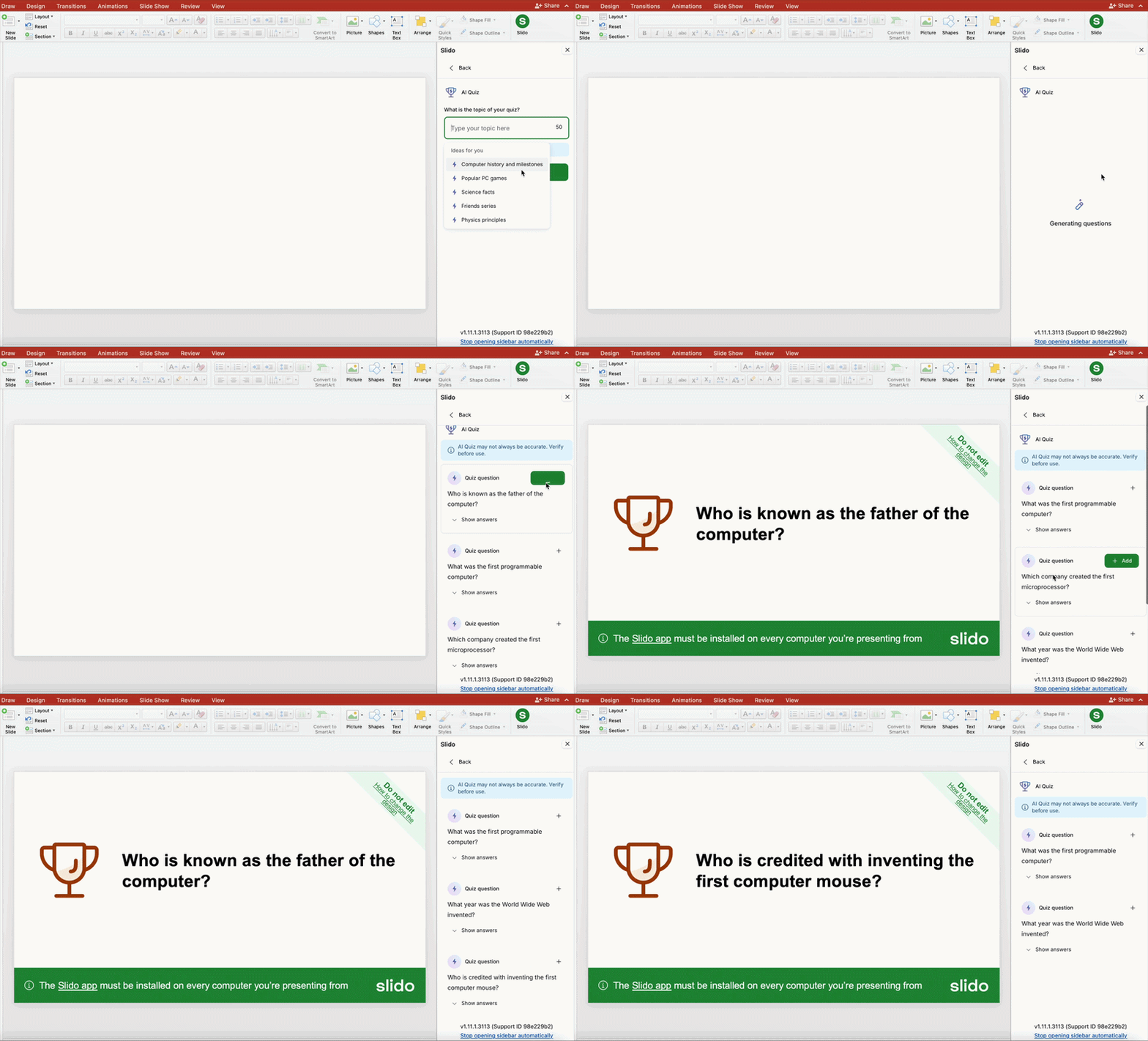
Slido uses AI to help build and polish interactions before a session:
- Poll generation — describe your goal, audience, and use case, and Slido suggests tailored polls
- Slide-based generation — Slido reviews your slides (via PowerPoint or Google Slides) and suggests polls or quiz questions
- Writing assistant — rephrase poll questions and generate answer options for cleaner wording
Can ClassPoint generate quiz questions with AI?
Yes, and it goes beyond quiz generation. ClassPoint uses AI before, during, and after class:
- AI Quiz Generator — creates questions from your slide text, with Bloom’s taxonomy level selection and multi-language support; questions are inserted as new slides ready to present
- AI Insights — after a short answer activity, a chatbot summarizes and groups student responses so you can spot patterns without reading every answer
- AI Summary Email — automatic post-session recap with stats, response data, and top performers
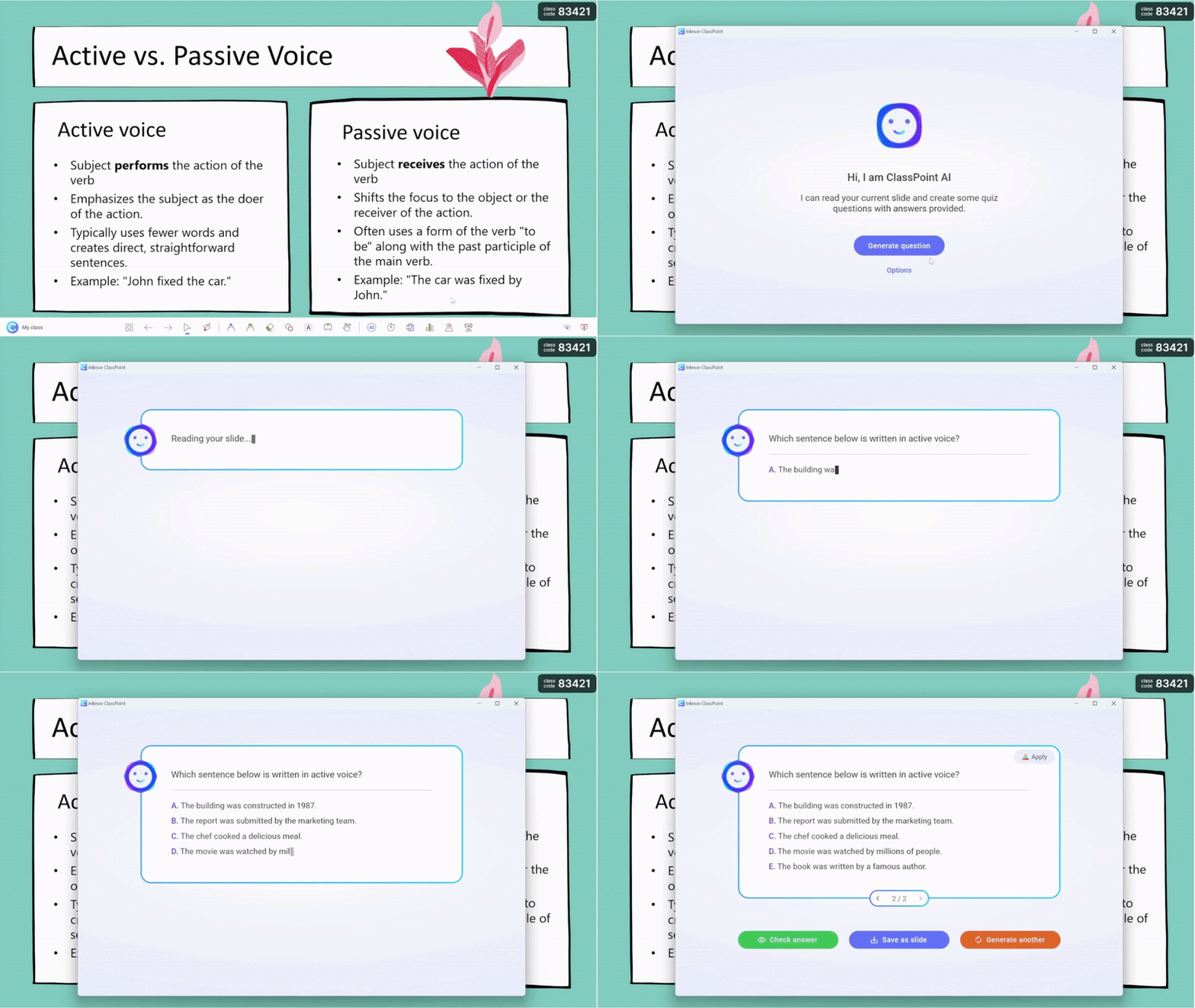
Both approach AI differently, and it’s worth factoring into any Slido vs ClassPoint comparison. Slido uses it to help you build and polish interactions before your session. ClassPoint uses it before, during, and after — generating questions from your slides, analyzing student responses in real time, and recapping the session once it’s done.
Want a closer look at ClassPoint's AI? See how they all work together in AI Tools in ClassPoint: Smarter Quizzes, Insights, and Reports.
Live Presentation Tools
This section is about what each tool adds to the moment you’re actually teaching, not just collecting responses, but managing the flow of a live lesson.
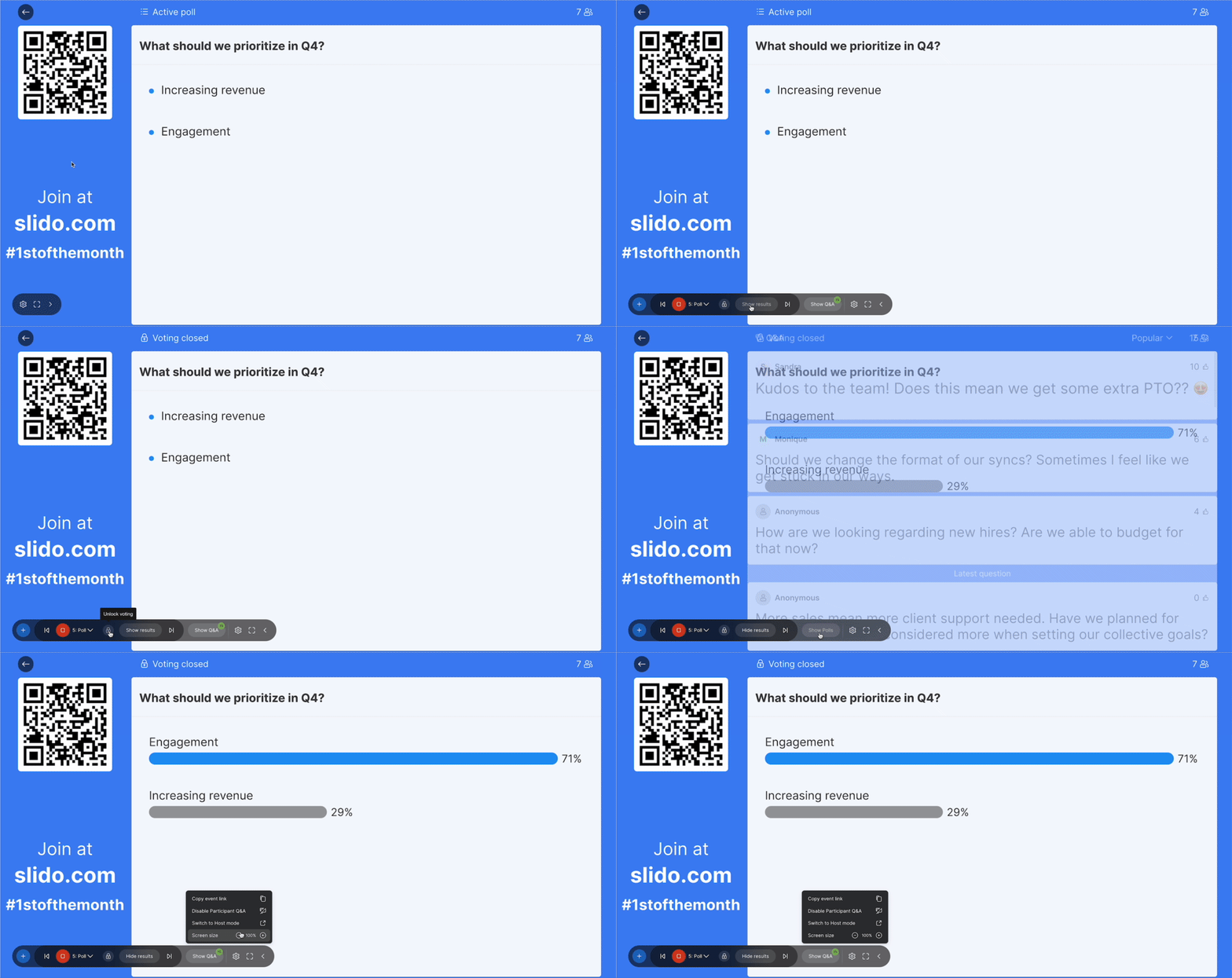
Slido keeps its presenter tools focused on managing interactions:
- Control panel — start/stop polls, lock voting, hide or show results, and switch between polls and Q&A without a second device
- Typing indicator — shows how many students are actively responding so you know when to move on
- Keyboard shortcuts — control polls with spacebar and arrow keys
ClassPoint adds a toolbar directly below your slideshow with tools for live teaching:
- Annotation — draw, highlight, add shapes or text on any slide in real time
- Name Picker — randomly select students using a wheel, card deck, or auto-pick mode
- Timer & Stopwatch — launch at any point during the presentation
- Drag & Drop — make slide elements draggable for sorting, matching, or visual activities
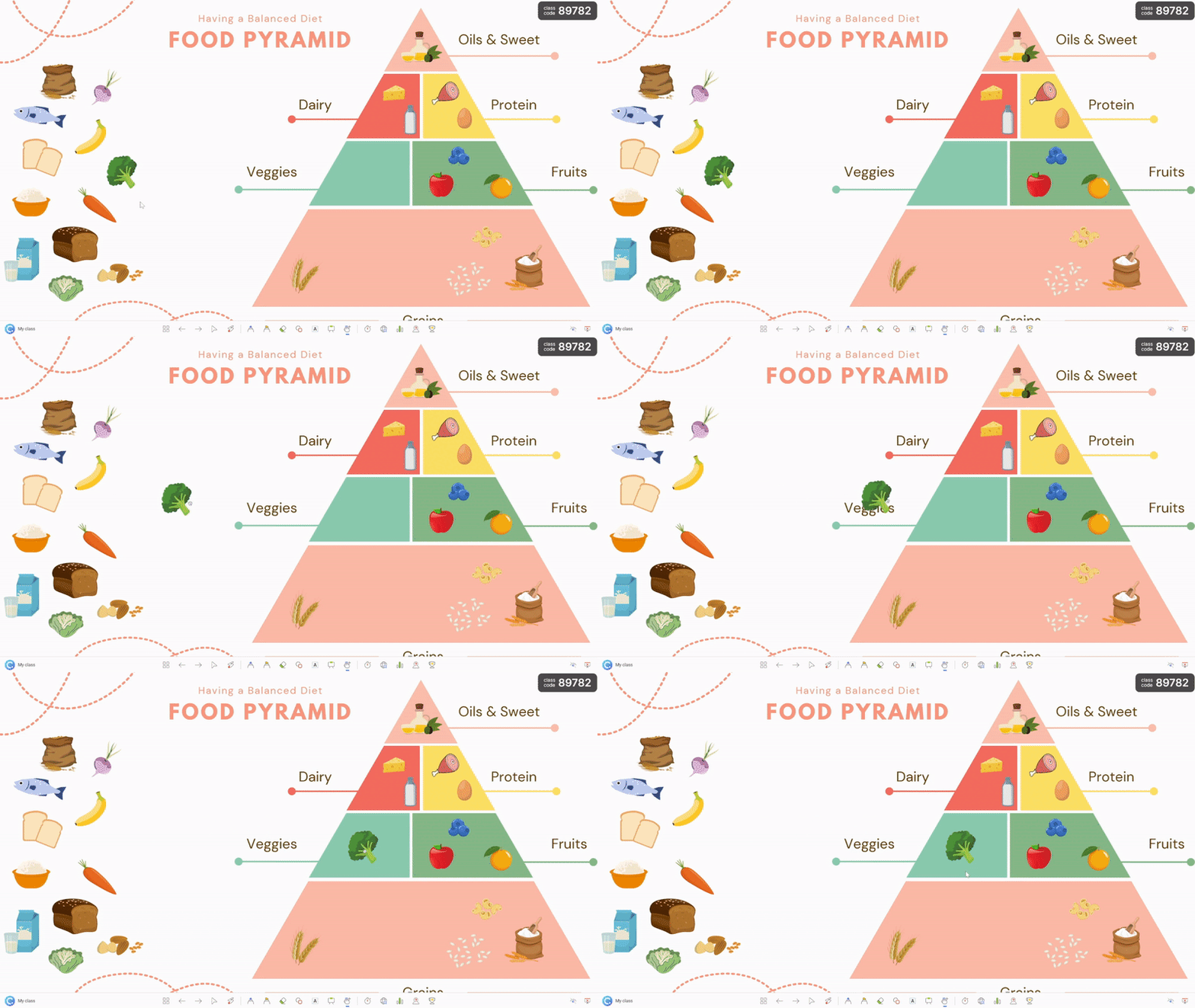
Slido gives you control over your interactions during a session. ClassPoint gives you tools to shape the presentation itself while you’re delivering it.
Tracking Student Progress
This is where the difference between a session tool and a classroom tool becomes clearest.
Slido tracks data per session. After an event ends, you can export poll results and Q&A questions to Excel, PDF, or Google Sheets. Exports include timestamps, participant responses, upvote counts, and question status. If you require participant names, you can identify how each person voted. It’s solid for reviewing what happened in a single session, but there’s no built-in way to connect data across multiple sessions or track how a student is doing over time.
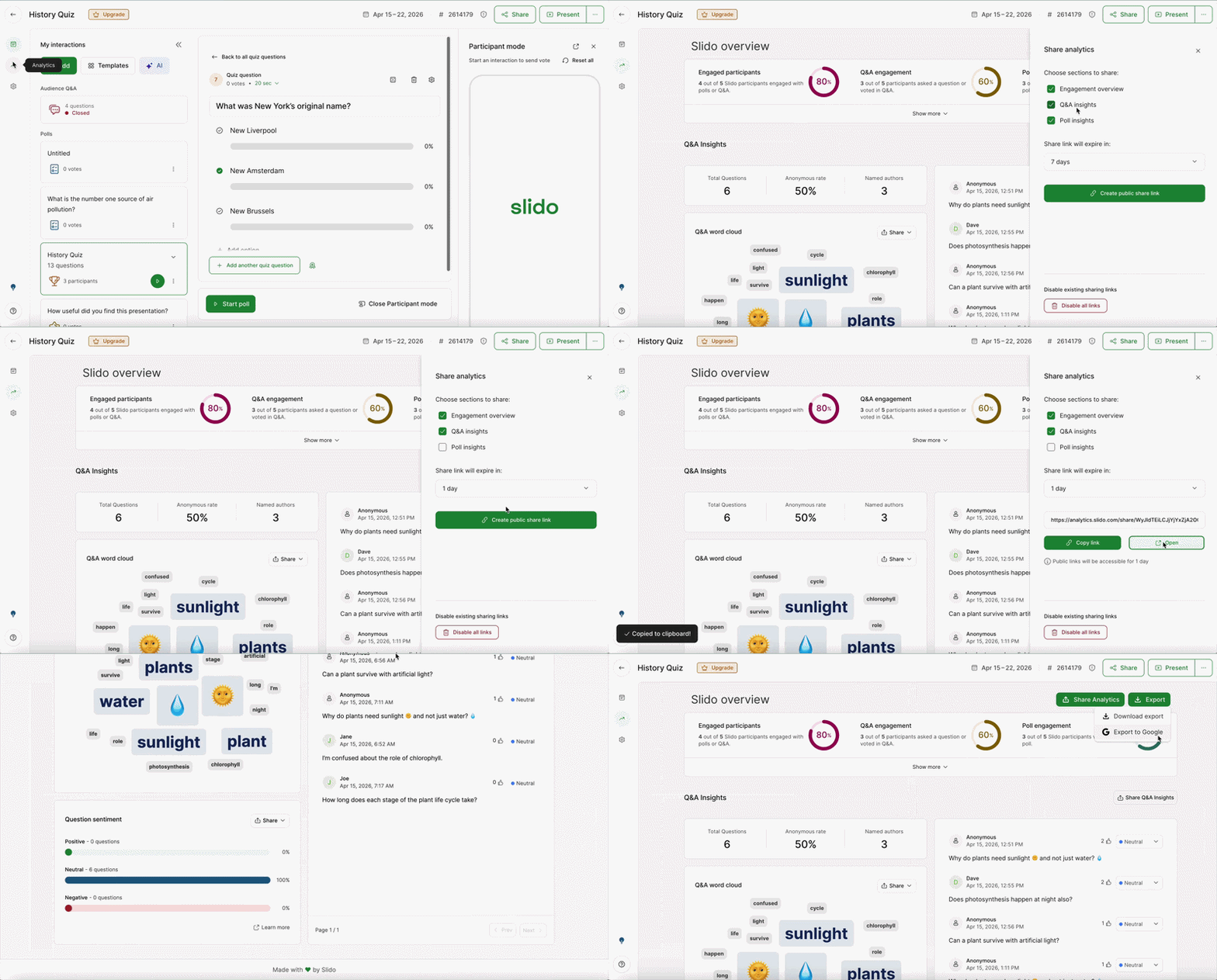
ClassPoint saves session data automatically to a web app, organized by class and by month. Because students join through saved classes, their responses, stars, and levels carry across sessions. Teachers can:
- View past activities — browse all sessions tied to a class, with student responses alongside the original slides
- Track cumulative progress — see stars, levels, and leaderboard rankings build over time
- Share reports — generate shareable class activity reports with colleagues, downloadable as Excel files
- Revisit with AI — reopen short answer activities after class and use AI Insights to analyze responses
After class ends, you can review student engagement without reopening your slides. Head to app.classpoint.io → Reports, or click the Reports icon directly from the ClassPoint tab in PowerPoint, either way, it opens the same web app where all your session data lives.

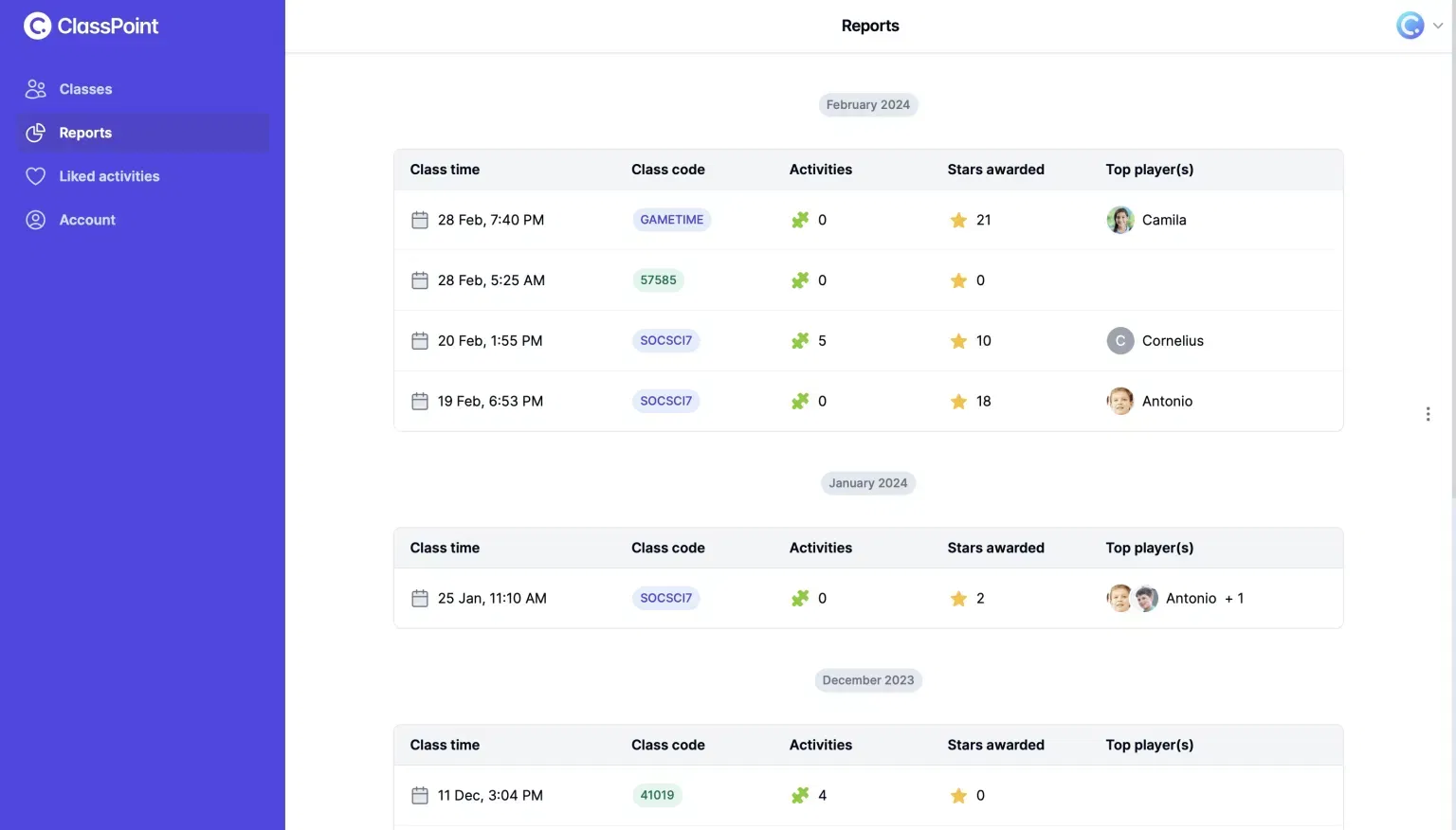
If you need to answer “how did this session go?” Slido’s exports give you what you need. If you need to answer “how is this student doing over time?” ClassPoint’s saved classes and web app make that possible without stitching data together manually.
Slido vs ClassPoint: Which One Should You Use?
Use Slido if…
- You present across different platforms, not just PowerPoint
- Live Q&A with moderation and upvoting is a regular part of your teaching
- You need something quick for one-off sessions, guest lectures, or staff PD
- You work with large groups where anonymous participation matters most
- You already use Teams, Webex, or Zoom and want interactions built into those tools
Use ClassPoint if…
- You teach from PowerPoint daily and want everything in one place
- You want students to respond beyond text — drawings, images, video, audio
- Long-term gamification (stars, levels, badges) fits how you motivate your class
- You need to track student progress across sessions, not just within one
- You want AI that generates questions from your actual slides and analyzes responses after class
- You value live presentation tools like annotation, name picker, and drag & drop alongside your lesson
Verdict is both tools deliver. The Slido vs ClassPoint decision comes down to where your lessons live and which is a better fit for you.
Slido is built for flexibility across platforms and session types. ClassPoint is built for the daily rhythm of a classroom that runs on PowerPoint. The right choice depends on which of those describes your week.
