Plenty of classrooms are not 1:1, so you often have to engage students without devices. Some schools share a device trolley. Some have a handful of dated or broken devices. Some have none. In others, the phones that used to fill the quiet moments are going into pouches.
Take the devices away, and the room gets quieter. Quiet is not the same as engaged. A teacher still has to set something up, or students will find a window, a desk, or each other.
If you teach in PowerPoint, ClassPoint allows for engagement without any student devices, so you’re not juggling a separate tool every time you need to call on someone or run an activity.
ClassPoint session data shows about 32% of class sessions run without student devices. This guide is how to engage students without devices in the three situations teachers actually face: a phone ban, too few devices, or a choice to go without them for part of the lesson.
When your school bans phones: how to engage students without devices
A phone ban removes the distraction for students. It also removes the thing students were doing between tasks. A teacher in Michigan described what filled that gap after her school put phones away: kids were more present because they were engaged in something the teacher had set up, not fiddling around on their phones once they completed a task (Michigan Education Association, Apr 2026).
Remove that, and the room gets quiet, but quiet isn’t the same as focused. To engage students without devices after a phone ban, you need to replace that stimulation with something that actually serves the lesson. Here are a few ideas:
1. Stop calling on the same students: make the draw visible
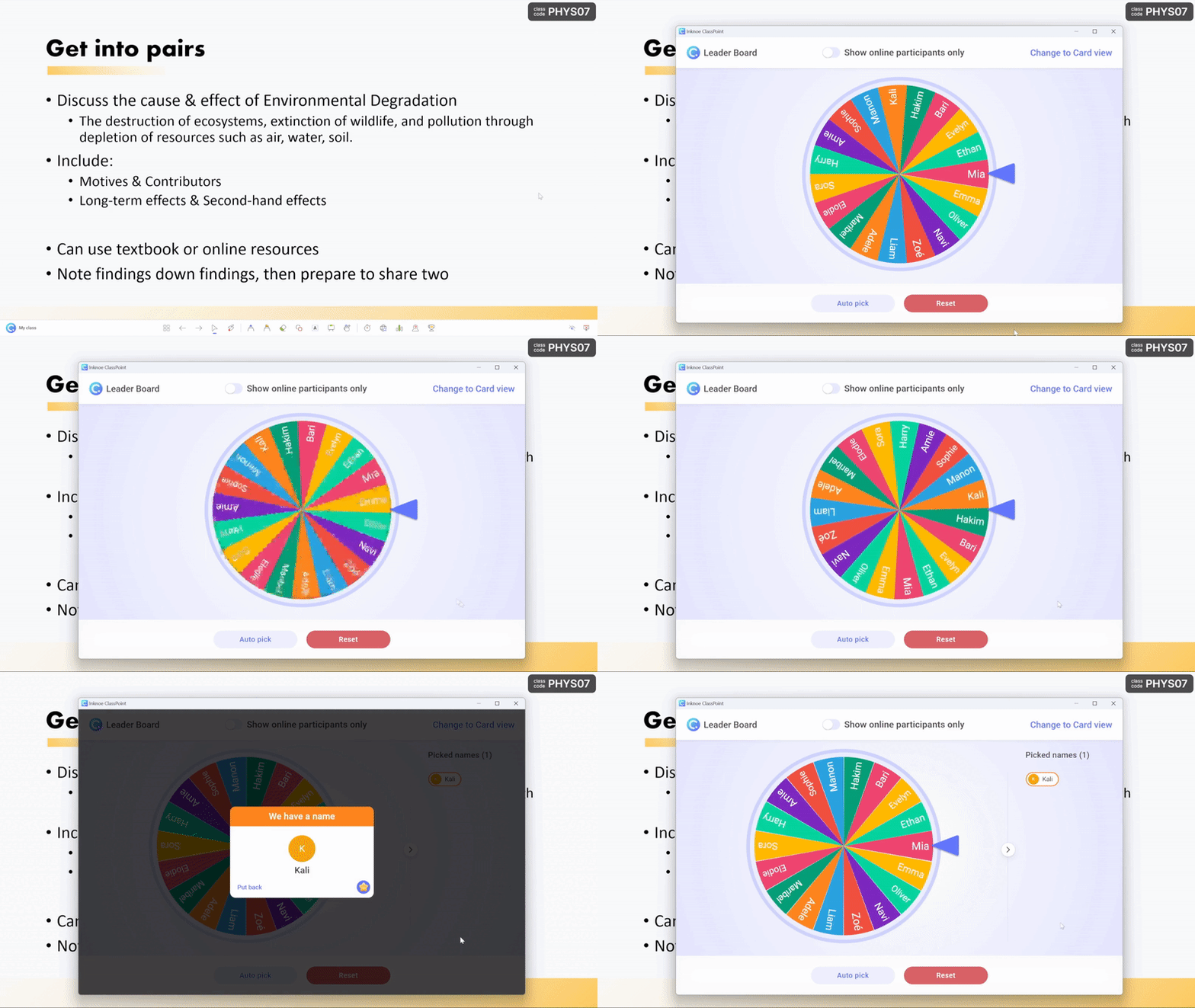
A random draw keeps the whole class ready, because nobody knows who is next. Run it on the projector. Let a student pass once if they need to, then put their name back in, so the draw feels fair rather than like a trap.
Thulasidas and Gunawan a pattern in their 2022 paper, Cold Calls to Enhance Class Participation and Student Engagement. Randomized cold calling raised self-reported participation across the class, not only among the students who were called. Their university course graded that participation, but you can also keep this light by allowing a skip or not grading this piece.
Spin a name wheel inside PowerPoint and award a star to the student chosen after they complete the question or task. Cold calling on a student is the reason teachers reach for this tool. It also breaks a habit many teachers recognise: always asking the student who will give a brilliant answer, or always pushing the one who needs extra support, and quietly skipping the middle of the room.
You can use this same tool for other jobs:
- Choose a presenter after a project.
- Assign classroom jobs, such as book monitor, line leader, or line watcher.
- Make groups, instead of defaulting to the pairs who always work well together.
- Run a round robin: draw one name, then that student chooses who answers next.
See how teachers creatively use the spinning wheel of names for different use cases: Add a Spinning Wheel of Names in PowerPoint with ClassPoint
2. Turn participation into a scoreboard
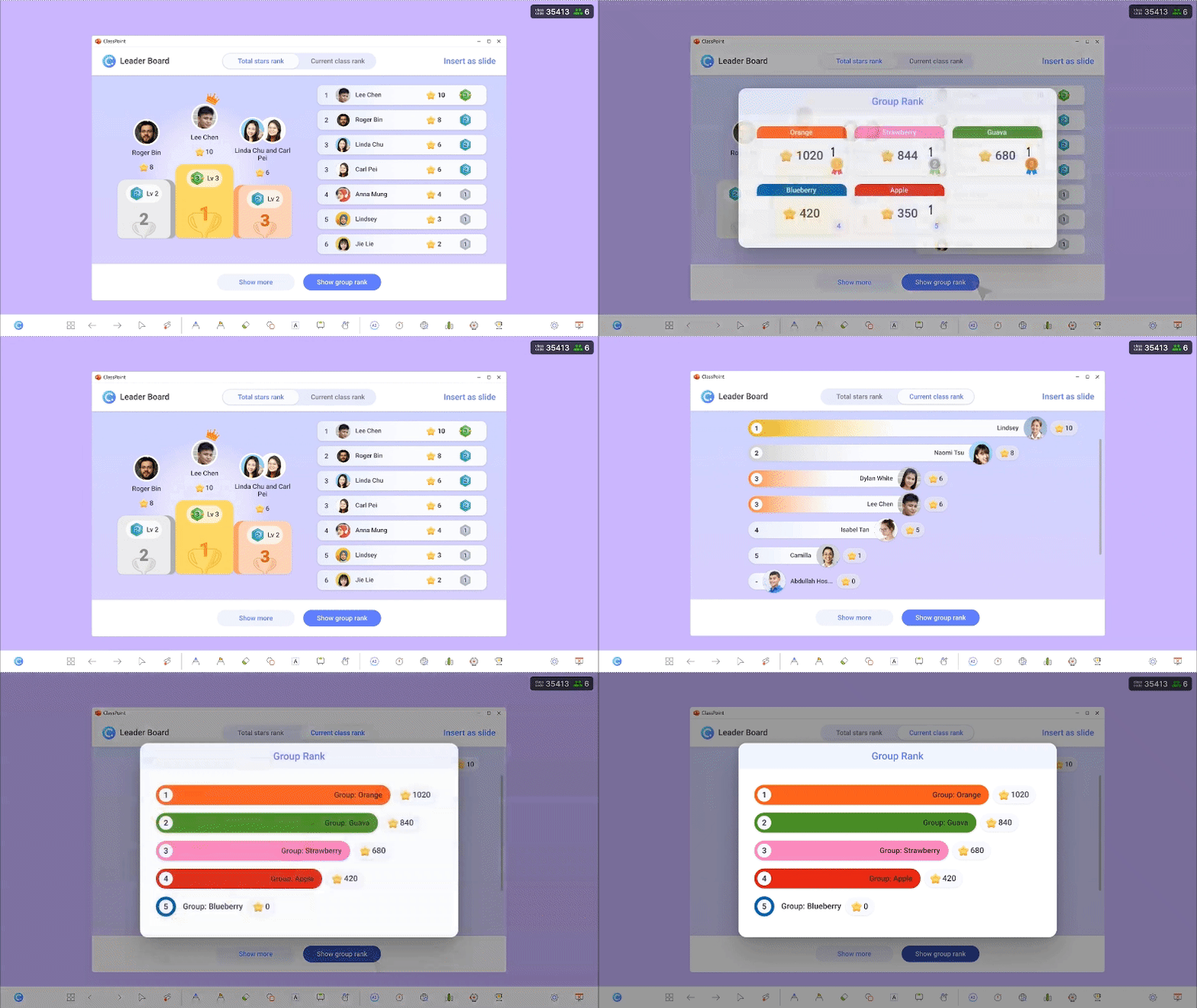
A public points system redirects the competitive instinct phones were feeding. Award points for correct answers, good questions, or helping a classmate. Keep the stakes low, because this is a motivator and not a grade. Reveal the standings once, at the end of class, so the board is a moment and not a running pressure.
Award stars and show a leaderboard in PowerPoint without a student login. Set up a private class, keep the names consistent, and the stars accumulate. The leaderboard can show this lesson or the whole running total.
ClassPoint session data shows that about 45% of teachers still teach in a public class. A public class does not keep levels, history, or stars from Monday to Friday, so the long-term version of this system needs a saved class list.
Teachers can also award a star when a student participates, tries, improves, or collaborates, or tie stars to something the school already uses:
- House points. One teacher mapped five ClassPoint stars to one house point. Students converted their own stars. The scoreboard became a maths task and an honesty task at the same time.
- School values. In another school, the values were cooperation, curiosity, creativity, and risk-taking. A child earned a star by showing one of them.
- Star of the lesson, week, or month. The student with the most stars at the end of the period gets the recognition.
Want to see this at scale? Safa British School ran ClassPoint across 1,700 primary students, including what happened to the students who never used to participate. Read the case study
3. Keep the board moving while you explain
A static slide is an invitation to look away. Without a phone to glance at, students will find something else: a window, a desk, a classmate. Mark the slide while you talk, so the board changes. One underline at the right moment, a circle of the key term as you say it, or a cross out of the wrong answer, does more than a wall of bullet points.
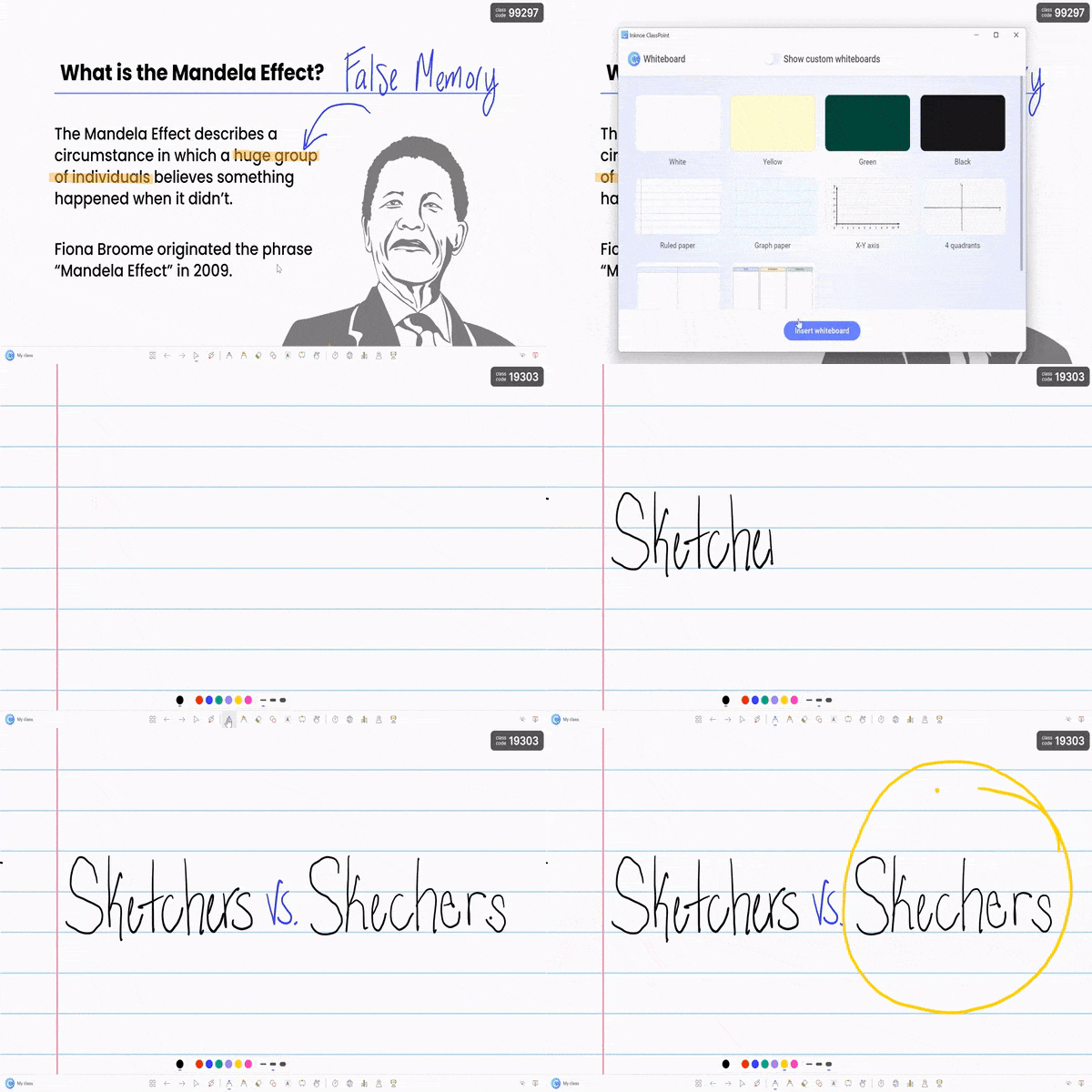
ClassPoint’s pen, highlighter, laser, text, shapes, and whiteboard work over any slide in a slideshow. Use them on the point you want the class to notice:
- Circle the verb in a sentence, then ask who can name it.
- In a maths word problem, highlight “altogether” or “the difference,” so the class names the operation before anyone calculates.
- Number the steps as you mark them: one, two, three things to solve.
- Brainstorm on the slide you already have.
- Label a science diagram together.
In one classroom, a teacher covered a number and asked, “What number is behind this?” The class argued from the clues they could still see, and nobody needed a device to do that thinking.
If you run out of room on your slides, open a whiteboard. These blank slides allow for writing, drawing and extra explanation. ClassPoint offers graph paper, which is useful in maths when you need to model a misconception on the spot.
When devices aren’t available, design for one screen
A recent study in Education and Information Technologies showed that gamified whole-class tasks increased engagement significantly, and students were clear on why: active participation and peer interaction, not passive watching. That finding matters most when devices are scarce.
Shared carts, fifteen laptops for thirty students, Wi-Fi that drops by third period: a room like this defaults to watching. To engage students without devices in this situation means redesigning around the constraint, not working against it. One screen, structured well, outperforms thirty screens left alone. Here’s how to engage students without devices when you’re working around a single shared screen.
1. Bring students to the screen
Design one slide per lesson as a physical task, like having a student drag a label to the right place, sort items into categories, or sequence a timeline. Call students up one at a time. The student at the board does the move, and everyone else agrees, challenges, or tracks the answer.
It works for any subject: vocabulary sorting, diagram labeling, cause-and-effect ordering. The student at the board is doing; everyone else is tracking.
Make objects draggable on a PowerPoint slide so text, images, or shapes can move during the lesson. PowerPoint animations play in a fixed order. A draggable object can take a different answer on a different day, which also gives students who need a physical task something to do at the board.
Two patterns carry most lessons:
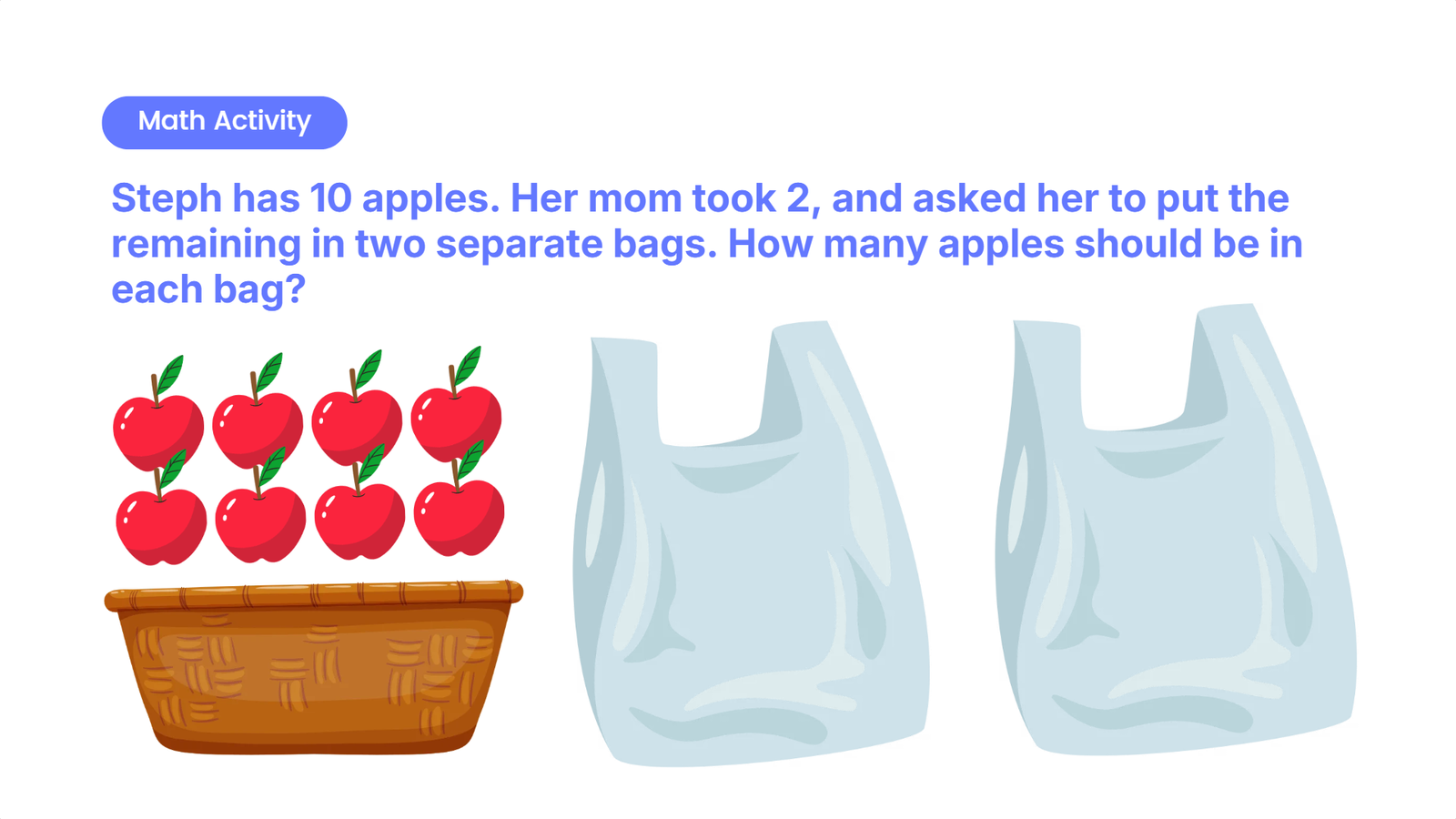
A worked example. “Steph has 10 apples. Mum took 2. Put the remaining apples into two bags. How many in each bag?” Highlight 10, highlight “took 2,” and talk about “remaining” and “each bag” before you move anything. Then drag the apples so the class sees 4 and 4. Talk through the language first, then move the apples.
A labelling turn. Spin a name. “Sean, come up. Find the veggies. Now drag the item.” Award a star. That minute uses a draw, a drag, and a star, and the class is still off devices.
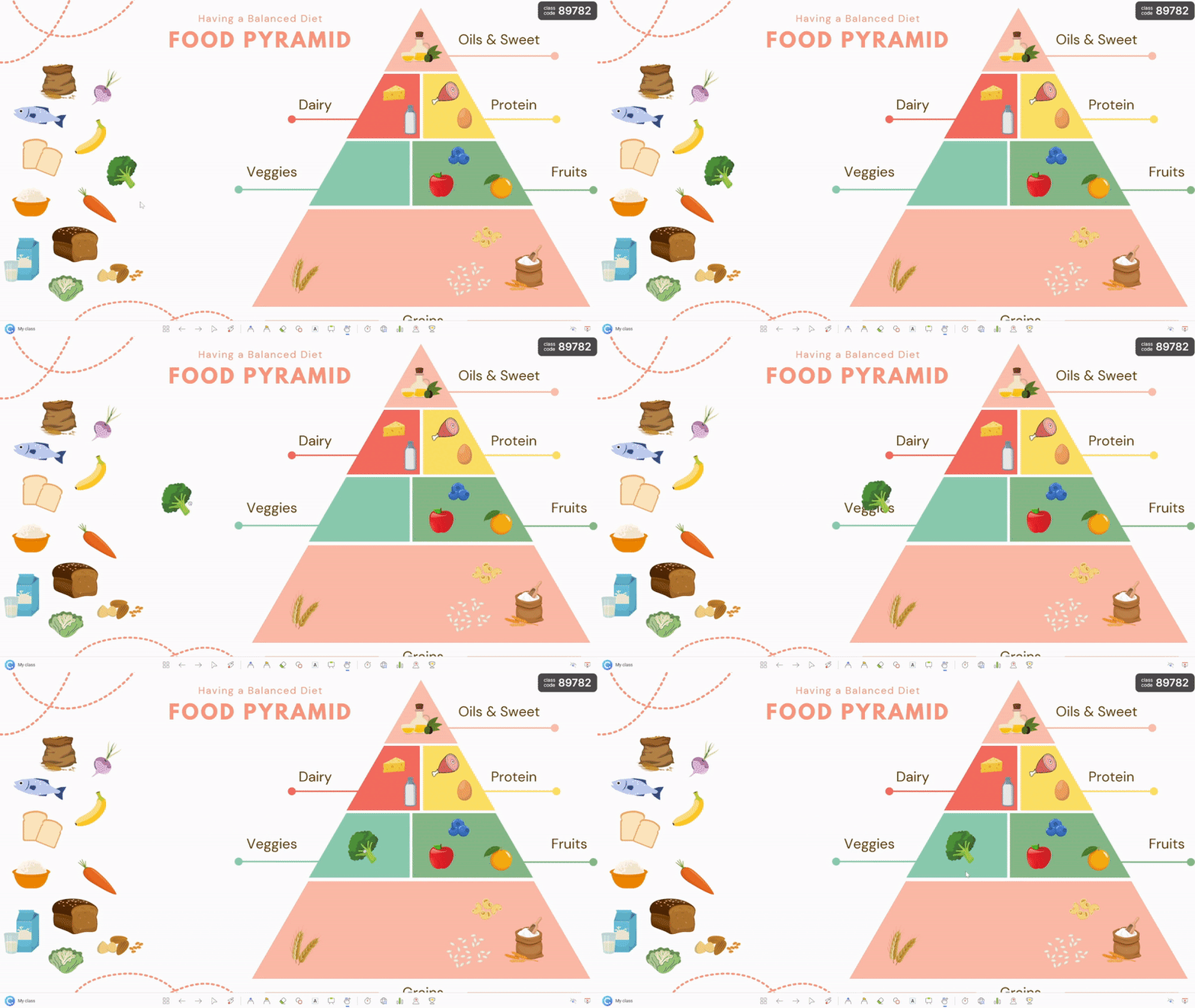
The same slide pattern works for labels on a map, words on definitions, animals in a classification key or a Venn diagram, and story pictures sorted into first, second, and third.
For more draggable object inspiration, check out these 8 ways to create a drag & drop class activity on your PowerPoint slide!
2. Give the work a visible end time
Paper tasks and written work go better with a clear end point. A visible countdown removes the low-grade negotiation over time and tells students exactly when to focus and when to stop.
Add a tier inside the PowerPoint presentation and leave it where the class can see it. Use the timer or the stopwatch, set the length, and pick a sound for the end. You could also use the name picker to draw a name and let that student choose the sound. Cowbell has been known to become a class favourite.
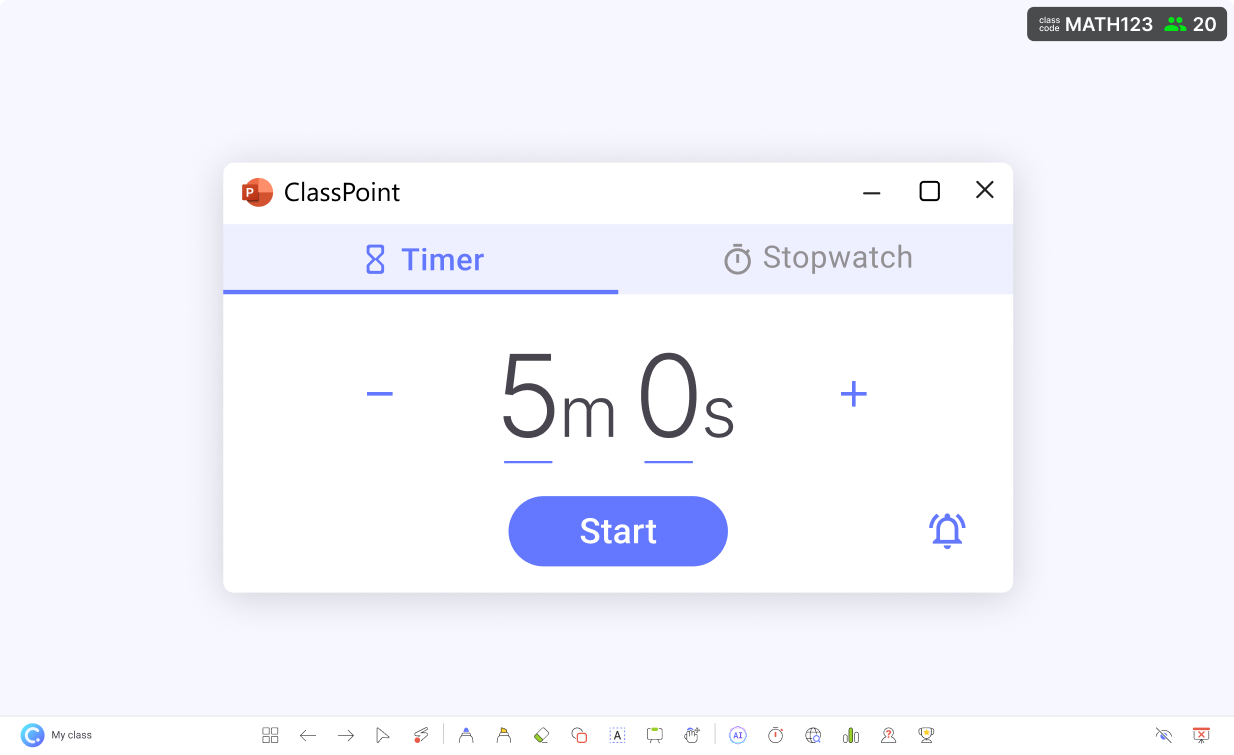
Use the clock for a specific job:
- Thinking time. Ask a hard question, put one minute on the board, then take responses. Students get time to change a first thought.
- Group tasks in chunks. Three minutes to plan, three to do, three to prepare, three to share. Or one 20-minute block with reminders.
- Talking partners. One minute to think, one to share, one for the partner, one to feed back.
- The close of the lesson. Two minutes to tidy, or five minutes left on the board so the remaining time is visible.
The timer manages the room as well as the task. Think-pair-share, silent reading, exit tickets, and written drafts all get cleaner when the end is on the screen.
When you’re choosing to go device-free: build a system, not just a habit
Choosing to engage students without devices is a different problem from the first two situations. There’s no external pressure forcing the change. If it works, you keep it. If the room goes flat, you’ll reach for the laptop cart by day three. Teachers who’ve made it stick share one pattern: they replaced device-based structure with something equally structured.
EdWeek’s June 2026 piece on screen-independent classrooms describes the pattern: verbal participation rose in device-free blocks when teachers replaced the screen with a high-participation task. Remove the device and add nothing, and you get silence.
1. Start with one activity, not a whole lesson
Don’t redesign your class. Pick one slot: a warm-up, a mid-lesson check, or an exit task. Run it without devices for two weeks. Watch whether more students attempt an answer, and whether the silence after a question gets shorter.
One slot is enough to judge, and a bad day does not end the trial. Start with the activity where you most often lose the room. You can stack the moves in that slot:
Draw a name, send that student to the board, have them drag the label, award the star, and start the timer for the next pair.
Some of those moves suit younger students. Some suit older ones. Pick the combination that fits this class today.
Take the examples mentioned, then change the content to your subject. The useful versions of this usually come from watching another teacher, then adjusting the task.
2. Make the participation system visible
Students engage more consistently when they know the rules: when they’ll be called on, what earns recognition, and what happens if they don’t know the answer. That clarity reduces the anxiety that makes students go quiet.
A visible system, whether a leaderboard, a tally, or a star count, lets students track their own standing without you having to manage it verbally.
If you’re already using ClassPoint’s Stars, this is where they stop being a tactic and start being a system: points carry across sessions, so students track their standing over time, not just in one lesson. A paper class roster with tally marks does the same job: less dynamic, but the accountability effect holds.
Getting started: a three-week ladder
If you want to test how to engage students without devices without committing to a full restructure, run this sequence:
Week 1: Use a random name draw for one cold-call question every class. Watch who answers.
Week 2: Add stars to one review session. Award them for something you would already praise out loud. If the school uses house points or shared values, tie the stars to that.
Week 3: Build one slide for the board, either a draggable label or a timer the whole class can see. Run it once, and let the room tell you whether to keep it.
Conclusion
The Michigan teacher mentioned above was describing a room where something had been set up, and students met it. A phone ban, a short laptop cart, or one device-free slot all need that same preparation. The students who take part are taking part in a structure you built: a draw, a star, a mark on the slide, a clock, or a label they drag themselves.
