
Quiz prep is practically muscle memory for most teachers.
But even something this familiar can get easier with the help of the ever-evolving classroom technology tools designed to cut the busywork.
Looking for actual tools that serve the very purpose of “quiz-making” can be tricky. A tool claiming to be an interactive quiz maker can do far differently than what you might expect.
In this blog, though, we’ve kept it laser-focused on interactive quiz maker tools that truly do what is expected: whip up quiz questions grounded from the material you already have, plus student interaction, tracking, integrations, and more.
Key Takeaways
Interactive quizzes only work if they’re easy to make, and useful for your students. Prioritize tools that:
- Fit into your daily teaching system
- Let students respond in varied, authentic ways (MCQs alone are way too dated!)
- Give you actionable data on student interaction
- Require zero extra logins or tech hurdles for you and your students
How to Choose the Right Interactive Quiz Maker
Don’t overthink it. With interactive quiz maker tools, the obvious indicators whether they’re good or bad are:
- Ease of use: If it takes more than a few minutes to set up or forces you out of tools you already use (like PowerPoint or Google Docs), then it’s not saving you time.
- Question types: Can students do more than click A, B, C, or D? Look for options like drawing, audio recording, file uploads, or open-ended responses to get students out the usual question box.
- Analytics: You need more than a score. Can you see who’s stuck, which questions confused the class, and track progress over time? And can you export it easily?
- Additional interactive features: Things like points, timers, live leaderboards, conditional hints, or instant feedback keep students engaged, but only if they’re simple to turn on.
- Integrations: Students shouldn’t need a new username. The best tools work inside Google Classroom, Microsoft Teams, or your LMS, or at least share via clean link or QR code.
TL;DR: Best Interactive Quiz Maker Tools At a Glance
| Tool | Ease of Use | Question Types | Analytics | Additional Interactive Features | Integrations |
|---|---|---|---|---|---|
| ClassPoint | ⭐⭐⭐⭐⭐ | ⭐⭐⭐⭐⭐ | ⭐⭐⭐⭐⭐ | ⭐⭐⭐⭐⭐ | ⭐⭐⭐ |
| Edcafe AI | ⭐⭐⭐⭐⭐ | ⭐⭐⭐ | ⭐⭐⭐⭐⭐ | ⭐⭐⭐⭐⭐ | ⭐⭐⭐⭐⭐ |
| Jotform | ⭐⭐⭐ | ⭐⭐⭐ | ⭐⭐⭐⭐⭐ | ⭐⭐⭐⭐⭐ | ⭐⭐⭐⭐⭐ |
| Quizlet | ⭐⭐⭐ | ⭐⭐⭐ | ⭐⭐⭐⭐ | ⭐⭐ | ⭐⭐⭐ |
| Woorise | ⭐⭐⭐ | ⭐⭐⭐ | ⭐⭐⭐ | ⭐⭐⭐⭐⭐ | ⭐⭐ |
| Opinion Stage | ⭐⭐⭐⭐ | ⭐⭐⭐⭐ | ⭐⭐⭐⭐ | ⭐⭐⭐ | ⭐⭐ |
⭐ How ratings are determined
- 1⭐ = Limited for what a teacher might need
- 3⭐ = Solid, meets basic expectations
- 5⭐ = Excellent, stands out in this category
We tested each quiz maker using standard educator test accounts and supplemented our review with feedback from a small group of practicing K–12 teachers who use quiz tools regularly in their classrooms. Our ratings reflect what’s realistically available and useful for everyday teaching.
1. ClassPoint
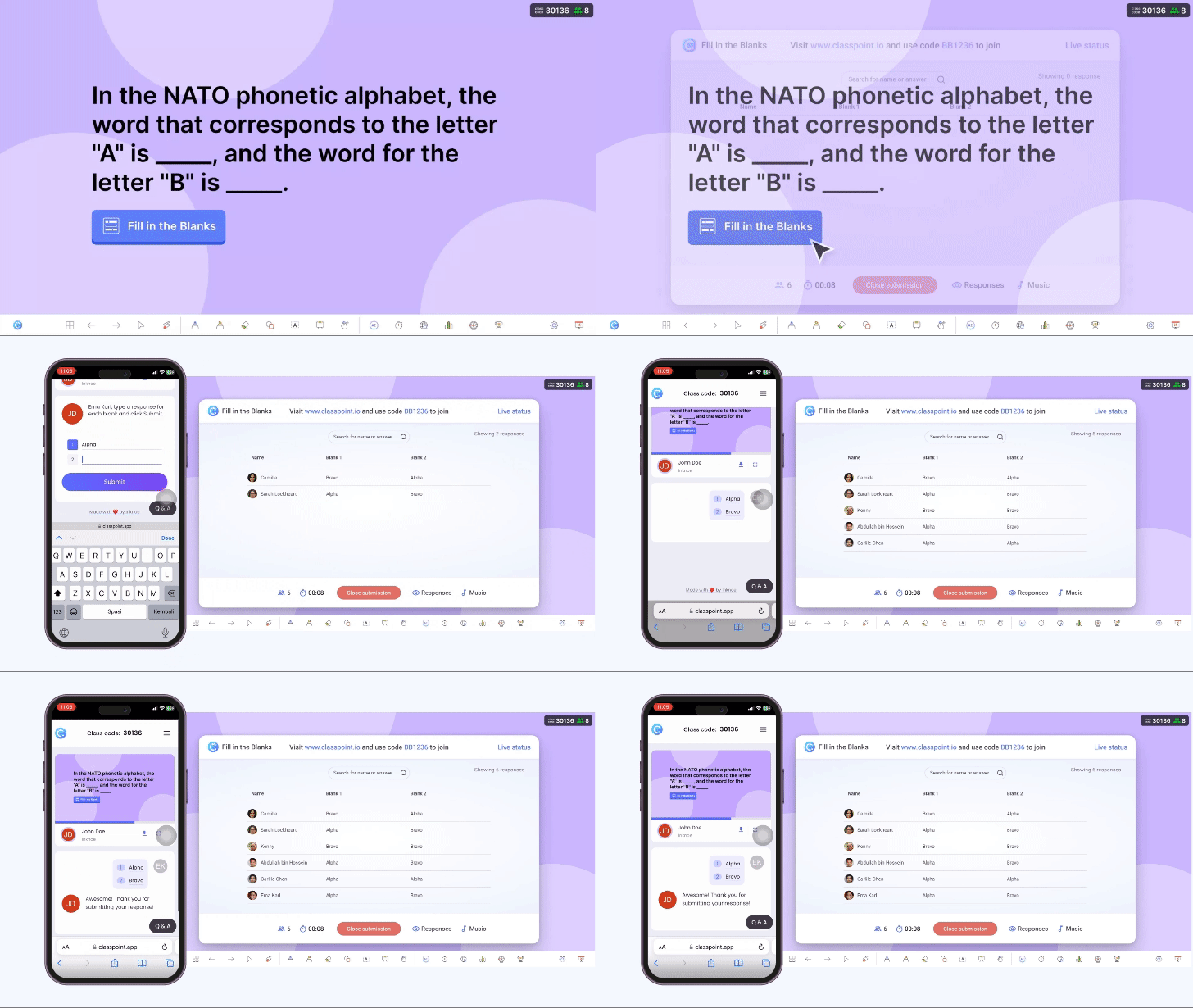
As a direct Microsoft PowerPoint extension, ClassPoint makes quiz-making instant and on-the-spot.
You can turn your existing slides into interactive quizzes, live during your presentation, with 8 different question types. All you need is a question or prompt on your slide, then add a ClassPoint button on top of it.
When you’re in Slide Show mode, clicking that button instantly sends the question slide to every student’s device (as long as they’ve joined your class). Their responses come back to you in real time, right onto your PowerPoint presentation.
To make prep even easier, ClassPoint includes an AI quiz generator that reads the text on any slide and automatically creates quiz questions from it. These can be inserted as new slides with interactive buttons already embedded, and even aligned to Bloom’s Taxonomy levels.
What are ClassPoint’s key quiz features?
- Creative question types: Beyond classic MCQs, fill-in-the-blanks, and word clouds, ClassPoint offers unique activities like Slide Drawing, Image & Video Upload, and Audio Record.
- Question settings: Set correct answers, max submissions, anonymous responses, timers, and more, depending on the question type.
- Live status: See who’s participating in real time and gently nudge those who haven’t responded yet with an on-screen tracker.
- Real-time responses: Student answers appear immediately in your active PowerPoint presentation.
- Gamification: Motivate learners with stars, levels, badges, and a visual leaderboard.
- MCQ Quiz Mode: Turn standard multiple-choice questions into quiz competitions with difficulty levels, auto-awarded stars, and a downloadable Excel report.
How do students take a ClassPoint quiz?
- Students join your class at classpoint.app using any browser and a unique class code.
- When you click a ClassPoint question button during your presentation, the question appears instantly on their devices.
- Depending on the question type, they can select answers, type text responses, draw on slides, or upload images, videos, or audio, and submit it back to you.
- After submissions close, students see whether they got the answer right (for questions with correct answers).
- In MCQ Quiz Mode, they automatically earn stars based on question difficulty, if they answer correctly.
- As you award stars, students see their total stars, current level, badge, and leaderboard position update in real time.
2. Edcafe AI
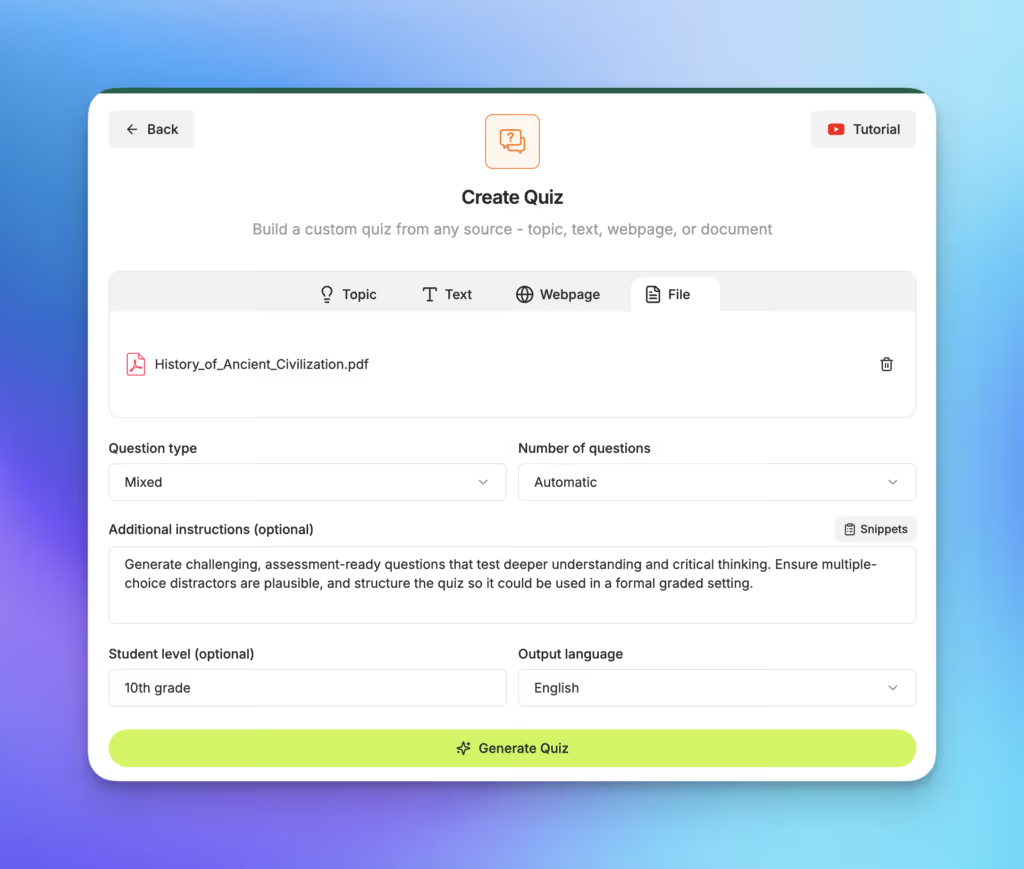
Edcafe AI lets you create quizzes from multiple sources: a simple topic, copied text, webpage links, uploaded documents, and even YouTube videos.
For most teachers, this is a big plus. You’re no longer limited to writing quizzes only from a textbook or lesson plan. With Edcafe AI, you can quickly turn an interesting article, a downloaded PDF handout, or an educational YouTube video into a ready-to-use comprehension quiz.
And because it supports the full quiz cycle, sharing is just as easy. Students can take your quizzes at their own pace right from their devices.
Since it’s AI-powered, all quizzes are auto-graded and come with personalized feedback for students.
Every submission also sends real-time data back to your tracking dashboard so you can review progress instantly.
What are Edcafe AI’s key quiz features?
- Additional instructions: Specify grade level, learning standards, or even your exact learning objective when generating a quiz.
- Customizations: Add images to questions, reorder items, regenerate answer choices or explanations, and fine-tune content as needed.
- Student access: Share via link or QR code, embed in a website, or integrate directly with LMS platforms like Google Classroom or Microsoft Teams.
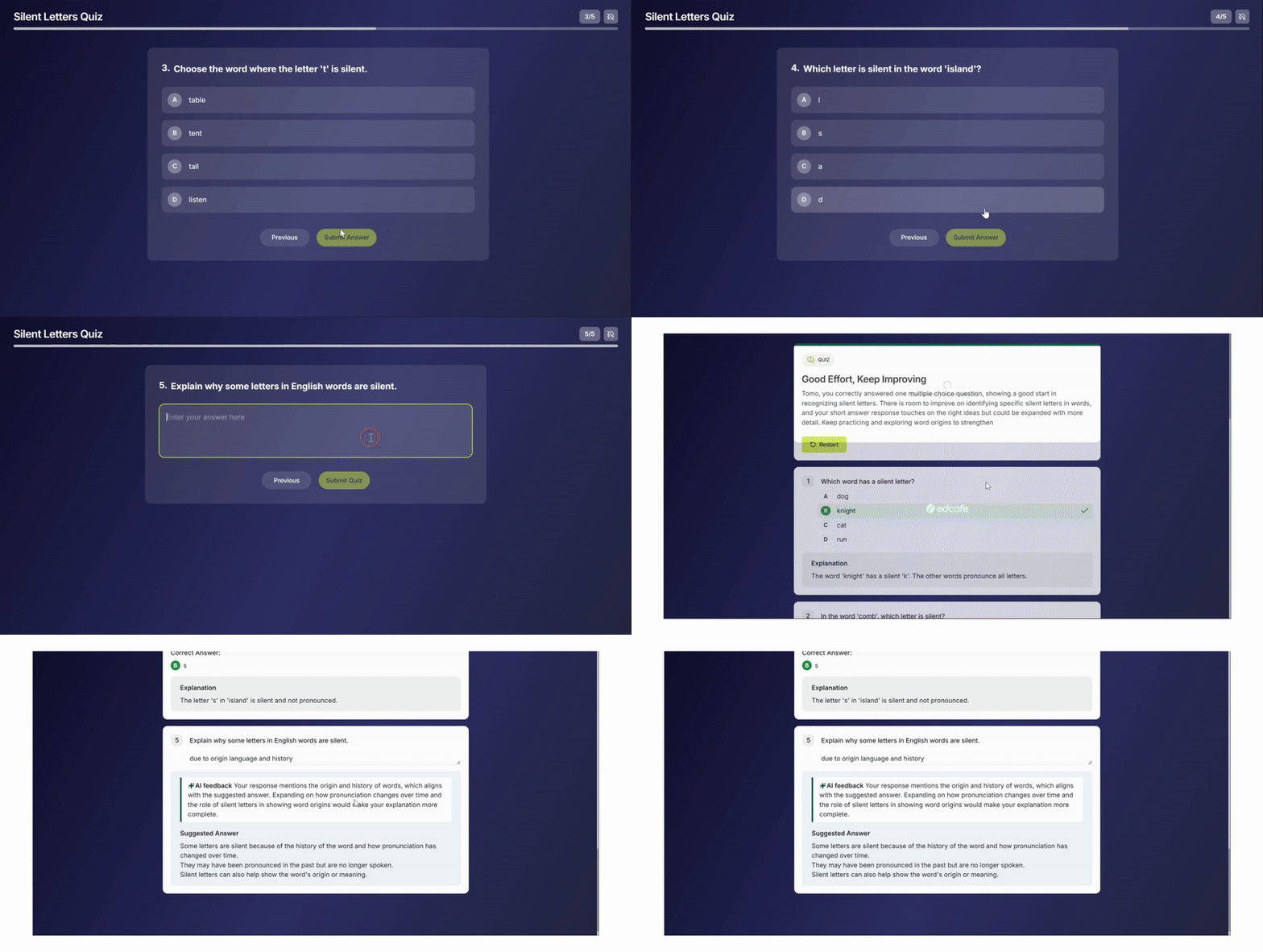
- Quiz modes:
- Classic: Full quiz as a single form.
- Practice: One question at a time, with instant feedback after each.
- Assessment: One question at a time, with all feedback shown at the end. (You can also set a time limit if needed.)
- YouTube quiz: Paste a video link, and Edcafe AI generates questions based on the actual content of the video.
- Tracking: Real-time dashboards show individual question analytics to spot learning gaps, plus detailed records of each student’s answers, feedback received, and performance per item.
- Export options: Save your quiz as a Microsoft Word doc, Google Doc, PowerPoint, Google Slides, or printable PDF.
How do students take an Edcafe AI quiz?
- They access it via a shared link, QR code, or directly through an LMS.
- Depending on the mode you chose, they’ll see questions as a full form, as individual cards, or alongside a YouTube video with related questions on the side.
- After submitting, they get instant auto-grading for MCQs, AI-powered writing feedback on short answers, and clear explanations for each question.
3. Jotform
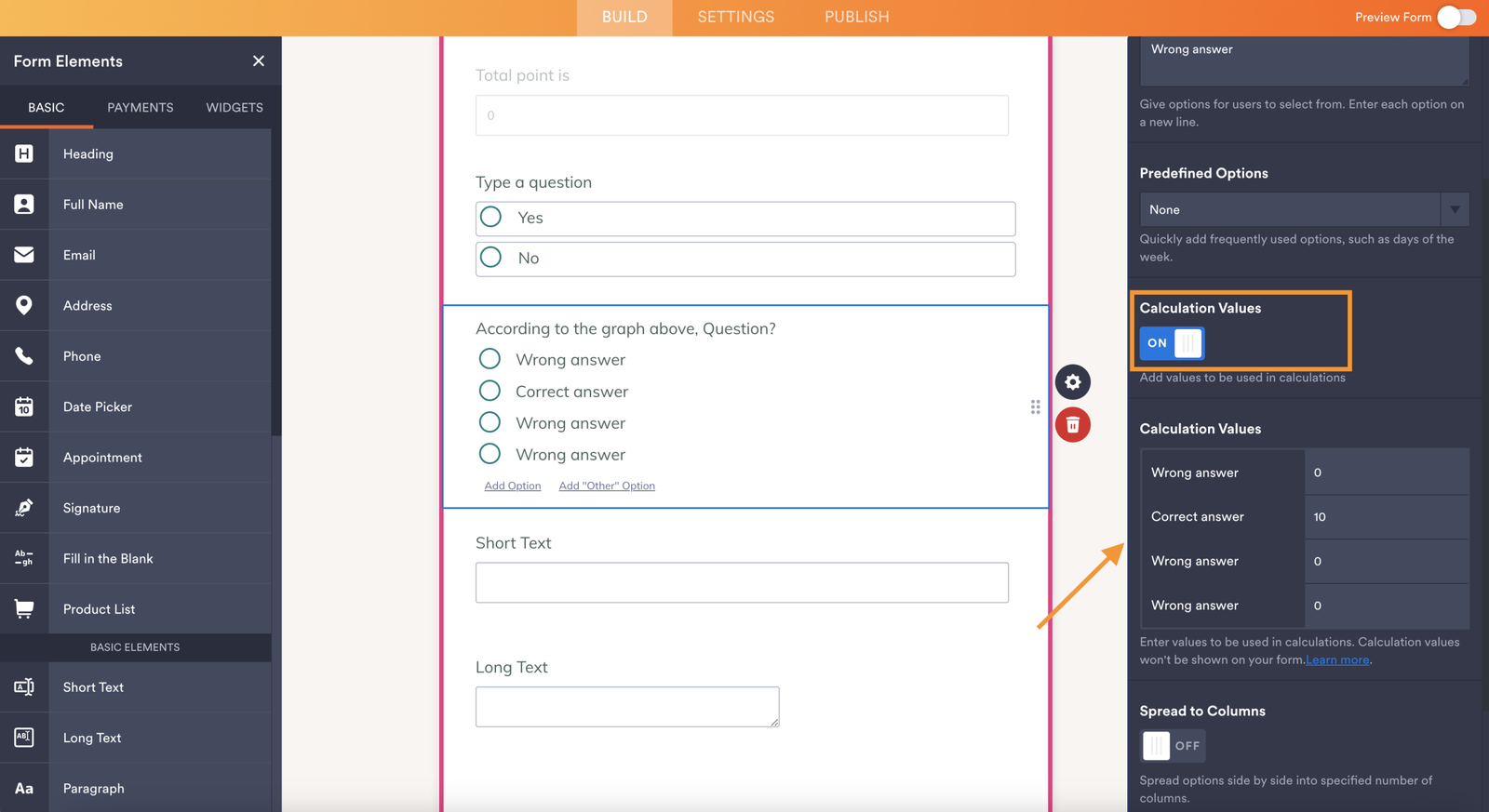
With Jotform, quizzes are built as online forms. You can start from scratch, but the easiest way is to use one of their 500+ ready-made quiz templates.
Every template is fully editable, with deep customization options. One too many, actually!
That’s great news for teachers who want full control over every detail of their quiz.
What are Jotform’s key quiz features?
- Customizable templates: Choose from hundreds of pre-made quiz forms and tweak them freely: colors, fonts, layout, and more.
- Widgets: Boost interactivity with add-ons like photo uploads, image sliders, rating scales, and even embedded videos or websites (via iFrame).
- Per-element settings: Adjust fine details like field size, alignment, spacing, and labels for each question or input.
- Conditional logic: Show or hide questions based on student responses, great for branching scenarios or adaptive quizzes.
- Submission tracking: All responses are saved in a spreadsheet-like table that you can view, filter, or download anytime.
How do students take a Jotform quiz?
- They open the quiz directly via a shared link.
- As they go through the form, they interact with the fields and widgets you’ve added, whether optional or required.
- Depending on how you’ve set it up, they may see instant feedback, confirmation messages, or hints after submitting answers.
4. Quizlet
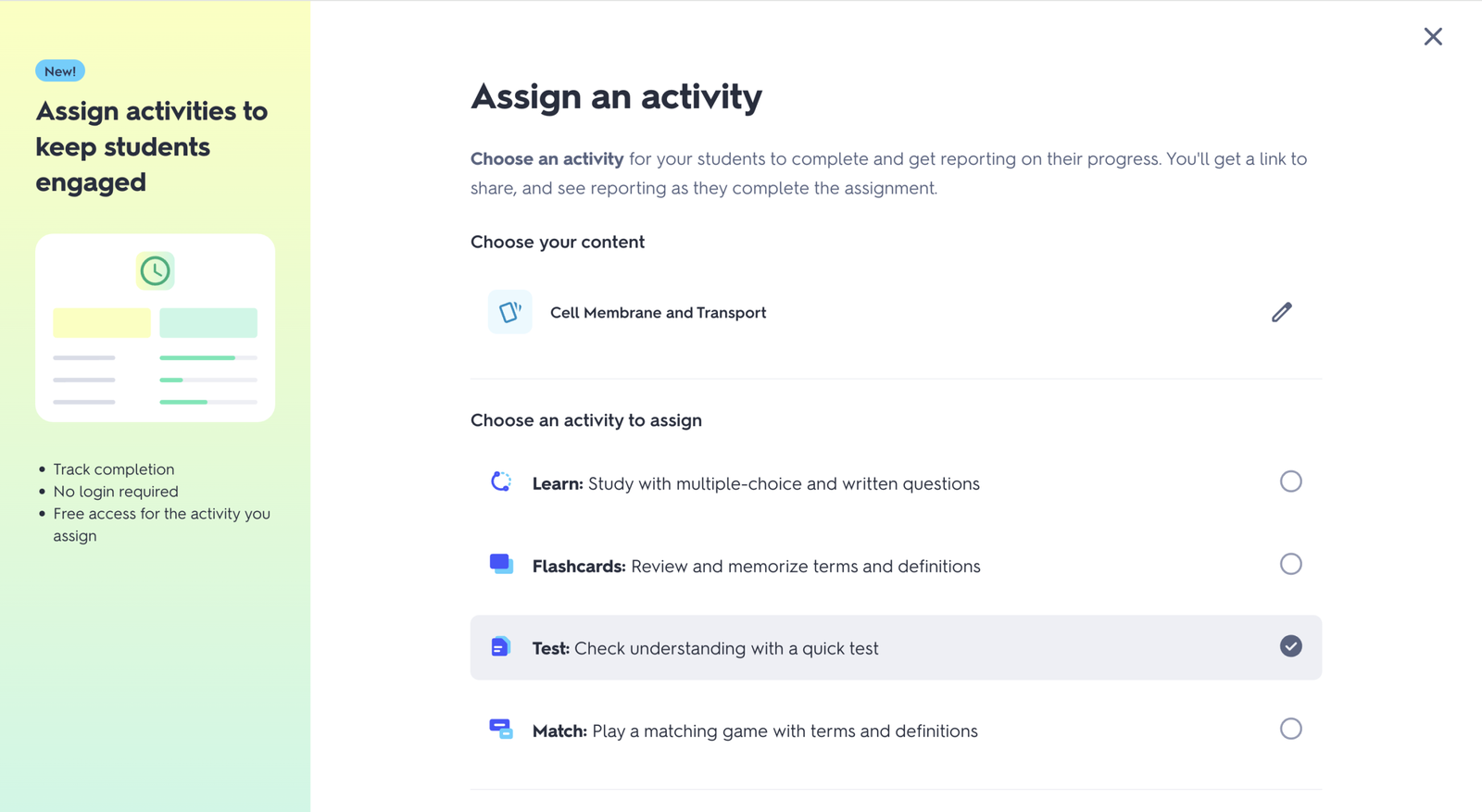
Quizzes in Quizlet come in the form of Practice Tests, automatically generated from flashcard sets, either ones you create or ready-made ones from their library.
Once you’ve got a flashcard set, Quizlet instantly turns it into a practice quiz with no extra steps. For teachers who want quick generations, this is perfect. For those looking for control, it might feel limiting.
Either way, Quizlet does an excellent job: it transforms your flashcards into smart, relevant practice questions with well-crafted distractors, best fit for review and retention.
What are Quizlet’s key quiz features?
- Resource library: Access thousands of pre-made flashcard sets across subjects to quickly build practice tests.
- Learning modes: Assign activities in different modes—Learn, Practice, Match, Test—to support learning, review, or assessment.
- Organize by class: Group students into classes and assign specific practice tests to each group for easy management.
How do students take a Quizlet quiz?
- They join via a shared link, through Google Classroom, or by email invitation.
- They work through questions one at a time, each derived from your flashcards, with optional audio (text-to-speech) support.
- Every submission is tracked and sent back to you as progress data, helping you gauge mastery, identify gaps, and inform instruction.
5. Woorise
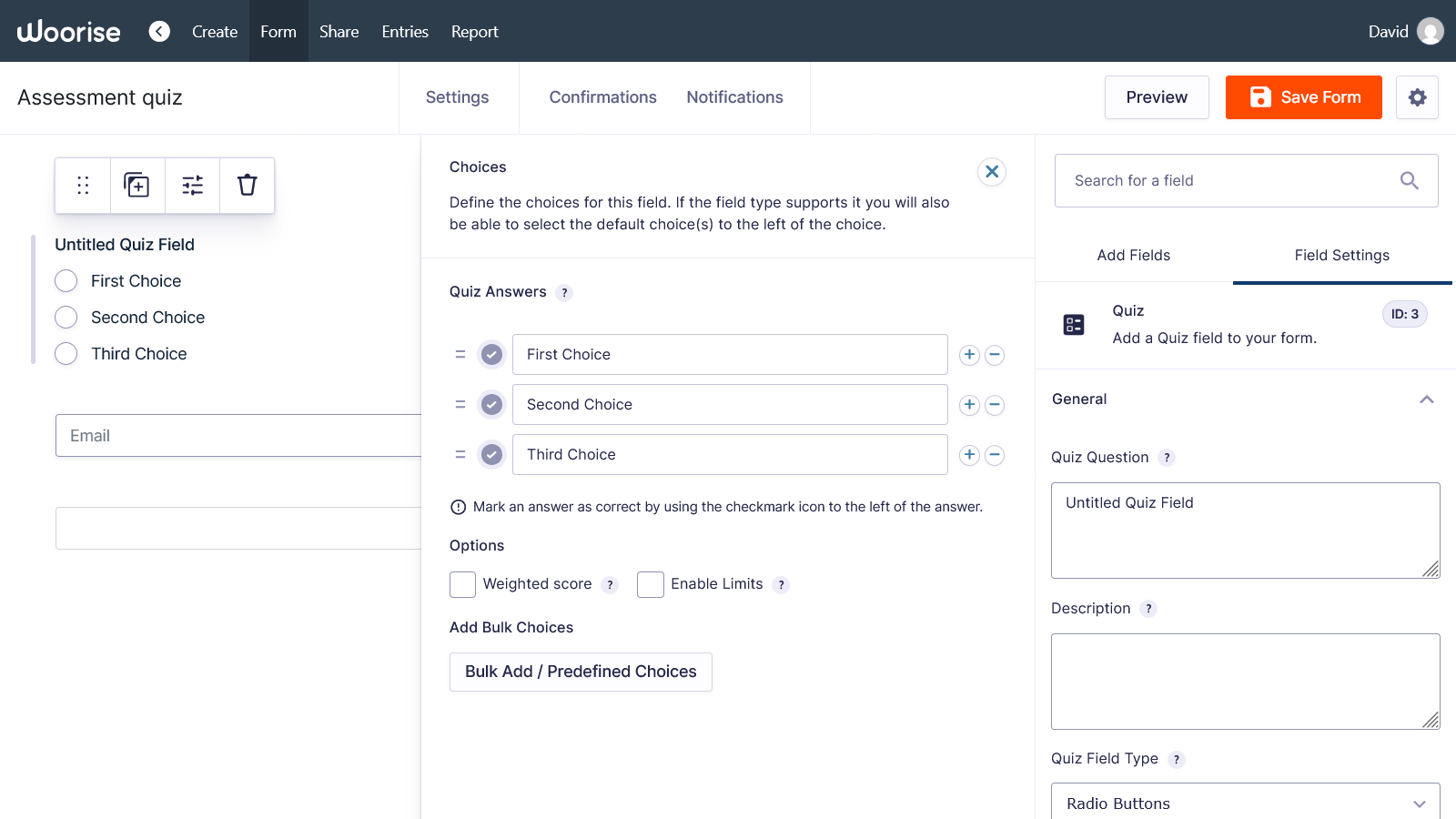
Woorise lets you build quizzes using a flexible drag-and-drop form builder. You can start from scratch or use one of their ready-made templates, then customize.
It’s especially useful for teachers who want full control: you can add logic, media, and even tailor follow-up questions based on student answers. All responses are saved in an easy-to-view table and can be exported as a CSV file for grading or analysis
While Woorise is powerful, it’s worth noting that it’s built more for general interactivity than classroom-specific workflows, so LMS integrations (like Google Classroom) aren’t native, but you can share quizzes via link or embed them anywhere.
What are Woorise’s key quiz features?
- Drag-and-drop builder: Create and arrange questions visually.
- Conditional logic: Show or hide questions based on previous answers, making quizzes adaptive.
- Rich media support: Add images, videos, or even embedded content (via iFrame) to questions.
How do students take a Woorise quiz?
- They open the quiz through a shared link.
- They interact with questions just like a web form: selecting answers, uploading files, or typing responses.
- Once submitted, their answers are recorded instantly in your dashboard for review and export.
6. Opinion Stage
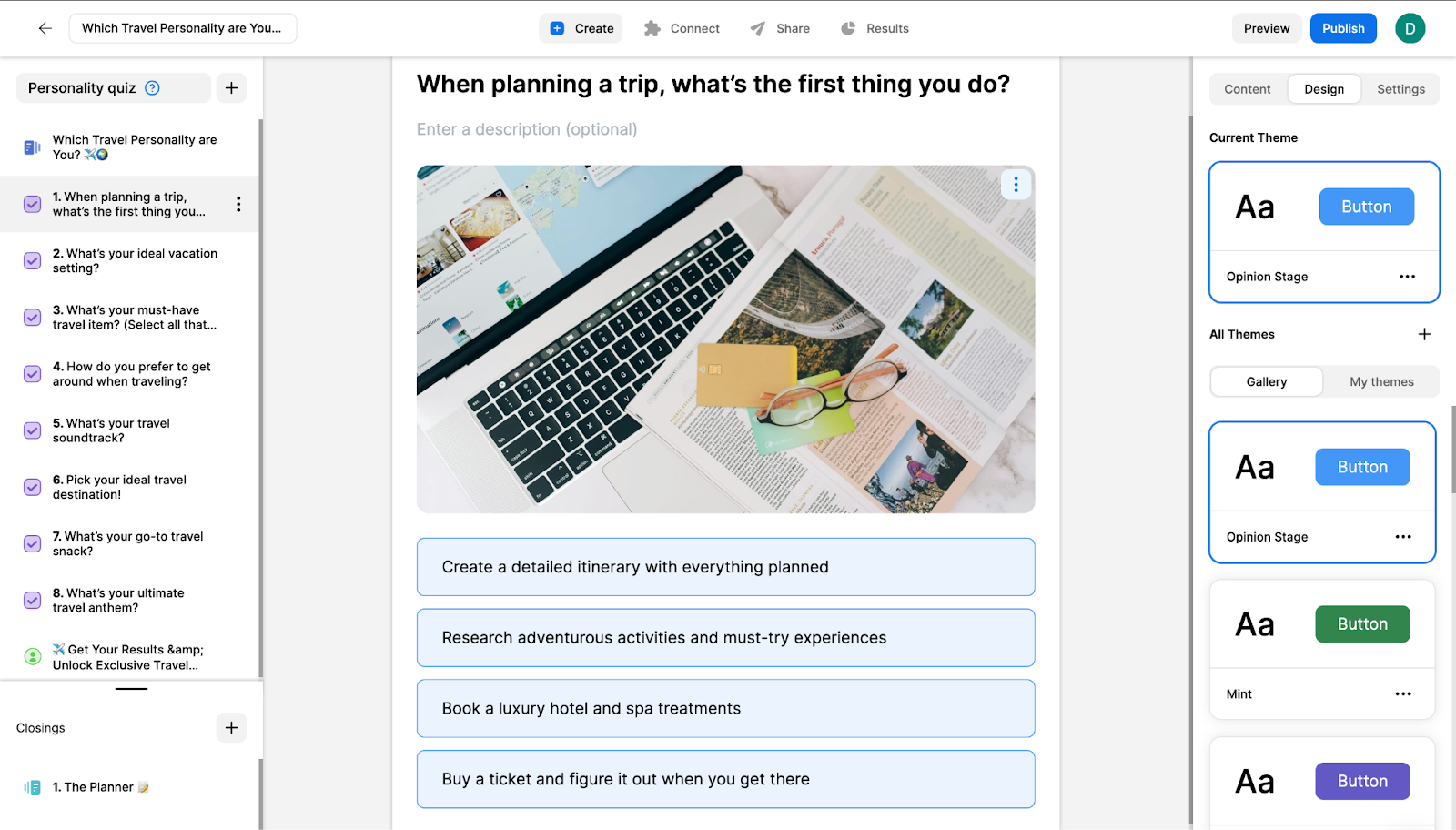
Opinion Stage makes quiz creation fast, especially with its AI-powered generator. Just describe a topic or paste text, and it builds a ready-to-use quiz with smart questions and plausible distractors.
You can choose between knowledge quizzes (scored, right/wrong) or personality-style quizzes (for reflection or engagement). Every quiz includes instant feedback, explanations, and clean visuals.
What are Opinion Stage’s key quiz features?
- AI quiz generator: Turn a topic, article, or prompt into a full quiz in seconds.
- Two quiz formats: Knowledge-based (for assessment) or personality-based (for engagement).
- Instant feedback: Students see explanations after each question or at the end, depending on your settings.
How do students take an Opinion Stage quiz?
- They access it via a shared link.
- They answer questions one at a time, with optional audio or visual support.
- After submitting, they get immediate feedback and, if enabled, a summary of their performance.
Final Tip: Make It Your Own Checklist
When testing out a tool, ask yourself:
- Can I build a quiz in under 5 minutes from my existing slides, notes, or videos?
- Will my students be able to respond in more than one way (not just multiple choice)?
- Do I get useful data & insights I can act on?
- Does it work where my students already are (Google Classroom, Teams, etc.)?
If you answered “yes” to most of these, that tool might just be for you.
