
Live classroom sessions can be a headache when you’re unprepared.
The good thing is there are now classroom technology tools designed specifically to support live teaching. If papers and pens once ruled the four walls of a classroom, imagine what can now be done directly from the same screens teachers already rely on every day.
That said, having more tools does not automatically make live teaching easier. Choosing the right one matters. Especially in a live classroom, where switching platforms or juggling tabs can quickly break focus.
One of the most practical places for support to live is right inside your existing workflow. And for most educators, that workflow already starts with PowerPoint.
ClassPoint is built exactly for that. It is a PowerPoint add-in that works directly within your presentation. And with millions of educators using ClassPoint worldwide, it has become one of the most trusted classroom tools for running live lessons smoothly and confidently.
In this blog, we will walk through the must-dos that help ensure your live classroom session runs smoothly when using ClassPoint. Think of it less as theory, and more as a practical checklist you can rely on before the lesson begins.
What is ClassPoint
ClassPoint is an interactive teaching add-in designed to support live classroom instruction directly inside PowerPoint.
Instead of treating slides as static content, ClassPoint turns them into interactive touchpoints where students can respond, participate, and stay engaged in real time. Teachers stay in control of the lesson flow, while students participate using their own devices through a simple class code.
At its core, ClassPoint focuses on a few key pillars that support live teaching:
- Interactive quizzes that allow students to respond instantly during a lesson, including multiple choice, short answer, word cloud, slide drawing, and more.
- Live presentation tools that help teachers manage pacing and attention during class, such as the name picker, timer, quick polls, and live annotations.
- Gamification elements that reward participation and encourage active involvement through points, levels, badges, and leaderboards.
- AI-powered quiz creation that helps teachers generate classroom-ready questions directly from their lesson content, saving preparation time without sacrificing quality.
Must-Do #1: Prep your class list
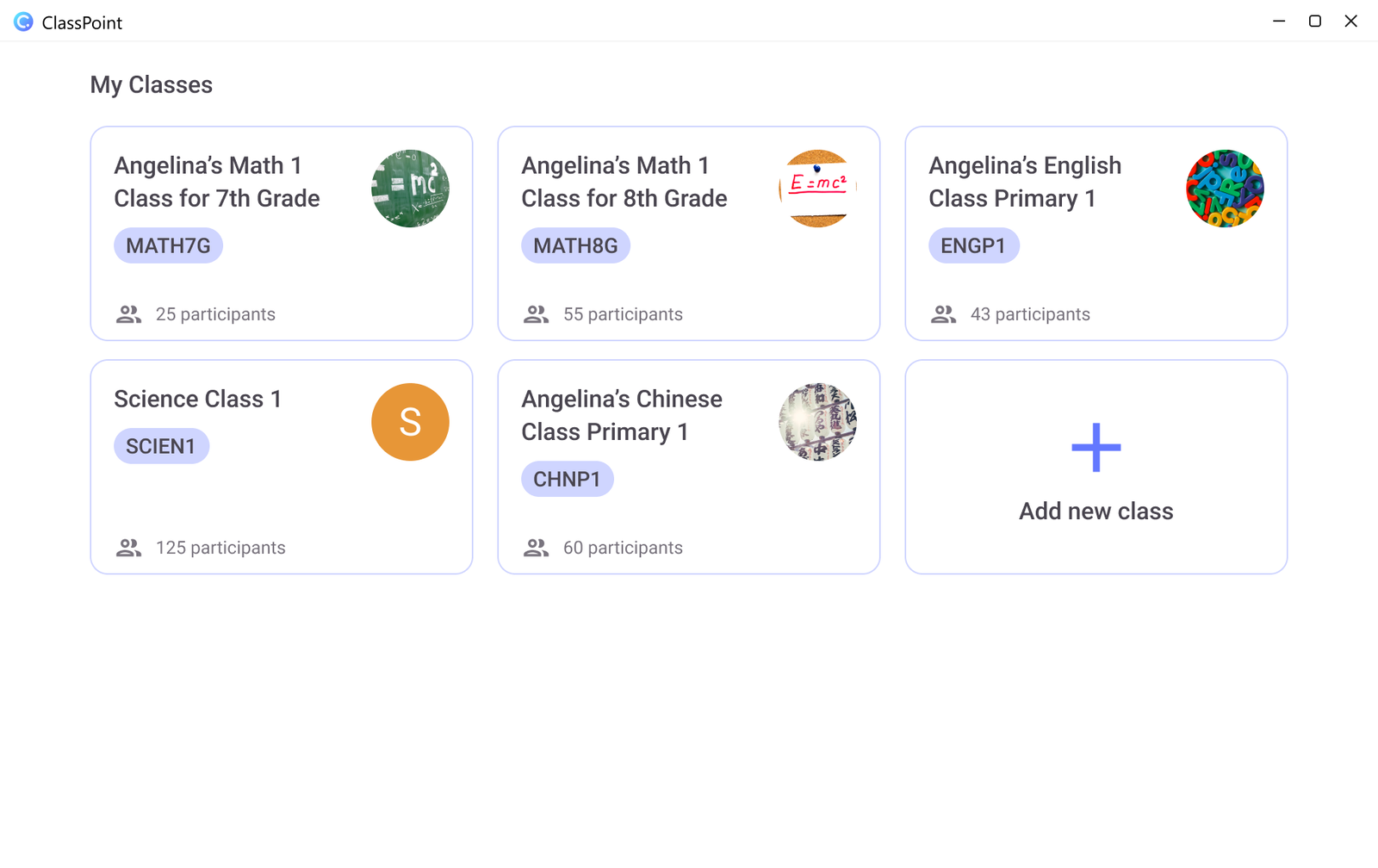
In ClassPoint, you can host live classroom sessions anytime, even on the spot, thanks to public classes.
But for more structure, managing your classes beforehand and setting up private classes instead will do much more for your classroom. When you set up private classes, you can:
- Plan the list of students joining your live classroom session ahead of time
- Organize your classes by subject, by session day, by grade level, and more
- Store student data, including their accumulated stars across live classroom sessions
- Avoid students entering your class using aliases or nicknames, since only students you’ve listed beforehand will be allowed to join when this is set
Of course, prepping also includes designing your slides. And even here, ClassPoint helps. Check out its Quiz Ideas library and how you can make the most of it when building your lesson.
Must-Do #2: Ensure your questions are properly set up
With every interactive quiz you embed onto what were once static slides, you are given question settings that automatically open on the side panel.
These are settings you can and should review before running them with your students during your live classroom session.
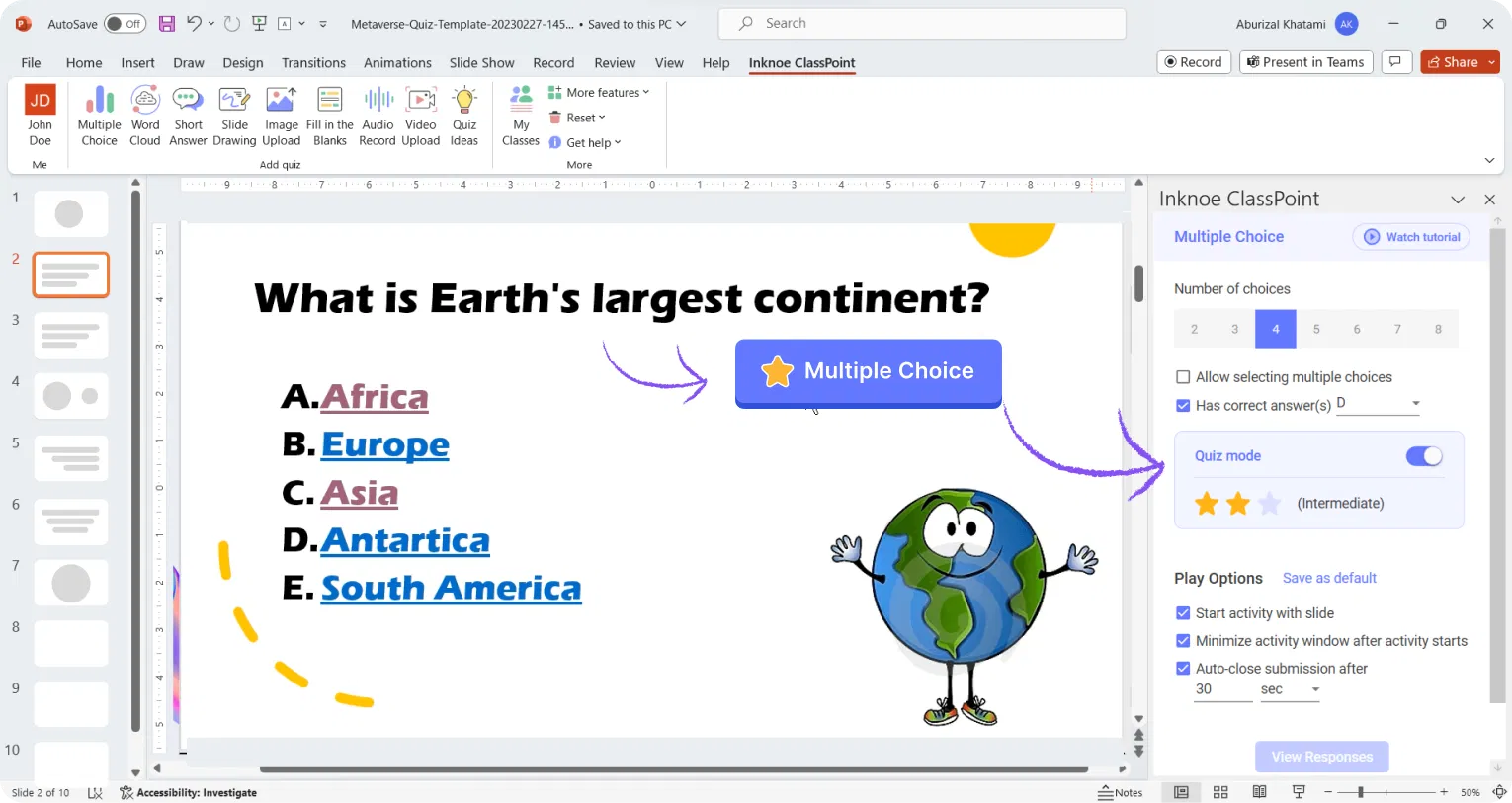
For every question type, this may differ.
| Question Type | Question Settings | Helpful When |
|---|---|---|
| Multiple Choice | Number of choices (up to 8), multi-select options, correct answer(s), optional Quiz Mode | You want quick checks for understanding or clear right-and-wrong responses |
| Word Cloud | Maximum word submissions (up to 5) | You want fast idea sharing without students overthinking |
| Short Answer | Allow multiple submissions (up to 3), anonymous submissions | You want honest thinking or evolving responses |
| Image Upload | Require captions, anonymous submissions | You want students to explain visuals or show their work |
| Fill in the Blanks | Number of blanks, correct answer(s), anonymous submissions | You want focused recall or sentence-level accuracy |
| Audio Record | Anonymous submissions | You want verbal responses without public speaking pressure |
| Video Upload | Require captions, anonymous submissions | You want deeper explanations or demonstrations |
Additionally, for each question type, there are Play Options that help enhance how these interactive questions run in slideshow mode. You can learn more about them here.
Must-Do #3: Plan your live classroom delivery
Yes, ClassPoint equips you with the right tools to help you present dynamically on the spot, meaning little to no prep is required. But for most teachers, a little planning still goes a long way.
Your delivery says a lot about how prepared you are. With the range of live delivery tools available in ClassPoint, you want to use them intentionally.
A couple of things to keep in mind:
- Are there any whiteboards you plan to use during your presentation?
- If so, make sure you upload them beforehand from your PowerPoint ribbon > More Features dropdown > Whiteboards
- When do checkpoints in your presentation happen?
- It helps to add simple cue slides, even with just text like “Poll Time,” so you don’t forget. When that slide appears, it’s easy to pull up ClassPoint’s Quick Poll from the toolbar
- Is everyone listed correctly in your private class?
- Tools like the Wheel of Names depend on this. If a student is not listed, they will not appear
- Do you have transition slides or parts of your presentation that need to be timed?
- Adding cue slides here helps remind you when to pull up the ClassPoint timer from the toolbar
You can also think about moments where live annotation may help reinforce a point without moving away from the slide.
Must-Do #4: Lay out gamification rules
Every classroom already has some form of a reward system. While ClassPoint supports this with built-in stars, it’s important to lay out the ground rules and communicate them clearly to your students.
In ClassPoint, you can further customize this system by deciding how many stars students need to reach specific levels, for example.
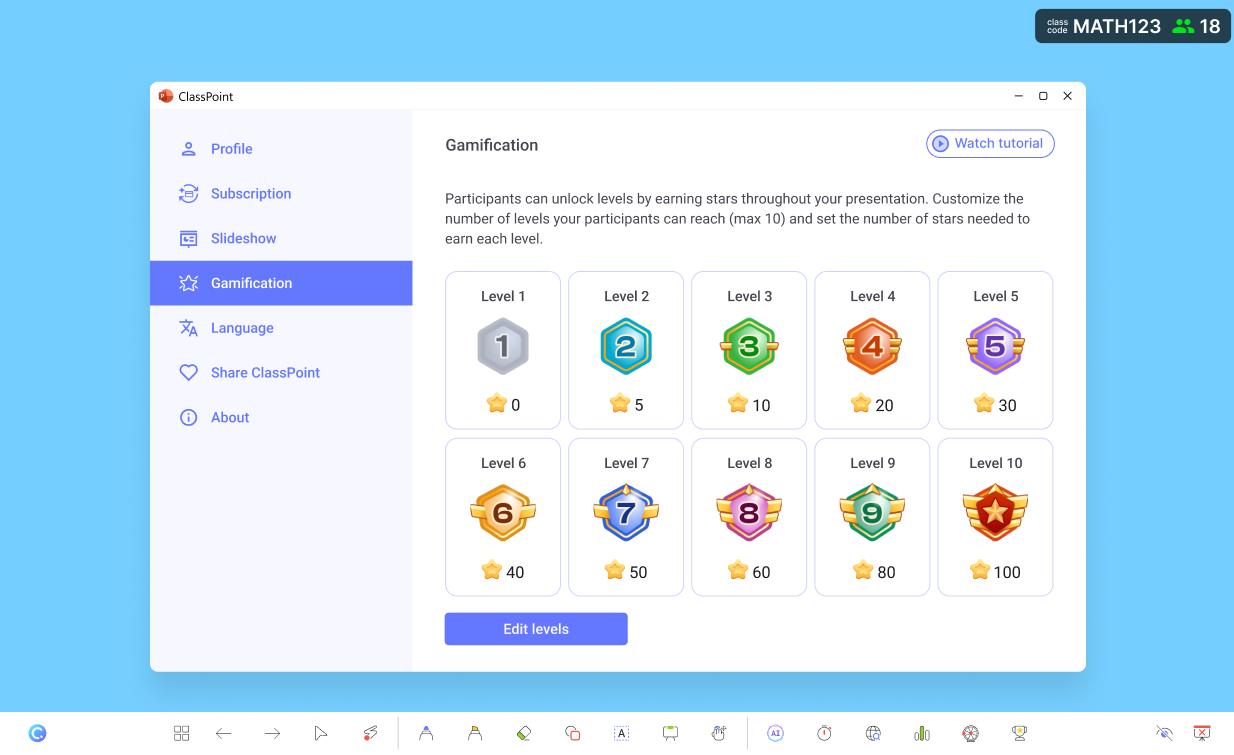
Before your live classroom session, communicate expectations clearly. Here are a few ways to structure your gamification rules:
| Scenario | How Stars Are Used | Notes |
|---|---|---|
| Participation | Award stars for answering questions or contributing | Encourages involvement, not just correctness |
| Accuracy | Award additional stars for correct answers | Sets clear expectations |
| Disruptions | Deduct stars when necessary | Use sparingly and consistently |
| Level progression | Set star thresholds for levels | Helps sustain motivation across sessions |
| Competition | Show or hide leaderboards | Adjust based on class dynamics |
And yes, deducting stars is possible in ClassPoint.
Must-Do #5: Include surprises to keep students on their toes
We were students once too. And as much as we hated surprise quizzes, isn’t it time to let the little ones experience the same rush?
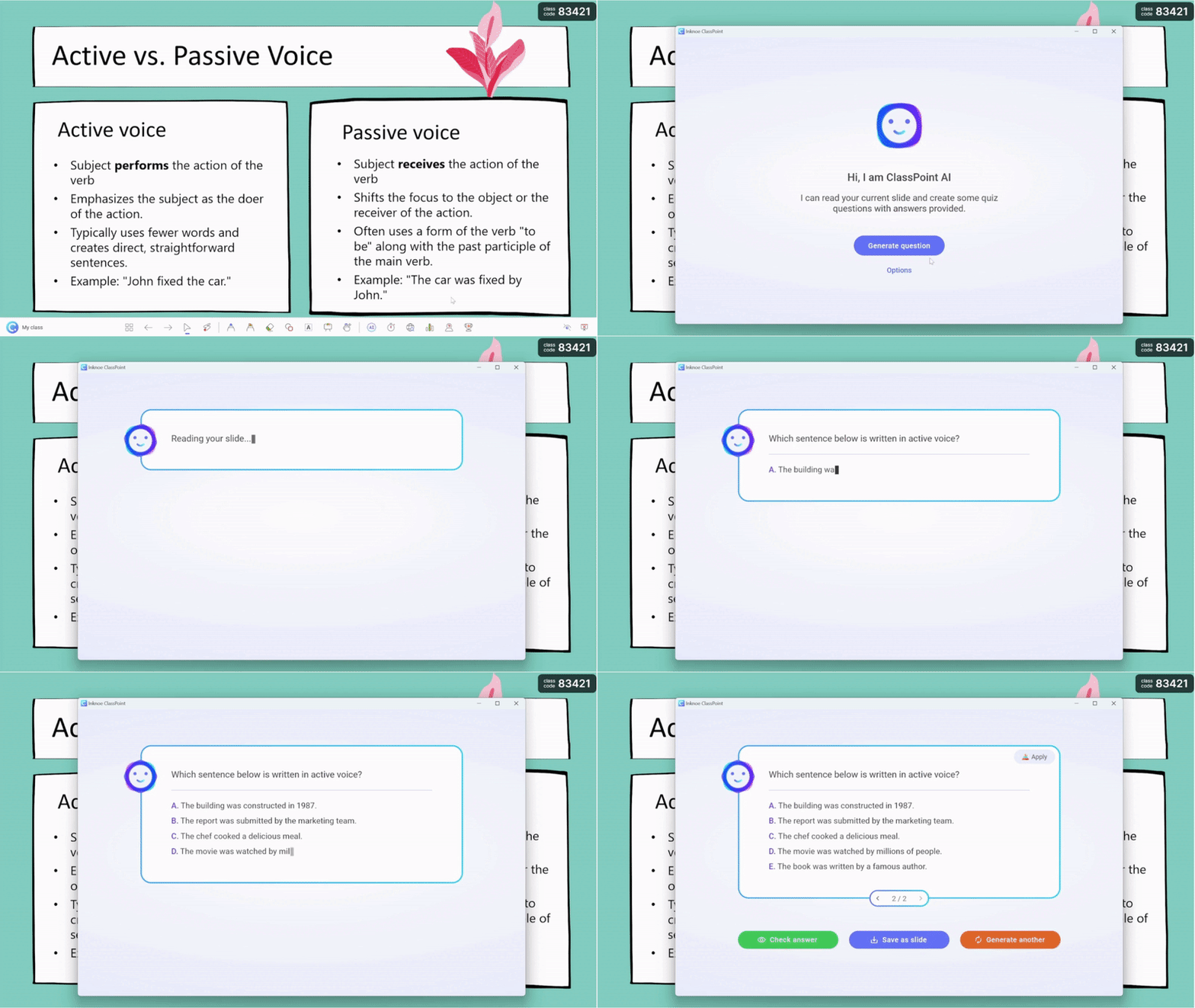
Thanks to ClassPoint’s AI Quiz Generator, you can run quizzes on the fly with just a few clicks.
Prepare your information slides as usual. When you notice students getting a little bored, that’s often the perfect moment to follow through with a quick quiz to reset attention.
Mark information slides you may want to generate quizzes from so when it’s showtime, you can simply let ClassPoint AI do its thing.
Best practices during live classroom sessions with ClassPoint
Once live classroom session starts, we bid goodbye to prep. What matters by then is how quickly you can respond, and keep students with you all throughout.
ClassPoint supports these moments best when its tools are used deliberately during the session, not reactively.
- Keep all actions inside slideshow mode. Launch interactive questions, open Quick Poll, spin the Wheel of Names, or start the timer directly from the ClassPoint toolbar without exiting your presentation.
- Use response volume as a signal. If responses come in quickly, move forward. If they slow down or stop, pause and clarify before advancing the slide.
- Control pacing with Play Options. Decide when responses should auto-close, when students can submit multiple times, and when results should be shown to maintain lesson rhythm.
- Anchor discussion to live responses. Insert student answers as slides live on screen and annotate directly on top of them to address patterns or common misconceptions.
- Use anonymous mode intentionally. Switch on anonymous submissions when checking understanding on sensitive or challenging topics to encourage honest input.
- Reset the room when needed. Discard responses, reset annotations, or restart activities mid-session to avoid clutter and confusion as the lesson progresses.
FAQs
How does ClassPoint support live classroom teaching compared to other tools?
ClassPoint runs directly inside PowerPoint, which means teachers do not need to switch platforms during a live classroom session. Quizzes, polls, timers, name pickers, and annotations all operate within the presentation itself. This reduces interruptions and helps lessons flow more smoothly in live teaching environments.
How do students join a live classroom session with ClassPoint?
Students join a live classroom session by simply entering a class code at app.classpoint.io using any browser. No app installation or student account is required.
Can ClassPoint be used for live classrooms across different subjects?
ClassPoint works across subjects including math, science, languages, social studies, and professional training. Its interactive question types and live presentation tools adapt easily to different teaching styles and content needs.
Does ClassPoint track participation during live classroom sessions?
Yes. During live classroom sessions, ClassPoint records student responses, participation, and stars. Session reports are automatically saved for review after class.
Can teachers control who joins a live classroom session in ClassPoint?
Yes. Teachers can use private classes to predefine student lists, ensuring only approved students can join live classroom sessions. This also prevents the use of aliases or nicknames and keeps participation records accurate.
