
Have you ever delivered a presentation where everything was technically correct, yet understanding still felt shallow? The slides were full of information, but attention drifted and questions revealed gaps in comprehension.
This is a common experience when presentations rely too heavily on text. This is also where multimodal presentation becomes essential.
A multimodal presentation recognizes that learning happens through more than reading slides. It happens when learners can see ideas, hear explanations, interact with content, and express understanding in different ways.
In this blog, we’ll dive into why multimodal presentation is crucial, the tips you need to remember, and how a tool can supercharge your presentations to keep your learners engaged, focused, and thriving.
What Is a Multimodal Presentation and Why It Works Better Than Text-Only Slides

A multimodal presentation uses multiple modes of communication to convey meaning. Instead of asking text to carry the full weight of explanation, information is distributed across visual, verbal, auditory, and interactive channels.
In practice, this means slides support the speaker rather than replace them. Visuals illustrate ideas, spoken explanation adds context, and interaction allows learners to process and respond. The result is a presentation that feels clearer, more engaging, and easier to follow.
Why Multimodal Presentation Works Better
Text-heavy slides demand a lot from working memory. Learners are often forced to read and listen at the same time, which increases cognitive load and reduces understanding. Multimodal presentation reduces this strain by allowing different modes to share the work.
Research in cognitive science shows that people learn more effectively when visuals and spoken explanations are combined than when information is presented as text alone. This principle is well documented in multimedia learning theory, particularly in the work of Richard Mayer, who found that well-designed multimedia instruction leads to better comprehension and retention than single-mode instruction.
Multimodal presentation also supports active learning. When learners are asked to respond, draw, or explain during a presentation, understanding becomes visible and misconceptions surface earlier.
To know more about active learning, check out our blog on How to Create Engaging Lectures with Active Learning.
Common Modes Used in a Multimodal Presentation

A strong multimodal presentation blends several complementary modes rather than relying on just one:
| Multimodal Mode | Description |
| 🖼️ Visual Mode | Includes diagrams, images, charts, timelines, and live annotations. These help learners see relationships and structures that are difficult to grasp through text alone. |
| 🎤 Verbal Mode | Involves spoken explanation, questioning, and discussion. This allows ideas to be unpacked, connected, and reinforced in real time. |
| 🔠 Textual Mode | Uses short phrases, keywords, or guiding questions. Text works best when it provides structure and emphasis rather than full explanations. |
| 👂 Auditory Mode | Includes spoken reflections, audio clips, or student voice submissions. This supports learners who process information more effectively through sound. |
| 📊 Interactive Mode | Allows learners to respond through polls, short answers, drawings, or media uploads. Interaction transforms learners from passive listeners into active participants. |
Not every presentation needs every mode. Effective multimodal presentation selects modes that directly support the learning objective.
Examples of Multimodal Presentation in Action
✅ In a science lesson, a teacher explains a process verbally while annotating a diagram on the slide.
✅ Students then submit a short written explanation or sketch to demonstrate understanding.
✅ In a language classroom, learners listen to an audio clip, respond to a prompt, and discuss their interpretations before key phrases are highlighted visually.
✅ In a professional development session, participants respond to a scenario using a live poll. The facilitator uses the results to guide discussion and address misconceptions immediately.
Each example uses the same core idea. What changes is how learners interact with it through multiple modes.
To get started with having your multimodal presentation, try pairing it with graphic organizers.
Tips for Designing a Successful Multimodal Presentation

Designing a strong multimodal presentation is less about adding features and more about making intentional choices. Each mode should serve a clear purpose and support how the audience think, process, and respond.
Below are practical tips you can apply immediately:
1. Start with one clear learning objective
Before choosing tools or media, clarify what the audience should understand or be able to do by the end. A multimodal presentation works best when every mode supports that objective. When the goal is clear, it becomes easier to decide whether a visual, discussion, or interaction is actually needed.
2. Reduce slide text and shift meaning to visuals and speech
Slides should not compete with the presenter. Limit text to keywords or guiding questions, and let visuals and verbal explanation carry the main message. This helps the audience focus on listening and thinking instead of reading ahead.
3. Use visuals to explain, not decorate
Images, diagrams, and charts should clarify ideas or show relationships. Avoid visuals that are purely decorative or unrelated to the concept being discussed. In a multimodal presentation, visuals function as thinking tools, not background design.
4. Align each mode to a specific purpose
Every mode should answer a question: What does this add that another mode cannot? Use speech to explain nuance, visuals to show structure, text to anchor ideas, and interaction to surface understanding. This alignment keeps the presentation focused and intentional.
5. Build in intentional pauses for interaction
Plan moments where learners stop listening and start responding. These pauses can include polls, short answers, drawings, or reflections. Interaction helps the audience process information and gives presenters immediate insight into understanding.
6. Use learner responses as part of instruction
Responses should not disappear after submission. Display them, discuss patterns, and address misconceptions in real time. This turns interaction into feedback and reinforces that participation matters.
7. Vary expression, not just input
Multimodal presentation is not only about how information is delivered. It is also about how the audience express understanding. Allow responses through text, visuals, drawing, or voice so learners can choose the mode that best reflects their thinking.
8. Keep transitions between modes clear
The audience should always know what they are doing and why. Signal transitions clearly when moving from explanation to interaction or from visual analysis to discussion. Clear transitions reduce confusion and maintain cognitive focus.
9. Avoid using too many modes at once
Using multiple modes does not mean using all modes simultaneously. Layer them thoughtfully. Introduce visuals, then explain. Ask for responses, then discuss. Spacing modes helps the audience process information without overload.
10. Design for flow, not novelty
A successful multimodal presentation feels guided and purposeful. Modes should flow naturally from one to the next. When the audience can follow the structure easily, attention stays on the content rather than the format.
11. Revisit the objective at the end
Close the presentation by reconnecting to the original learning goal. Ask the audience to explain, apply, or reflect using one final mode of expression. This reinforces coherence and helps consolidate understanding.
When these tips are applied consistently, a multimodal presentation becomes easier to run and more effective to experience. It supports clarity, engagement, and meaningful learning without feeling overwhelming or chaotic.
How ClassPoint Elevates Multimodal Presentation
A multimodal presentation works best when visual, verbal, and interactive elements are not separated across different tools. This is where ClassPoint makes a meaningful difference. Not only it has those interactive elements but it is also built directly into PowerPoint, it allows presenters to design and deliver multiple modes of communication without breaking flow, switching platforms, or fragmenting attention.
Instead of treating interaction as an add-on, ClassPoint makes it part of the presentation itself. Slides remain the central anchor, while multiple modes of communication and expression unfold naturally around them.
Below are key ways ClassPoint advances multimodal presentation, with practical guidance on how each feature supports learning.
🖼️ Slide Drawing, Image and Video Uploads add a powerful visual mode
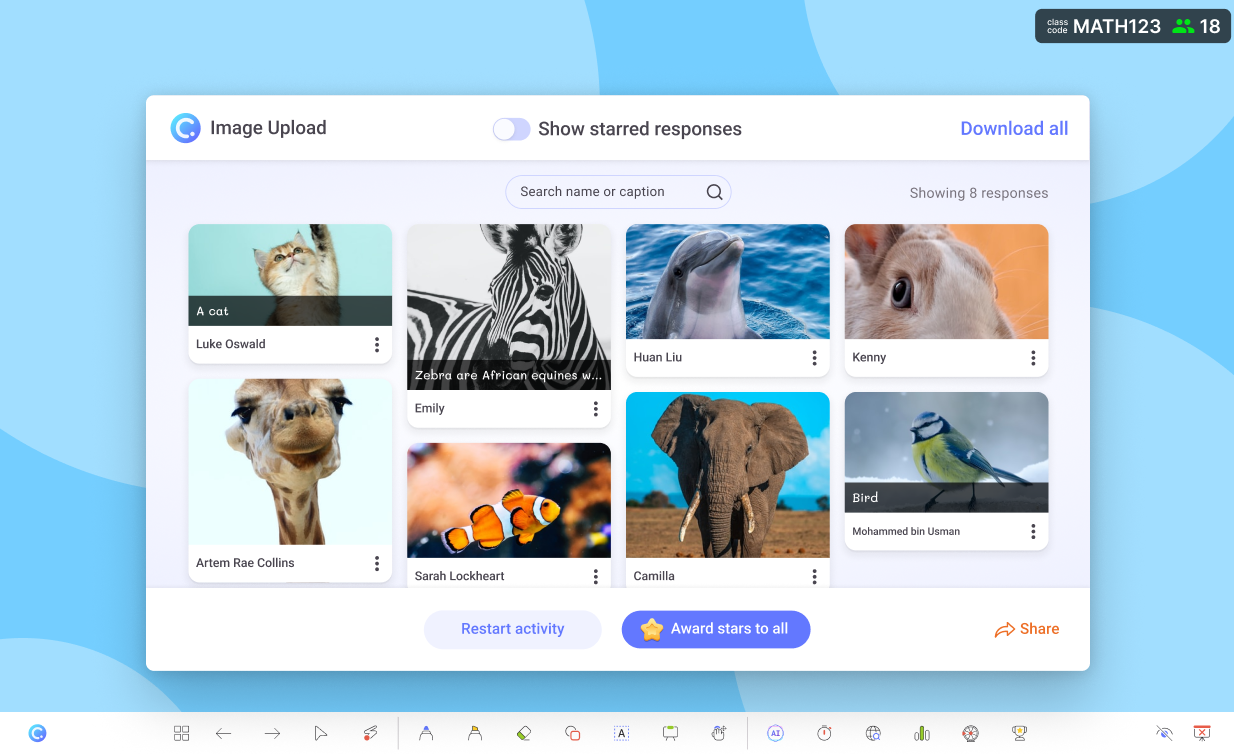
Visual responses are especially effective for diagrams, problem-solving, concept mapping, and creative thinking. They allow the audience to show how they understand an idea, not just describe it. For presenters, these visuals provide immediate insight into misconceptions and reasoning paths.
These features add a visual expression layers to multimodal presentation that text alone cannot capture.
🔠 Interactive Questions turn listening into active processing
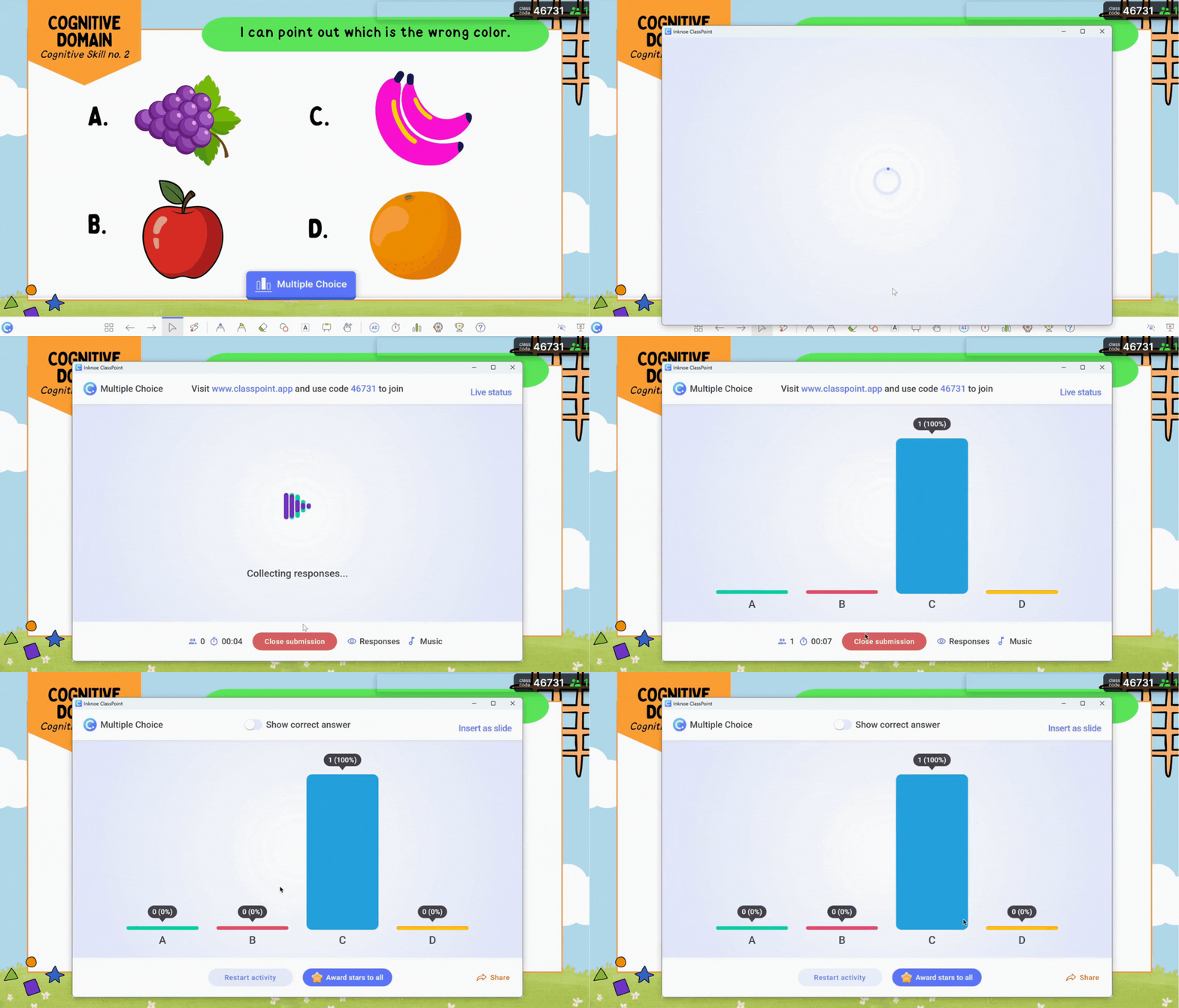
ClassPoint allows presenters to embed live Multiple Choice, Fill in the Blanks, Audio Record, and Live Q and A directly onto slides. This shifts a multimodal presentation from one-way delivery to two-way communication.
Rather than asking learners to silently absorb information, presenters can pause and invite responses at key moments. These responses reveal understanding, confusion, and patterns of thinking. This makes cognitive processing visible and allows explanation to be adjusted immediately.
🗒️ Short Answer responses support deeper expression
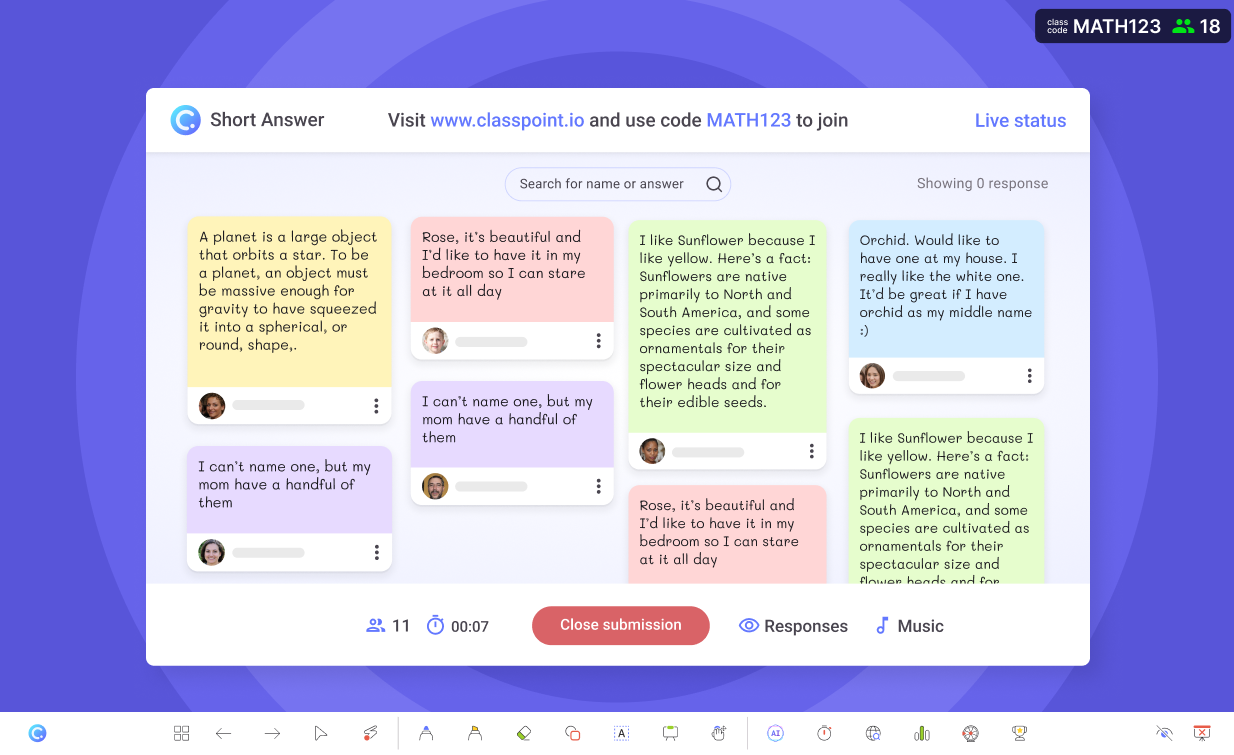
Text responses in ClassPoint are not limited to one-word answers. Participants can submit longer explanations, reflections, or reasoning directly from their devices.
In a multimodal presentation, this supports expressive variety. Learners move from seeing and hearing information to articulating their own understanding. This strengthens comprehension and supports higher-order thinking without requiring additional worksheets or platforms.
Other ClassPoint features you can explore:
- Word Clouds surface collective thinking quickly. Word clouds are effective when exploring prior knowledge, opinions, or key takeaways. This allows the audience to see how their thinking compares with others and provides a low-pressure entry point for participation, especially for quieter participants.
- Quick Polls keep the momentum going. Presenters can run polls directly from slides to gauge understanding, capture opinions, or prompt reflection. Polls are instantly updated, helping presenters adapt the flow of their presentations based on real-time insights into audience thinking.
- Gamification sustains engagement without distraction. ClassPoint includes stars and points to reward participation, encouraging consistent engagement throughout the lesson. It reinforces attention and effort without overshadowing learning goals.
- Real-time response display closes the feedback loop. Responses submitted through ClassPoint can be displayed instantly on the presentation screen. This transforms feedback from a delayed process into an in-the-moment teaching opportunity.
Rather than adding complexity, ClassPoint simplifies multimodal presentation by aligning tools with teaching flow. This allows presenters to focus less on managing technology and more on guiding learning, which is exactly where multimodal presentation has the greatest impact.
