There’s something funny about using technology in the classroom.
Teachers want it to feel helpful. Yet some days it feels like one more thing added to an already full plate. You open your laptop, look at your lesson, and think… I just need something that works.
If you’ve ever had that moment, you’re in good company. Many teachers I meet carry the same mix of curiosity and tiredness. They want to bring in classroom tech that lights students up. They just want it to fit into the day they already have, not the day they hope to have someday.
And that became the heart of this whole guide. Low prep. High value. A way to use technology in the classroom without rebuilding your entire lesson from the ground up. A way to breathe a little easier while still giving students something that feels fresh and alive.
So let’s walk through a few ideas that actually help. Ideas that make sense on a Monday morning when you’re holding your coffee and thinking through the day.
Before diving deeper, you might want to check out our starter guide exploring What EdTech Is: A Jargon-Free Introduction for Educators.
1. Integrate technology in the classroom to simplify daily routines

Every teacher has those small routines that chip away at their focus. You walk into class ready to teach, but the first ten minutes vanish into settling students, collecting warm ups, checking who’s here, and answering little questions before your lesson even starts. By the time you finally get to the good part, half your energy is gone.
Workflow tools help smooth these parts of teaching. A single LMS post can hold your warm up for the week. An automated timer keeps transitions predictable. Attendance tools mark who is present without a roll call. When these pieces run themselves, even a little, you start the lesson with more focus and less friction.
Tech that lightens your daily load
- LMS announcements or pinned warm ups: One place students check each day, instead of asking you repeatedly.
- Digital timers or countdown displays: Smooth transitions without verbal reminders.
- Attendance tools built into your LMS or device: Quicker than calling names and easier to track over time.
- Automated reminders inside your platform: Helps students remember deadlines without extra teacher effort.
Speaking of digital timers, check out this list of 4 Best Free Online Classroom Timer Tools Every Teacher Must Know.
2. Use classroom technology to check understanding
Sometimes a concept needs a quick temperature check before you keep going. Students may look calm, but calm doesn’t equal comprehension. A single question at the right time can save an entire lesson from drifting.
This is where fast assessment tools help. A one-item quiz. A quick comprehension check inside your presentation tool. A self-marking question posted to your LMS. These give you instant feedback with almost no setup. You see where students stand, and you can adjust your pace without guesswork.
Simple ways to keep these checks efficient:
- Choose an assessment tool that loads instantly
- Ask one question that targets the heart of the concept
- Use formats that auto-check when possible
- Look for overall patterns rather than individual errors
- Shift instruction based on what the class shows you
Unsure where to start? Go through our best picks of 11 Online Tools for Student Assessment.
3. Use tech to give participation paths to students
Some students stay quiet even when they understand the lesson. Speaking out feels risky for them. The pace of class moves fast. Their confidence moves slower. Without another doorway in, their thinking stays invisible.
Alternative response tools give these students safer paths. They can share inside a group document instead of speaking alone. They can draw or annotate to show how they understand something. They can record short audio thoughts when writing feels slow. These channels let them participate without the pressure that usually stops them.
Ways tech supports quieter voices:
| Student preference | Useful tool type | Why it helps |
|---|---|---|
| Prefers writing | Shared docs or comment threads | Shares ideas without public speaking |
| Thinks visually | Digital annotation tools | Shows understanding through diagrams instead of words |
| Needs clear structure | Guided prompts or scaffolded templates | Gives a starting point when open questions feel overwhelming |
| Communicates better verbally | Short audio or voice notes | Lets students express ideas without long writing |
To make classroom sessions inclusive, play around with alternative response tools. Here are the 13 Best Audience Response Systems for Classrooms.
4. Use technology to bring more real world content into the lesson
Some concepts make more sense when students see how they appear in everyday life. A clear explanation sets the stage, but a real example gives it weight. Students follow ideas more easily when they can picture them.
Technology helps you bring these connections in quickly. A short YouTube clip can show a process in motion. Google Earth can place an event or location within a real setting. A simple simulation from an educational website can demonstrate how a system behaves. These pieces take only seconds to open, yet they turn abstract ideas into something students can picture.
When the real world enters the room, students stay engaged longer. The learning feels relevant and grounded, not separate from their lives.
5. Use tech tools to support self-paced learning
Every teacher knows how tricky it is when students move at different speeds. Some finish early. Some take longer. Some need instructions twice. You want the whole room learning, but you also want to stay available for students who genuinely need you.
Tech in the classroom helps you manage these moments without splitting yourself in half. Students can replay instructions in a video or audio clip. Early finishers can work on a short digital task. Students who need more time can follow a slower version of the steps. A simple tracking tool shows them where they are so they don’t raise their hand for every tiny thing.
Ways tech helps with pacing differences:
- Replayable instructions: Use PowerPoint voice notes, Loom, or a quick screen recording. Students revisit steps without waiting for you.
- Two digital task options: One for early finishers and one for those who need more time. Keeps everyone moving without juggling piles of paper.
- Short digital practice tasks: Google Forms, ClassPoint quizzes, or small LMS assignments. Light on prep. Heavy on value.
- A simple progress board: A chart on your projector or LMS so students know what to do next.
We've done the work for you and curated the 25+ Classroom Technology Tools That Are Actually Worth Using.
6. Use classroom tech to help students review
Review is one of the strongest ways to reinforce learning. Yet fresh review materials take time, especially when you need variety over the course of a unit. Students need practice. Teachers need time. Balancing both can feel difficult.
Digital practice tools help you bridge that gap. You can reuse last week’s questions and rearrange them into a new set. Old comprehension items can be turned into a short practice quiz. Auto checked questions give students immediate feedback without adding to your grading load. The routine stays consistent while your prep stays manageable.
Simple way to keep review efficient:
- Create a small bank of questions you can reuse
- Mix familiar items with a few new ones to keep practice fresh
- Use tools that check answers automatically
- Let students redo older sets when they need more support
Since we're talking low-prep, here are 10 Low-Prep Classroom Review Games Your Students Will Surely Love.
Best practices for keeping classroom technology low-prep
Low-prep technology works best when the structure behind it is stronger than the tool itself. Tools shift. Platforms update. Networks go down. What survives are the habits that make your classroom steady regardless of what device students hold.

Here are best practices that come from lived experience:
✅ Design one classroom tech routine that students can run without you
When students can start the warm up, open the task, or set up the shared board before you even speak, you save energy for the harder parts of teaching. This is the difference between “classroom tech use” and “classroom tech management.” Students running the routine is the real time-saver.
✅ Teach the tech during calm moments, use it during busy ones
The mistake many teachers make is introducing a tool right when they need it. Teach it during a slow moment instead. When chaos hits, students already know what to do. This single shift makes every tool feel lighter.
✅ Build your lesson around one stable anchor tool
Not five tools. Not a rotation. One anchor that holds your core workflow. Everything else is optional. This keeps your prep low because most of your materials live in one place rather than scattered across different platforms.
✅ Create “evergreen tasks” that adapt across units
Instead of making brand new digital activities all the time, create formats that fit any topic. A comparison board. A quick reflection frame. A practice cycle. You only change the content, not the structure. This cuts prep dramatically over time.
✅ Use tech signals instead of verbal directions
Visual timers. Slide cues. Color coded sections. These replace repeated instructions and reduce class noise. Students learn to follow the visuals, which keeps your voice free for what matters.
✅ Let students choose the format when the goal stays the same
If the objective is understanding, let them show it through text, audio, diagrams, or collaborative boards. You prepare one task, but students use the format that fits them. This reduces your workload and increases participation at the same time.
How ClassPoint fits into a low-prep, anchor-tool approach
Low prep teaching only works when your main tool can hold the shape of your lesson. Teachers often try to manage warm ups in one place, participation somewhere else, and checks for understanding across a separate platform. The pieces work, but the juggling gets heavy.
This is why many teachers settle on an anchor tool. One place where the lesson begins and ends. One tool students recognize. One workflow that holds steady even when the day gets chaotic. PowerPoint naturally becomes that anchor for a lot of classrooms because the entire lesson already lives there.
ClassPoint strengthens that anchor. It adds interaction, classroom management, data, and AI support directly into the slides you already teach with.
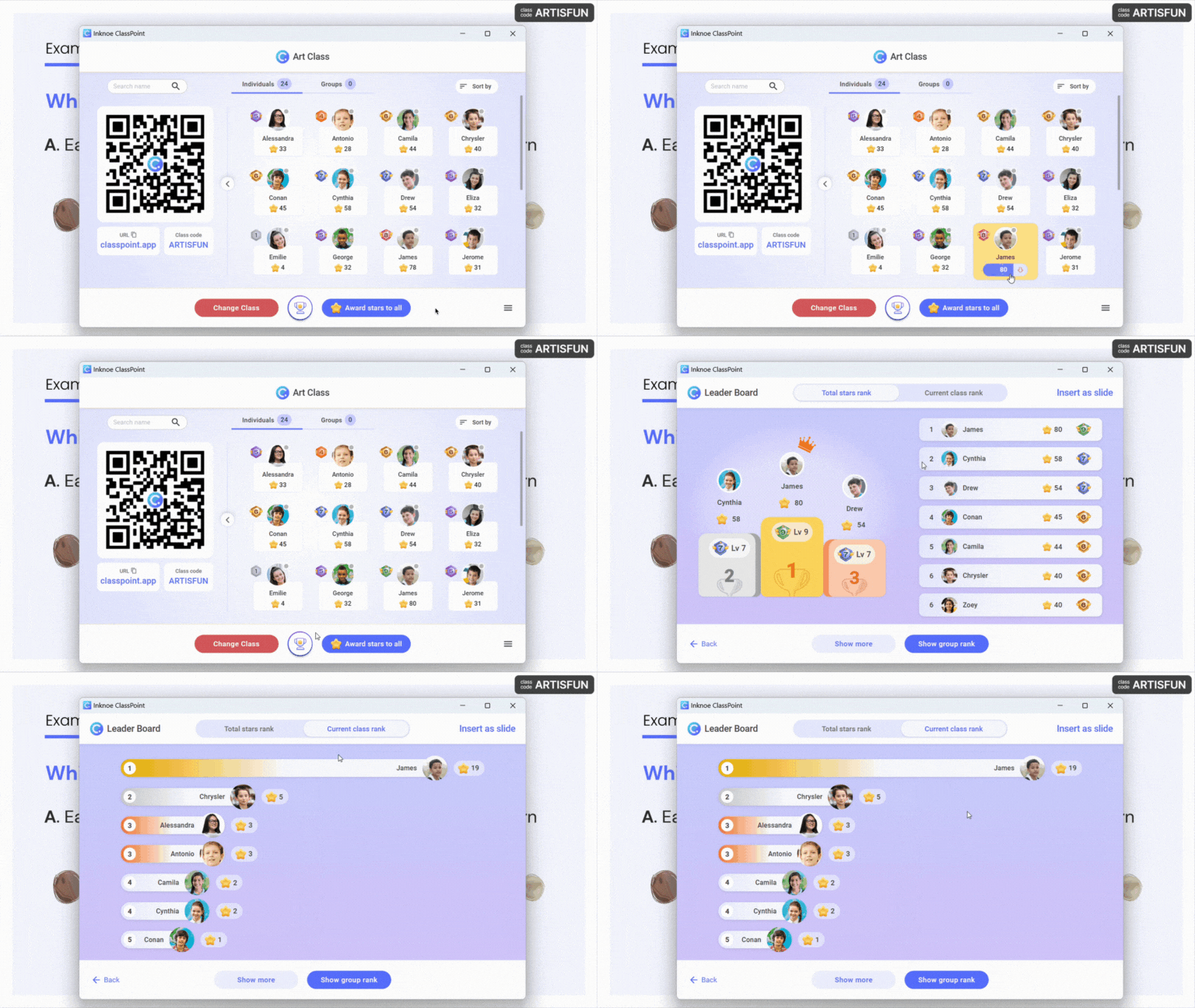
Here’s how ClassPoint supports a low prep teaching routine:
- Classroom management with My Class: Teachers can keep attendance, class lists, and session history organized in one place. It supports daily routines without adding new systems to manage.
- Interactive quizzes inside your slides: You can add eight types of questions right onto your PowerPoint slides. Students respond from their devices while you remain in the same slideshow.
- Fun gamification that blends with your lesson: Stars and rewards help sustain motivation during longer tasks or reviews. You can conveniently award student stars from ClassPoint, and help them go through levels that reflect at a visual leader board.
- Live presentation tools in one compact toolbar: The name picker, timer, and annotation tools stay at the bottom of your screen during presentation mode. Each tool opens instantly and helps you guide the room without stopping the lesson.
- Secure reports and classroom data in the web app: After each session, ClassPoint organizes all classroom stats into clear reports. Teachers can view patterns, export data, and revisit past sessions to track progress across time.
- AI tools that support planning and reflection: ClassPoint can generate quiz questions from your slide content, summarize student submissions, and highlight insights from each live session.
