
There’s no shortage of tools promising to make presentations more interactive. Some focus on flexibility during live lessons, while others aim to support structure in everyday classroom use.
Classroomscreen and ClassPoint often get grouped together for that reason.
But once you actually start using them in real classroom scenarios, the differences start to show. Setup, tracking, question types, engagement tools, and how each tool fits into daily teaching all matter more than they seem at first.
This comparison is based on careful, hands-on testing, looking at how both tools perform across real classroom use cases, so you don’t have to do it yourself.
TL;DR: Classroomscreen vs ClassPoint At a Glance
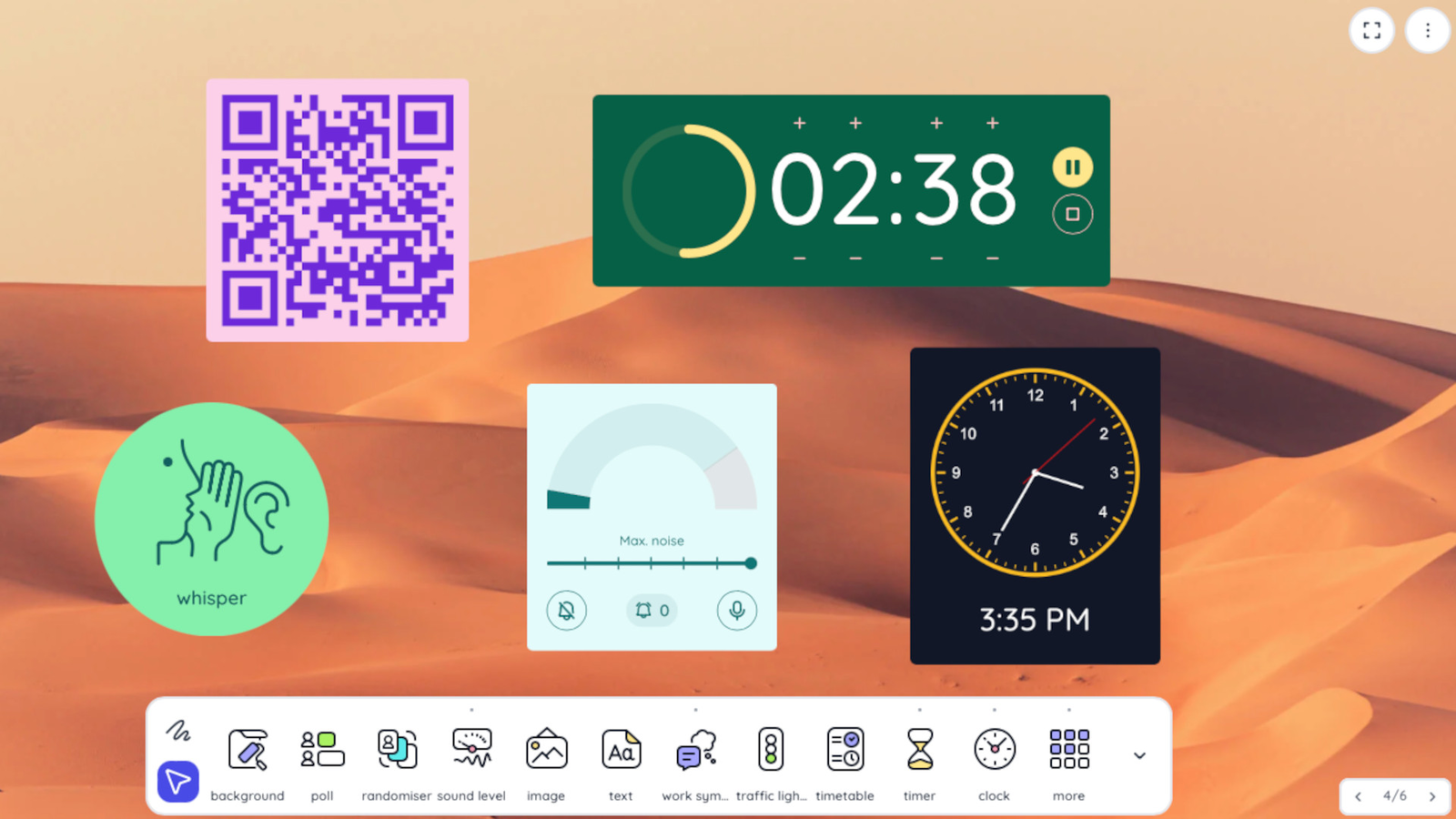
Classroomscreen leans more toward being a whiteboard at its core. Still, because of the tools, or widgets rather, built into it, it comfortably qualifies as an interactive presentation tool for classrooms. It does the job well, and more importantly, it does it efficiently.
One thing that stands out right away is how intuitive everything feels. Even during testing, it was clear that most teachers could pick it up on the spot. Each tool does exactly what it looks like it should do, with no guessing involved.
ClassPoint, on the other hand, already lives inside PowerPoint, which makes it a default interactive presentation tool from the start. Known for turning ordinary slides into interactive activities, ClassPoint covers the full range of classroom needs, from quizzes to gamified participation, with plenty of room to adapt to different teaching styles.
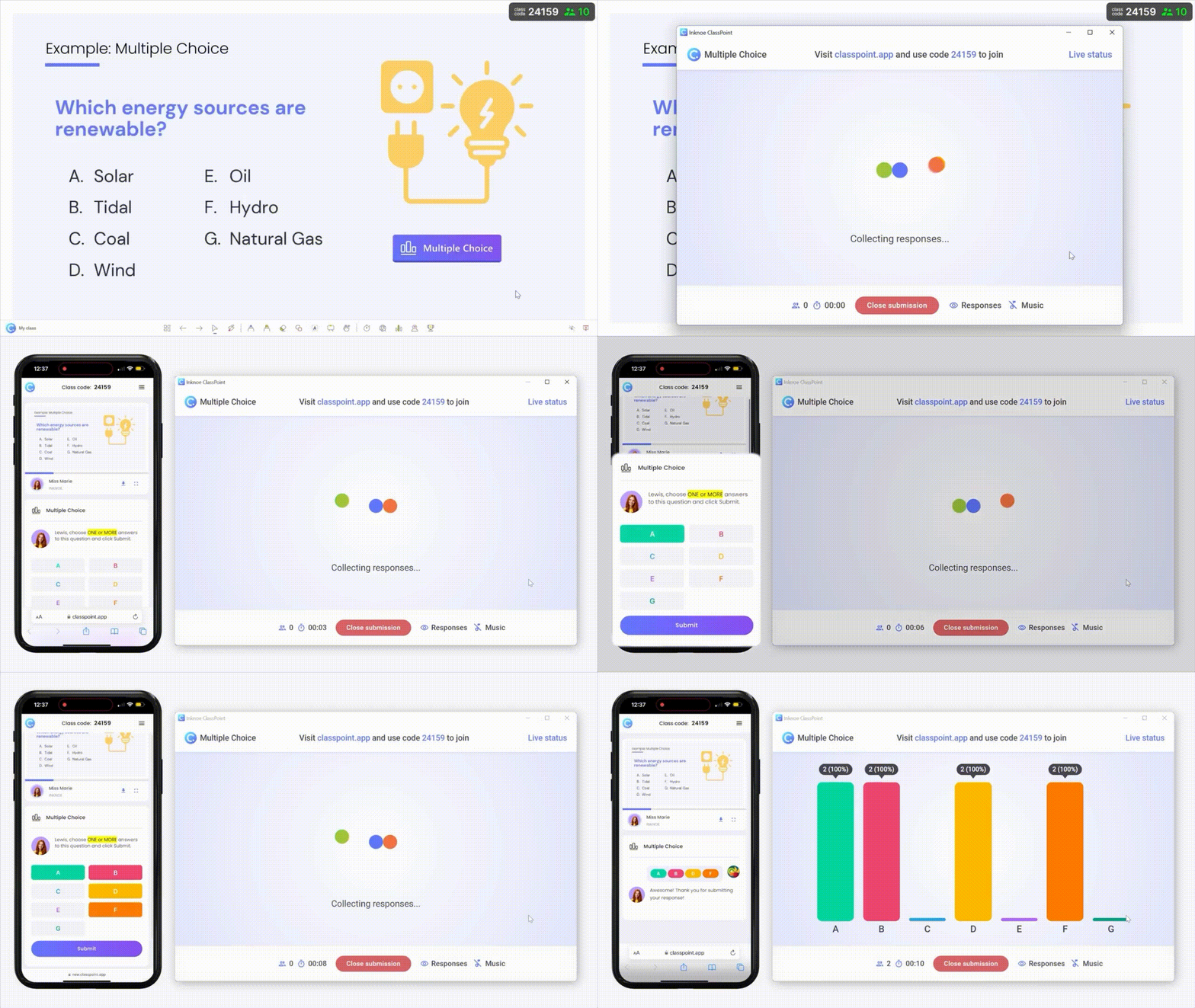
At a high level, both tools follow the same basic flow: students join through a participant app, enter a code, and start responding from their own devices.
If you’re short on time, this table breaks down the core differences at a glance. It highlights how ClassroomScreen and ClassPoint compare across setup, interaction, engagement, and long-term classroom use, based on intentional teaching scenarios.
| Area | ClassroomScreen | ClassPoint |
|---|---|---|
| Primary use case | Best suited for quick, one-off sessions | Built for everyday classroom teaching |
| Class setup | Join with a code, session-based only | Public and private classes with saved sessions |
| Student tracking | No student profiles, responses stay anonymous | Student names and profiles are tracked |
| Data & reports | No saved data after sessions end | Reports and response data saved automatically |
| Interactive question types | Polls only (MCQ, Smileys, True or False) | Eight question types, including drawing, audio, and media |
| How questions are run | Added on the spot as widgets | Embedded directly into PowerPoint slides |
| Live participation tracking | Not available | Live Status shows who has and hasn’t responded |
| Live presentation tools | Creative widgets like symbols, stickers, and traffic lights | Structured tools like inking, whiteboards, spotlight, and laser |
| Engagement tools | Timer and manual name randomizer | Timer, stopwatch, drag and drop, auto name picker |
| Gamification | Team-based scoring only | Full system with stars, levels, badges, and leaderboards |
| AI features | None | AI quiz generator built into PowerPoint |
| Prep required | Low, but limited reuse | Low, with reuse and tracking built in |
Setting up your class
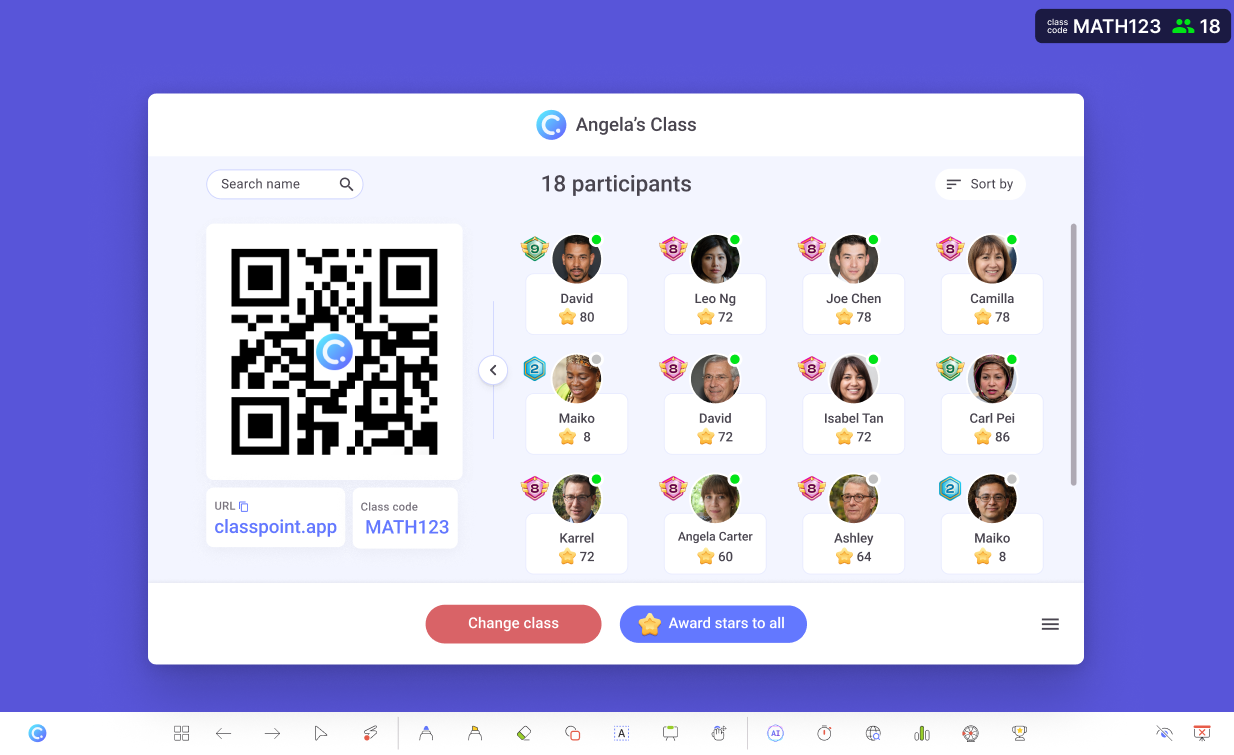
ClassroomScreen and ClassPoint, as mentioned, both allow students to join sessions easily using unique codes through participant apps. ClassroomScreen, however, while straightforward, does this with fewer of the features teachers usually rely on when setting up classes on a digital platform.
In ClassroomScreen, one-off presentations is king. Students join a session, respond to a few polls, leave the class, and that’s essentially it. No data is saved. Students aren’t tracked as individuals when they submit responses.
What you see instead is a count of answers, without any visibility into who submitted what.
For on-the-spot sessions, this works fine. But classroom use typically asks for more than just momentary interaction.
ClassPoint also supports one-off presentations through public classes, but it goes further by offering options that better support everyday classroom use:
- Even in public classes, student names are recorded, so every submission is tied to a student profile rather than just a response count
- Private classes allow teachers to set up student lists before a presentation even begins, with an added layer of security that only lets listed students join
- Both public and private classes come with ready reports and recorded data that can be reviewed later
- Within the same presentation, all student submissions are automatically saved as part of the deck, making it easy to revisit responses without jumping between tools
Running interactive questions
ClassroomScreen relies on polling as its main way to send interactive questions to students. These polls come in three types: Multiple Choice, Smileys, and True or False.
Adding a poll during a presentation is entirely on the spot. You drop in a poll as a widget, select the poll type, fill in the prompt or question, and it’s immediately sent to the students who have joined your session.
Tracking, however, is limited. You can see how many responses a poll has received, but as mentioned earlier, there’s no way to tell who submitted what. Responses stay anonymous, tied only to numbers rather than students.
ClassPoint takes a more classroom-friendly route by offering eight different question types. This includes the familiar formats teachers already use, alongside more interactive options that students tend to enjoy:
- Slide Drawing – students draw directly on the teacher’s slides and submit their work as a response
- Audio Record – students record spoken answers, which makes activities like tongue twisters or reading aloud far more engaging
- Image and Video Upload – students upload their own media or search the web, so responses aren’t limited to text

Because ClassPoint lives inside PowerPoint, your slides themselves become the foundation of your interactive questions. You add prompts directly onto your slides, embed a ClassPoint button, and run everything straight from slideshow mode while presenting.
Unlike ClassroomScreen, ClassPoint places strong emphasis on tracking. Responses are tied to student profiles and saved automatically. There’s also a built-in Live Status tracking feature that shows who has and hasn’t participated yet, which adds a subtle but useful nudge during live sessions.
Check out our more in-depth guide on How to Make an Interactive Quiz in PowerPoint in Less Than 1 Minute using ClassPoint.
Live presentation support
This is where things get fun.
ClassroomScreen has a few genuinely creative tools that help facilitate live classroom discussions. Some of these are personal favorites because of how simple yet effective they are during a lesson:
- Work symbols – visual cues you can attach to prompts to signal silence in the class, whispering, asking a neighbor, or working together
- Traffic light – stop and go signals you can use to guide pacing or attention
- Stickers – playful visual prompts that keep students’ eyes moving and engaged during live presentations

By design, these tools come as widgets that you can resize and move freely around the screen. That flexibility allows for a very dynamic, lightweight presentation style that feels less rigid and more open.
ClassPoint, on the other hand, leans more toward structured presentations built for everyday classroom use. It focuses on giving teachers a solid, reliable set of tools to guide lessons smoothly from start to finish.
You get a full live inking toolbox, the ability to add live text even while in slideshow mode, default and custom whiteboards, along with tools like a laser pointer and spotlight.
What works particularly well here is that everything stays within your PowerPoint slideshow. There’s no need to jump between tools or modes, which keeps the presentation flow intact while you teach.
Running a live ClassPoint session for the first time? Here are 5 Live Classroom Must-Dos for More Effective Lessons with ClassPoint.
Engagement boosters
Engagement means different things to different teachers. For both ClassroomScreen and ClassPoint, it shows up in how students are pulled in at unexpected moments during a presentation.
ClassroomScreen gives you a clean, spot-on timer that you can run anytime to add urgency and pace. To push this a little further, there’s also a name randomizer that you can pull up whenever you need it.
The catch is that because ClassroomScreen doesn’t collect student profiles for each session, the randomizer has to be set up manually. You’ll need to enter your own list of student names before you can use it.
ClassPoint also offers both tools, but in a way that feels more straightforward for everyday use. Since ClassPoint sessions are tracked and saved with student profiles, its built-in Name Picker requires no manual setup. All the names are already there, ready to go.
- Name Picker – comes in three modes, including a spinning wheel, emoji cards, and auto-pick
- Timer and Stopwatch – interchangeable, with alarm sounds, and can be minimized into a floating mini window to avoid becoming a distraction
- Drag & Drop – turns slide elements into draggable objects during presentation, making it easy to run quick drag-and-drop activities
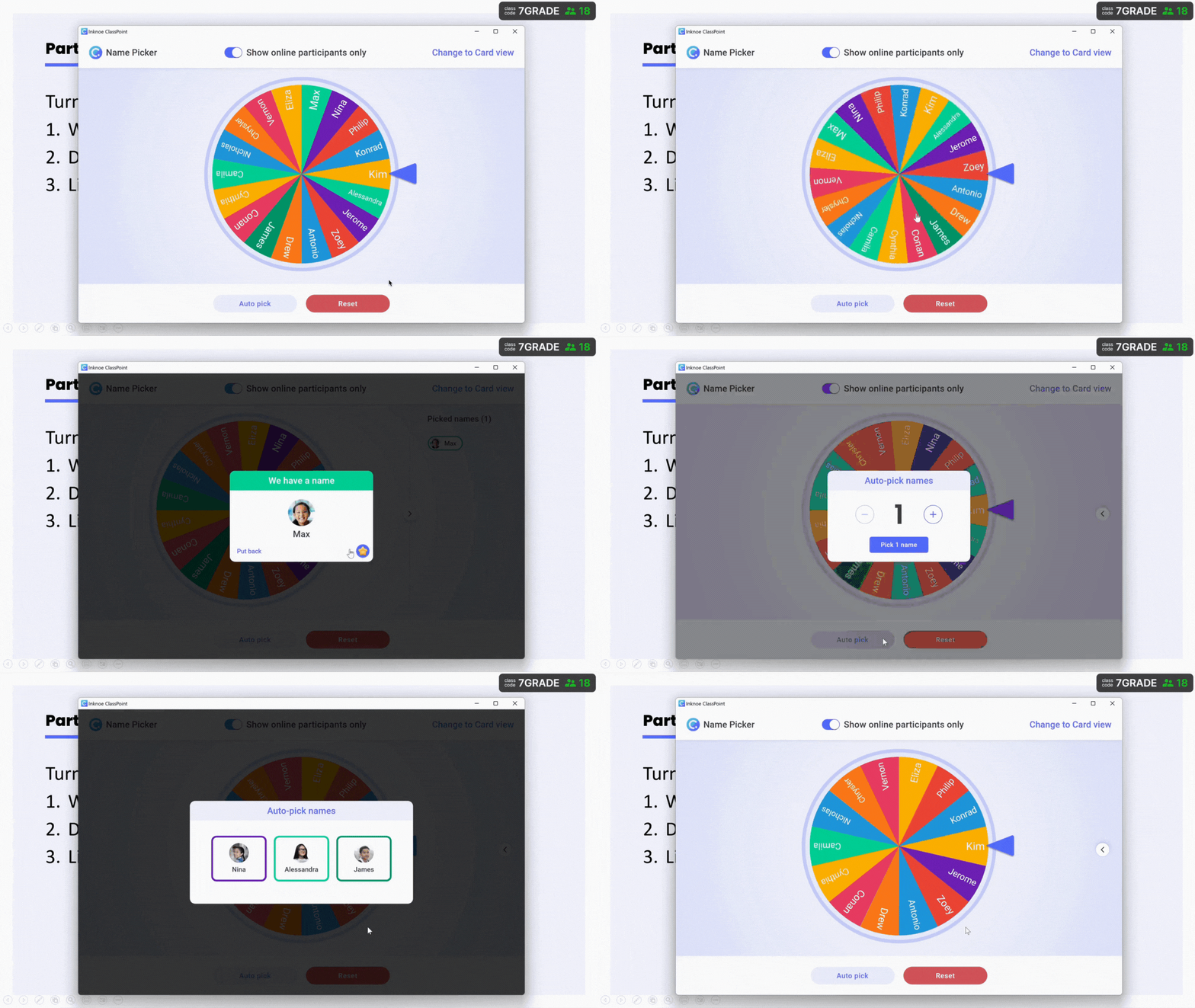
For a step-by-step guide, here's how you can Add a Spinning Wheel of Names in PowerPoint with ClassPoint.
Gamification
ClassroomScreen allows you to form groups to kick off gamification during class. A separate scoreboard is available as well, letting you award scores in different modes such as home and away, points, or race.
What’s limiting, though, is that ClassroomScreen gamifies almost exclusively at the team level. That’s understandable, given that it doesn’t track individual student participants. Without student profiles, individual scoring wouldn’t really make sense.
That said, this is largely the extent of what ClassroomScreen offers when it comes to gamification.
Where ClassroomScreen stops, ClassPoint goes further, and quite generously too.
ClassPoint comes with a full gamified learning system built in:
- Stars as the main point currency
- Levels that students rank up through as they collect stars, with customizable badges tied to each level
- Leaderboard views that show top-performing students, either within a single session or across multiple sessions
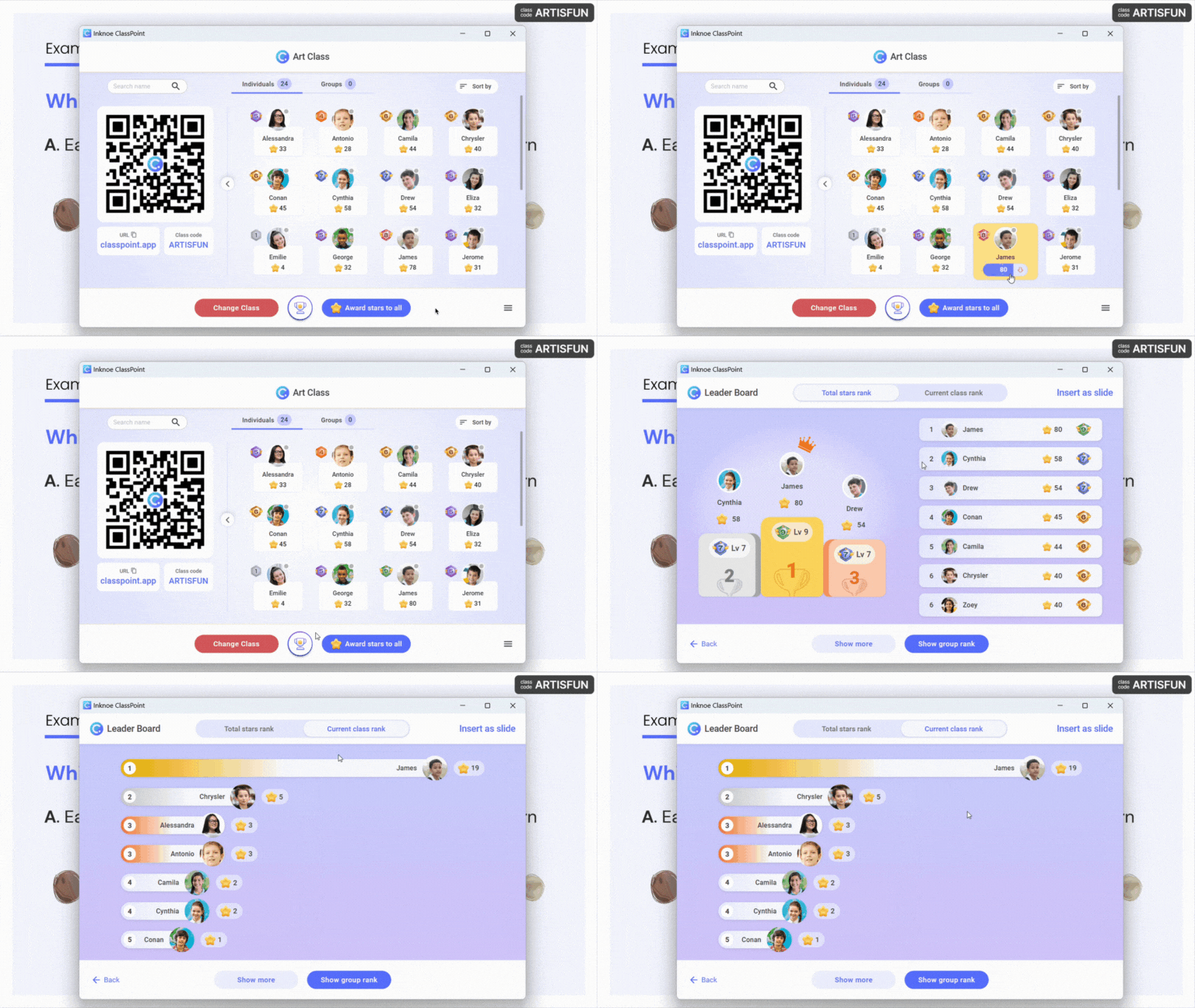
This makes ClassPoint a very valuable gamification tool that’s clearly designed with real classroom dynamics in mind.
Speaking of gamification, you might want to dive into our curated list of Easy Gamification Examples in the Classroom for Busy Teachers.
AI features
AI has entered classrooms, and by now, it’s becoming a staple.
Simply put, ClassroomScreen does not offer any AI-supported features at the time of writing.
ClassPoint, however, comes with its flagship AI quiz generator, ClassPoint AI, which allows teachers to:
- Create AI-generated questions on the spot based directly on slide content, using the text already on information slides
- Align questions to Bloom’s Taxonomy levels
- Insert AI-generated questions as slides with embedded ClassPoint buttons, ready to be run immediately
This means quizzing in ClassPoint can require virtually no prep when ClassPoint AI is used. Questions are generated, placed into slides, and made interactive in one flow, right where teachers are already working.
Apart from its AI quiz generator, there are more AI Tools in ClassPoint that are best fit for your everyday teaching needs.
So, which one should you use?
At the end of the day, both tools work in classrooms. They just solve different teaching needs. The decision comes down to how structured your lessons are, how often you rely on interaction, and what you expect to happen after the lesson ends.
Use ClassroomScreen if…
- You mainly run short, one-off sessions where interaction matters in the moment
- You prefer flexible, visual prompts that help guide live discussion
- Student tracking, saved data, and reports are not part of your workflow
- You want a lightweight, widget-based tool that keeps presentations loose
Use ClassPoint if…
- You teach regularly and need sessions, responses, and student data saved over time
- You want interactive questions to live directly inside your PowerPoint slides
- Engagement, gamification, and participation need to work beyond a single session
- You rely on features like tracking, reports, and AI-generated quizzes to reduce prep
